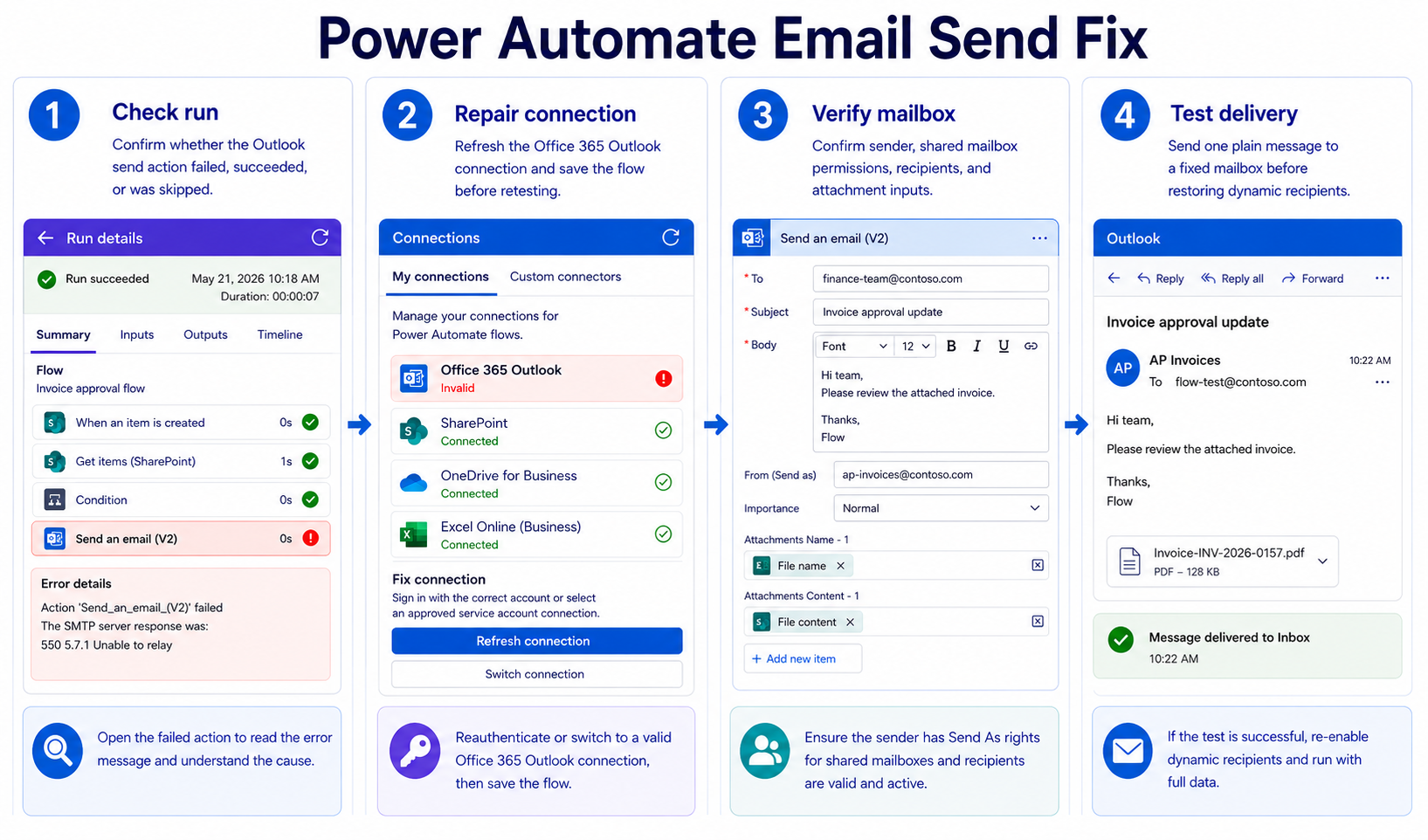
When Power Automate stops sending emails, the message may fail in the run, land in a recipient’s junk folder, wait behind a connector problem, or be blocked by mailbox permissions. The right way to fix Power Automate not sending emails is to separate flow execution from mail delivery. Microsoft’s email troubleshooting and Office 365 Outlook connector documentation point you toward run history, connector authentication, send-mail action settings, and mailbox access.
Confirm the Power Automate email action ran
Read the send action output
Open the failed or suspicious run and expand the Outlook email action. If the action failed, read the error, status code, selected connection, recipients, and message inputs. If it succeeded, capture the message details and then troubleshoot delivery, spam filtering, or recipient-side rules.
My first split is simple: did Power Automate fail, or did email delivery fail later?
Do not change the whole flow until you know whether Send an email actually executed. A condition, trigger filter, or earlier action may have skipped the email branch entirely.
Check skipped branches and conditions
If the email action is gray or marked as skipped, inspect the condition or switch that controls it. A condition comparing the wrong dynamic field can quietly send the run down another branch. Also confirm that the trigger received the expected data and that empty fields did not make a condition evaluate differently than expected.
When the failure sits earlier in the run, use this guide to diagnose flow failures before working on Outlook settings.
Verify recipients and message fields
A syntactically valid email action can still send to the wrong place. Check the To, Cc, Bcc, From, Subject, and Body fields for missing dynamic content, semicolon mistakes, or unexpected arrays. If the flow builds a recipient list from Excel or SharePoint, inspect the value passed into the email action rather than the original table.
Send one test message to yourself with a fixed recipient. If that works, the problem probably belongs to dynamic recipient logic.
Repair Outlook connector settings
Refresh the Outlook connection
Open Data >> Connections and inspect the Office 365 Outlook connection used by the flow. If Power Automate shows a connection warning, select Fix connection, sign in again, save the flow, and rerun a small test. Microsoft’s connector documentation lists many Outlook operations, but they all depend on a valid authenticated connection.
Connection health matters even when the flow designer still opens normally. Expired credentials, changed passwords, or revoked consent can break the send action at runtime.
Confirm mailbox send permissions
Flows that send from shared mailboxes need the connection account to have the right mailbox permission. If the action uses a shared mailbox address or “send from” field, verify that the account can perform the same send operation in Outlook. Personal accounts cannot automatically send from every team mailbox.
Use these checks before changing message content:
- Send a plain test email from the same mailbox in Outlook on the web.
- Confirm the flow action uses the intended mailbox, not an old copied value.
- Ask an admin to verify shared mailbox rights when the sender address is not personal.
- Recreate the action only after permissions and connection health are confirmed.
Review attachments and size issues
Attachments can make an otherwise valid email action fail or produce delivery problems. Confirm that file content is present, the file name includes an extension, and the total message size is reasonable for your tenant rules. If the flow loops through multiple files, log the count and size before sending.
For attachment-specific setup, use the guide to send file attachments after the basic send action works.
Resolve delivery and throttling problems
Test outside production recipients
Create a test branch or copy the flow and send to one internal mailbox first. Check the recipient inbox, junk folder, quarantine if available, and any transport rule behavior your admin can see. If the action succeeds but the message never arrives, the problem is now mail delivery, not the Power Automate flow logic.
When I test email flows, I remove dynamic recipients until one fixed test recipient works.
This approach prevents accidental mail blasts while you troubleshoot. It also proves whether the body, sender, and connector can produce a basic message.
Watch connector and service limits
High-volume email flows can hit service protection, throttling, or organizational sending rules. If the run history shows retries or delays around Outlook actions, reduce the batch size, spread sends over time, or queue messages through a more controlled process. Microsoft’s Power Automate email troubleshooting guidance is especially relevant when a flow sends many messages in a short period.
Avoid using a cloud flow as a bulk marketing sender. It is designed for workflow notifications, approvals, reminders, and business process messages, not unrestricted bulk mail.
Rebuild only the email action
If the connection is healthy and permissions are correct, delete and recreate only the email action in a copy of the flow. Re-select the connection, type a fixed test recipient, and send a plain text message. Then reintroduce dynamic subject, body, attachments, and sender settings one at a time.
This isolates malformed dynamic content without risking the working trigger and upstream actions. Rebuilding the entire flow is rarely necessary.
Outlook – Power Automate integration flow questions answered
Why does Power Automate say the email sent?
The Outlook action can succeed when the connector submits the message, but later delivery can still be affected by mailbox rules, junk filtering, quarantine, or transport policy. Check the recipient side and admin message tracing if the run succeeded. The run history only proves the flow action result.
Can Power Automate send from a shared mailbox?
Yes, but the connection account must have permission to use that shared mailbox, and the action must be configured for the correct mailbox behavior. If a copied flow stops sending, verify that the new owner or service account has the same mailbox rights. Test from Outlook on the web with the same account.
Why are attachments missing from emails?
The flow may be passing file metadata instead of file content, using an empty array, or building the attachment name incorrectly. Inspect the email action input in run history and confirm each attachment has content and a file name. Test with one small known file first.
Email troubleshooting is easier when you prove where the message disappeared. Start with run history, repair the Outlook connection, verify mailbox rights, then test delivery with one controlled recipient.