Copilot correct grammar requests work best when you treat Copilot as a rewrite partner and Microsoft Editor as the proofing layer. Copilot can smooth a rough paragraph, make a sentence clearer, or change tone, while Editor catches the grammar, spelling, clarity, conciseness, and formality issues that still need direct review. The mistake I see most often is asking Copilot for a broad “fix this” pass and accepting the result without checking whether the meaning shifted.
Use Copilot when the sentence needs rewriting, not only a red underline. Use Editor when the wording is already close and you want targeted corrections.
Use Copilot rewrites without overediting
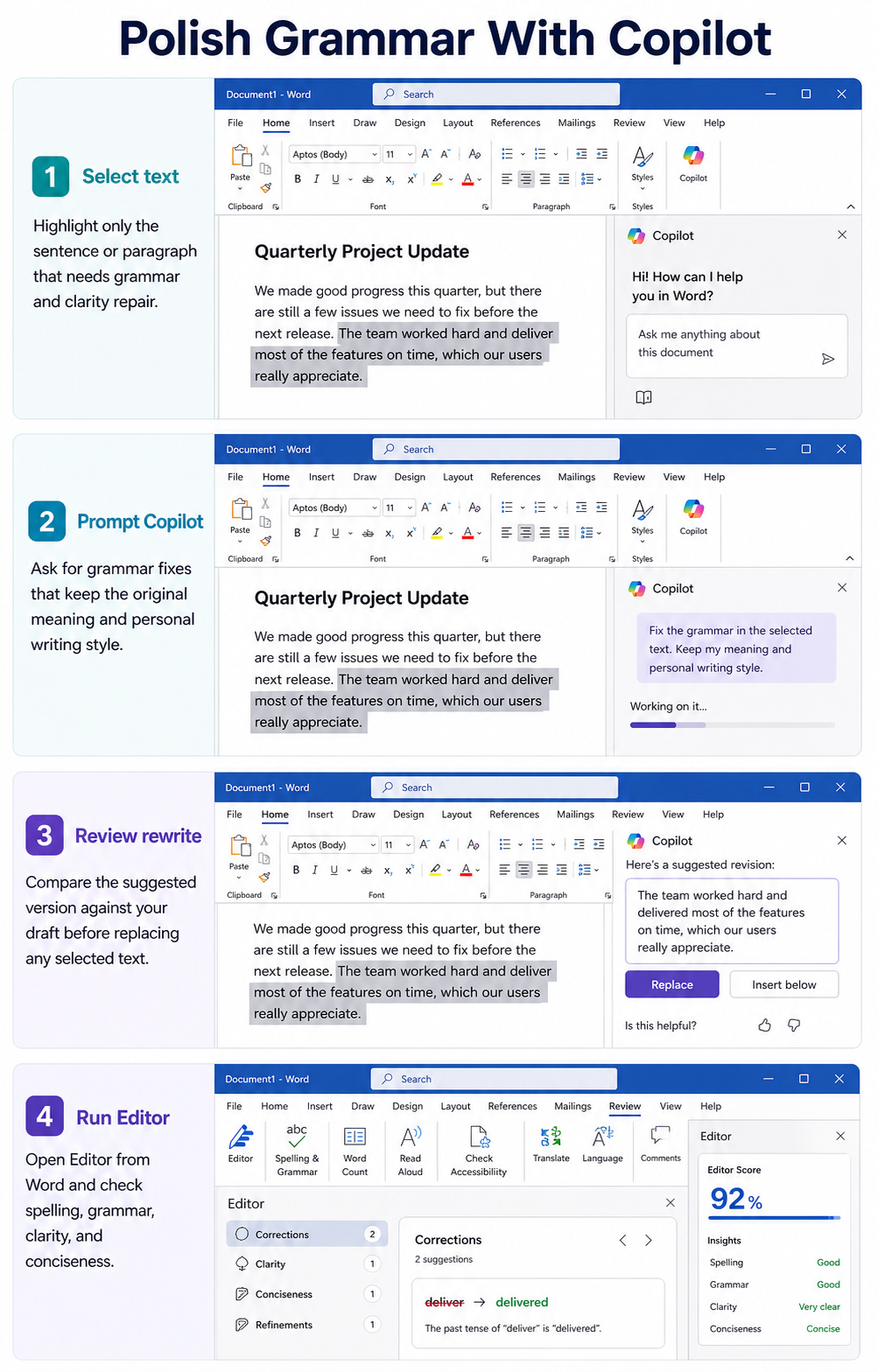
Select only the weak sentence
Start by selecting the sentence, paragraph, or bullet that actually needs help. In Word, Copilot works on selected text, so a narrow selection gives you a tighter rewrite and makes the result easier to compare with the original. If you select a whole section, Copilot may improve flow but also change emphasis, remove nuance, or make your writing sound more generic.
For a grammar-focused pass, select the smallest meaningful unit and ask for a restrained rewrite. A useful prompt is: “Correct grammar and punctuation, keep my tone, and do not add new details.” That gives Copilot enough direction without inviting it to rewrite the point from scratch. When my own draft is nearly done, smaller selections usually produce fewer tone surprises.
Ask for grammar-preserving rewrites
Copilot in Word can rewrite selected text and show alternate versions, including an Auto Rewrite option in supported Word experiences. Use that for sentences that are technically understandable but clumsy, repetitive, or too casual for the document. The important part is the instruction you give it: ask for grammar, clarity, and punctuation fixes while keeping the meaning unchanged.
Try prompts like these when you want a clean correction instead of a new draft:
- “Fix grammar and punctuation only, and keep the original wording where possible.”
- “Make this paragraph grammatically correct and concise without changing the meaning.”
- “Correct tense, agreement, and punctuation while keeping my writing style.”
Do not use Copilot as the only proofing pass for legal, financial, HR, or customer-facing wording that depends on exact phrasing. Microsoft’s own Copilot guidance warns that generated content can be inaccurate or inappropriate, so review the result before you replace the original.
Compare each suggested rewrite carefully
After Copilot returns a rewrite, compare it against the original before replacing the text. Watch for changed dates, softened commitments, removed qualifiers, and new claims that were not in your draft. Grammar improvements are useful only if the sentence still says what you intended.
If the rewrite is close but not perfect, use it as a base rather than accepting it whole. Keep the corrected verb tense, punctuation, or sentence order, then restore any detail Copilot removed. For privacy or policy-sensitive documents, control Word AI features before relying on generated rewriting in shared environments.
Run Editor after Copilot changes
Open Editor from Word Home
After the Copilot rewrite pass, open Microsoft Editor from the Home tab in Word. Editor analyzes the document for spelling, grammar, and writing refinements, and Microsoft says Microsoft 365 subscribers get more advanced suggestions such as clarity, conciseness, formality, and vocabulary improvements. This is the pass that catches ordinary mistakes after the AI rewrite looks polished.
Use the Editor pane by category instead of clicking every suggestion blindly. Start with Spelling and Grammar, then move to refinements such as Clarity or Conciseness if the document needs polish. This order keeps you from accepting style suggestions before the basics are clean.
Review grammar cards one at a time
In the Editor pane, choose a correction or refinement type and use the arrows to move through suggestions. Accept the fixes that clearly correct grammar, punctuation, word choice, or repeated wording. Ignore suggestions that change the intended tone, especially in messages where a warmer or more direct voice matters.
Editor is better than Copilot for this final pass because it shows specific issues rather than replacing full paragraphs. I rely on Editor after Copilot because it catches small agreement errors that rewrites can leave behind. If you use Outlook, Teams, or browser-based writing tools, the same habit helps: rewrite first when needed, proof second before sending.
Check languages before trusting results
Grammar and refinement checks vary by language, and Microsoft documents that Editor does not check the same issues in every language. If your document mixes English with another language, select the relevant text and set the proofing language before you judge the suggestions. Otherwise, correct writing can be flagged incorrectly, or real grammar issues may be missed.
In Word for the web, Microsoft notes that Editor settings are available from Review >> Editor >> Editor Settings when the Editor panel is closed. In desktop Word, use the Editor pane from Home and review the available categories there. If the document is multilingual, do not assume every refinement category is available for every section.
Fix common Copilot grammar problems
Keep Copilot from changing meaning
If Copilot keeps rewriting too aggressively, make the prompt narrower and add a constraint. “Correct grammar only” is better than “improve this,” but “Correct grammar only and keep every fact, date, name, and commitment unchanged” is stronger. That wording tells Copilot that preservation matters more than style.
When the sentence is important, ask Copilot for multiple options instead of one replacement. Pick the least invasive version, then run Editor on the paragraph afterward. If the rewrite still changes meaning, abandon the generated version and manually apply only the grammar fix.
Use Editor when Copilot is unavailable
Copilot may not appear in Word if your Microsoft 365 subscription, license, app version, or organization settings do not include it. In that case, you can still use Microsoft Editor in Word, Word for the web, Outlook on the web, and the Editor browser extension for Edge or Chrome. Editor will not rewrite a paragraph like Copilot, but it is often enough for spelling, grammar, and basic refinement.
This is also the right fallback when you want corrections without AI-generated wording. Open Editor, review Grammar, and accept only the suggestions that preserve your sentence. If you are deciding whether Microsoft 365 Copilot is the right tool for broader writing work, compare AI writing tools before changing your workflow.
Avoid over-polished business writing
Copilot can make ordinary business writing sound smooth but flat. If every sentence becomes formal, balanced, and vague, the grammar may be correct while the document loses personality. Add a tone instruction such as “keep this direct and conversational” or “preserve my wording unless grammar is wrong.”
For emails and short updates, do not ask Copilot to rewrite everything unless the draft is messy. Fix one awkward sentence, then use Editor for the rest. That keeps your message readable without turning a quick note into corporate filler.
Copilot grammar questions answered clearly
Can Copilot fix grammar automatically?
Copilot can help correct grammar when you select text and ask for a rewrite, but it is not a silent grammar checker in the same way Editor is. Use Copilot for rewriting and Editor for targeted grammar and spelling review. Always compare the rewrite with your original before replacing text.
Is Editor better for spelling?
Editor is usually the better tool for spelling, grammar cards, and specific refinement suggestions because it flags individual issues. Copilot is stronger when the sentence needs restructuring or tone adjustment. For a clean document, use both in that order: Copilot for rough wording, then Editor for proofing.
Why did Copilot change meaning?
Copilot generates a rewritten version based on your selected text and prompt, so broad prompts can invite broader changes. Make the instruction narrower, mention that facts and commitments must stay unchanged, and review the output line by line. If meaning matters more than style, apply the grammar correction manually.
Copilot is useful for grammar cleanup when the prompt is specific and the selection is small. The most reliable workflow is simple: rewrite only the weak text, verify meaning, then let Editor catch the remaining grammar and spelling issues.