Exporting a Power BI report to PDF creates a portable snapshot: each included report page becomes a page in the PDF. It is useful for a meeting pack, approval record, printout, or archive, but it is not an interactive copy of the report. Slicers stop working, tooltips disappear, and readers cannot drill through the exported pages.
The cleanest result comes from preparing the report state before selecting Export. A quick review of filters, hidden pages, page dimensions, and custom visuals prevents most clipped or confusing PDFs.
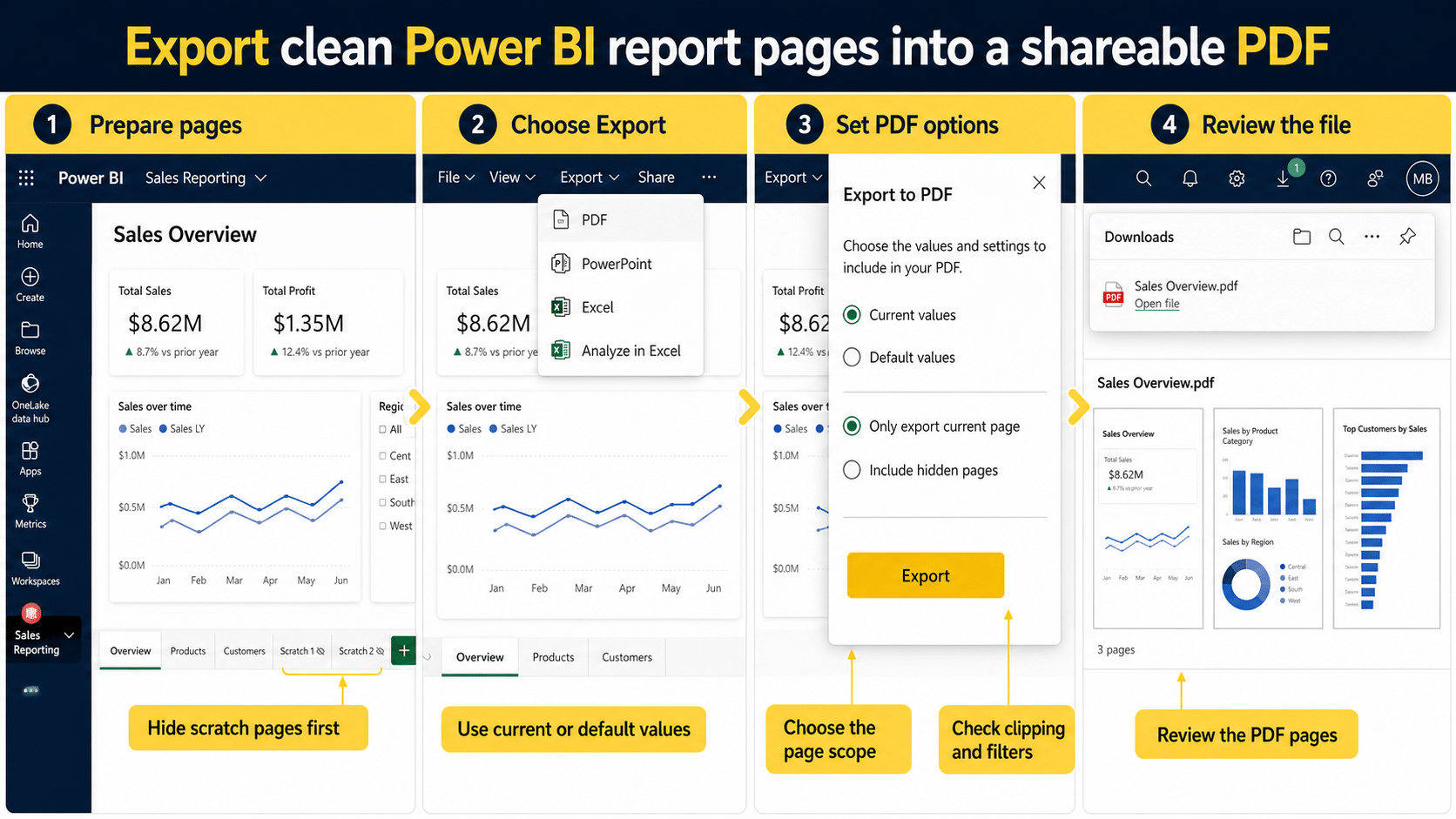
A two-minute pre-export check
Open the report and confirm what the recipient should see. The current filter state can materially change the exported numbers, so do not export from an old browser tab without checking it.
- Reset or deliberately set report, page, and visual filters.
- Select the correct slicer values and bookmark.
- Wait for every visual to finish loading.
- Check that page titles describe the filtered view.
- Decide whether hidden pages should be included.
- Remove or hide scratch pages that were never designed for readers.
If the recipient needs underlying rows instead of a fixed page image, use a data-first export path rather than forcing a PDF to serve as a spreadsheet.
Export from the Power BI service
Use this method when you are viewing the report in a browser:
- Open the report on the Power BI canvas.
- Apply the filters and slicers required for the document.
- Select Export on the menu bar, then choose PDF.
- Choose Current values to preserve your active report state, or Default values to use the state shared by the report designer.
- Select Only export current page if you need one page rather than the full visible report.
- Choose whether to include hidden pages when that option is available and appropriate.
- Select Export and wait for the progress notification.
- Open the downloaded file and inspect every page before sharing it.
Current values are usually right for a filtered management pack. Default values are safer when you need a repeatable baseline and do not want a personal selection to alter the output. State the filter choice in the file name or accompanying message when ambiguity could affect a decision.
Export from Power BI Desktop
Desktop uses a shorter path. Open the .pbix file, wait for the report to render, and choose File > Export > Export to PDF. Power BI processes the report while a progress dialog is open, and report interaction is unavailable until the export finishes or you cancel it.
Desktop does not export pages that are not visible, including hidden report pages and tooltip pages. If a hidden page belongs in the document, make it visible temporarily, export, and then restore its hidden state before saving the report. Confirm that this temporary change does not get published accidentally.
Sensitivity labels can carry protection into exported files. If your organization uses labels, verify that the recipient is permitted to open the resulting PDF instead of assuming that a successful export makes it shareable.
Why the PDF does not match the canvas
A report page and a sheet of paper have different constraints. Browser zoom, responsive visuals, custom visual behavior, and nonstandard page sizes can all affect the static output.
Fix clipping and awkward page proportions
Use a consistent report page size and keep important content inside the visible canvas. Very tall custom pages can shrink dramatically on a PDF sheet. If text becomes unreadable, create a print-focused page with fewer visuals rather than enlarging every object on the interactive page.
Confirm filters and current values
When the numbers look wrong, reopen the live report and inspect the filter pane, slicers, personal bookmarks, and drill state. Export again with Default values if the goal is the designer’s baseline. For a controlled monthly process, write down the expected filter state before exporting.
Watch custom and unsupported visuals
Some custom visuals do not render in exports exactly as they do interactively. Animations, embedded web content, tooltips, and controls may become static or blank. Replace essential interactive behavior with a native visual or a print-specific summary on the report page.
If rendering takes an unusually long time, checking slow report visuals can reveal pages that need simplification before you rely on them for regular exports.
Quick answers about Power BI PDF files
Does a PDF keep slicers and drill-through actions?
No. The export captures a static representation of each page. Apply slicers and drill states before exporting, and include the live report link separately when recipients need to explore the data.
Can I export only one report page?
In the Power BI service, select Only export current page in the PDF export dialog. In Desktop, a practical workaround is to duplicate the report, keep only the required visible page for the export, or temporarily hide other pages with care.
Are hidden pages included?
The Power BI service can offer an option to include hidden pages. Power BI Desktop excludes report pages that are not visible. Tooltip pages and other hidden content should not be assumed to appear unless you test the exact report and export path.
Why is the Export option missing?
The report owner or tenant administrator can restrict exporting, and some report scenarios have limitations. Confirm that you are opening a report rather than a dashboard tile, then ask the owner whether export permissions are enabled for your role.
Before you share the file
Open the final PDF outside Power BI and inspect page order, titles, dates, filters, totals, clipping, and sensitivity markings. Give the file a meaningful name that identifies the report period and filter scope. If the document will drive a decision, include the live report link so authorized readers can verify current data. A PDF is best treated as a dated snapshot, not as a replacement for the governed report.