When planner notifications not showing teams is the symptom, slow down before rebuilding the whole Microsoft 365 workflow. The failure usually comes from a narrow mismatch: the wrong account, stale client state, a missing permission, an outdated connector field, or a source file that no longer matches the automation. A controlled test gives you a cleaner answer than a broad reset. If this points to access rather than the visible setting, the meeting setup checklist is a useful comparison before you change more permissions.
Start with the exact file, task, component, or site where the problem appears. Do not test with a similar item unless you label it as a comparison. If the comparison item works, you have an item-level issue. If every item fails for the same user, focus on account, license, permissions, or the local client. If several users fail at the same time, collect the object name and escalate with evidence instead of guessing.
Map the root cause of planner notifications not showing up
The first goal is to prove whether the problem is local, account-based, or tied to the source object. In Planner and Microsoft Teams, task comments, assignments, or due-date alerts do not appear in Teams even though the plan and task are visible. That difference matters because the fix can be as small as refreshing dynamic content or as broad as changing ownership of the underlying content.
Use one repeatable test and write down the result. Open the object in the web version when possible, then compare it with the desktop or Teams experience. Web tests are useful because they bypass many cached panes, old tokens, and local sync problems. They also show whether the server-side data is healthy before you edit settings.
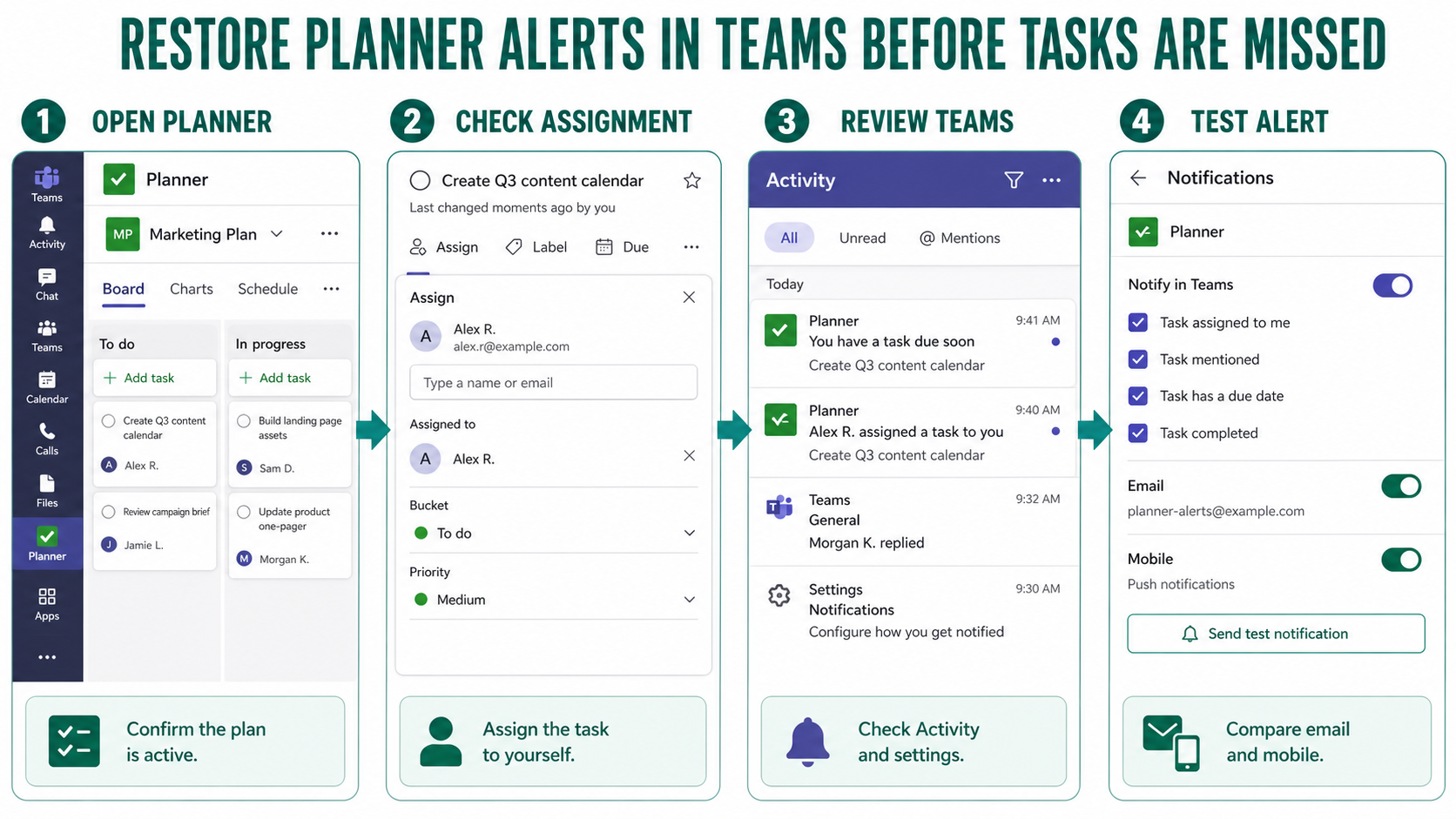
Checks to run before changing settings
- Confirm the user is a member of the plan and team.
- Assign a test task directly to the affected user.
- Check Teams Activity and app notification settings.
- Compare Teams, email, and mobile notifications for the same task.
Fix the most likely cause
Once you have a controlled result, make the smallest change that matches the evidence. If the web app works and the desktop or Teams client does not, do not change organization policy yet. Refresh the local session, reopen the file or component from its source, and test again with the same user.
If the web app also fails, move upstream. Check ownership, membership, source content, connector configuration, and the specific permission needed for the action. Visibility is not always enough. A user may be able to see a file, plan, page, or task while still lacking the right needed to edit, extract, update, publish, or receive a notification.
- Turn Planner and Teams notifications off and back on for a clean test.
- Remove and re-add the Planner tab if the tab is stale.
- Ask the user to sign out of Teams after settings are changed.
- Use email notification behavior as a fallback signal while Teams is refreshed.
Keep the original object in place while testing. Recreating a flow, task, component, agent, or synced folder can hide the real problem and create duplicates that other users keep using. If you must rebuild, first capture the failed run, current settings, and the working comparison so the administrator can see what changed.
What to verify after the fix?
Run the same test again and compare it with the original failure. For a connector or automation issue, read the action output and confirm the expected value is present. For a Teams or OneDrive issue, check the browser version and the local client after a restart. For Copilot or AI Builder work, test with prompts or samples that represent the real user workflow. If the behavior follows the Teams setup instead of the current screen, the broader workflow check helps check the adjacent workflow without starting over.
Do not stop at the first successful click. Confirm the change survives a new session and a second object. If the fix depends on a permission update, test as the target user rather than only as the owner. If the fix depends on training, sync, or a publish step, wait for the service to finish and then test one more time.
If the problem returns after a successful test, compare what changed between the two attempts. Look for a different browser profile, another signed-in Microsoft account, a reopened desktop client, a renamed file, a moved SharePoint page, or a connector field that was refreshed by the service. Repeating the same small test is usually faster than moving to a full rebuild, and it gives an administrator evidence they can act on.
Common questions
Why do Planner notifications appear in email but not Teams?
That usually means the task event exists, but the Teams notification path or client state is stale. Check Teams Activity settings, then restart Teams and test a new task assignment.
Do comments and assignments use the same notification rules?
They are related but not identical. Test one assignment, one due-date change, and one comment so you know which event type is failing.
Should I test this in Teams on the web?
Yes. The web app is a useful control because it removes part of the local desktop app from the test. If the same account works on the web but not in the desktop app, focus on cache, updates, add-ins, or the local profile before changing tenant-wide settings.
Before you move on
The safest fix is the one that matches the test result. Confirm the source object, compare the browser and client behavior, change one setting, and retest with the same account. That keeps planner notifications not showing teams from turning into a broad Microsoft 365 cleanup project when the real issue is a single stale field, permission, or session.