The first Outlook setup on Windows 11 is more than signing in. You also need to confirm mail flow, calendar sync, notifications, and the default account before you rely on it for work.
Add the right account
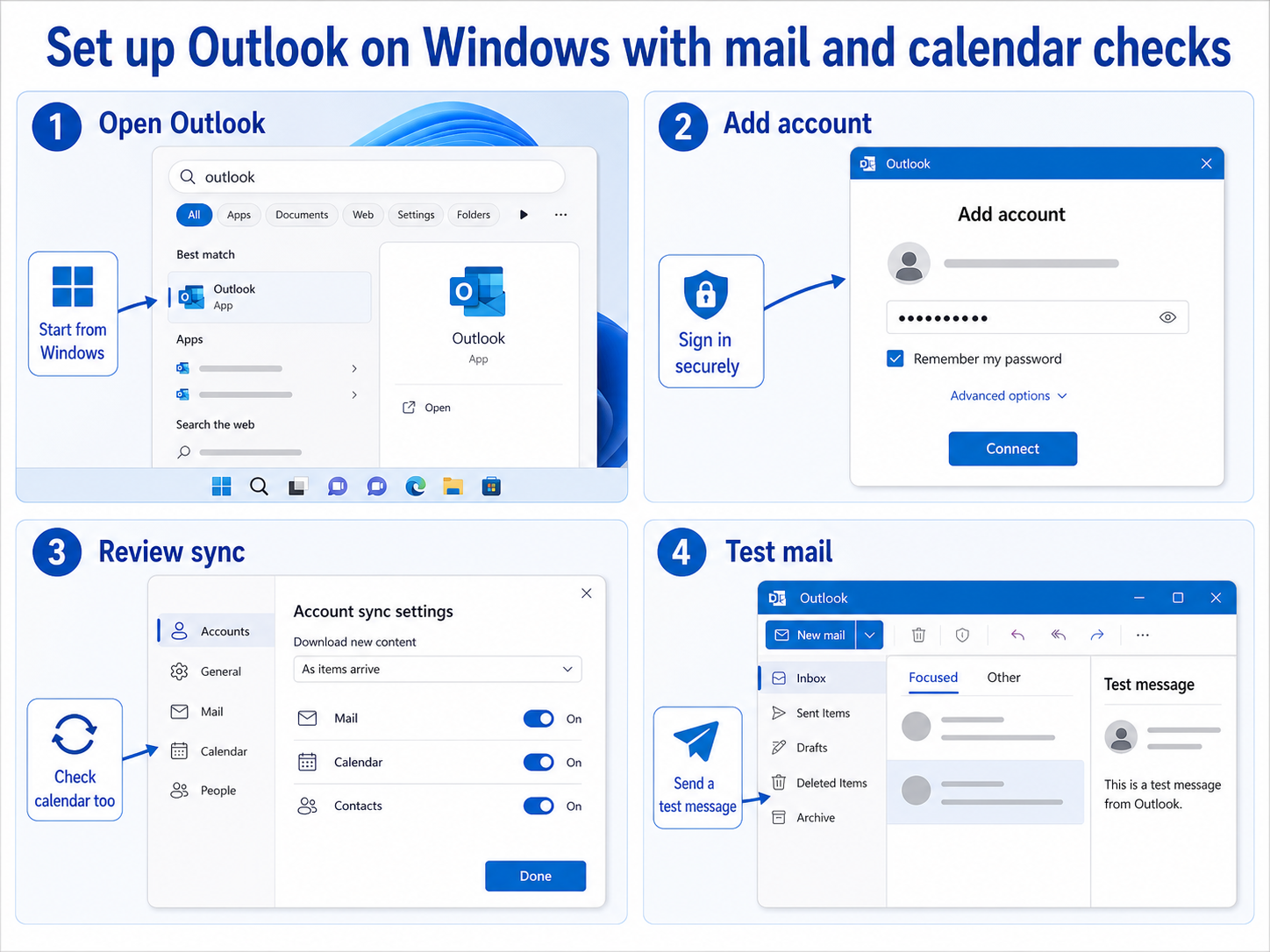
Open Outlook from the Start menu. If Windows suggests an account, confirm it is the one you want to use.
Sign in with your Microsoft 365, Outlook.com, Gmail, Yahoo, or IMAP account. Complete multi-factor authentication if your organization requires it.
Check mail and calendar together
Do not stop when the inbox appears. Send a test message to yourself and create a small test calendar event.
This confirms both sides of Outlook. Mail can work while calendar sync is still catching up.
Set the basics before the first workday
Review notification settings, Focused Inbox, signature, and default account. These small choices shape the daily experience.
If you manage more than one account, decide which account should send new mail by default. Our guide to change the default email account in new Outlook covers that setup.
If Outlook fails to open during setup, use Outlook not loading on Windows before adding more accounts.
A simple first-day checklist
- Add the main account.
- Confirm mail arrives.
- Confirm calendar events sync.
- Set notifications.
- Add signature and default sending account.
If sign-in loops
Remove stale work or school accounts from Windows settings, then try again. If your organization uses conditional access, make sure the device meets its requirements.
Classic Outlook may still be required for some add-ins, PST workflows, and advanced admin scenarios. New Outlook is not always a drop-in replacement for every older desktop feature.
New Outlook is not always the final answer
New Outlook is the right starting point for many Windows 11 users. Still, some workplaces depend on classic Outlook features, COM add-ins, PST workflows, or advanced mailbox tools.
If your team requires those features, install Microsoft 365 apps and use classic Outlook. Do not spend hours trying to make new Outlook behave like the old desktop client.
Check defaults after adding more accounts
The first account may work perfectly until you add a second one. Then replies, calendar invites, and new messages can come from the wrong address.
After adding another account, send a test message and create a test meeting. Confirm the sending account and calendar are the ones you expect.
Finish with user-facing settings
Setup is not complete until Outlook behaves the way the user needs during the day. Review notifications, Focused Inbox, signature, reading pane, and calendar reminders.
These settings are not cosmetic. They decide whether important messages are noticed or missed.
Do a real first-use test
A real test is more than opening the inbox. Send a message, receive a reply, create a calendar event, and confirm the reminder appears. If you use Teams, confirm meeting invites land on the expected calendar.
This takes five minutes and prevents a common first-day problem: the account signs in, but the calendar or default sending address is wrong.
If you support another user, watch them send the test message. It is easier to fix the default account and notification settings before they start using Outlook for real work.
What to configure before handing over the PC
If you are setting up Outlook for someone else, do not stop at sign-in. Confirm the signature, default sending account, calendar reminders, and notification style. These small settings cause many first-week complaints.
Also check whether the user needs shared mailboxes, delegated calendars, or Teams meeting add-ins. Those are easier to add during setup than after the user has already started missing messages.
If the user has more than one mailbox, send test messages from each account. Then create a meeting from the expected calendar. This catches default-account mistakes early.
Finally, show the user where account settings live. A two-minute handoff can prevent repeated support tickets when they need to add another mailbox later.
Make the setup repeatable
If you set up several Windows 11 PCs, keep a short checklist for Outlook. Include account type, signature, default sender, notification settings, calendar test, and any shared mailbox requirements.
That checklist makes setup faster and more consistent. It also helps another technician see what was already verified if the user reports a problem later.
If the PC is for a new employee, finish Outlook setup before their first meeting invite arrives. Calendar and notification mistakes are much easier to fix before the workday starts.
After setup, leave Outlook open long enough for the first sync to settle. Large mailboxes and calendars can look incomplete during the first few minutes, especially on a new Windows profile.
Is new Outlook included with Windows 11?
Many Windows 11 systems include new Outlook or offer it by default. Classic Outlook is still part of Microsoft 365 apps and may be required for older add-ins or workflows. Choose the client based on what the user actually needs.
Can I add Gmail?
Yes, new Outlook supports several account types, including Gmail. The permissions and sync behavior depend on the provider. After adding Gmail, test mail and calendar separately so you know what is syncing.
Should I make Outlook the default mail app right away?
Wait until sending, receiving, and calendar sync work correctly. If you set it as default too early, mail links may open in an account that is not fully configured. Finish the test workflow first.
Ready-for-work check
Outlook setup is ready when mail, calendar, notifications, and the default sender all behave correctly. Send a test message, create a test meeting, and confirm reminders before handing over the PC. If the user needs shared mailboxes or classic Outlook features, add those before the first workday. A working inbox alone is not a complete setup.