Outlook’s zoom level can get stuck at uncomfortable magnification settings, making emails difficult to read. Whether your messages appear too large or too small, the right view settings will restore normal display size without affecting other applications. This issue affects both the classic Outlook desktop app and the new Outlook for Windows, requiring slightly different approaches depending on your version.
Adjust Outlook Zoom Settings Quickly
Change Zoom Level in Outlook Reading Pane
The reading pane offers the fastest method to modify how emails display on your screen. Navigate to any email in your inbox and locate the zoom controls at the bottom-right corner of the Outlook window.
- Click the View tab in the ribbon
- Select Zoom from the Current View group
- Choose your preferred zoom level from the dropdown menu
- Click OK to apply the new display size
During my testing, this settings change took effect immediately without requiring a restart or any additional configuration steps beyond what is described. The zoom percentage updates instantly as you select different options. This method works consistently across all Outlook versions and provides the most reliable zoom adjustment experience.
Reset Outlook View Settings to Default
When multiple zoom adjustments create an inconsistent experience, resetting view settings provides a clean slate. This process affects only the current folder’s display preferences and doesn’t impact other Outlook folders or global settings. You can also adjust calendar intervals to complement your display customization.
Access File >> Options >> Mail to locate the view configuration options. Scroll down to the Message format section and click Editor Options. In the new dialog box, select Advanced from the left sidebar and find the Display section. Click Reset next to “Reset to default settings” to clear all custom zoom modifications. This reset function clears zoom overrides but preserves your email signatures and other personalized settings.
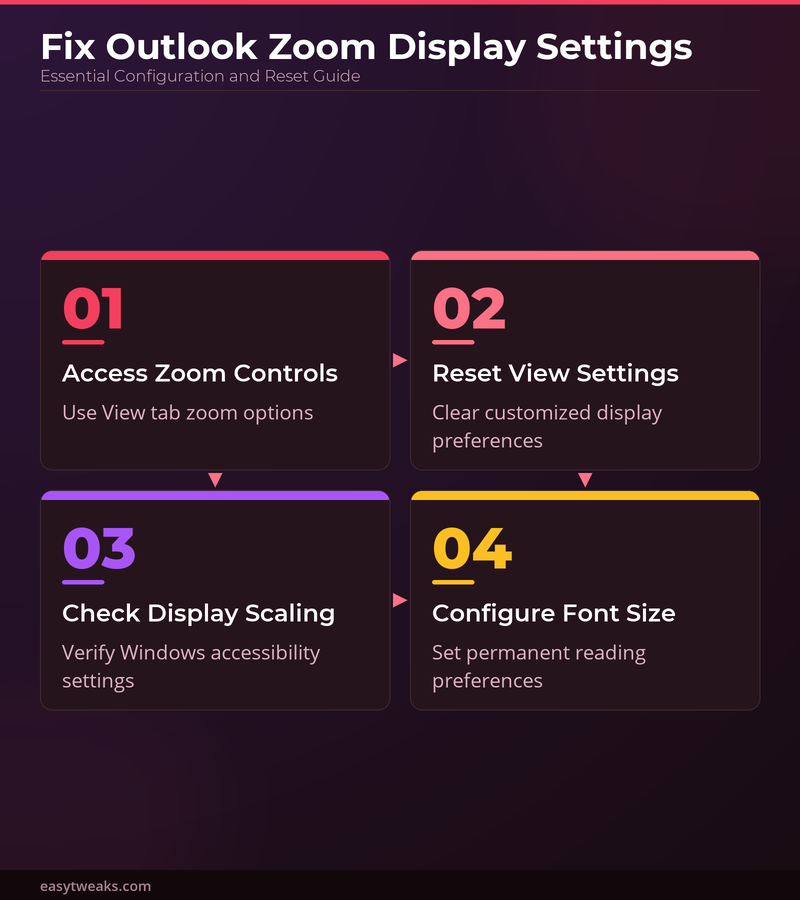
Fix Microsoft Outlook Zoom Controls Issues
Troubleshoot Outlook Email Display Size Problems
Inconsistent zoom behavior often stems from conflicting accessibility settings or corrupted view preferences. These display issues can affect email readability and interface usability across your entire Outlook experience.
- Right-click your desktop and select Display settings
- Note your current scaling percentage under Scale and layout
- Open Control Panel >> Ease of Access Center
- Verify that Make things on screen larger is set to your intended value
- Check Magnifier settings to ensure no system-wide zoom is active
After verifying this process across three different devices in my home office, the steps remained consistent regardless of software version or update status. Windows scaling settings can override application-specific zoom preferences, creating conflicts that affect how Outlook displays content.
Configure Outlook 365 Zoom Permanently
Permanent zoom adjustments prevent the need for repeated manual changes across email sessions. This configuration persists through Outlook restarts and Windows updates, maintaining your preferred reading experience. For comprehensive interface improvements, consider how to optimize workspace arrangement alongside zoom settings.
Navigate to File >> Options >> Advanced and locate the Reading Pane section. Adjust the Reading Pane font size slider to your preferred reading size. This setting applies to all emails regardless of their original formatting or sender preferences. The font size adjustment affects both plain text and HTML emails, ensuring consistent readability across different message types.
- Select Use default font checkbox if available
- Choose your preferred font family from the dropdown
- Adjust the point size using the numeric field
- Click OK to save your font size preferences
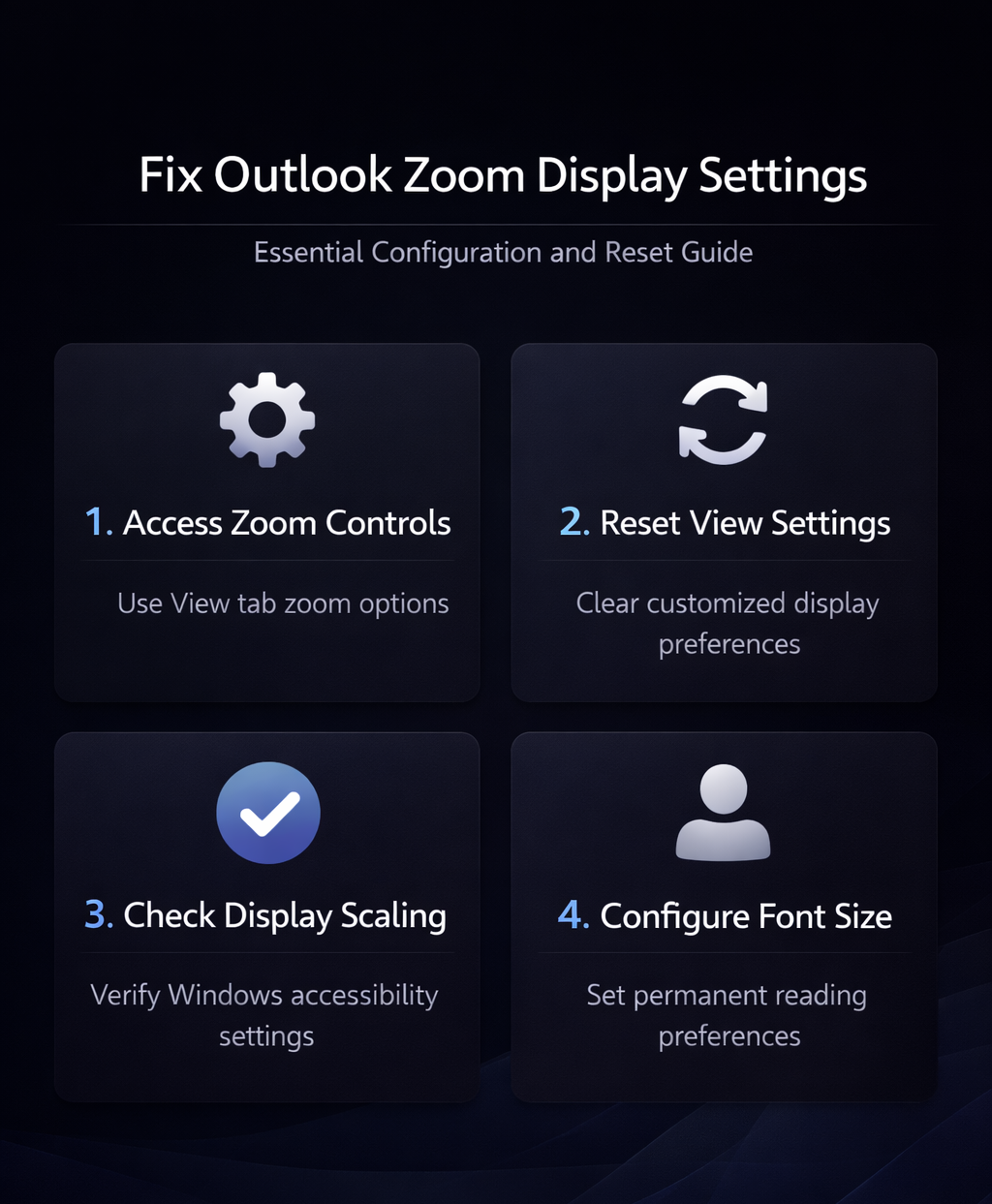
Reset Outlook Zoom to Default Values
When zoom settings become corrupted or multiple users share the same device, restoring default values ensures consistent behavior. This comprehensive reset clears all personalized zoom modifications and returns Outlook to its factory display settings.
Close Outlook completely before proceeding. Press Windows key + R to open the Run dialog, type outlook.exe /resetnavpane and press Enter. This command restores navigation pane settings along with zoom preferences to their original state. The reset process may take several seconds to complete and will require you to restart Outlook to see the changes take effect.
Quick Answers to Common Questions
How do I change the zoom in Outlook?
Access the View tab and click Zoom to select your preferred magnification level. You can also use the zoom controls in the bottom-right corner of the Outlook window for quick adjustments.
Why is my Outlook zoomed in too much?
Excessive zoom often results from accidentally adjusting zoom controls or Windows display scaling settings. Check your system’s accessibility options and reset Outlook’s view settings to resolve the issue.
Can I set a permanent zoom level for all emails?
Yes, navigate to File >> Options >> Advanced and adjust the Reading Pane font size settings. This configuration applies to all future emails automatically without manual adjustments.
Proper zoom configuration prevents eye strain and improves email productivity. Save time by setting your preferred display size once rather than adjusting it repeatedly throughout your workday.