Claude keeps your conversations accessible through its web interface, but the application offers no built-in one-click export to markdown. Getting your chat history into properly formatted markdown files requires a few deliberate steps — whether through manual copy methods, browser extensions, or the Claude API. This guide covers each approach from start to finish so you can archive, search, and share your Claude conversations in a portable format that works with any text editor, documentation system, or version control repository.
Prerequisites for Claude Chat Export
Before you export Claude chat to markdown, confirm you have these items ready:
- Active Claude account — Sign in at claude.ai and verify your conversations appear in the left sidebar. Both free and Pro accounts retain full chat history, so either tier works for this process.
- Markdown-compatible text editor — Install VS Code, Obsidian, or Typora so you can preview and edit exported files with proper heading and code block formatting.
- Browser clipboard access enabled — Your browser must allow clipboard operations for the copy method. Chrome and Edge work without extra configuration on Windows 11. Firefox users may need to grant clipboard permissions through the site settings panel for claude.ai.
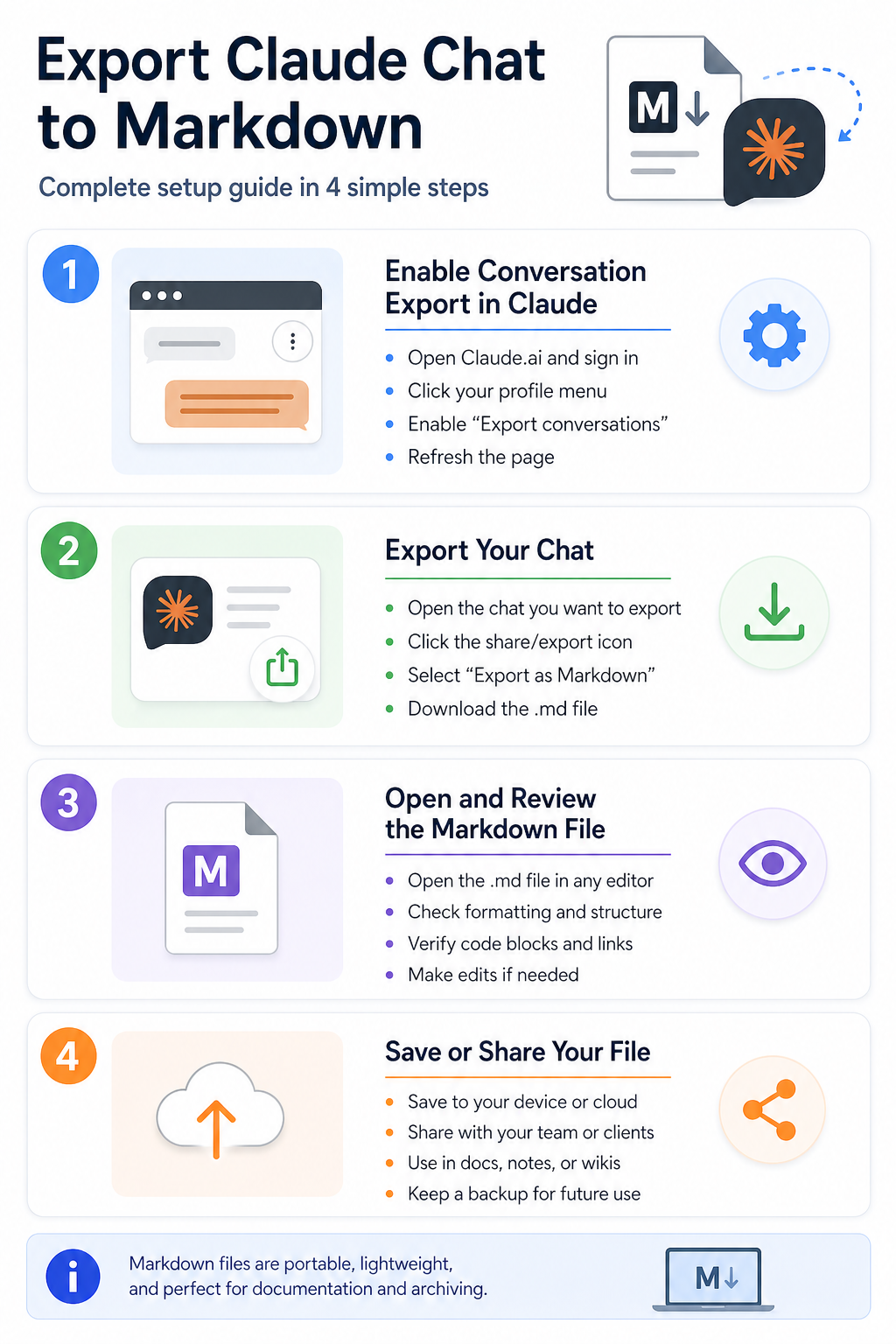
Export Claude Chat to Markdown
Open Your Claude Conversation
Navigate to claude.ai and sign in to your account. The left sidebar lists all saved conversations sorted by most recent activity. Click any conversation title to load the full thread in the main content panel. Each message displays clear speaker labels — your prompts and Claude’s responses — which map directly to markdown headers during export. Scroll all the way to the top and then back to the bottom of the conversation before copying to confirm every message loaded completely. Long threads sometimes lazy-load older messages on demand, and skipping this verification step means you risk losing earlier exchanges from the exported file. If a conversation fails to load or shows a spinner that never resolves, refresh the page and check your internet connection before you troubleshoot the export process further.
Copy and Format the Chat Content
Select the entire conversation by pressing Ctrl+A inside the chat panel, then Ctrl+C to copy all content to your clipboard. Open your markdown editor and paste the raw text with Ctrl+V. The pasted content retains basic paragraph structure but needs manual cleanup to become valid markdown. Add ## You and ## Claude headers above each message block to create clear visual separation between speakers. Wrap any code snippets Claude generated inside triple-backtick fenced code blocks and include the appropriate language identifier after the opening backticks. Remove any UI artifacts like timestamp badges, thumbs-up buttons, or copy-code icons that transferred during the paste operation. This manual formatting takes five to ten minutes for a typical conversation but produces a clean, readable file that renders correctly in any markdown viewer or static site generator.
Save the Exported Markdown File
Save your formatted file with a descriptive name using the .md extension — for example, claude-api-debugging-2026-04-21.md. Store exported conversations in a dedicated folder organized by project topic or date range so they stay easy to find later. Run a quick preview in your editor to verify all headers render at the correct hierarchy level and that code blocks display with proper syntax highlighting. Check that no stray HTML tags or broken formatting survived the copy-paste process. If you manage your documentation through Git, commit each export so you maintain a searchable version history of all your Claude interactions. This export workflow becomes second nature after the first few conversations, and over time you build a valuable personal knowledge base drawn directly from your AI-assisted work sessions.
Advanced Claude Export Methods
Automate Exports with Browser Extensions
Browser extensions eliminate the repetitive manual copy-paste workflow entirely. MarkDownload captures the current web page as a markdown file with one click and preserves complex formatting that manual selection often breaks or misses. Install the extension from the Chrome Web Store or Firefox Add-ons page, navigate to your Claude conversation, and click the extension icon to download a complete .md file. The extension handles code blocks, ordered lists, nested bullet points, and inline formatting automatically without any manual cleanup required. If your export is not working with a particular extension, clear the extension cache, reload the Claude page, and verify the extension has permission to access claude.ai in your browser settings. You can also export and save Copilot conversations using similar browser-based methods when you work across multiple AI tools and want a consistent markdown archive for each platform.
Use the Claude API for Bulk Export
The Claude API provides programmatic access to conversation data when you need to export dozens or hundreds of threads at scale. Generate an API key from your Claude account settings under the developer section and store it as an environment variable on your machine. Write a Python or JavaScript script that calls the conversations endpoint, retrieves each message’s content, and formats every exchange as markdown with proper speaker headers and fenced code blocks. This approach works well for teams that need to archive large volumes of conversations into a shared documentation system or internal knowledge base. If your export is not working on Windows 11, verify that your Python installation includes the requests library and that your API key has the correct permission scope configured in your account dashboard. For conversations with other AI assistants, you can export Copilot chats to PDF as an alternative archival format that preserves visual layout alongside the text content.
FAQ
Why is my Claude chat export not working?
The most common cause is incomplete page loading. Claude lazy-loads older messages in long conversations, so scroll to the very top of the thread before you start copying. Browser extensions may also conflict with Claude’s dynamic page rendering. Disable other extensions temporarily and retry the export. Clearing your browser cache fixes most persistent formatting and clipboard issues.
How do I fix Claude chat export not working permanently?
Pin your preferred export extension so it loads on every browser session automatically. Update both your browser and the extension to the latest versions, since outdated software causes the majority of formatting failures. Bookmark the direct URL to your Claude conversation list so you bypass any redirect issues that interrupt the export process on each visit.
Can I export Claude chat to markdown with images and attachments?
Text-based exports capture all conversation content, code blocks, and markdown formatting. Images you uploaded to Claude do not transfer through clipboard copy — download those separately from the chat interface. Browser extensions like MarkDownload embed image references as markdown links, but you need to save the actual image files into the same directory as your `.md` file for the images to render correctly in preview.
Export your Claude conversations to markdown files regularly to build a searchable archive of AI-assisted work. A consistent naming convention and folder structure keeps your exported chats organized and accessible whenever you need to reference past conversations.