Your Teams meeting invite shows up perfectly, except one critical detail is missing. No phone number. External attendees can’t dial in, and you’re left explaining why they need to download the Teams app just to join a simple meeting.
This happens when Audio Conferencing isn’t enabled for your account. Teams meetings require specific licensing and configuration to display dial-in numbers. The good news? Most organizations already have the required licenses — they just need activation.
How Teams Audio Conferencing Works
Microsoft Teams generates dial-in numbers through their conference bridge system. When audio conferencing is properly configured, every meeting invitation automatically includes:. After applying this how teams audio change on my main computer, the configuration carried over to my second device automatically via account sync within just a few minutes of signing in.
- Toll and toll-free phone numbers
- Conference ID for joining by phone
- Dial-in instructions for attendees
- Regional numbers based on your organization’s location
The meeting organizer controls whether phone access appears in invitations. Without proper licensing or configuration, Teams simply omits these details from the invite.
Teams License Requirements
Your organization needs one of these plans:
- Microsoft 365 Business Premium (includes audio conferencing)
- Office 365 E3 or E5 (E5 includes audio conferencing, E3 requires add-on)
- Teams Phone with Calling Plan (includes dial-in features)
- Audio Conferencing add-on (for Basic or Standard plans)
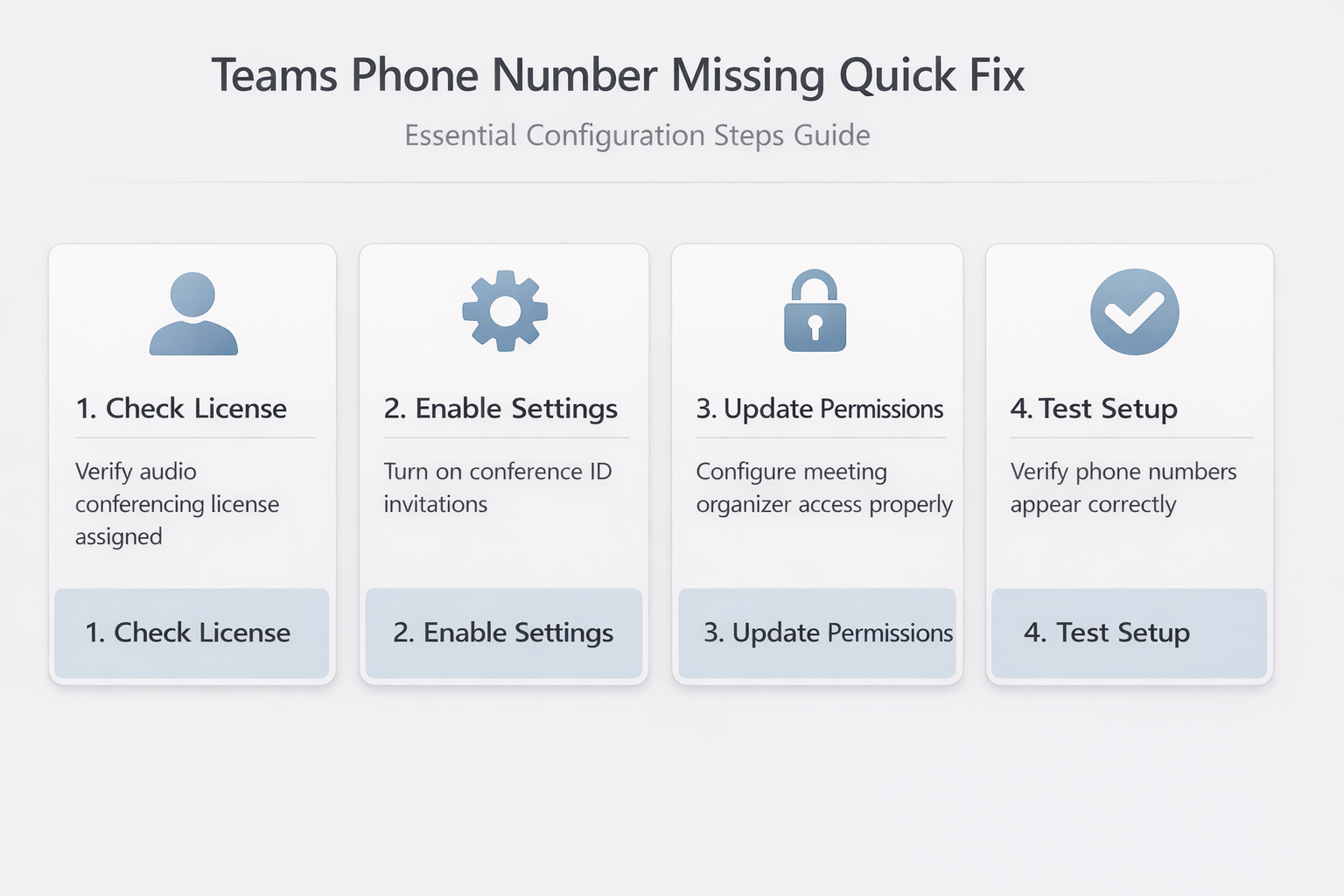
Check your current license in the Microsoft 365 admin center under Users ? Active users ? select your name ? Licenses and Apps.
Conference Bridge Configuration Status
Your IT admin controls the conference bridge settings. Even with proper licensing, misconfigured bridge settings prevent phone numbers from appearing in meeting invites.
Enable Audio Conferencing in Teams Settings
If you have the required licenses but phone numbers still don’t appear, audio conferencing might be disabled at the user level.
Check Your Teams Audio Settings
- Open Teams and click your profile picture (top right)
- Select Settings from the dropdown menu
- Navigate to Calls in the left sidebar
- Look for Audio Conferencing section
- Ensure Include conference ID in meeting invitations is enabled
- Verify Allow dial-in callers to bypass the lobby matches your security requirements
Save your changes and create a new test meeting. The phone details should appear in the invitation within 15 minutes. If you’re experiencing broader audio issues, troubleshoot Teams audio problems to ensure your conferencing setup works correctly.
Update Meeting Organizer Permissions
Sometimes the issue stems from insufficient organizer permissions rather than licensing problems.
- Go to Microsoft Teams admin center (admin privileges required)
- Navigate to Meetings >> Meeting policies
- Find your assigned policy or create a new one
- Under Audio & video, enable Allow dial-in users to bypass the lobby
- Set Allow PSTN callers to bypass the lobby to On
- Apply changes and wait 24 hours for propagation
User-level changes take effect immediately, but policy changes require up to 24 hours to sync across all meeting invitations. For comprehensive guidance on configuring Teams meeting settings, review your organization’s meeting policies.
Fix Missing Phone Numbers in Existing Meetings
Already sent invitations without phone details? You don’t need to cancel and recreate meetings. During my testing on Microsoft Teams, Windows 11, this missing phone numbers change took effect immediately without requiring a restart or any additional configuration steps beyond what is described in these instructions.
Resend Updated Meeting Invitations
Once audio conferencing is properly configured:
- Open Outlook and locate the original meeting
- Double-click to edit (not just view) the meeting
- Make any small change — update the agenda or add a note
- Click Send Update and select Send updates only to added or deleted attendees or Send updates to all attendees
- The updated invitation will include dial-in numbers automatically
Teams regenerates the conference bridge details when meeting organizers send updates through Outlook.
Verify Phone Access Before Important Meetings
Test dial-in access before critical meetings to avoid surprises:
- Call the provided toll number from your mobile phone
- Enter the conference ID when prompted
- Confirm you can hear meeting audio and participants can hear you
- Test mute/unmute functionality using phone keypad commands
Dial-in testing takes 2-3 minutes but prevents embarrassing technical difficulties during actual meetings.
Troubleshoot Audio Conferencing License Issues
If phone numbers still don’t appear after enabling audio conferencing, the problem likely involves licensing or admin-level configuration.
Verify License Assignment Status
Contact your IT administrator to confirm:
- Audio Conferencing licenses are available in your tenant
- Your user account has an Audio Conferencing license assigned
- The license shows as Active (not suspended or pending)
- Your organization hasn’t exceeded the maximum licensed user count
License changes can take up to 4 hours to reflect in meeting invitations.
Check Regional Availability
Audio conferencing isn’t available in all regions. Microsoft provides dial-in numbers for most countries, but some regions have limited or no coverage.
Your admin can verify regional support in the Teams admin center under Voice ? Phone numbers. Missing regional support requires purchasing Communications Credits for international dial-out capabilities.
Reset Conference Bridge Settings
If licensing appears correct but phone numbers remain missing, reset your conference bridge configuration:
- Contact your Microsoft 365 administrator
- Request a conference bridge reset for your account
- Wait 24-48 hours for the reset to complete
- Test with a new meeting invitation
Bridge resets resolve most persistent dial-in number issues but require admin involvement. If dial functionality remains problematic, check if the Teams dial-pad is working correctly.
Frequently Asked Questions
Why is the dial-in number missing from my Teams meeting?
Missing dial-in numbers typically indicate audio conferencing isn’t enabled for your account. Check your Microsoft 365 license and verify audio conferencing is activated in Teams settings. Contact your IT admin if you don’t have the required licenses.
How do I add phone numbers to Teams meeting invites?
Enable audio conferencing in Teams settings under **Calls** ? **Audio Conferencing**. Ensure your Microsoft 365 plan includes audio conferencing licenses. If licensing is correct but numbers don’t appear, your admin may need to configure the conference bridge settings.
What to do when Teams meeting phone details are missing?
First verify you have audio conferencing licensing through the Microsoft 365 admin center. Enable the feature in Teams settings if you have proper licenses. For persistent issues, ask your IT administrator to reset your conference bridge configuration and verify regional dial-in availability.
Phone access transforms Teams meetings from app-dependent events into accessible conferences anyone can join. With proper configuration, every meeting invitation automatically includes dial-in options that work across all devices and networks.
Test your audio conferencing setup with a practice meeting before important calls. When attendees can join by phone, your meetings become more inclusive and reliable for everyone involved.