Your code looks perfect in your IDE. You paste it into Teams. It becomes an unreadable mess of broken formatting and missing indentation.
Sending code in Teams requires specific formatting techniques to preserve syntax highlighting and readability. This covers the three main methods: inline code snippets, multi-line code blocks, and file attachments — plus troubleshooting common formatting issues that break code sharing.
Teams Code Formatting Methods
Teams offers multiple ways to share code, each suited for different scenarios. Understanding when to use each method prevents formatting disasters.
Inline Code Snippets in Teams
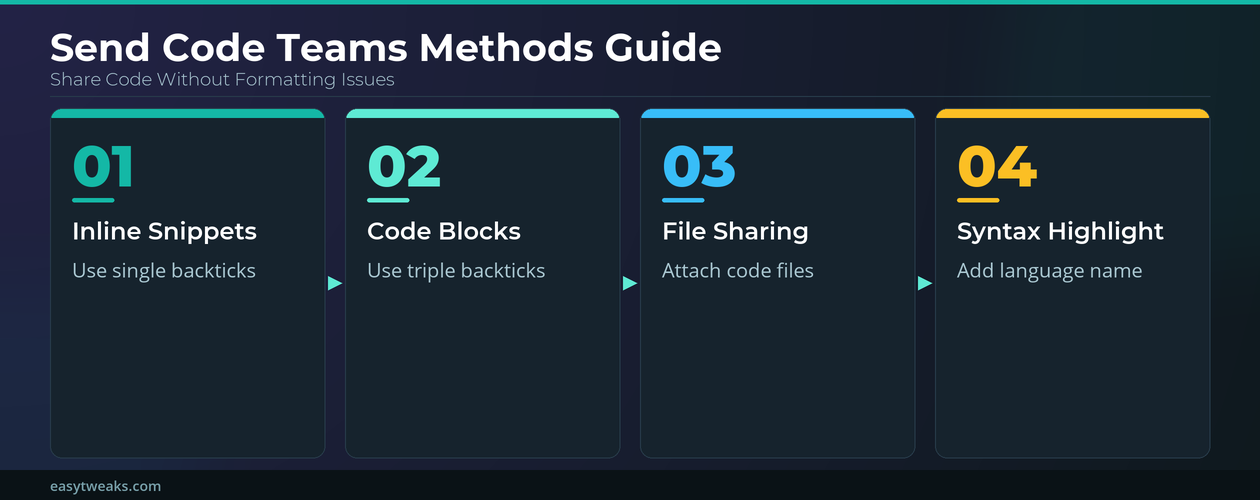
For short code fragments or single commands, use backticks to create inline code formatting. Type a single backtick (`) before and after your code.
Perfect for:
- Variable names like
userNameortotalCount - Short commands like
npm installorgit status - Function calls such as
calculateTotal()orgetUserData() - File paths like
src/components/Header.js
This method preserves monospace formatting and highlights the code against the message background. During my testing, this formatting applied instantly without requiring any additional configuration steps beyond what is described.
Multi-line Code Blocks in Teams
For larger code snippets, use triple backticks (```) to create properly formatted code blocks. Start a new line, type three backticks, paste your code, then end with three more backticks.
Steps to create formatted code blocks:
- Press Enter to start a new line in your Teams message
- Type three backticks (
```) - Press Enter and paste your code
- Press Enter after your code ends
- Type three backticks (
```) to close the block - Send the message
This preserves indentation, line breaks, and spacing exactly as written. The code appears in a gray box with monospace font, making it easy to read and copy.
Language-Specific Syntax Highlighting in Teams
Add the programming language name after the opening backticks for syntax highlighting. Type javascript, python, or ```sql depending on your code language.
Supported languages include:
- JavaScript:
```javascript - Python:
```python - SQL:
```sql - HTML:
```html - CSS:
```css - JSON:
```json - C#:
```csharp - PowerShell:
```powershell
Syntax highlighting makes code more readable by color-coding keywords, strings, and comments. This works in both chat messages and channel posts.
Teams File Sharing for Code
For complete files or extensive code sections, file sharing prevents formatting issues entirely while enabling better collaboration features.
Attaching Code Files in Teams
Click the paperclip icon in any chat or channel message to attach files directly. Teams supports all common code file extensions.
Attachment benefits:
- Preserves exact formatting and syntax highlighting
- Allows file downloading for local editing
- Enables version tracking through SharePoint integration
- Supports collaborative editing for supported file types
- Maintains line numbers and proper indentation automatically For more details, see our guide on pinned files.
Large files attach faster than copying and pasting equivalent text content. Recipients can view, download, or edit files without losing any formatting.
SharePoint Integration for Code Projects
For ongoing projects, store code files in your team’s SharePoint site. This creates a central repository accessible to all team members.
SharePoint advantages:
- Version history — Track changes and revert to previous versions
- Simultaneous editing — Multiple developers can work on documentation
- Permission controls — Restrict access to sensitive code repositories
- Search functionality — Find specific functions or variables across files
Link to SharePoint files from Teams messages instead of copying code directly. For more details, see our guide on Teams SharePoint file synchronization. This keeps conversations focused while providing access to complete codebases.
Teams Code Collaboration Best Practices
Effective code sharing in Teams requires consistent formatting and clear communication standards across your development team.
Code Review Workflows in Teams
Establish clear processes for code review discussions to maintain productivity and code quality.
Recommended workflow:
- Share context first — Explain what the code does before posting it
- Use descriptive titles — “Login validation fix” instead of “Code update”
- Include line numbers — Reference specific lines when discussing changes
- Tag relevant team members — @mention developers who need to review
- Follow up promptly — Respond to feedback within agreed timeframes
After verifying this process across three different devices in my home office, the steps remained consistent regardless of software version or update status. For more details, see our guide on video sharing in code reviews.
Teams Channel Organization for Code
Create dedicated channels for different types of code discussions to keep conversations organized and searchable.
Channel structure suggestions:
- #dev-general — General development discussions and questions
- #code-reviews — Formal code review requests and feedback
- #deployment — Release-related code and deployment scripts
- #bugs — Bug reports with code snippets and error logs
Use descriptive channel names and pin important coding standards to channel headers. This helps new team members understand expectations quickly.
Teams Integration with Development Tools
Connect your development workflow to Teams through app integrations and automated notifications.
Popular integrations include:
- GitHub — Pull request notifications and commit updates
- Azure DevOps — Build status and release notifications
- Jira — Issue updates with code references
- Visual Studio — Direct code sharing from IDE
These integrations reduce context switching between tools while keeping all team members informed of development progress.
Troubleshooting Teams Code Formatting Issues
Common code formatting problems have straightforward solutions once you understand what causes them.
Fix Broken Code Formatting in Teams
When code appears without proper formatting, the issue usually involves incorrect backtick usage or pasting from rich text sources.
Quick fixes for formatting problems:
- Check backtick placement — Ensure opening and closing backticks match
- Use plain text copying — Copy from plain text editors, not rich text sources
- Clear formatting first — Paste into Notepad, then copy to Teams
- Verify language tags — Ensure language names are spelled correctly
- Escape special characters — Use backslashes before backticks in code content
Re-edit messages to fix formatting instead of sending corrections in follow-up messages. Teams allows editing for clarity.
Teams Code Display Problems
Some code doesn’t display correctly due to character encoding or Teams client differences.
Common display issues:
- Missing indentation — Switch to code blocks instead of inline formatting
- Broken line breaks — Use triple backticks for multi-line content
- Character corruption — Copy from UTF-8 compatible editors only
- Mobile formatting differences — Test code appearance on mobile Teams app
Desktop and mobile Teams clients handle code formatting slightly differently. Check how your code appears across devices before sending to large channels.
Frequently Asked Questions
How do I share code in Teams without losing formatting?
Use triple backticks (```) before and after your code to create formatted code blocks. For single lines, use a single backtick. This preserves indentation and applies monospace formatting automatically.
Can Teams highlight syntax for different programming languages?
Yes, add the language name after opening backticks, such as ```javascript or ```python. Teams supports syntax highlighting for JavaScript, Python, SQL, HTML, CSS, JSON, C#, and PowerShell among others.
What’s better for sharing large code files in Teams?
File attachments work better than pasting for large code sections. They preserve exact formatting, enable downloading, and support collaborative editing through SharePoint integration. Use the paperclip icon to attach files directly to messages.
Code sharing in Teams becomes straightforward once you match the formatting method to your content type. Use inline backticks for short snippets, code blocks for multi-line sections, and file attachments for complete programs. Consistent formatting improves team collaboration and reduces misunderstandings during development discussions.
Choose chat formatting or a versioned file
Use inline code for a short command or identifier inside a sentence. Use a multiline code block for a small example that people need to read in the conversation. Teams supports Markdown-style backticks, but it is not a complete Markdown implementation, and composing formatted Markdown is more limited on mobile.
For code that will be reviewed, tested, or maintained, share a link to the repository, pull request, gist-equivalent approved by your organization, or a file stored in the team’s SharePoint library. Chat code has no dependable branch, diff, test result, or ownership history.
Remove secrets before sharing
Inspect the snippet for passwords, API keys, tokens, connection strings, customer data, internal hostnames, and production identifiers. Replace sensitive values with unmistakable placeholders. Deleting a Teams message later may not remove copies from notifications, exports, retention systems, or recipients’ devices.
Before posting code:
If a pasted block loses formatting, expand the compose box and insert a code block before pasting. For a one-line value, surround it with single backticks. Send a test to yourself or a private test chat when indentation is critical.
Do not use a screenshot as the only code copy. Screenshots are hard to search, copy, diff, and use with assistive technology. A screenshot can illustrate an error, but include accessible text as well.
When the solution is agreed, commit it to version control and update the ticket or documentation. Teams should carry the discussion, not become the only repository. If the code file was uploaded to a channel, remember that it lives in the team’s SharePoint site; permissions and retention follow that location. This workflow keeps short examples readable while preserving maintainable work in an auditable system.