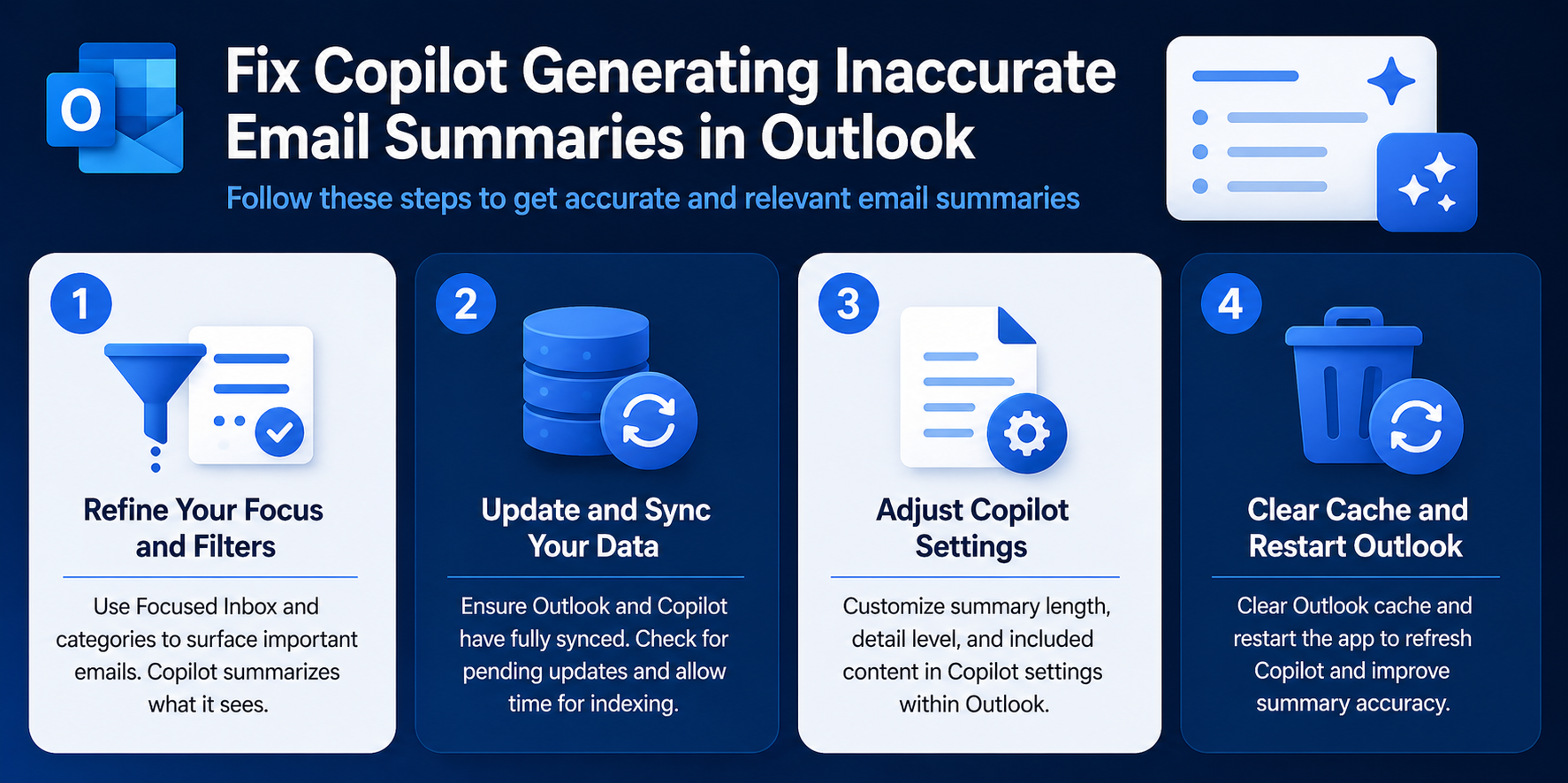
Copilot summarizes your Outlook emails but returns vague, incomplete, or outright wrong recaps of conversations you just read. This typically happens when cached data conflicts with recent messages, the Outlook desktop app runs an outdated build, or Copilot lacks proper data permissions to access full conversation threads. Most users on Windows 11 can fix outlook not working summaries in under ten minutes. The three fixes below target each root cause so your Outlook mail summaries actually reflect what was discussed.
Fix Copilot Outlook Summary Problems
Clear Copilot Cache in Outlook
Stale cached data is the most common reason Copilot generates inaccurate email summaries. When Outlook stores outdated conversation snapshots, Copilot builds its summary from old or partial data instead of the current thread. Clearing this cache forces a full resync with the Exchange server and gives Copilot accurate source material to work from.
To clear the cache and restore Outlook desktop sync:
- Open Outlook on your desktop and select File from the top menu.
- Navigate to Account Settings and choose Account Settings again from the dropdown.
- Select your Microsoft 365 account and click Change.
- Uncheck Use Cached Exchange Mode, click Next, then Done.
- Restart Outlook completely, reopen the same settings, and re-enable Use Cached Exchange Mode.
This cycle forces Outlook desktop sync to pull fresh data from the Exchange server. Copilot now reads current thread contents rather than stale cache entries. If the summary still looks wrong after completing this step, the issue likely sits with your app version or permission configuration rather than cached data.
Update Outlook Desktop App Fully
Outdated Outlook builds miss critical patches that improve how Copilot processes long email threads and complex reply chains. Microsoft ships Copilot accuracy fixes through regular Outlook app updates, and skipping even one update cycle can leave known summary bugs unpatched on your machine. Running an older build also means Copilot may use deprecated summarization logic that produces lower-quality output.
To check for updates:
- Open Outlook and click File >> Office Account.
- Click Update Options >> Update Now.
- Wait for the download to complete and restart Outlook when prompted.
After the restart, open a thread where Copilot previously gave a bad summary and regenerate it. On Windows 11, also check Settings >> Windows Update to ensure the entire Microsoft 365 suite stays current. If you have also experienced Copilot giving blank responses on Windows 11, this update often resolves that alongside the summary problem. Keeping automatic updates enabled in your Outlook app prevents this from recurring after future Microsoft releases.
Configure Copilot Data Access Permissions
Copilot needs explicit permission to read full conversation threads, shared mailboxes, and Outlook calendar events tied to email discussions. When these permissions are restricted or misconfigured, Copilot works with partial information and produces summaries that miss critical context from earlier replies or meeting-related messages.
To configure Outlook data permissions:
- Open the Microsoft 365 admin center at admin.microsoft.com.
- Navigate to Settings >> Org settings >> Microsoft 365 Copilot.
- Verify that Allow Copilot to access organizational data is enabled.
- Under Data access, confirm Copilot has permission to read Exchange Online content.
For individual user accounts, open Outlook >> File >> Options >> Trust Center >> Trust Center Settings and ensure programmatic access is not blocked. Outlook permission not working is frequently caused by overly restrictive trust center policies that IT admins set organization-wide. If you have also noticed Copilot not appearing in Microsoft 365 apps, the same permission misconfiguration is often responsible. Allow up to 30 minutes for permission changes to propagate across your tenant before testing a new summary.
Outlook Summary Edge Case Fixes
Summaries Miss Threaded Email Replies
Copilot sometimes skips replies buried deep in long threads, especially forwarded messages that break the conversation chain. Forwarded emails create a new message ID that Copilot treats as a separate conversation rather than part of the original discussion thread.
The fix is to avoid forwarding within active threads and use Reply All to keep the full chain intact. If you already have broken threads, open the original message and ask Copilot to summarize from that specific starting point. Collapsing and expanding the full thread in the Reading Pane before requesting a new summary forces Outlook to reload the complete conversation structure. This approach also helps when Outlook notifications not syncing with thread updates seems delayed, since both issues stem from how Outlook indexes conversation metadata internally.
Copilot Skips Email Attachment Content
Copilot currently cannot read the contents of most email attachments, including PDFs, Word documents, spreadsheets, and images. Summaries that seem inaccurate may actually be correct for the email body text alone — they just ignore what was communicated through attached files entirely.
Paste key details from attachments directly into the email body if you need Copilot to include that information in its summaries. For recurring reports that arrive as attachments, ask the sender to include a brief text summary in the message body alongside the file. This limitation applies across the Outlook app on both desktop and web versions of the application. Microsoft has acknowledged this gap and plans to expand attachment reading capabilities in future Copilot updates. Check your Microsoft 365 roadmap page periodically for timeline updates on when this feature becomes available.
Common Questions
Why does Copilot produce wrong email summaries in Outlook?
Copilot generates inaccurate summaries when it reads stale cached data, lacks permissions to access the full conversation thread, or encounters broken message chains from forwarded emails. Updating the Outlook desktop app, clearing the Exchange cache, and verifying data access permissions in the Microsoft 365 admin center resolve the issue in most cases.
How do I reset Copilot summary data in Outlook?
There is no dedicated reset button for Copilot in Outlook. Clear the Outlook cache by toggling Use Cached Exchange Mode off and back on under your account settings, then restart the application. This forces Copilot to rebuild its understanding of your email threads from fresh server data rather than outdated local snapshots.
Does Copilot read email attachments when creating summaries?
Copilot does not currently read the contents of email attachments like PDFs, spreadsheets, or Word documents. It summarizes only the body text within the email thread itself. If important details live inside attachments, paste the key points into the email body so Copilot includes that information when generating its summary output.
Clear the cache, update your Outlook desktop app, and verify Copilot’s data permissions — these three targeted fixes resolve the vast majority of inaccurate summary problems. Revisit your admin center permission settings quarterly to prevent summaries from breaking again after organizational policy changes.