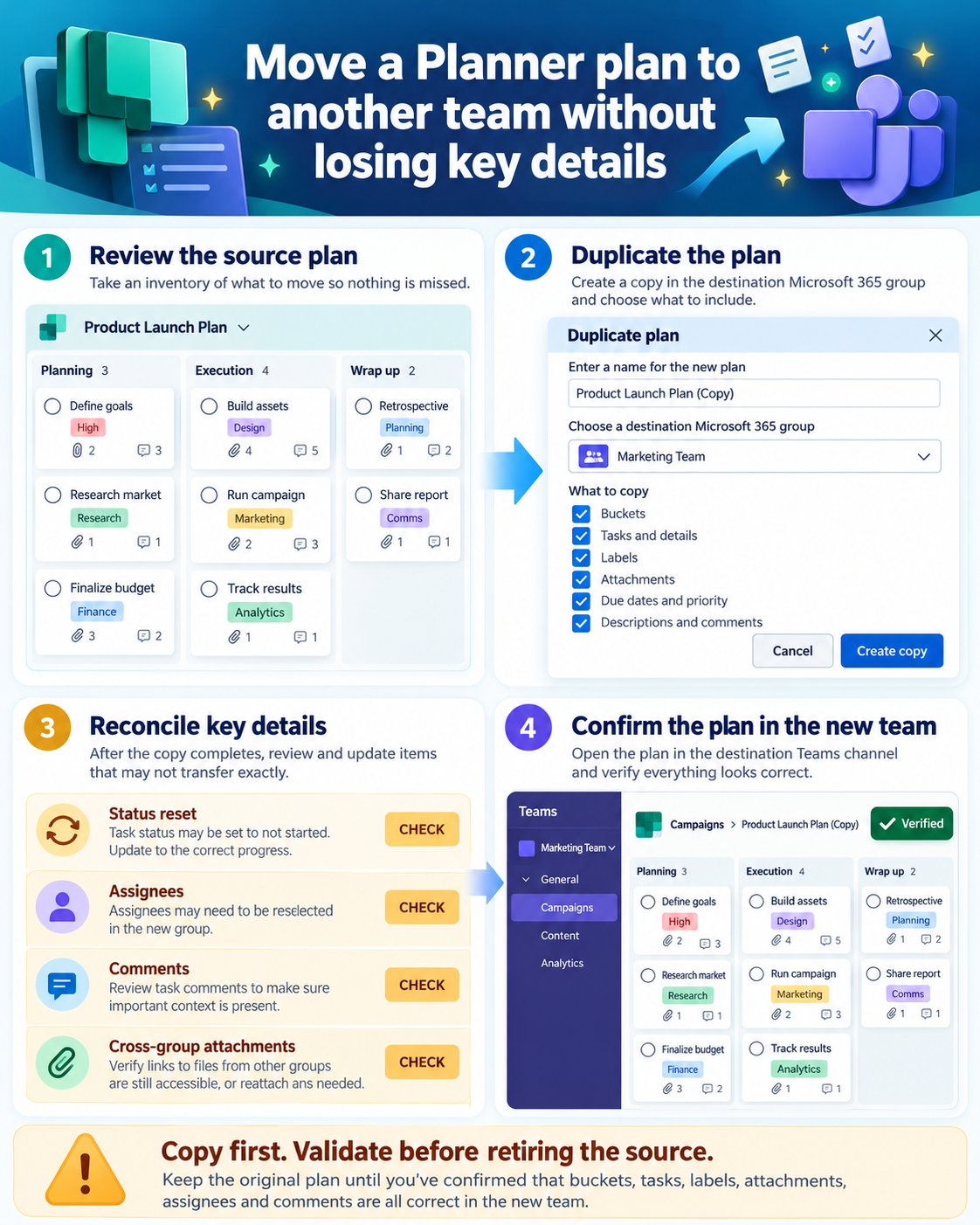
Planner does not treat a cross-team transfer like moving a folder. The supported approach is to duplicate the plan into the Microsoft 365 group behind the destination team, verify the new plan, and retire the old one only after the owners agree. That distinction matters because the copied plan is a new plan with its own membership context.
Microsoft’s current Planner documentation says buckets, task names, order, and bucket placement can be copied. Some fields are optional, task progress is reset for a basic plan, task chat is not copied, and attachments have restrictions across groups. A migration checklist should therefore focus on the details that require manual follow-up.
Inventory the source before you duplicate it
Record the source plan name, group, owners, buckets, labels, active members, and any premium features. Filter for incomplete tasks and export or capture a concise baseline so you can compare counts later. Do not delete completed work merely to make the transfer look cleaner; decide what the destination actually needs.
Pay special attention to tasks that depend on files, comments, chat, or assignees outside the destination team. The board setup overview helps distinguish the Planner board from the Teams tab that displays it. Moving the tab alone does not change the plan’s underlying group.
- Count tasks and buckets.
- List destination team members.
- Identify external or departed assignees.
- Open every critical attachment.
- Note labels and dates that must remain.
Duplicate the plan into the destination group
Select the target Microsoft 365 group
Open the source plan, use the plan menu, and choose Duplicate plan. Choose a shared destination and select the Microsoft 365 group associated with the new team. If the destination group is not available, confirm that you are a member and that your organization permits you to create or copy plans.
Choose optional fields deliberately
Review the copy options rather than accepting them blindly. Dates, descriptions, checklists, priorities, and labels can be included for a basic plan, while cross-group attachments are restricted. A clean repeatable template may intentionally omit dates and assignees; an operational migration usually needs them reviewed and restored.
Wait for the copy notification
Planner displays a notification while the duplicate is being created and another when it is ready. Open the new plan from Planner before adding it as a Teams tab. This isolates copy problems from tab or navigation problems.
Reconcile what did not cross the group boundary
Compare the destination task count and bucket order with the baseline. Reassign tasks only to people who belong to the new plan. Cross-group copies can drop assignments for people outside the destination, and copied basic-plan tasks start as Not started, so do not interpret the reset as lost data without checking the source.
Open every attachment that matters. Microsoft documents that basic-plan attachments can only be copied when the destination is in the same group. For a different group, move or re-share the underlying files and then replace task links. The plan template walkthrough offers useful context for deciding whether the result should be a reusable template or a live migrated board.
Attach the validated plan to the new team
After the plan itself is correct, add Planner to the intended Teams channel and select the existing destination plan. Ask a regular team member to open the tab, change a low-risk test task, and confirm that the update appears in Planner on the web. This proves membership, navigation, and write access together.
Keep the source plan read-only in practice while the team transitions. Planner does not provide a simple archive state for every plan type, so use a clear name such as “Legacy—do not update” and communicate a cutoff date. Delete only when the owner accepts that Planner plan deletion is not a routine reversible archive action.
Rebuild the connections around the moved plan
A copied plan does not automatically move every surrounding connection. Review the Teams tab, group membership, notification expectations, and any Power Automate flows that refer to the original plan or bucket identifiers. Recreate only the connections that the destination team actually needs, then trigger a harmless test task so you can see where notifications and assignments arrive.
If the original plan must remain available during the transition, label one version as read-only in practice and give owners a firm cutover time. Two active boards with the same work create more risk than a short migration pause. Keep an export or screenshots until the new team confirms task counts, due dates, labels, attachments, and assignees.
Planner migration questions
Can I truly move a plan instead of copying it?
For a different team or group, the practical supported workflow is to duplicate the plan into the destination. The new plan receives a new group context, and the old plan remains until you remove it. Treat it as a migration with validation, not an atomic move.
Why are the copied tasks marked Not started?
Microsoft documents that task status is reset when a plan is copied. This makes duplicate plans useful for repeated projects, but it means a live migration needs a progress-reconciliation step. Capture the original status before copying if it matters.
What happens to comments and task chat?
Task chat is not copied with the plan. Preserve decisions elsewhere when those conversations are business records, or summarize essential context in task descriptions before the transition. Never assume a matching task title includes its old discussion.
Why are some attachments missing in the new team?
Basic-plan attachments are only copied within the same group. Across groups, the destination members may not have access to the original files. Move or share the files into an appropriate destination library, then update the task links and test them as a normal member.
Cut over only after comparison
The destination plan is ready when tasks and buckets match the intended scope, important fields have been reconciled, files open for destination members, and the correct plan appears in Teams. Keep the source long enough to resolve discrepancies. A controlled duplicate-and-verify process is slower than relabeling a tab, but it prevents hidden group and attachment failures.