A file shared in a Teams chat and a file uploaded to a Teams channel may look similar in the app, but they live in different places. Chat uploads are stored in the sender’s OneDrive for Business and shared with the chat participants. Channel uploads are stored in the team’s SharePoint document library, where team membership and library permissions govern access.
That storage difference is why reposting the old chat link is not the same as moving the file. The reliable method is to place a controlled copy in the destination channel, confirm that the channel audience can use it, and only then decide whether the chat copy should remain. This avoids quietly breaking a link that colleagues may still use.
Choose the channel copy as the new working file
Before copying anything, decide whether the channel version will become the authoritative document. If people keep editing both versions, Teams cannot merge those independent histories. Tell collaborators which copy is current and pause edits during the handoff when the file changes frequently.
Open the chat’s Shared tab and identify the exact file, owner, and last modified time. If the conversation contains several versions with similar names, open the candidate and verify its contents. The chat attachment workflow can help you recognize how the original was shared without treating the old link as the destination.
- Confirm the destination team and channel.
- Check whether members need view or edit access.
- Note any external guests who may not belong to the team.
- Keep the original until the channel copy is tested.
Copy the file into the channel library
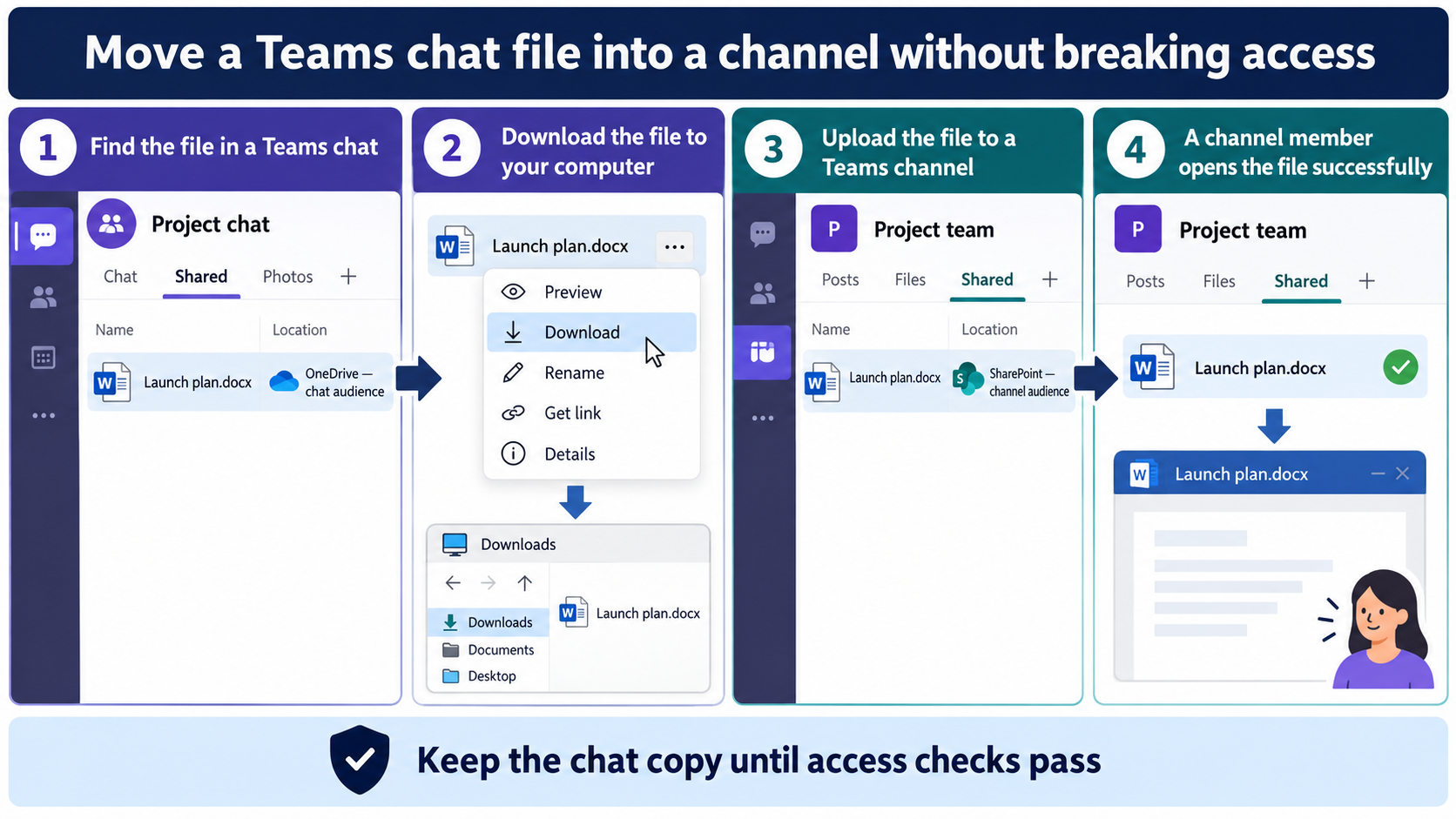
Download or copy from OneDrive
From Teams, open OneDrive, locate the chat file, and download a local copy if a direct copy-to destination is not available in your tenant. You can also open the file’s OneDrive location and use Copy to when the destination SharePoint library is offered. Prefer copying over moving at this stage because existing chat links continue to resolve while you validate the replacement.
Upload through the destination channel
Open the destination channel, select Shared, and upload the verified file into the correct folder. A standard channel maps to a folder in the team’s SharePoint library. If the channel has a carefully organized folder structure, place the file there rather than creating a second ad hoc location.
Post a fresh channel link
Share the new channel file in a channel post with one sentence explaining that it is the working copy. Do not paste the original OneDrive chat link. The new link should resolve through the channel’s SharePoint-backed location and align with the audience that already has channel access.
Test access before retiring the chat copy
Ask a normal channel member—not only an owner—to open the file from the channel Shared tab, edit it if appropriate, and refresh the page. Test with a guest separately if guests are in scope because membership and external-sharing rules can differ. A successful owner test does not prove that every member has the same access.
If the channel file opens read-only or prompts for access, inspect membership and the SharePoint Manage access panel. The permission troubleshooting sequence is useful when a channel member can see the post but cannot edit the underlying document. Fix the destination permission rather than granting broad access to the old OneDrive copy.
Clean up without destroying useful history
Leave the chat message in place when it provides decision history. You can reply that the maintained file now lives in the channel and include the new channel link. Removing the original file too early can make old conversations confusing and may break references in email or other chats.
When the business owner approves cleanup, archive or rename the old copy so its status is obvious. Avoid deleting a file that you do not own. Retention policies, records rules, and legal holds may also limit what can be removed, so involve the site or compliance owner when the file is governed content.
Handle links that still point to the chat copy
Search recent chat messages, email, and project notes for the old sharing link before you retire the source. Replace high-value references with the channel link where you control the content, and add a short reply in the original chat that directs readers to the maintained copy. This keeps the conversation understandable while preventing colleagues from unknowingly editing two independent files.
Questions about Teams file ownership
Does Teams really move the same file from chat to channel?
Usually, the safe user workflow creates a new copy in the channel’s SharePoint library. The original chat upload remains in the sender’s OneDrive unless its owner removes it. Because these are separate items, changes to one copy do not automatically appear in the other.
Why can a chat participant lose access to the channel copy?
Chat sharing grants access to the people in that conversation, while a channel file normally follows team and SharePoint permissions. A chat participant who is not a member or permitted guest of the destination may be excluded. Add access deliberately instead of assuming the old audience carries over.
Will the version history move with the file?
A download-and-upload handoff generally starts a new item and does not preserve the original OneDrive version history. Migration or copy behavior can vary with the Microsoft 365 route used. Keep the source until you have confirmed which history the business needs.
Should I move the file to a private or shared channel?
Only after checking its distinct membership. Private and shared channels can have different SharePoint sites and audiences from the parent team. Test with a representative member of that exact channel before announcing the handoff.
Make the channel copy authoritative
A successful handoff is not merely an upload. The channel file must be the clearly named working copy, the intended audience must be able to use it, and collaborators must know where future edits belong. Preserve the chat source until those checks pass, then clean it up according to ownership and retention rules rather than deleting it on instinct.