Copilot can help prepare Outlook meetings, but the supported path and final confirmation matter. Create the event, verify details, and send it deliberately This article follows current Microsoft guidance and avoids unsupported registry or account changes.
Choose the supported Copilot starting point
Reproduce the issue with ordinary, non-confidential content and write down the account, client, time, and exact result. Compare the same object in a second supported client without changing it. A clean comparison prevents a stale window, wrong tenant, or local cache from looking like a server failure.
The related the Copilot availability checks helps distinguish this symptom from a broader configuration problem.
Turn the suggestion into an Outlook item
The symptom is easiest to solve when you identify the boundary before changing settings. A problem limited to one item, profile, meeting, workbook, or device calls for a narrow repair. The same result in every supported client points instead to account data, policy, service health, or the network. This guide uses reversible checks and preserves the authoritative cloud copy. Keep a short note of each tested condition and its result, because a precise comparison is safer and faster than repeating broad cleanup. Preserve that note until the normal workflow succeeds twice.
Run a controlled comparison
Keep one variable constant while changing the client or item. Then keep the client constant while changing the account or item. This two-pass check reveals whether the fault follows local software, identity, permissions, or source data.
Preserve the authoritative copy
Before removing an account, profile, shared calendar, or local file, verify the cloud version in a supported web client. Save pending edits and note ownership. A destructive reset performed too early can erase the best evidence or create a duplicate that is harder to reconcile.
Verify before you send
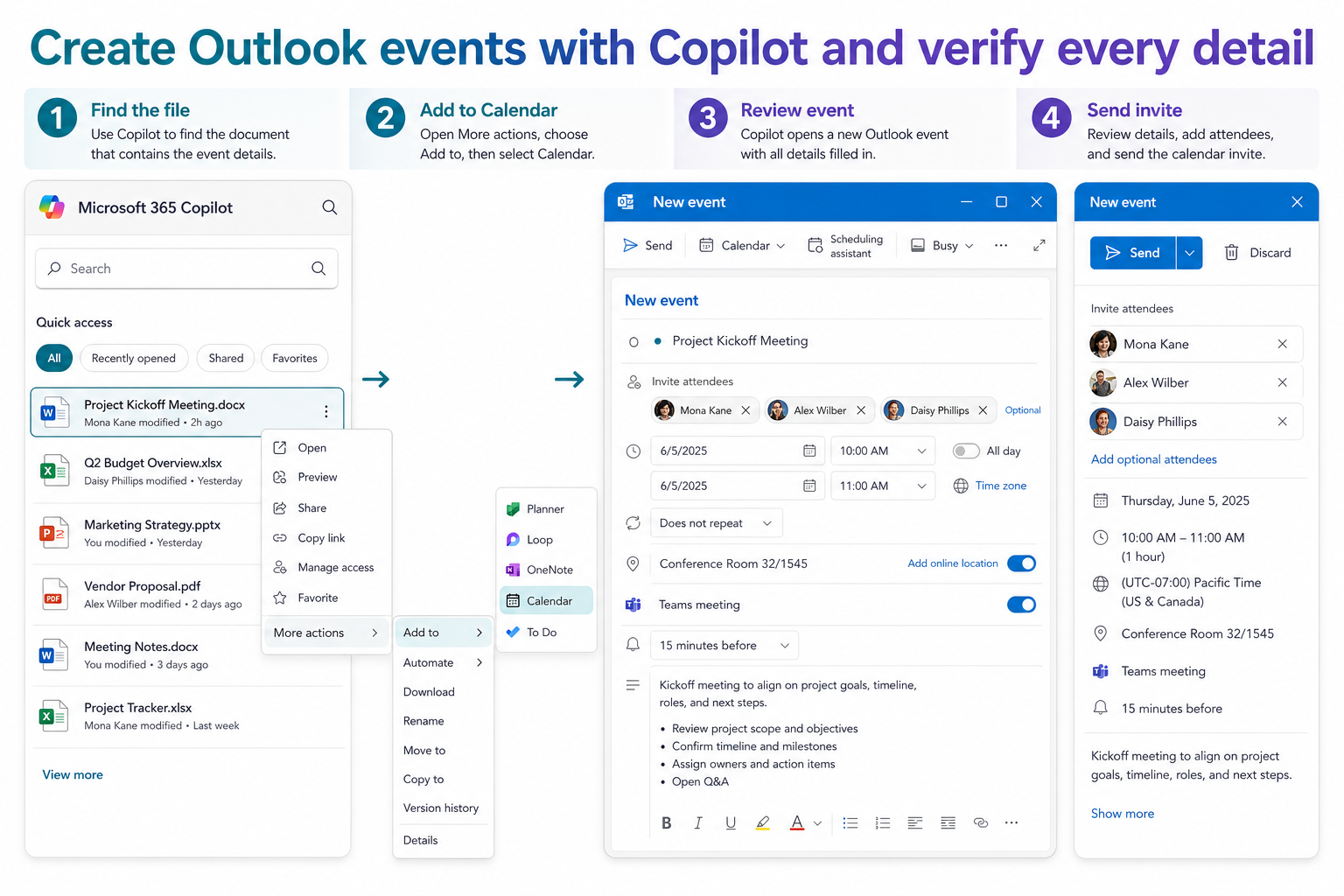
- Start from the Microsoft 365 Copilot app or a supported Outlook Copilot command.
- State the date, time zone, duration, attendees, and purpose explicitly.
- Open the resulting Outlook event and verify every field.
- Select Send only when the calendar, meeting link, and recipients are correct.
Do not perform several repairs at once. After each action, repeat the smallest test that failed and look for the actual downstream result, not merely a button that appears. Confirm that the meeting update reaches an attendee, the workbook saves to the cloud, the browser uses the intended profile, or the call remains connected. If the second client works, keep the cloud copy intact and focus on the original client.
Know what Copilot does not decide for you
End users can usually refresh a client, choose the correct account, retry a supported item, and adjust their own preferences. Owners control invitations, shared content, and source data. Administrators control tenant policy, licensing, managed-browser settings, service incidents, and some meeting defaults. When a control is unavailable or immediately returns to an enforced value, collect evidence and stop at that boundary.
Once the failing layer is clear, use the recurrence setup details to confirm the neighboring recovery path without replacing the working configuration.
Build a three-case test matrix
Use three rows rather than an unstructured list of experiments. The first row is the affected account with the original Copilot item or session. The second keeps the account and client but uses a harmless new item. The third repeats the original item in a supported web or secondary client. Record success, failure, ownership, and any visible message. This small matrix shows whether the symptom follows content, identity, client state, or an enforced control.
Avoid changing passwords, clearing every cache, or removing all accounts while the matrix is incomplete. Those actions alter several variables and can temporarily hide a policy or service problem. If confidential material is involved, use neutral test data and record only identifiers that your organization permits in a support request.
Retest the normal workflow
Return to the user’s regular device, account, and item. Repeat the original action once and verify the saved or delivered outcome from another viewpoint when possible. Leave speculative changes undone, and retain only the setting or repair that changed the result. A local display change is not enough when the real outcome is a delivered invitation, synchronized tab, saved workbook, generated summary, or stable media stream.
Escalate with useful evidence
If the problem crosses clients or users, provide the exact time, account type, object identifier, client versions, and comparison result. Mention whether the web client behaved differently and whether a policy control was locked. Include the last successful attempt and whether the issue affects one item or every new item. That evidence is more actionable than a broad request to reinstall the application.
Calendar creation questions
Does Copilot send the invitation automatically?
The safest workflow treats the generated calendar item as a draft until you review it and select Send or Save. Interface behavior can vary by Copilot entry point and license, so never assume attendees were invited without checking Sent Items and the calendar.
Why can’t Copilot see the event I just created?
Confirm that Copilot and Outlook use the same work account and that the item has finished saving to the mailbox. A local draft, shared calendar, or unsupported account boundary may not be immediately available.
Can Copilot schedule a recurring series?
Copilot can assist with scheduling, but recurrence rules and exceptions deserve direct review in Outlook. Check the series pattern, end date, time zone, and intended calendar before sending.
Use automation with a human final check
The right outcome is a repeatable workflow with one trustworthy copy and a clear owner for any remaining restriction. Recheck the ordinary task, undo unrelated experiments, and keep the security and sharing boundaries intact. If the symptom returns, compare it with the recorded trigger before repeating cleanup. A recurrence tied to the same client, network, or object is far more useful than starting from zero.