Microsoft Teams can act as a useful task manager without adding a separate project system. The Planner app brings personal tasks, assigned work, and shared plans into Teams, while a Planner tab can keep one team’s board beside its conversations and files.
The key is to build a small system your team will actually maintain. A useful board needs a clear owner for each task, a realistic due date, and a limited set of buckets. This walkthrough creates that structure with a basic Planner plan, then shows how to keep it from becoming another forgotten list.
Decide what kind of task manager you need
Start by choosing between a personal plan and a shared plan. A personal plan is appropriate for private work you do not need to assign or expose to a team. A shared plan is the better choice when several people need to see the same backlog, accept assignments, or report progress.
Use a shared plan for team accountability
In Planner, a Microsoft 365 group connects a plan to a group of people. When you create a plan and select the group associated with your team, members can collaborate on the same task board. Leaving the group field blank creates a personal plan instead.
For a lightweight team task manager, a basic plan is usually enough. It includes Grid, Board, Schedule, and Charts views. Premium plans add features such as a timeline, dependencies, goals, and more detailed resource views, but those features can require additional licensing.
Choose buckets that describe the workflow
Buckets are the columns or categories that organize work on the Board. Avoid creating a bucket for every person because assignments already identify owners. Instead, use a short workflow such as:
- New requests
- Ready to start
- In progress
- Waiting for input
- Completed
This arrangement lets anyone scan the board and understand what is moving or blocked. If your work follows phases rather than statuses, use buckets such as Research, Draft, Review, and Release.
Build the task manager in Teams
The Planner app is available as a standalone app in Teams and as a tab inside a channel. Add the standalone app first if you want one place for all your plans; add a tab when a particular channel needs a visible shared board.
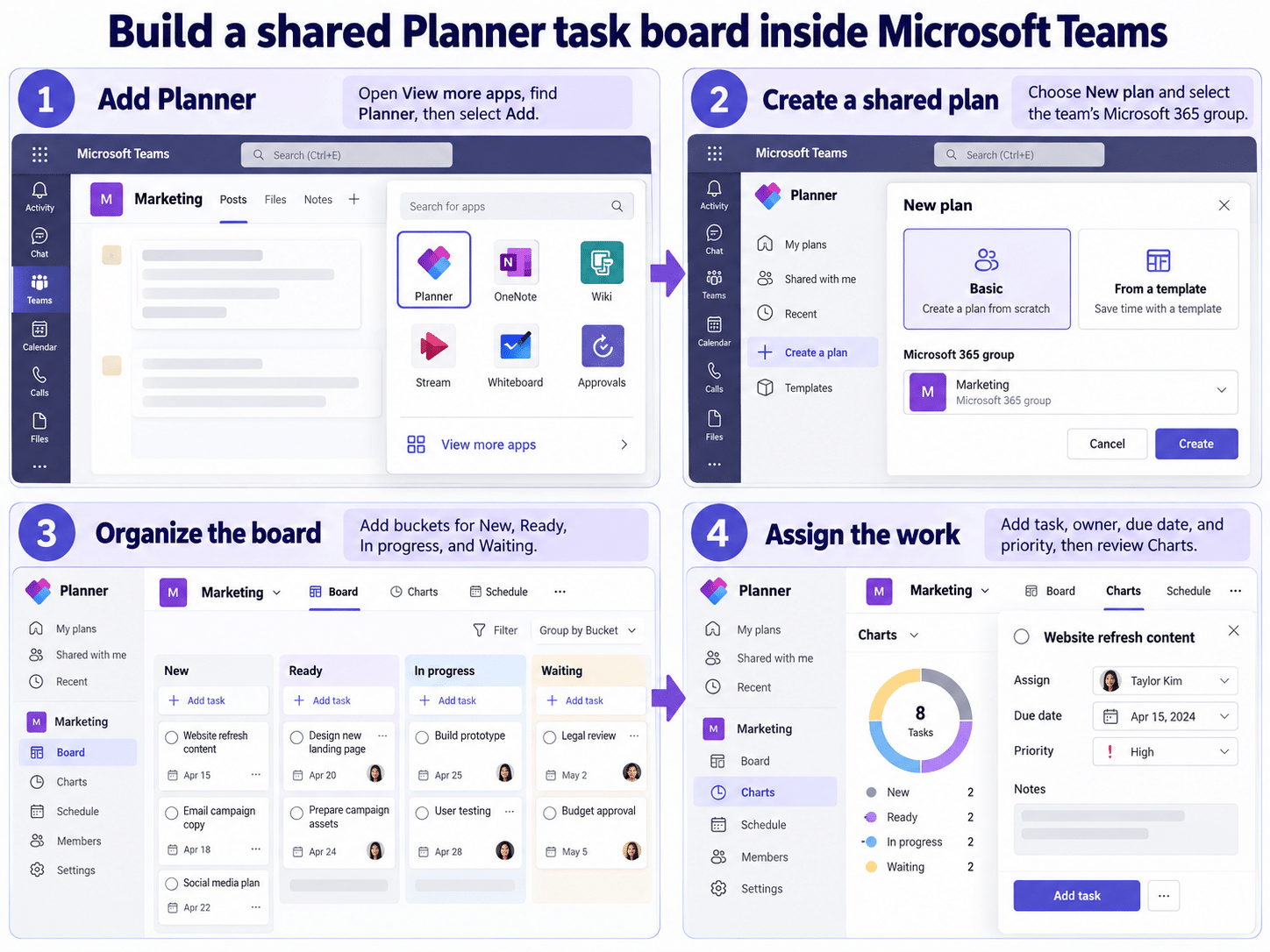
- In Teams, select View more apps, search for Planner, and select Add. Right-click Planner in the app bar and select Pin if you will use it daily.
- Open Planner and select New plan or Create a plan. Choose a blank basic plan unless you need a specific template or premium feature.
- Enter a descriptive plan name, such as “Client onboarding tasks.” Select the Microsoft 365 group connected to the relevant team so the plan is shared, then create it.
- Open Board and add the small set of buckets you planned. Keep their names action-oriented and remove any bucket that does not help the team make a decision.
- Add the first tasks. Give each task a clear result, assign an owner, set a due date, and add priority only when it changes how the team should respond.
To place the same board inside a channel, open the channel, select Add a tab at the top, choose Planner, and save. Teams then lets you create a new plan or attach an existing plan that is shared with the channel or its group.
Make every task easy to act on
A task title should describe a visible outcome. “Prepare first-draft budget” is easier to understand than “Budget.” Put background information, links, and acceptance details in the task notes or checklist rather than extending the title into a paragraph.
Assign one accountable owner
Planner allows multiple assignees, but shared ownership can make responsibility less clear. For routine work, choose one accountable owner and use the checklist or comments to identify contributors. Add a due date that reflects when the result is needed, not merely when someone hopes to begin.
Use labels sparingly for information that cuts across buckets, such as Urgent, Customer-facing, or Waiting on approval. If every task receives several labels, the colors stop helping readers distinguish important work.
Pick the view that answers the question
Use Board to move work through buckets and see flow. Use Grid when you need to edit several task fields quickly, Schedule to inspect due dates on a calendar, and Charts to review status, priority, buckets, or workload by member.
Team members can use My Tasks and Assigned to me in the Planner app to see work from several plans together. My Day is a temporary daily focus view; unfinished items remain in their original plan when My Day resets.
Keep the board connected to daily Teams work
The task manager becomes more reliable when people can capture work at the moment it appears. In a Teams conversation, hover over a message, select the ellipsis, choose More actions, and select Create Planner task. You can send the task to Private Tasks or to an existing plan, then set its due date, priority, notes, bucket, progress, and assignee.
Use notifications as an exception signal
Teams activity notifications can alert a person when someone else assigns a task or changes the urgency or progress of an assigned task. Do not rely on notifications as the only review method. A short recurring board review is more dependable for overdue or unowned work.
If the team needs stronger follow-up for missed deadlines, a focused repeating reminder flow can supplement the board without turning every ordinary update into noise.
Establish a five-minute maintenance habit
During a regular team check-in, filter or group the Board by progress or assignee and resolve four questions:
- Which tasks have no owner?
- Which due dates are no longer realistic?
- Which items are waiting for input?
- Which completed tasks can be closed or archived from the active view?
This small routine prevents the board from becoming a historical list. It also exposes workload imbalance before deadlines slip.
Questions you might have
Why can’t I find Planner in Teams?
Your organization may have disabled the Planner app or restricted app installation. Ask a Teams administrator to confirm that Planner is allowed for your users. If you can open Planner on the web but cannot add it in Teams, the app policy is the likely place to check.
Should I use a personal plan or a channel plan?
Use a personal plan for private planning and a shared plan when others must see or update the tasks. A channel tab is helpful when the board belongs to one team conversation, because the plan stays visible beside that channel’s posts and files.
Can I turn an Outlook follow-up into team work?
Flagged Outlook email can appear in Planner’s task views, but it remains personal until you move or recreate the work in a shared plan. If the item must be assigned to someone else, use a cleaner cross-app handoff so the owner and shared context are explicit.
Do I need a premium Planner license for this setup?
No. A basic plan supports the core task-manager workflow: task creation, assignment, buckets, due dates, Board, Grid, Schedule, and Charts. Consider premium only when the team truly needs features such as dependencies, a timeline, goals, or more detailed resource management.
The practical takeaway
A Teams task manager works best when the shared plan stays simple: a few meaningful buckets, one accountable owner per task, and due dates the team actually reviews. Add the board to the channel where the work is discussed, capture actionable messages as Planner tasks, and use the most useful view for each review. The tool is already integrated; the maintenance habit is what makes it dependable.