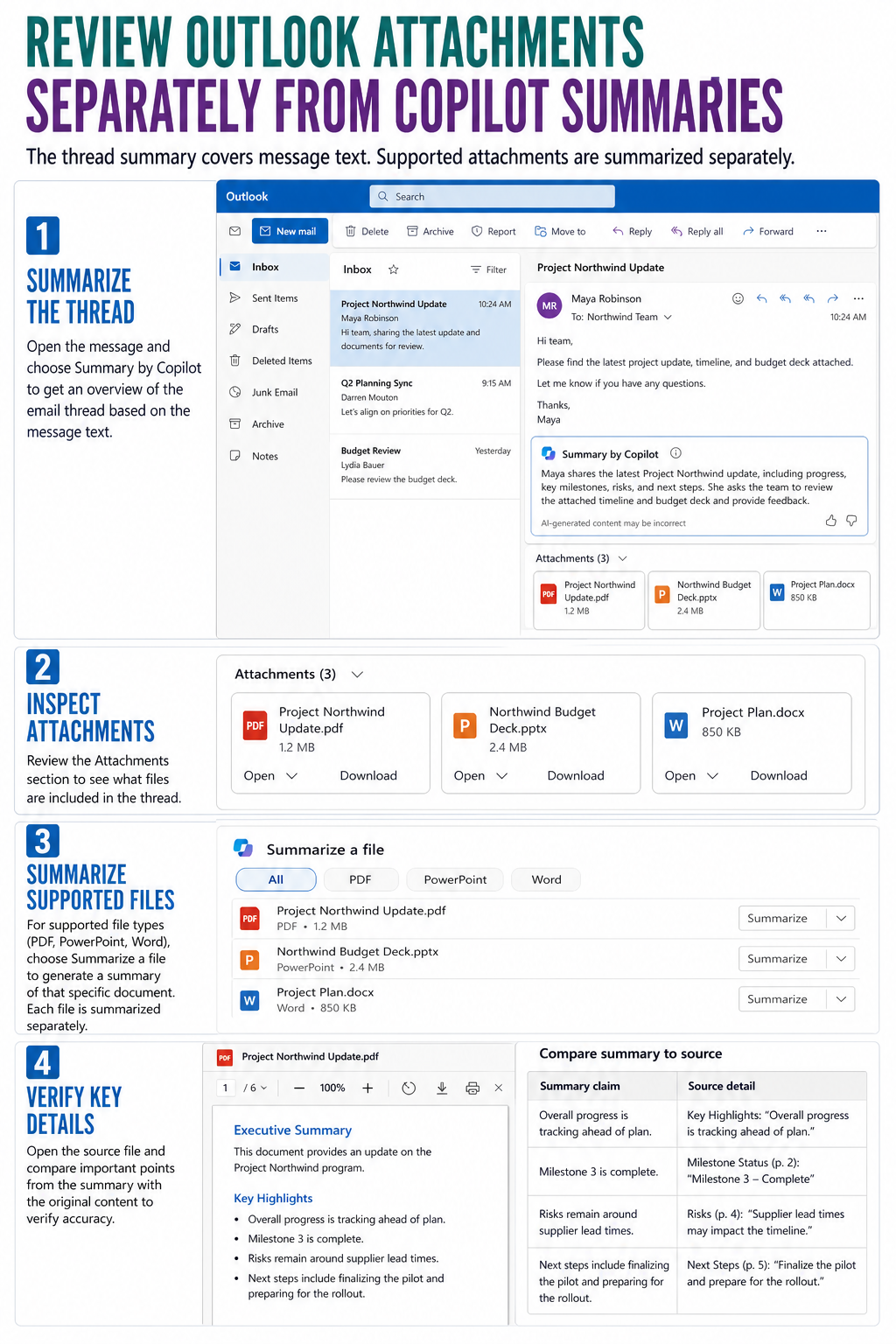
Copilot’s email-thread summary and an attachment summary are separate actions in Outlook. Summary by Copilot scans the conversation for key points, but it may not fold every attached document into that result. In new Outlook and Outlook on the web, use Summarize a file on a supported PDF, PowerPoint, or Word attachment, then compare its output with the email summary.
This distinction matters when the message says only “see attached.” A clean thread summary can omit the budget, deadline, or decision that lives inside the file. Treat the email and each relevant attachment as separate sources.
Read the thread summary for what it actually covers
Open the conversation and select Summary by Copilot or Summarize at the top. Review the numbered citations when they appear; they take you back to the messages that supported the summary.
The summary is a fast map of the conversation, not proof that every file was analyzed. If a sender refers to an attachment, scroll to the message that contains it and inspect the attachment row.
Separate message context from document evidence
Ask two questions: What did people say in the thread, and what does the source file contain? The first answer comes from the thread summary. The second requires opening or summarizing the file itself.
This separation also improves verification. A sender can describe a revised figure in the email while attaching an older document. Comparing both sources exposes the mismatch instead of producing one confident but incomplete recap.
Summarize supported attachments one by one
Microsoft documents Summarize a file for PDF, PowerPoint, and Word attachments in new Outlook and Outlook on the web. Select the attachment, choose that action, and wait for the file-specific summary.
- Open the message that contains the attachment.
- Select the PDF, PowerPoint, or Word file.
- Choose Summarize a file when it is available.
- Review the generated overview.
- Open the source file to verify important details.
The broader Outlook Copilot workflow is useful when the missing feature is Copilot itself, rather than a specific attachment action. Confirm the account, client, and license before troubleshooting individual files.
Know when the file action will not appear
The attachment may use an unsupported format, be encrypted, or live in a mailbox context Copilot does not support. Microsoft says Outlook Copilot scenarios are limited to a user’s primary mailbox and are not available for archive, group, shared, or delegated mailboxes. Mailboxes must also be hosted on Exchange Online.
Copilot cannot access S/MIME or Double Key Encryption encrypted emails. If the message or file is protected, use the organization’s approved document workflow instead of trying to bypass protection.
Diagnose the missing-attachment symptom
Use the symptom to choose the next action:
- The thread summary exists, but file details are absent: use Summarize a file on each relevant supported attachment.
- Summarize a file is missing for every attachment: verify that you are in new Outlook or Outlook on the web with an eligible account.
- Only one file lacks the action: check its format and protection state.
- The message is in a shared or delegate mailbox: move the task to the supported primary-mailbox context only if policy and workflow allow.
- The summary contradicts the document: open the source and trust the verified source content, not the generated wording.
For a PDF-specific reading workflow, the document review method helps you structure prompts and verification without treating the summary as the authoritative record.
Build one reliable combined summary
Create a short note with two headings: Email decisions and Attachment findings. Copy only verified facts, then add the attachment filename beside each file-derived point. This produces a useful combined recap without pretending Outlook performed a single all-source analysis.
For sensitive material, keep the note in an approved Microsoft 365 location. Do not paste protected content into an unapproved AI service simply because the Outlook action is unavailable.
Compare versions before trusting the recap
Email chains often accumulate several similarly named files. Check the filename, modified date, sender, and message context before summarizing. If two versions contain different figures, summarize each separately and label the outputs clearly rather than asking Copilot to reconcile an ambiguous attachment set.
When the file opens from a cloud link rather than the attachment row, access permissions can also affect what is available. Confirm that you can open the document normally with the same account. A missing file summary is expected when the underlying source cannot be accessed, and granting access should follow the owner’s normal sharing process.
Questions about attachments in Copilot summaries
Does Summary by Copilot automatically read every attachment?
Do not assume it does. Microsoft presents thread summarization and Summarize a file as separate actions. Review the attachment row and summarize supported files individually when document content matters.
Which Outlook attachments can use Summarize a file?
Microsoft currently documents the feature for PDF, PowerPoint, and Word attachments in new Outlook and Outlook on the web. Availability can still depend on account, license, mailbox, and organizational configuration. Open unsupported formats manually and verify their content directly.
Why is Copilot available in my inbox but not a shared mailbox?
Microsoft says Copilot scenarios in Outlook are available only on the user’s primary mailbox, not archive, group, shared, or delegate mailboxes. The feature is also unsupported for mailboxes outside Exchange Online. Ask the mailbox owner or administrator for an approved alternative workflow.
Can I trust figures in an attachment summary without opening the file?
No. Microsoft advises reviewing, editing, and verifying AI-generated content. Open the source page or slide, confirm figures and dates, and check whether the attachment itself is the latest version before forwarding the result.
Use the right summary for the right source
Let the thread summary explain the conversation and the file summary explain a supported document. When the action is missing, check client, mailbox, format, and protection boundaries before reinstalling Outlook. The final decision should always come from the original message and attachment, with Copilot serving as a navigation aid rather than the record of truth.