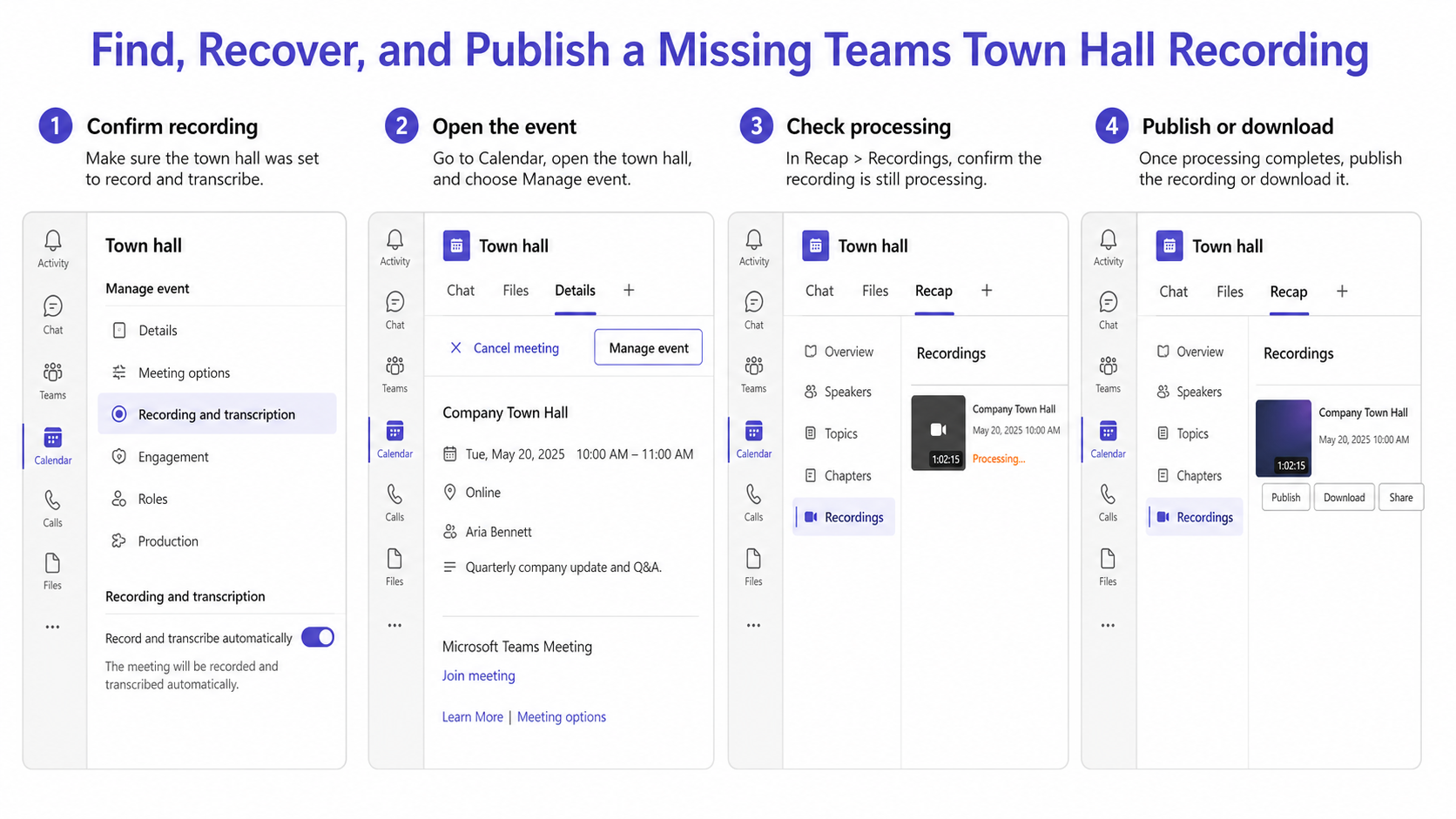
A missing Teams town hall recording is often still processing, attached to a different event occurrence, or waiting for the organizer to publish it. Open the exact town hall from Calendar, select Manage event or Recap, and inspect Recordings before searching ordinary meeting chats or local folders.
Town halls are not handled exactly like standard Teams meetings. Microsoft says town halls record automatically when the event starts unless automatic recording was turned off. Afterward, the organizer manages the recording from the event experience and can publish, download, share, or remove it.
Start with the event record, not the attendee link
Use the organizer account that created the town hall. In Teams, select Calendar, open the completed event, and choose the event-management or recap view. If the event was part of a repeating program, compare the date and start time rather than relying on a similar title.
The recording may initially show a processing state. Closing Teams or refreshing the event will not accelerate media processing. Give the service time, then reopen the event and check the same recording row.
Confirm that recording actually ran
For an upcoming town hall, open Manage event > Meeting options > Recording and transcription. The Record and transcribe automatically toggle determines whether recording begins with the event. If automatic recording was disabled, someone with the required role, license, and policy permission had to start it manually from More actions > Record and transcribe.
If nobody started a manual recording, Teams cannot reconstruct the video afterward. A transcript, presentation file, or attendee report is useful event content, but none is a substitute for a recording that never began.
Look for processing before declaring it lost
Open Recap > Recordings and inspect the status. Processing time varies with event length and service load. Keep the original event intact while processing continues; avoid creating replacement events with the same title because that makes later identification harder.
Decide whether the recording is missing or merely unpublished
Organizers can see management controls that attendees do not. If the recording appears for the organizer but not for viewers, the problem is distribution rather than capture.
| What you see | Likely meaning | Next action |
|---|---|---|
| Processing status | Media is still being prepared | Wait, then reopen the same event |
| Recording row with Publish | Recording exists but is not published | Review it, then publish when appropriate |
| Download available to organizer | The media can be saved locally | Download an authorized backup copy |
| No recording row | Recording may not have started or policy blocked it | Check event settings and organizer permissions |
Publish only after reviewing the content and audience. Downloading creates a copy; it does not by itself make the recording visible to attendees. Sharing also remains subject to organizational permissions and information-governance rules.
If you regularly need recordings without relying on a producer to remember, the automatic recording setup explains the broader organizer habit. Town hall controls still need to be confirmed on the event because templates and policies can differ.
Recover the right artifact when several events look alike
Teams can show multiple events with nearly identical names. Match the organizer, date, time, and event type. A standard meeting or webinar recap is not the same container as the town hall, even if the invitation subject is reused.
Check the organizer’s storage and permissions
Standard Teams meeting recordings are commonly saved to the organizer’s OneDrive and surfaced in meeting chat or channel conversation. Town hall recordings should first be managed through the town hall event experience. If you are looking in ordinary chat, return to Calendar and open the town hall itself.
The focused recording-location checklist can help when the event was actually a normal meeting rather than a town hall. Its storage guidance prevents mixing two different recording workflows.
Escalate with useful evidence
If no recording appears after reasonable processing time, give IT the event URL or ID, organizer, start and end time, and whether automatic recording was enabled. Include whether Start recording appeared during the event and whether a transcription exists. That evidence lets an administrator investigate policy, licensing, or service health without guessing which event failed.
Do not send sensitive video or attendee data in a general support channel. Use your organization’s approved support route and preserve the original event until the investigation is complete.
Protect the recording after recovery
Once the media appears, play the beginning and a section near the end before publishing. Confirm that the correct event, audio, and shared content were captured, then choose the approved distribution method. Retain or delete downloaded copies according to organizational policy, because a local copy can outlive the audience controls applied inside Teams.
Town hall recording questions
Are Teams town halls recorded automatically?
Microsoft states that town halls record automatically when the event starts. Organizers can turn that setting off before the event and record manually instead. If the automatic toggle was off and nobody started recording, there will be no video to recover.
Why can the organizer see the recording but attendees cannot?
The recording may exist but still need to be published. Organizer management access is different from attendee viewing access. Review the final recording, publish it from the event controls, and then test the attendee experience with the intended audience.
Can a presenter publish or download the town hall recording?
Recording controls depend on event role, license, and administrator policy. The organizer should perform the recovery check first because organizer-only management controls may not appear for presenters. If a presenter must manage the artifact, confirm the supported role assignment before the event.
What if the town hall recording is stuck processing?
Keep the event and allow additional processing time, especially after a long broadcast. If the status does not change, record the event details and ask your Microsoft 365 administrator to check service health and open a support case if needed. Recreating the event will not repair the existing media job.