
Microsoft 365 Copilot Chat gives you a powerful AI assistant that works directly with your organization’s data to answer questions, summarize content, and accelerate everyday tasks. Unlike standalone AI chatbots that rely only on public training data, Copilot Chat connects securely to your Microsoft 365 environment including emails, files, and meetings. This article explains how to use Microsoft 365 Copilot Chat effectively so you can streamline your workflow and accomplish more in less time each day.
What is Microsoft 365 Copilot Chat?
Microsoft 365 Copilot Chat is an AI-powered conversational interface that sits at the center of your Microsoft 365 experience and processes natural language prompts. You access Copilot Chat through the dedicated app on the Microsoft 365 home page, the sidebar in Teams, or by visiting copilot.microsoft.com directly. The chat interface understands context from your work data and delivers responses grounded in your emails, calendar events, documents stored in OneDrive, and SharePoint sites. Copilot Chat differs from Copilot embedded inside individual apps like Word or Excel because it works across your entire Microsoft 365 ecosystem simultaneously.
Get started with Copilot Chat
Setting up Copilot Chat requires an active Microsoft 365 Copilot license assigned by your organization’s administrator through the Microsoft 365 admin center portal. Once licensed, you can open Copilot Chat from the app launcher in any Microsoft 365 web application or directly from the Teams desktop client sidebar.
Access Copilot Chat on desktop and web
Navigate to microsoft365.com and click the Copilot icon in the left navigation panel to launch the full chat experience in your browser window. In Teams, select the Copilot icon from the left sidebar to open a dedicated chat panel where you can type prompts without leaving your conversation. You can also access Copilot on your mobile devices to stay productive when working away from your desk during travel or meetings.
Configure Copilot Chat preferences
Click the settings gear icon within the Copilot Chat interface to adjust response preferences including tone, length, and preferred language for generated content. You can choose between creative, balanced, and precise response styles depending on whether you need brainstorming assistance or factual data retrieval from documents. These preferences persist across sessions so you only need to configure your ideal settings once, and Copilot Chat remembers them for all future interactions.
Write effective Copilot Chat prompts
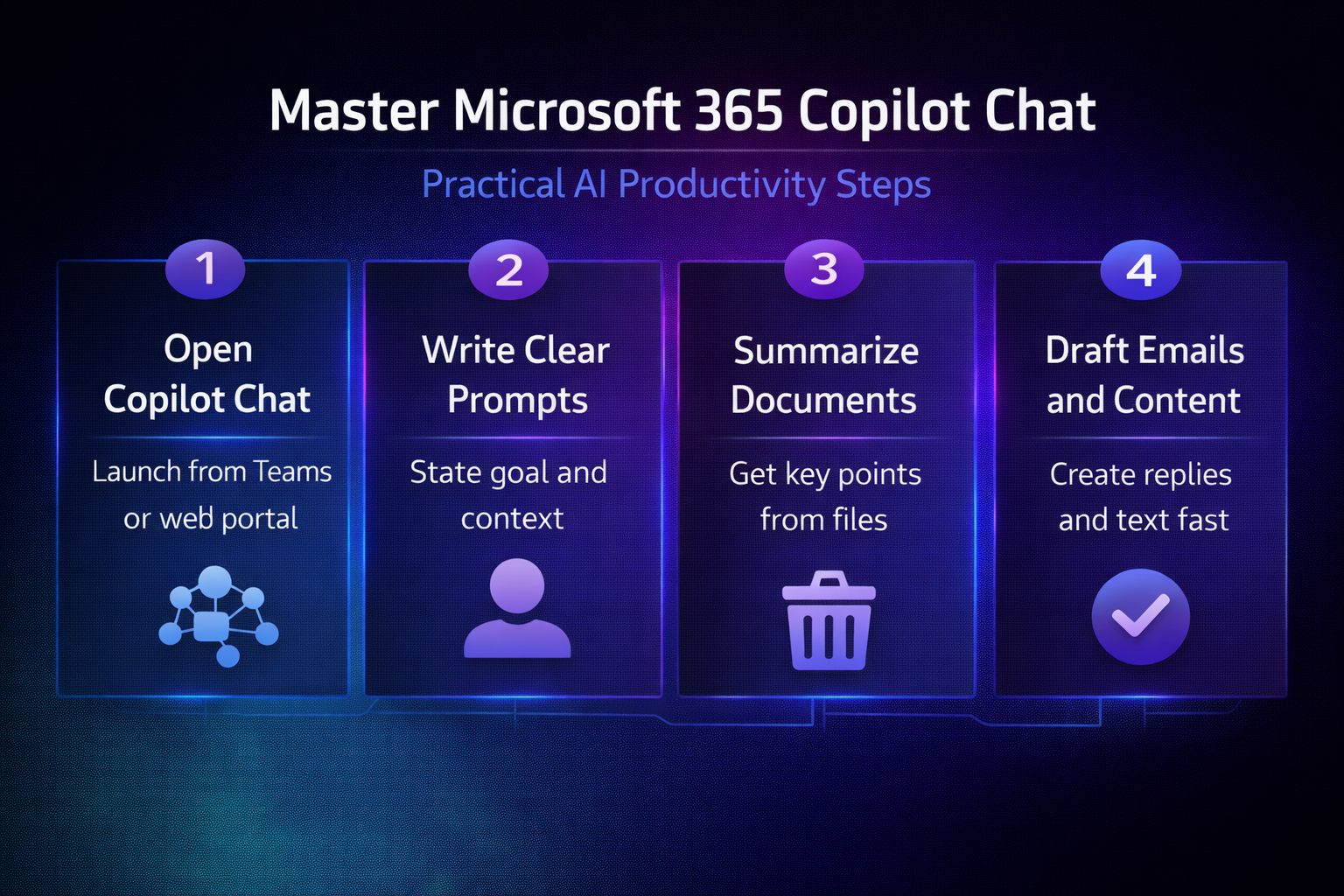
The quality of your Copilot Chat results depends entirely on how clearly and specifically you structure your natural language prompts for the assistant. Effective prompts include four key elements: a clear goal, relevant context, the source of information you want referenced, and your expectations for output format. For example, asking Copilot Chat to summarize last week’s project update emails from your team and format the summary as bullet points produces better results.
Prompt examples for common tasks
You can ask Copilot Chat to find specific information buried across multiple emails, documents, and Teams conversations without manually searching through each location. Try prompts like “Summarize all emails from the marketing team this week” or “List action items from yesterday’s project standup meeting in Teams.” Learning effective Copilot prompts for Teams meetings helps you extract maximum value from your meeting notes and recorded discussions.
Use Copilot Chat for email and communication tasks
Copilot Chat excels at helping you manage your Outlook inbox by summarizing long email threads, drafting professional replies, and identifying action items requiring attention. Ask Copilot Chat to draft a response to a client inquiry and it generates contextually appropriate email text that you can review and customize before sending. You can use Copilot to draft email responses directly within Outlook for even faster email composition when handling routine correspondence daily. For inbox management, Copilot Chat can identify unread messages requiring urgent attention and help clean your Outlook mailbox by categorizing messages efficiently.
Summarize documents and attachments
One of the most valuable Copilot Chat features involves summarizing lengthy documents, presentations, and email attachments without requiring you to read every single page. Upload a file or reference a document stored in OneDrive or SharePoint, then ask Copilot Chat to extract the key points and present them concisely. You can summarize attachments with Copilot in Microsoft 365 to quickly understand lengthy reports, proposals, and contracts received from colleagues. Copilot Chat preserves the original meaning while condensing content into digestible summaries that save you significant reading time across your busy workday schedule.
Generate images and visual content
Beyond text-based tasks, Copilot Chat includes built-in image generation capabilities powered by DALL-E that create custom visuals from your descriptive text prompts. Describe the image you need using specific details about style, composition, colors, and subject matter to get results matching your creative vision accurately. You can create images with Microsoft Copilot’s AI generator for presentations, social media posts, and internal communications that require visual elements.
Copilot Chat privacy and data security
Microsoft 365 Copilot Chat operates within your organization’s existing security boundaries and respects all permissions configured in SharePoint, OneDrive, and Exchange online. Your prompts and the data Copilot accesses never leave your tenant’s compliance boundary and are not used to train the underlying large language models. Administrators control Copilot Chat availability through sensitivity labels and data loss prevention policies that govern which content the AI assistant can access and reference.
Frequently asked questions
What is Microsoft 365 Copilot Chat and how does it work?
Microsoft 365 Copilot Chat is an AI conversational assistant that connects to your work data across Outlook, Teams, OneDrive, SharePoint, and other services. It processes natural language prompts and returns contextually relevant answers grounded in your organization’s documents, emails, calendar events, and meeting transcripts securely. Copilot Chat uses the Microsoft Graph to access permitted content while maintaining all existing security and compliance boundaries established by your administrator.
How is Copilot Chat different from Copilot in Word or Excel?
Copilot embedded in individual applications like Word, Excel, or PowerPoint operates specifically within that single document or spreadsheet you currently have open. Copilot Chat works across your entire Microsoft 365 ecosystem, pulling information from multiple sources simultaneously to answer broader questions about your work data. This cross-application capability makes Copilot Chat ideal for research, summarization, and discovery tasks that span multiple files, emails, and conversations across services.
What are the best prompts to use with Copilot Chat?
The best prompts provide clear instructions with specific context about what information you need and the format you expect the response to follow. Include references to time periods, people, projects, or documents so Copilot Chat knows exactly which data sources to query across your tenant. Start with simple requests and progressively add detail to refine your results until Copilot Chat delivers exactly the output you need for your task.
Conclusion
Microsoft 365 Copilot Chat transforms how you interact with your organization’s data by providing an intelligent AI assistant that understands your work context completely. Start with simple prompts for email summarization and document lookup, then expand into more advanced workflows like content drafting and image generation. Apply the prompt techniques described throughout this article and experiment with different request formats to discover which approaches deliver the most useful results. Share your favorite Copilot Chat prompts in the comments below and let us know which features have improved your Microsoft 365 productivity the most.