Getting started with Copilot email assistance
“I spend hours every day writing emails, and I’m constantly switching between different tones and formats depending on who I’m contacting. Is there a way to use Microsoft Copilot to help me draft professional email responses more quickly while maintaining the right tone for each recipient?”
This scenario reflects a common workplace challenge. Email communication consumes significant time for most professionals. The constant need to craft appropriate responses while maintaining consistency and professionalism can be overwhelming.
Understanding the Copilot Microsoft mail drafting tool
Email drafting represents one of the most time-consuming daily tasks for business professionals. Poor email communication can damage relationships and create misunderstandings. Efficient email management directly impacts productivity and professional success.
Our task: generate quick email drafts with Copilot
We’ll explore a comprehensive workflow for using Copilot to draft professional email responses. This includes accessing Copilot within Outlook, providing effective prompts, and refining generated content to match your communication style.
The tutorial assumes you have Microsoft 365 with Copilot enabled and basic familiarity with Outlook. We’ll focus on practical email scenarios including client responses, internal communications, and follow-up messages.
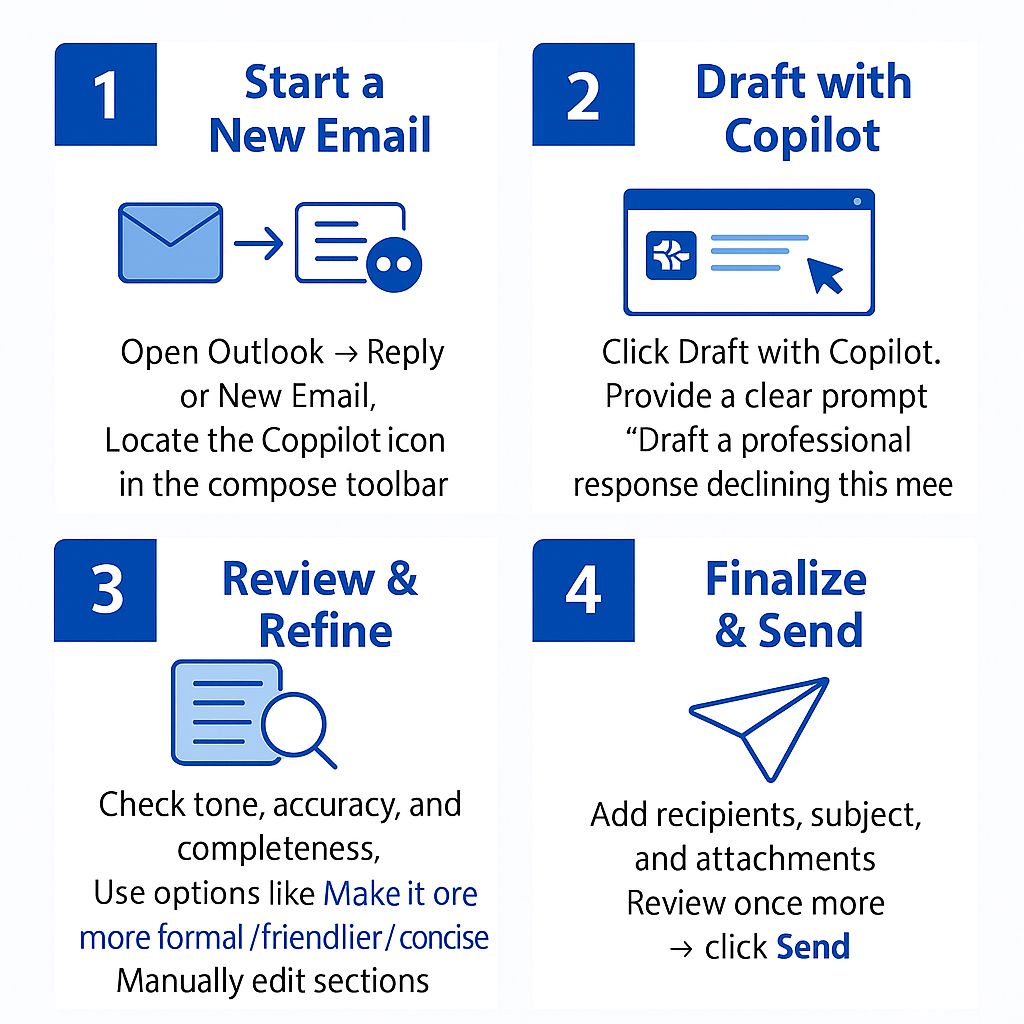
Email creation with Outlook Copilot
- Open Outlook and navigate to the email you want to respond to, then click the “Reply” or “New Email” button to begin composing your message.
- Locate the Copilot icon in the compose window toolbar, which appears as a small AI assistant symbol next to other formatting options.
- Click the Copilot icon and select “Draft with Copilot” from the dropdown menu to activate the email assistance feature.
- Provide a clear prompt describing your email intent, such as “Draft a professional response declining this meeting request due to scheduling conflicts.”
- Review the generated draft carefully, paying attention to tone, accuracy, and completeness of the information provided by Copilot.
- Use the refinement options to adjust tone by selecting “Make it more formal,” “Make it friendlier,” or “Make it more concise” as needed.
- Edit specific sections manually to add personal touches, company-specific information, or details that Copilot couldn’t access from your prompt.
- Add recipients, subject line modifications, and any necessary attachments before sending the email to ensure completeness.
Expert tip: Provide context about your relationship with the recipient and desired outcome to get more targeted email suggestions from Copilot.
Example prompt: "Draft a follow-up email to Sarah from ABC Corp regarding the delayed project timeline. Keep it professional but understanding, and suggest a brief call to discuss next steps."Common challenges when using Copilot email generator
- Generic tone issues occur frequently when Copilot generates responses that don’t match your usual communication style or the recipient’s expectations. Resolve this by providing more specific tone guidance in your prompts and always reviewing generated content before sending.
- Missing context problems arise when Copilot lacks sufficient information about your business relationships, ongoing projects, or company policies that should influence the email content. Address this by including relevant background information in your prompts and manually adding specific details.
- • Overly formal or casual language can make emails feel impersonal or inappropriate for the business context you’re operating within. Fix this by using Copilot’s tone adjustment features and creating custom prompts that specify your preferred communication style for different recipient types.
Give Copilot a complete response brief
A useful draft starts with more than “reply to this.” Tell Copilot the outcome, audience, tone, facts that must be included, and any boundary it must respect. For example: “Draft a concise reply to the supplier. Confirm receipt, ask for a revised delivery date, do not approve the price change, and keep the tone professional.”
If the thread is long, identify the newest decision or unresolved question. Copilot can use the visible conversation, but it should not be expected to know facts that are not in the thread or your prompt. Paste only approved information and avoid inventing dates, commitments, or policy explanations.
Use iterative instructions instead of discarding a nearly correct draft. Ask to shorten it, make the request more direct, turn action items into bullets, or remove language that sounds like a commitment. This preserves the useful context while making the edit easier to review.
Apply a human-send checklist
Copilot creates a draft; it does not transfer accountability. Before sending, verify:
Read the final message without relying on the original thread. It should make sense to a recipient who scans only the response. Replace vague phrases such as “soon” with a confirmed date when one exists, and clearly assign each action to a person.
If Copilot is unavailable, confirm that you are using a supported Outlook experience, signed into the licensed work account, and editing a message rather than a protected or unsupported item. Compare Outlook on the web with the desktop app before resetting anything. If the feature works in one surface, finish the urgent draft there and troubleshoot the client separately. Never send a generated response only because it sounds polished; factual accuracy and permission to disclose the information still require your review.