Copilot in Windows 11 sometimes returns a blank chat window or completely empty response bubble after you submit a prompt. The problem usually traces back to corrupted cache data, a misconfigured network connection, or an outdated Copilot component that lost sync with Microsoft’s servers. Clearing stored app data and verifying your connection settings resolves most of these cases within a few minutes.
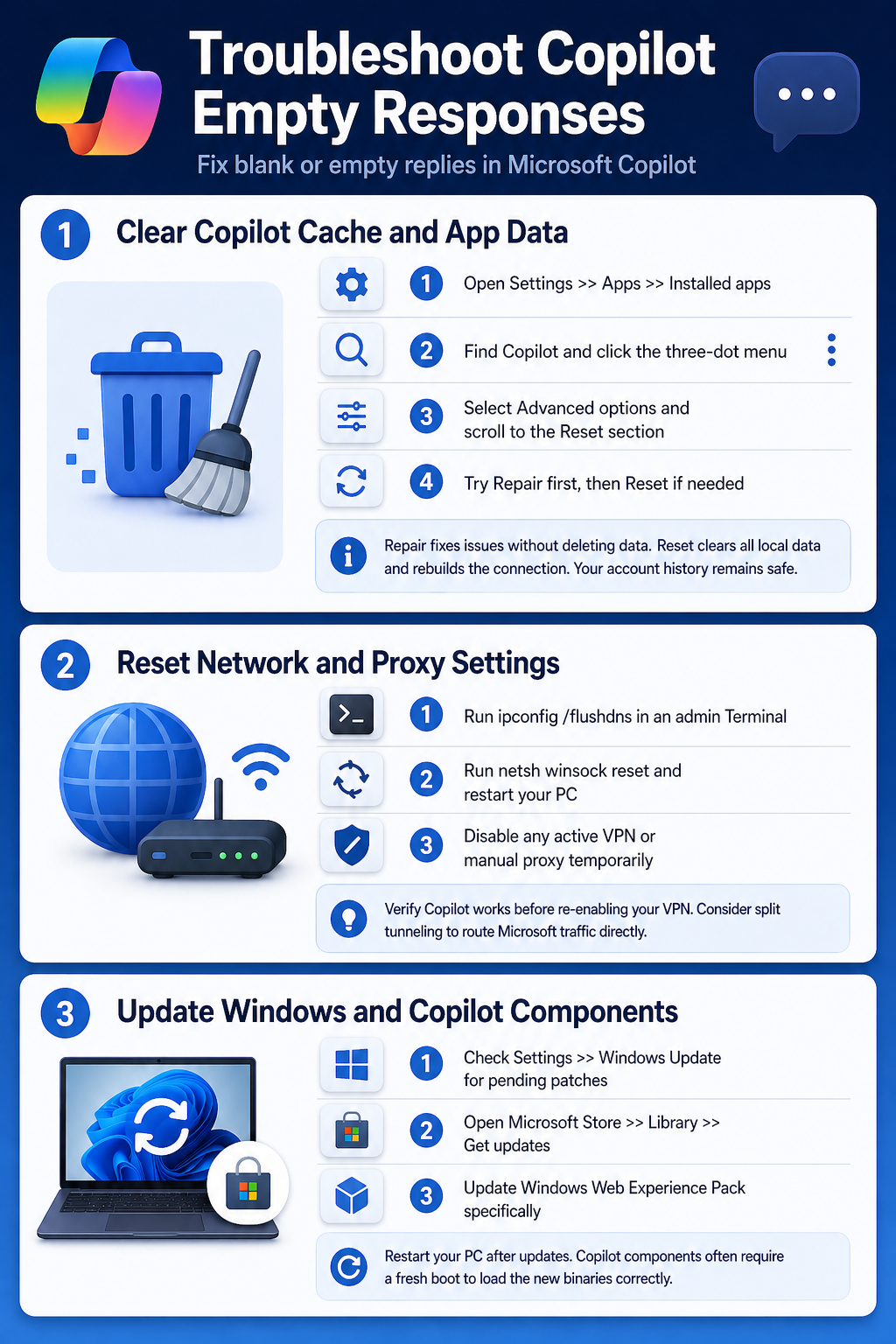
Troubleshoot Copilot Empty Responses
Clear Copilot Cache and App Data
Copilot stores temporary data locally to speed up responses, but corrupted cache files can cause it to return blank output instead of actual answers. Open Settings >> Apps >> Installed apps, then search for Copilot. Click the three-dot menu and select Advanced options, then scroll down to the Reset section. Click Repair first and test Copilot again. If the blank responses persist, click Reset to clear all local data completely.
- Open Settings >> Apps >> Installed apps
- Find Copilot and click the three-dot menu
- Select Advanced options and scroll to the Reset section
- Try Repair first, then Reset if needed
The reset process deletes cached conversations and forces Copilot to rebuild its connection to Microsoft’s backend. Your prompts and history stored in your Microsoft account remain unaffected. After resetting, open Copilot from the taskbar and send a test prompt to confirm responses appear normally.
Reset Network and Proxy Settings
Copilot requires a stable internet connection to reach Microsoft’s AI servers, and even minor DNS or proxy misconfigurations can produce empty responses. Open Terminal as administrator and run ipconfig /flushdns to clear stale DNS entries. Follow that with netsh winsock reset and restart your computer to reinitialize the network stack. You can also flush the DNS cache on Windows 11 using PowerShell if you prefer that approach.
If you use a VPN or proxy, temporarily disable it and test Copilot. Some corporate proxy configurations strip headers that Copilot needs for authentication. Check Settings >> Network & internet >> Proxy and confirm that no manual proxy is active unless your organization requires one.
- Run
ipconfig /flushdnsin an admin Terminal - Run
netsh winsock resetand restart your PC - Disable any active VPN or manual proxy temporarily
Verify Copilot works before re-enabling your VPN. Some VPN providers offer split tunneling that routes Microsoft traffic directly, which avoids this problem entirely.
Update Windows and Copilot Components
Microsoft ships Copilot updates through both Windows Update and the Microsoft Store, so an outdated component on either channel can cause blank responses. Open Settings >> Windows Update and click Check for updates. Install any pending updates, including optional ones listed under Advanced options >> Optional updates, since Copilot patches sometimes ship there first.
Next, open the Microsoft Store, click Library in the bottom-left corner, and select Get updates. Look for updates to Copilot or Windows Web Experience Pack, which provides the runtime Copilot depends on. If Store updates seem stuck, reset the Microsoft Store cache before trying again.
- Check Settings >> Windows Update for pending patches
- Open Microsoft Store >> Library >> Get updates
- Update Windows Web Experience Pack specifically
After updating, restart your PC. Copilot components often require a fresh boot to load the new binaries correctly, and skipping the restart is a common reason the fix appears not to work.
Verify Microsoft Account Sign-In
Copilot relies on your Microsoft account session to authenticate requests, and a stale or expired token can result in blank responses with no visible error message. Open Settings >> Accounts >> Your info and confirm your Microsoft account shows as connected. If you see a “Fix your account” banner, click it and re-enter your credentials.
You can also sign out and back into Copilot directly. Click the Copilot icon in the taskbar, select your profile picture in the top-right corner, and choose Sign out. Wait ten seconds, then sign back in with your Microsoft account. This forces a fresh authentication token from Microsoft’s identity service and typically resolves session-related blank responses. Pay attention to whether you are using a personal or work account — Copilot features differ between them, and signing in with the wrong account type can limit functionality.
Copilot Edge Cases in Windows 11
Copilot Works in Edge But Not Taskbar
The taskbar version of Copilot and the Edge sidebar version run on separate runtime components. When Copilot works fine in Edge but returns blank responses from the taskbar, the issue is usually a corrupted Windows Web Experience Pack. Open Terminal as administrator and run:
Get-AppxPackage *WebExperience* | Reset-AppxPackage
This reinstalls the web experience component without affecting your other apps or settings. If the command returns an error, uninstall the package first with Remove-AppxPackage, then reinstall it from the Microsoft Store by searching for “Windows Web Experience Pack.”
Confirm that Copilot is enabled in Settings >> Personalization >> Taskbar. A Windows update occasionally toggles this setting off, which causes the taskbar Copilot icon to appear but not function properly when clicked.
Blank Responses After Windows Update
Major Windows updates sometimes reset Copilot’s configuration or break compatibility with the current Web Experience Pack version. If blank responses started immediately after an update, check Settings >> Windows Update >> Update history to identify the specific patch that caused the problem.
Roll back the problematic update temporarily by going to Settings >> Windows Update >> Update history >> Uninstall updates if you need Copilot working right away. Select the most recent cumulative update and click Uninstall. For a permanent fix, wait for the next cumulative update or manually install the latest Windows Web Experience Pack from the Microsoft Store. Microsoft usually patches Copilot compatibility issues within one to two weeks of a major Windows release.
Frequently Asked Questions
Why is Copilot giving blank responses in Windows 11?
Blank responses typically happen when Copilot’s local cache becomes corrupted, your network connection blocks Microsoft’s AI servers, or the Windows Web Experience Pack is outdated. A stale Microsoft account session can also prevent Copilot from authenticating properly, resulting in empty output instead of a visible error message.
How do I fix Copilot not working in Windows 11?
Start by resetting Copilot through Settings >> Apps >> Installed apps >> Copilot >> Advanced options >> Reset. Then flush your DNS cache, check for Windows updates, and update the Windows Web Experience Pack through the Microsoft Store. Sign out and back into your Microsoft account if the problem persists after those steps.
Is there a permanent solution for Copilot empty responses?
Keeping Windows 11 and the Microsoft Store apps updated prevents most recurring blank response issues. Enable automatic updates in both Windows Update and the Microsoft Store so Copilot components stay current. Avoid third-party DNS or proxy tools that interfere with Microsoft’s AI service endpoints.
Most Copilot blank response issues come down to stale cache data or an outdated runtime component. Work through the cache reset and update steps first — they resolve the majority of cases without needing to dig into network or account troubleshooting.