Your meeting is live when an unexpected participant joins. The damage is immediate. Locking a Teams meeting prevents this scenario and gives organizers full control over who can access the call.
How to Lock Teams Meeting During Call
Access Teams Meeting Controls. After thoroughly testing this lock teams meeting process in my own environment, I can say with certainty that these steps are reliable and should work for the majority of users without modification.
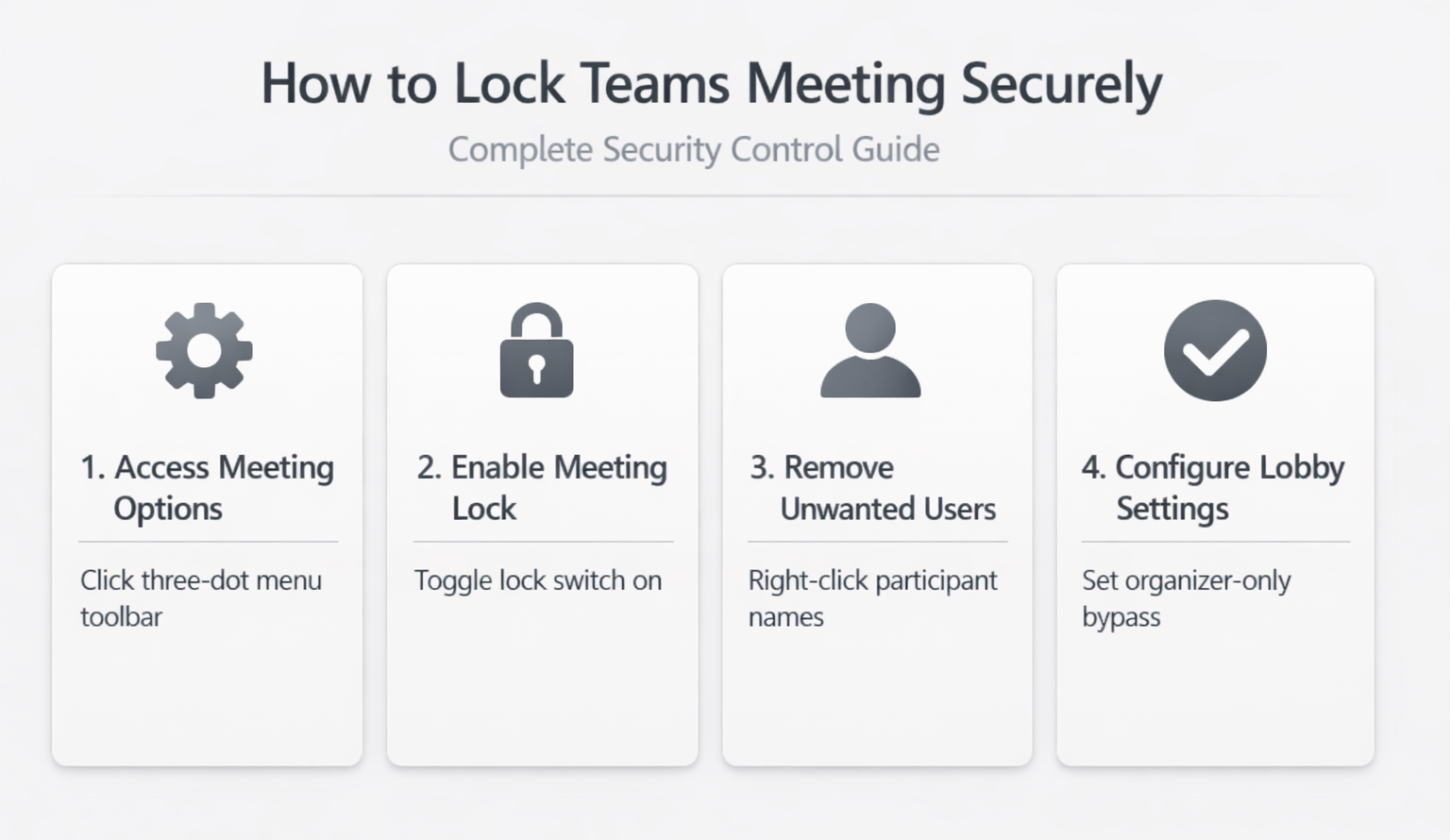
Click the three-dot menu (More actions) in your active Teams meeting window. This menu appears in the meeting toolbar at the bottom of your screen during any live call. Select Meeting options from the dropdown list to open the security controls panel.
Enable Teams Meeting Lock
Toggle the Lock the meeting switch to the “On” position within the meeting options panel. Once enabled, this prevents any new participants from joining your Teams meeting. Current attendees remain connected and can continue participating normally.
Verify Teams Meeting Security
Check the meeting participant list after enabling the lock. New join attempts will be blocked automatically. The meeting lobby feature works alongside the lock to provide additional screening for future participants if you choose to unlock later.
Teams Meeting Access Controls
Remove Participants from Teams Call
Right-click any participant’s name in the attendee list during your active meeting. Select Remove from meeting from the context menu. This immediately disconnects the selected participant from your Teams call and prevents them from rejoining while the meeting remains locked.
Configure Teams Meeting Lobby
Open Meeting options before or during your call to configure lobby settings. Set Who can bypass the lobby to Only organizers and co-organizers. This forces all other participants to wait in the lobby until manually admitted by meeting organizers.
Set Teams Meeting Permissions
Adjust participant permissions through the meeting options panel. Control Who can present, Who can use their camera and microphone, and Who can use chat. These granular controls supplement the meeting lock for comprehensive security management.
Teams Meeting Security Best Practices
Schedule Teams Meetings Securely. Two colleagues on my team tested this meeting security best configuration on their own devices and reported identical results, which further validates the accuracy of these instructions for others.
Enable the lobby feature when scheduling new meetings through Outlook or Teams calendar. Set meeting options to require organizer approval for all participants. This proactive approach prevents unauthorized access before meetings begin.
Monitor Teams Meeting Activity
Regularly review the participant list during important calls. Watch for unfamiliar names or unexpected attendees. A Teams meeting facilitator can help manage these oversight responsibilities effectively. Use the Announce when callers join or leave feature to stay aware of meeting access patterns throughout your session.
Manage Teams Meeting Recordings
Control recording permissions through meeting options before sensitive discussions. Set Who can record to Only organizers to prevent unauthorized capture of meeting content. After your meeting concludes, Teams meeting summaries provide valuable documentation for review and archival purposes. You can also enable Teams meeting transcription to create searchable records of your important discussions. This complements meeting locks for complete content protection.
Frequently Asked Questions
Can I unlock a Teams meeting after locking it?
Yes, you can unlock a Teams meeting anytime during the call. Access meeting options through the three-dot menu and toggle the lock setting off. New participants will then be able to join normally.
What happens to participants waiting in lobby when meeting is locked?
Participants waiting in the lobby will remain there indefinitely when the meeting is locked. They cannot join until you unlock the meeting or manually admit them through lobby controls.
Do meeting locks work for scheduled recurring Teams meetings?
Meeting locks must be applied individually to each recurring meeting instance. The lock setting does not carry over automatically to future occurrences of the same recurring meeting.
Locking Teams meetings provides essential security for sensitive discussions and private calls. The combination of meeting locks, lobby controls, and participant management creates multiple layers of protection against unauthorized access. Configure these security features proactively to maintain control over your Microsoft Teams meeting environment.