“Run Microsoft Copilot on iPhone when I’m away from my computer?”
I recently started using Microsoft Copilot at work on my company’s Windows desktop, but I often need to access AI assistance when I’m on the go. Is there a way to use Microsoft Copilot on my smartphone or tablet? I’m not very tech-savvy, so I need simple instructions that explain how to download, set up, and use Copilot’s features on mobile devices. What’s the best way for a beginner like me to get started with Copilot on mobile?
Why mobile access to Copilot matters for productivity
In today’s fast-paced work environment, being able to access productivity tools from anywhere is essential. Microsoft Copilot on mobile devices allows you to harness AI assistance whether you’re commuting, traveling, or working remotely. Many professionals need immediate answers or content creation capabilities without waiting to return to their desks. The mobile version of Copilot provides similar functionality to the desktop experience but optimized for smaller screens and on-the-go usage.
Getting started with Microsoft Copilot on your mobile device
To use Microsoft Copilot on your mobile device, you’ll need to either download the dedicated app or access it through a mobile browser. The process is straightforward and requires minimal technical knowledge. You’ll need a Microsoft account and an internet connection to get started. This tutorial covers both iOS (iPhone and iPad) and Android devices, with specific instructions for each platform where the steps differ. If the account refuses to authenticate during setup, run the Copilot sign-in checks before reinstalling the mobile app.
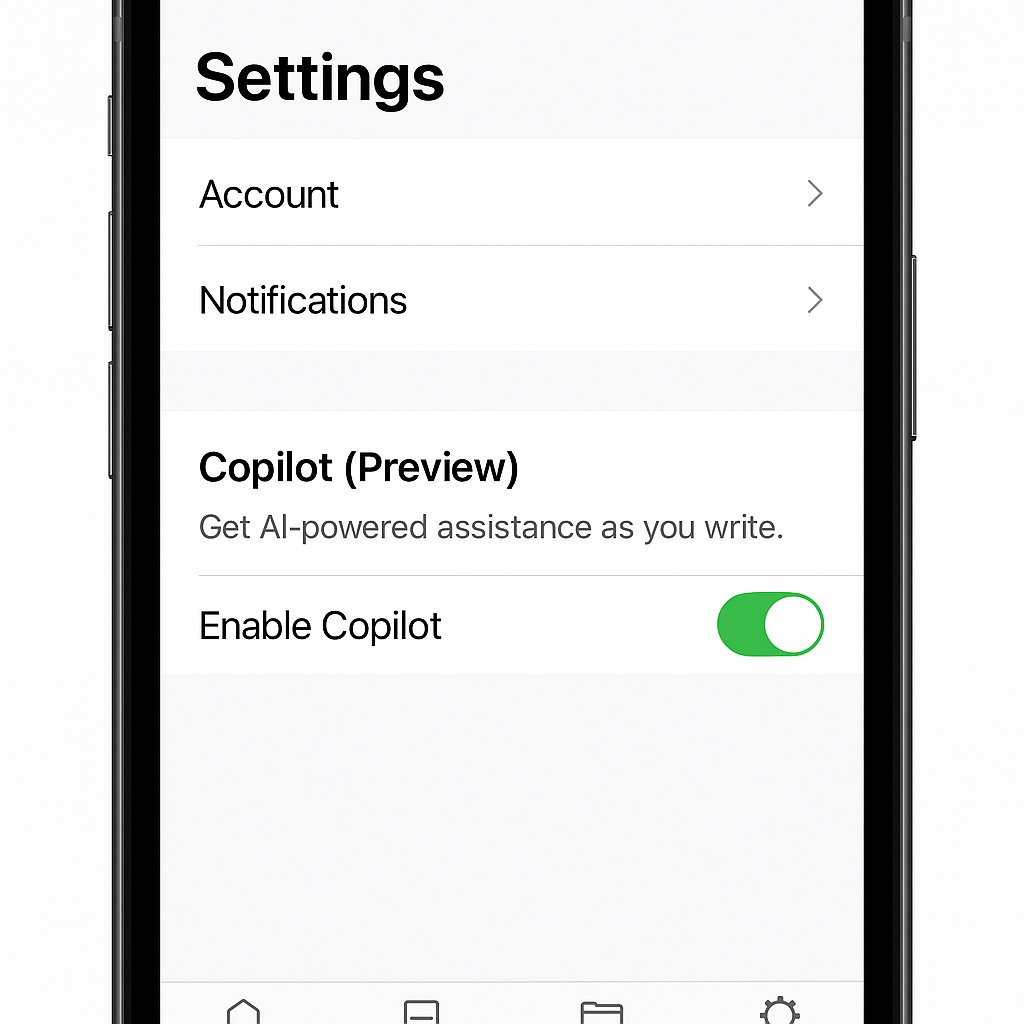
Instructions for accessing Copilot on mobile
Download and install the Microsoft Copilot app
- Search for “Microsoft Copilot” in your device’s app store (Apple App Store for iOS devices or Google Play Store for Android devices) to find the official application.
- Tap the “Get” or “Install” button to download the app to your device, ensuring you have sufficient storage space and a stable internet connection for a smooth installation process.
- Once installed, locate the Copilot app on your home screen or app drawer, which features the Copilot logo—a circular icon with a stylized “C” design.
- Open the app by tapping on the icon, which will launch the Microsoft Copilot interface optimized specifically for mobile use with touch-friendly controls.
- When prompted, sign in with your Microsoft account credentials (email and password) to access personalized features and maintain consistency with your desktop Copilot experience.
Alternative: Accessing Copilot through a mobile browser
- Open your preferred mobile browser application (Safari, Chrome, Edge, etc.) on your smartphone or tablet and ensure you have an active internet connection.
- Navigate to copilot.microsoft.com in your browser’s address bar, which will load the web version of Microsoft Copilot optimized for mobile devices.
- Sign in with your Microsoft account when prompted to access all available features and maintain continuity with your desktop Copilot experience.
- Consider adding the Copilot website to your home screen for quicker access by using your browser’s “Add to Home Screen” function, typically found in the share or menu options.
- Note that while the browser version offers similar functionality to the app, the dedicated application may provide a more optimized experience with potentially faster performance.
Using Microsoft Copilot on your mobile device
- Start a conversation by typing your question or request in the text field at the bottom of the screen, then tap the send button (paper airplane icon) to submit your query to Copilot.
- Explore different prompt types including questions, creative writing requests, summarization tasks, or coding help—Copilot can handle various inputs just like on desktop.
- Use the microphone icon to speak your prompts instead of typing, which is especially convenient when you’re truly mobile or need hands-free operation.
- Swipe up to review your conversation history and previous responses, which remain accessible throughout your session for easy reference.
- Tap and hold on Copilot’s responses to access additional options like copying text, sharing the response, or providing feedback on the quality of the answer.
Solve common Copilot mobile issues
- If you encounter sign-in problems, verify your Microsoft account credentials are correct and try resetting your password through account.microsoft.com, as authentication issues are among the most common obstacles for new users.
- When experiencing slow response times, check your internet connection strength and consider switching from cellular data to Wi-Fi if available, since Copilot requires a stable connection to process requests efficiently.
- If the app crashes or freezes frequently, close all background apps to free up device resources and ensure your operating system is updated to the latest version compatible with the Copilot application.
- For issues with missing features compared to the desktop version, understand that the mobile experience may have some limitations due to screen size constraints, but regular app updates continually improve feature parity.
- When responses appear cut off or formatting seems incorrect, try rotating your device to landscape orientation for a wider viewing area that may better accommodate Copilot’s detailed responses.
- Pin Microsoft Copilot to your device’s home screen or dock for quick access whenever inspiration strikes or you need immediate assistance.
Related – If you’re having issues with Copilot startup, you may need to stop Copilot automatic startup on your main device first. For optimal performance across devices, ensure you’ve properly activated Microsoft Copilot on Windows 11 before setting up mobile access.
Account for the new Copilot mobile file workflow
The Microsoft 365 Copilot mobile app is becoming more chat-centered. Microsoft says full file browsing and direct editing are moving to the dedicated OneDrive, Word, Excel, and PowerPoint mobile apps. Copilot can still create a file from Chat and provide a link, but opening and editing that file may hand you off to the appropriate app.
Prepare the phone before traveling
- Install Microsoft 365 Copilot plus OneDrive and the Office apps you actually edit, then sign in with the same work or school account.
- Open one protected work file in each required app before leaving, so you can resolve sign-in, multifactor authentication, or device-compliance prompts early.
- In Copilot Chat, request a small test document and follow the generated link into the dedicated app.
- Use the Search tab for recent files, but switch to OneDrive when you need the complete folder structure or sharing controls.
- Check whether your organization blocks downloads or restricts copy and paste on unmanaged devices.
Troubleshooting and safeguards
If a file preview works but editing does not, confirm that the dedicated app is installed and that the signed-in account has edit permission. A missing Copilot feature can reflect licensing, admin policy, region, or a staged rollout rather than a faulty phone. For unreliable mobile data, save only approved files for offline use and remember that Copilot itself requires a connection to process prompts.
Verify the result
Run the complete workflow on both Wi-Fi and cellular data: ask a question, create a file, open it, make a harmless edit, and confirm the change in OneDrive from another device. Remove the test file afterward. This proves that authentication, app handoff, cloud storage, and synchronization all work before you depend on them away from your computer.
Before escalating, preserve screenshots, exact error text, timestamps, account type, client version, and the last successful action. Reproduce the problem once with a normal user account and record what changed, because precise evidence helps support teams avoid repeating broad resets and focus on the correct service, permission, policy, or device layer.