Microsoft Copilot brings AI-powered assistance directly to your Android device, giving you access to intelligent chat, content generation, and web search from anywhere. Getting the application running smoothly requires proper installation, correct permission configuration, and a few key settings adjustments. This copilot configure guide walks you through the complete setup process on Android and covers how to troubleshoot copilot not working on your mobile device.
Requirements and Compatibility Check
Before installing the Copilot application on your Android device, confirm that your hardware and account meet these baseline requirements:
- Android 10 or later — older OS versions lack the APIs that Copilot relies on for background processing and notification delivery. Check your current version under your device’s software information screen to confirm compatibility before proceeding.
- Active Microsoft account — a personal Microsoft account or a Microsoft 365 work/school account tied to a valid subscription. Free accounts unlock core chat features while paid licenses enable enterprise capabilities.
- Stable internet connection — Copilot processes all requests through cloud servers, so Wi-Fi or mobile data must remain available during use. Offline mode is not supported.
Configure Copilot on Android Devices
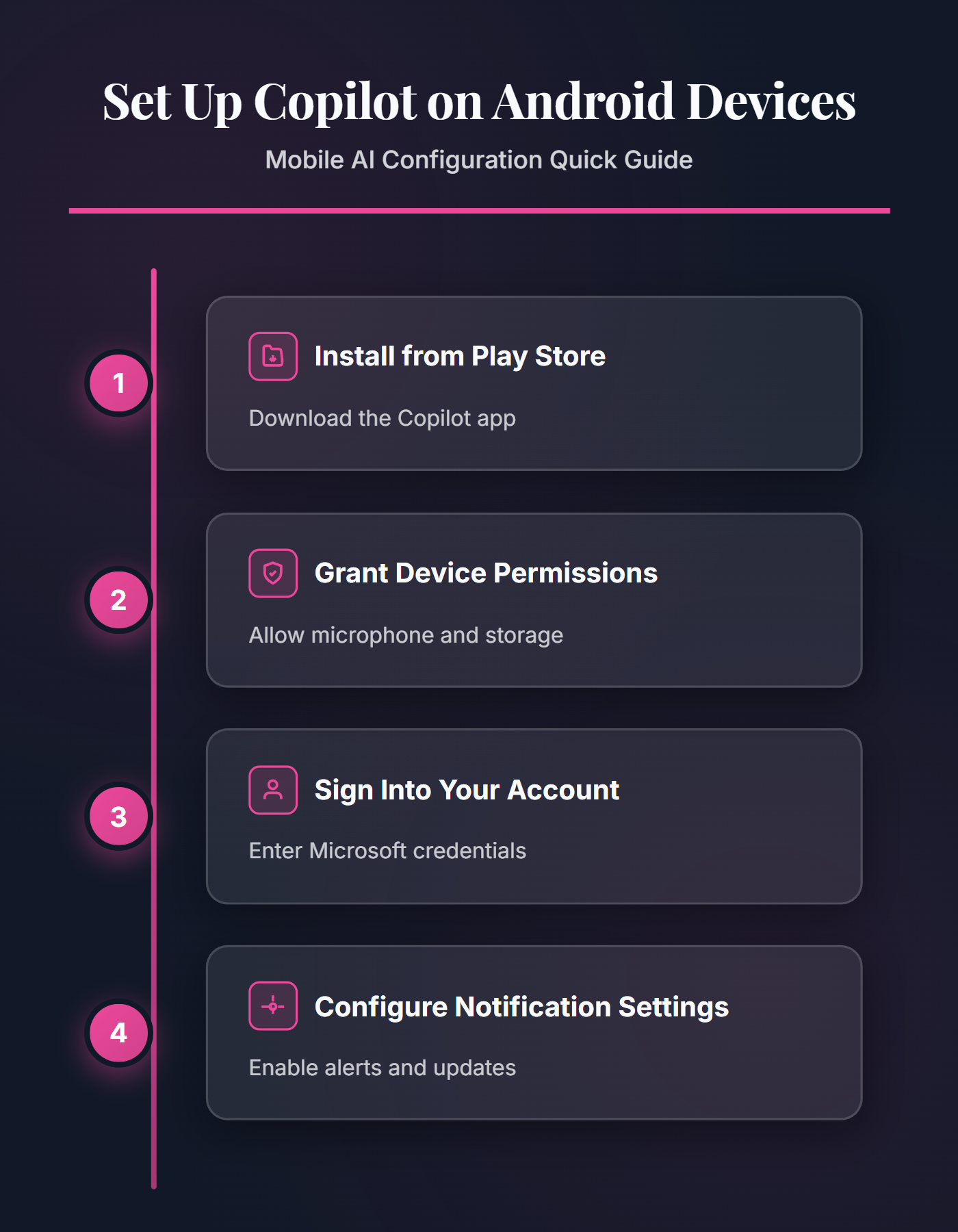
Install the App from Play Store
Open the Google Play Store on your Android device and search for “Microsoft Copilot.” Tap the official Microsoft listing and select Install to begin the download. The application is relatively lightweight, but using a Wi-Fi connection avoids unnecessary mobile data charges. Once installation finishes, the Copilot icon appears in your app drawer automatically. Launch the application to start the initial configuration process.
If the Play Store displays a compatibility error, verify that your device runs Android 10 or later through your phone’s software information screen. Users who previously installed the Bing Chat application may find that it updated to the Copilot branding automatically, so check your existing apps before downloading a duplicate. Keeping auto-updates enabled in the Play Store ensures Copilot receives patches as Microsoft releases them.
Set Up Copilot Permissions
After launching Copilot for the first time, Android prompts you to grant several permissions that control what the application can access on your device. The software requests microphone access for voice input, camera access for visual queries, and storage access for saving generated content. Grant each permission that matches your intended usage pattern. Denying microphone access disables voice chat entirely, while denying storage access prevents you from saving images that Copilot creates.
You can configure copilot permissions later through your Android device’s application settings screen. Open your device settings, locate the Copilot application entry, and review the permission toggles individually. Keeping permissions aligned with your actual workflow prevents unexpected behavior when you attempt voice queries or image generation during a conversation. Granting only the permissions you need maintains tighter control over your device’s privacy settings.
Verify Account and Sign In
Tap Sign In on the Copilot welcome screen and enter your Microsoft account credentials. Personal accounts unlock the free tier of Copilot features including chat, image generation, and web search integration. Work or school accounts linked to a Microsoft 365 Copilot license provide access to enterprise capabilities such as document summarization and calendar integration. You can explore Copilot chat in Microsoft 365 for a deeper look at what enterprise accounts unlock beyond the free tier.
After signing in, send a quick test prompt to verify the connection works correctly. A successful response confirms your account configuration is complete. If sign-in fails or the application returns an error, check your credentials and confirm your Microsoft 365 subscription status through the account portal on a desktop browser. Network firewalls or VPN configurations can also block authentication requests, so disable any active VPN temporarily to isolate the issue. Corporate accounts may require additional conditional access policies to be satisfied before the mobile application grants full functionality.
Fix Common Copilot Android Issues
Resolve Copilot Notification Problems
Copilot sends notifications for suggested prompts, feature updates, and response completions on longer queries. When copilot notifications not working becomes a concern, the fix usually sits in your Android notification settings rather than within the application itself. Open your device settings, navigate to the notifications section, and locate the Copilot entry. Confirm that the notification toggle is enabled and that battery optimization is not suppressing background activity for this application.
Android’s adaptive battery feature frequently restricts background processes for apps you use infrequently, which silences notifications entirely. Disabling battery optimization for Copilot specifically resolves most notification delivery failures without affecting battery life across other applications. To fix copilot notifications not working permanently, also verify that Do Not Disturb mode has an exception configured for the Copilot application. Check that individual notification categories within the app settings are each enabled rather than grouped under a single master toggle that may be partially disabled.
Troubleshoot Crashes and Errors
Several common issues prevent Copilot from functioning correctly on Android devices. A blank screen after launch typically indicates a corrupted application cache. Clear the cache through your Android application settings, then relaunch the software to rebuild it fresh. Persistent crashes after cache clearing often require a complete uninstall and reinstall of the application from the Play Store.
When you need to fix copilot not working after an OS update, confirm that automatic app updates are enabled so Copilot receives compatibility patches promptly. Network timeouts point to connectivity problems, so switch between Wi-Fi and mobile data to isolate the cause. If Copilot returns generic errors or refuses to process prompts, resolve inaccurate Copilot responses by checking your account status and regional availability settings. Signing out and signing back in resets the session token and clears most authentication-related failures. For enterprise users, verify with your IT department that Copilot access is enabled through your organization’s Microsoft 365 admin policies, as conditional access rules can silently block mobile devices.
Q&A
Why is Copilot not working on my Android device?
Copilot failures on Android typically stem from outdated application versions, insufficient permissions, or network connectivity problems. Clear the application cache first, then verify your internet connection and check the Google Play Store for pending Copilot updates. Signing out and back into your Microsoft account resolves most session-related errors. If issues persist, uninstall and reinstall the application entirely.
How do I fix Copilot not working after an Android update?
Android OS updates occasionally break compatibility with existing applications. Open the Google Play Store, check for a Copilot application update, and install any available patches. If no update exists, uninstall Copilot completely and reinstall it from the Play Store. This resets all application files to their latest compatible versions and resolves most post-update failures.
What is the best Copilot not working solution for notification issues?
Open your Android device settings and navigate to notification management for the Copilot application. Enable all notification categories and disable battery optimization for Copilot specifically. Android’s adaptive battery and Do Not Disturb settings frequently suppress Copilot alerts without any visible warning. Adding Copilot to your battery optimization exclusion list prevents the system from silencing future alerts.
A properly configured Copilot Android installation delivers reliable AI assistance on your mobile device. Keep the application updated, grant appropriate permissions, and disable battery optimization to maintain consistent performance and notification delivery across your daily workflows.