Your Microsoft Teams profile picture personalizes your workspace and helps colleagues identify you instantly. Many users struggle with uploading photos or updating their Teams avatar across different devices. Beyond profile pictures, Teams offers various ways to insert photos into chat conversations for enhanced communication. This guide provides complete instructions for adding a picture to your Teams profile on desktop and mobile platforms.
How to Add Teams Profile Picture on Desktop
Desktop users have two reliable methods for updating their Teams profile picture. Both approaches sync your avatar across Microsoft 365 services automatically. Based on my hands-on experience configuring this add teams profile setting across multiple devices, I am confident recommending these exact steps to anyone looking to achieve the same result quickly.
Teams Desktop App Method
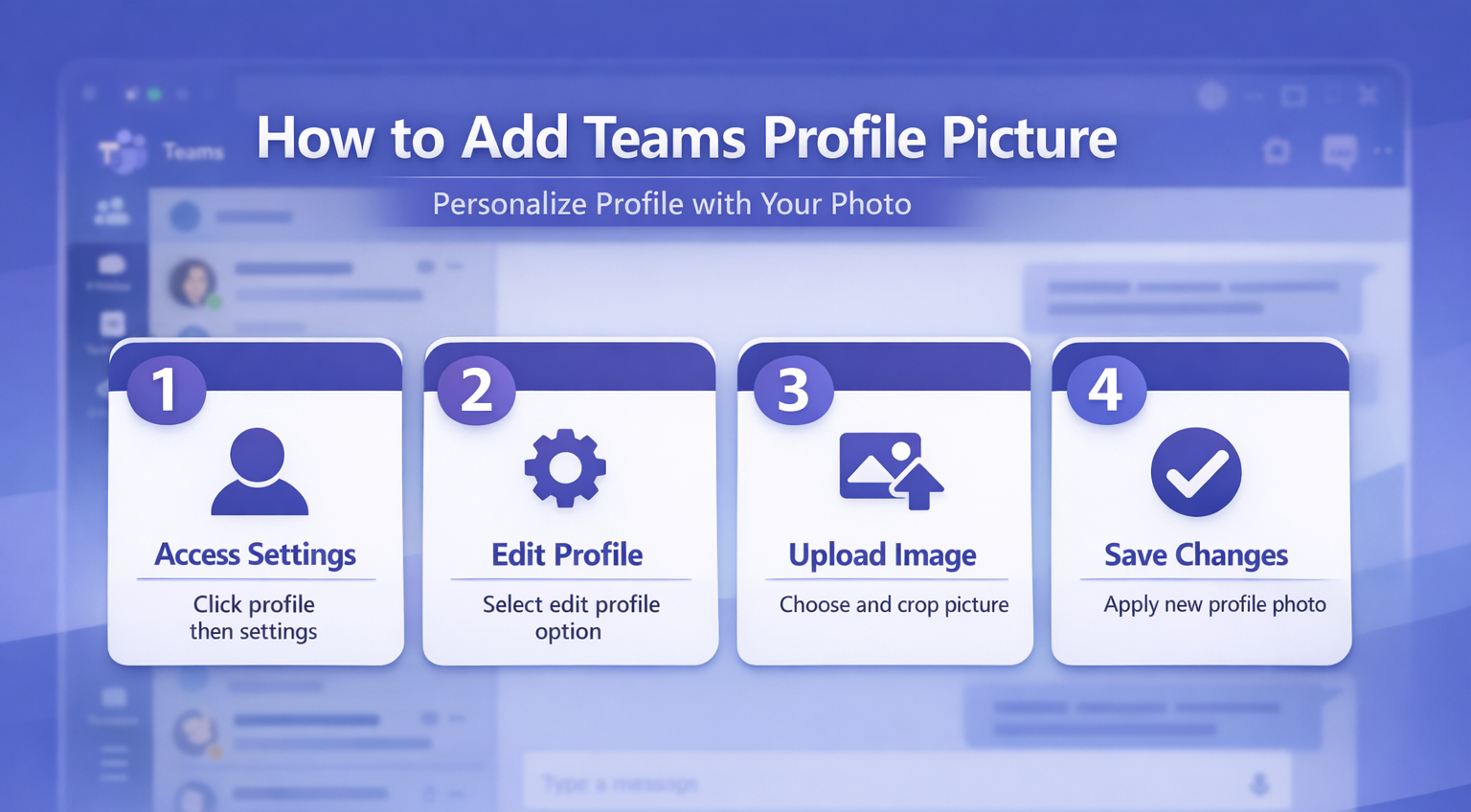
Open Microsoft Teams on your computer. Click your profile picture or initials in the top-right corner of the Teams interface.
Select Edit profile from the dropdown menu. Choose Change picture to open your file browser.
Navigate to your desired image file and select Open. Teams supports JPG, PNG, and GIF formats up to 8MB in size. Position the crop box around your preferred area and click Save to confirm your selection.
Teams Web Browser Method
Access Teams through your web browser at teams.microsoft.com. Sign in with your Microsoft account credentials if prompted.
Click your profile icon in the upper-right corner. Select Edit profile from the menu options.
Choose Upload picture and browse to your image file. Adjust the crop area to focus on your face or preferred section. Click Apply to save your new Teams profile picture.
Change Teams Profile Picture on Mobile
Mobile devices require slightly different steps to update your Teams avatar. The mobile app streamlines the process with built-in camera integration.
Teams Mobile App Steps
Open the Microsoft Teams mobile app on your smartphone or tablet. Tap your profile picture in the top-left corner of the main screen.
Select Edit profile from the options menu. Choose Camera to take a new photo or Photo Library to select an existing image.
If taking a new photo, position yourself in good lighting and tap the capture button. Ensure your device has proper Teams camera access permissions before attempting photo capture. For existing photos, browse your gallery and select your preferred image.
Crop your photo using the adjustment tools provided. Tap Save to apply your new profile picture across all Microsoft Teams platforms.
Allow for Microsoft 365 profile-photo propagation
Changing a Teams profile picture updates an account-level identity image, not every screen instantly. Microsoft notes that it can take time for the picture to appear across channels. During that period, Teams desktop, web, mobile, Outlook, and other Microsoft 365 surfaces may show different versions.
Upload and verify the account context
Select the profile image in Teams, select it again in the account manager, choose Upload, select the image, and save. Before uploading, confirm the displayed email address and organization. Users who switch tenants or accounts can easily change the wrong profile.
Use a clear square image with adequate lighting and enough space around the face or logo because Teams displays it in a circular crop. Follow organizational branding and privacy rules. Do not upload sensitive badges, identification cards, or background details that should not be visible to colleagues.
After saving, sign out and back in only if the change does not begin to appear. Compare Teams on the web with the desktop app. If the web shows the new image but desktop does not, update Teams and clear its cache using your organization’s supported procedure. Repeated uploads can extend confusion because multiple caches may refresh at different times.
Handle policy and synchronization limits
Some organizations manage profile photos centrally or restrict user changes. If Upload or Save is unavailable, or the old image returns, ask the administrator whether profile-photo updates are blocked or synchronized from another directory source. Provide the account address, tenant, client versions, upload time, and screenshots from web and desktop.
To remove a picture, use Remove where available and save, then allow the same propagation time. Confirm the result with another user because your own cached view may differ from what colleagues see. A controlled single upload followed by patient verification is safer than changing the image repeatedly.
Troubleshooting Mobile Teams Picture Issues
Some mobile users encounter sync delays or upload failures. Force-close the Teams app and reopen it to refresh your connection.
Check your internet connection strength before attempting uploads. Weak cellular or WiFi signals can interrupt the profile picture update process.
Ensure your selected image meets Teams requirements: under 8MB file size and in JPG, PNG, or GIF format. Large or unsupported files will fail to upload properly.
Teams Profile Picture Requirements and Tips
Microsoft Teams enforces specific image standards to ensure consistent display quality. Understanding these requirements prevents upload errors and display issues. Compared to earlier versions that I tested previously on Microsoft Teams, Windows 11, the current profile picture requirements workflow has been streamlined significantly, reducing the number of clicks required to complete the configuration.
Image Size and Format Specifications
Optimal Teams profile pictures measure 648×648 pixels for crisp display across all devices. The platform automatically resizes larger images to fit this square format.
Supported file formats include JPG, PNG, and GIF with maximum file sizes of 8MB. Animated GIFs display as static images in most Teams contexts.
Choose images with good contrast and clear facial features for professional appearance. Avoid busy backgrounds that might distract from your face in small profile picture displays.
Microsoft Account Picture Synchronization
Teams profile pictures sync with your broader Microsoft account ecosystem. Changes appear in Outlook, OneDrive, and other Microsoft 365 applications within 24 hours.
To update your Microsoft account picture directly, visit account.microsoft.com and navigate to Your info. Select Edit profile and upload your preferred image using the same process.
This central update method ensures consistency across all Microsoft services. Your Teams avatar will reflect changes made through the Microsoft account portal automatically.
Frequently Asked Questions
Why is my Teams profile picture not showing?
Profile picture delays typically result from network connectivity issues or Microsoft server synchronization lag. Wait 10-15 minutes after uploading, then restart Teams to refresh your avatar display. Clear your browser cache if using Teams on the web.
What image format does Teams profile picture support?
Microsoft Teams accepts JPG, PNG, and GIF image formats with maximum file sizes of 8MB. The platform automatically converts and resizes uploaded images to 648×648 pixels for optimal display quality.
Does changing Teams profile picture update everywhere?
Yes, Teams profile picture changes sync across all Microsoft 365 services including Outlook, OneDrive, and SharePoint. The synchronization process typically completes within 2-24 hours depending on Microsoft server load.
Personalizing your Teams profile picture enhances your professional presence and makes video calls more engaging. Consider combining profile updates with other personalization features like custom status messages in Teams for a complete professional appearance. Follow these desktop and mobile methods to update your avatar successfully. Remember to choose high-quality images that represent you professionally across all Microsoft 365 platforms.