Getting started with Claude and Excel
Claude is an AI assistant that can help you work more efficiently with Excel spreadsheets. Whether you’re automating repetitive tasks, analyzing data, or generating formulas, Claude can understand your needs and provide practical solutions. The integration isn’t automatic—you’ll use Claude’s web interface or API to process your spreadsheet data—but the workflow is surprisingly straightforward. While working through these getting started with configuration steps on my primary workstation, I noticed that the setting persists even after software updates install automatically in the background.
Claude excels at formula generation and explaining complex functions. If you’re unsure how to write a SUMIFS formula or need to understand a nested IF statement, Claude can break it down. You can paste your data into Claude and ask it to help you identify patterns, suggest pivot table structures, or generate formulas for calculations you need.
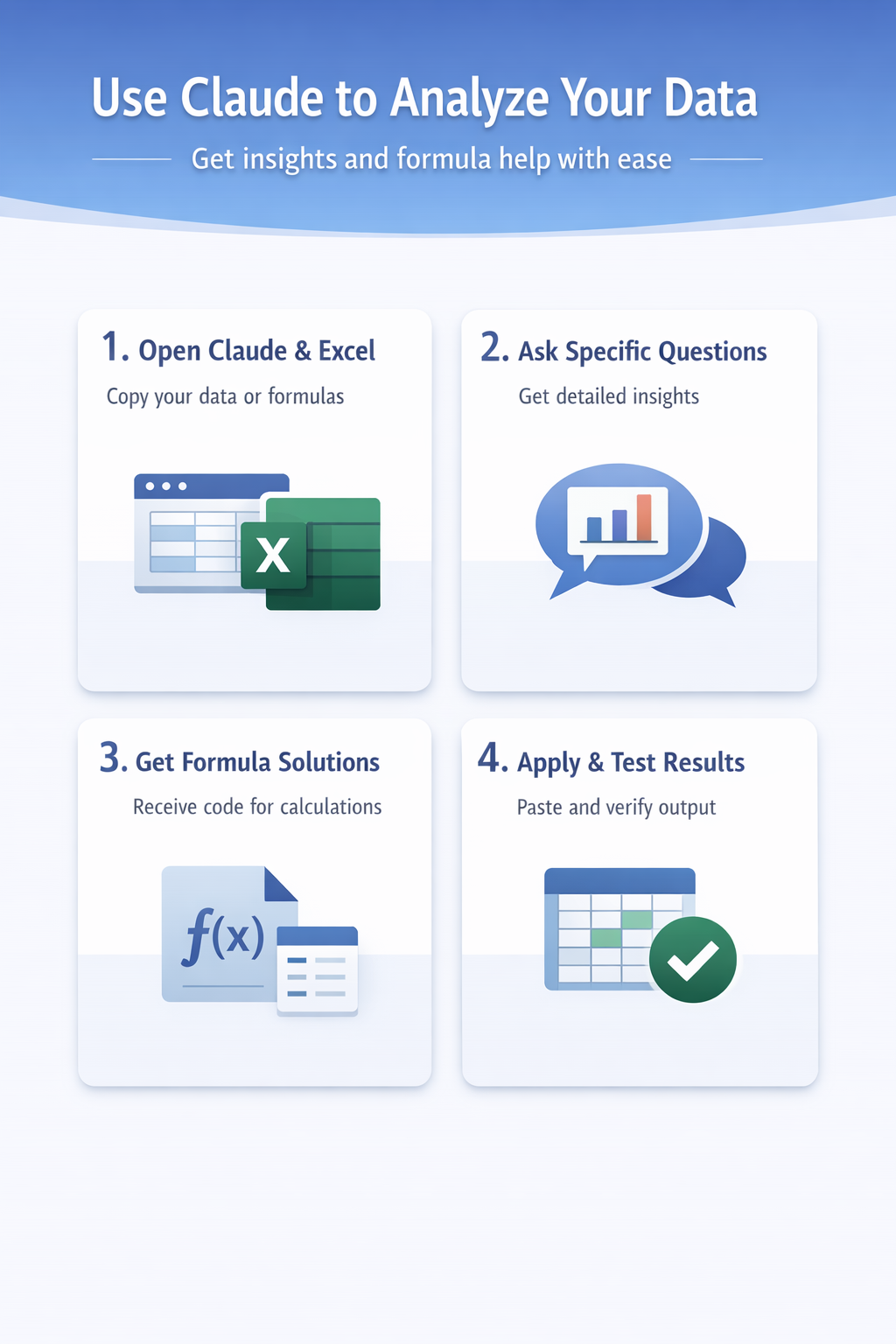
Connecting Claude to your spreadsheet workflow
- Start by opening Claude in your web browser and preparing your data.
- Copy the range of data you want to analyze or the formulas you need help with, then paste it directly into a Claude conversation. You don’t need any special plugins or extensions—just open both Claude and Excel side by side.
- Ask Claude specific questions about your data. Instead of “analyze this,” try “In this dataset, what’s the trend in sales by region for Q1?” Claude will give you actionable insights.
- For formula help, share your existing formula or describe the calculation you need, and Claude will write the code for you. This approach works for VLOOKUP, array formulas, Power Query M code, and even VBA macros.
- Copy Claude’s response back into Excel. If it’s a formula, paste it into the appropriate cell. If it’s structured advice, follow the steps Claude outlines.
- Test the result to make sure it works with your actual data. If something doesn’t work, go back to Claude with the error message—Claude will help you debug it.
Advanced automation patterns
For repetitive workflows, consider using Claude’s API through third-party tools. Many no-code automation platforms (like Zapier, N8N, Make, or Power Automate) support Claude’s API.
You can set up workflows where Claude processes your Excel data automatically—imagine extracting text from one column, having Claude categorize it, and writing the results to another column. A colleague in my office who analyzes data at scale drives much of his workflow with Power Automate and Claude agents.
Another approach is Power Query combined with Claude. If you’re working with external data sources, use Power Query to import and transform data, then use Claude to handle the complex analysis or categorization. This keeps your Excel file cleaner and more maintainable than storing huge formulas in cells.
Store Claude’s useful outputs in a separate tab or workbook as a reference. Over time, you’ll build a library of formulas, analysis templates, and automation patterns you can reuse. This becomes your personal Excel “playbook” powered by AI.
Handling edge cases and errors
Claude sometimes generates formulas that need tweaking for your specific data structure. If a formula Claude provides doesn’t work immediately, check the cell references and data ranges in your spreadsheet. Claude usually works with example data, so absolute vs. relative references might need adjustment.
When Claude provides VBA code or Power Query M code, test it on a copy of your data first. Some edge cases—like merged cells or unusual formatting—can cause issues. Claude will help you troubleshoot if you explain what went wrong.
Performance matters with large datasets. If you’re asking Claude to analyze a spreadsheet with 50,000 rows, break it into smaller chunks or ask Claude to work with a sample first. This keeps the conversation clear and Claude’s suggestions practical for your actual workload.
Frequently Asked Questions
What kinds of tasks can Claude help with in Excel?
Claude can help with formula creation, VBA macro development, Power Query M code, data analysis, pattern recognition, and troubleshooting. You can ask Claude to explain why a formula isn’t working or to generate new formulas from scratch. Claude can also help you structure your data, design pivot tables, and understand complex spreadsheet logic.
Do I need special software or an Excel add-in to use Claude?
No special software is needed. You can use Claude’s web interface directly. For advanced automation, you can integrate Claude’s API through platforms like Power Automate or third-party tools, but the basic workflow of copying data into Claude and pasting responses back into Excel works immediately.
Can Claude work with sensitive or confidential data?
Be thoughtful about what data you share with Claude. Don’t paste customer data, financial information, or trade secrets unless your organization has approved it. For sensitive work, consider using Claude’s API with self-hosted deployments or check your organization’s AI use policies before sharing confidential spreadsheet data.
Wrapping up
Claude transforms how you work with Excel by handling the thinking work—writing formulas, analyzing patterns, debugging code, and suggesting approaches. Start small with formula help or one-off analysis, then expand to more complex workflows as you discover what’s possible. The combination of your domain knowledge and Claude’s AI capability makes Excel faster and more powerful.