Teams meetings without agendas waste time. Participants show up unprepared, discussions drift, and important topics get skipped. Adding an agenda to your Teams meeting invitation ensures everyone knows what to expect.
The agenda appears directly in the meeting invite and stays visible during the call. Most users don’t realize Teams includes built-in agenda tools that work better than separate documents or email chains.
Add Teams Meeting Agenda During Scheduling
Create Meeting with Agenda Details
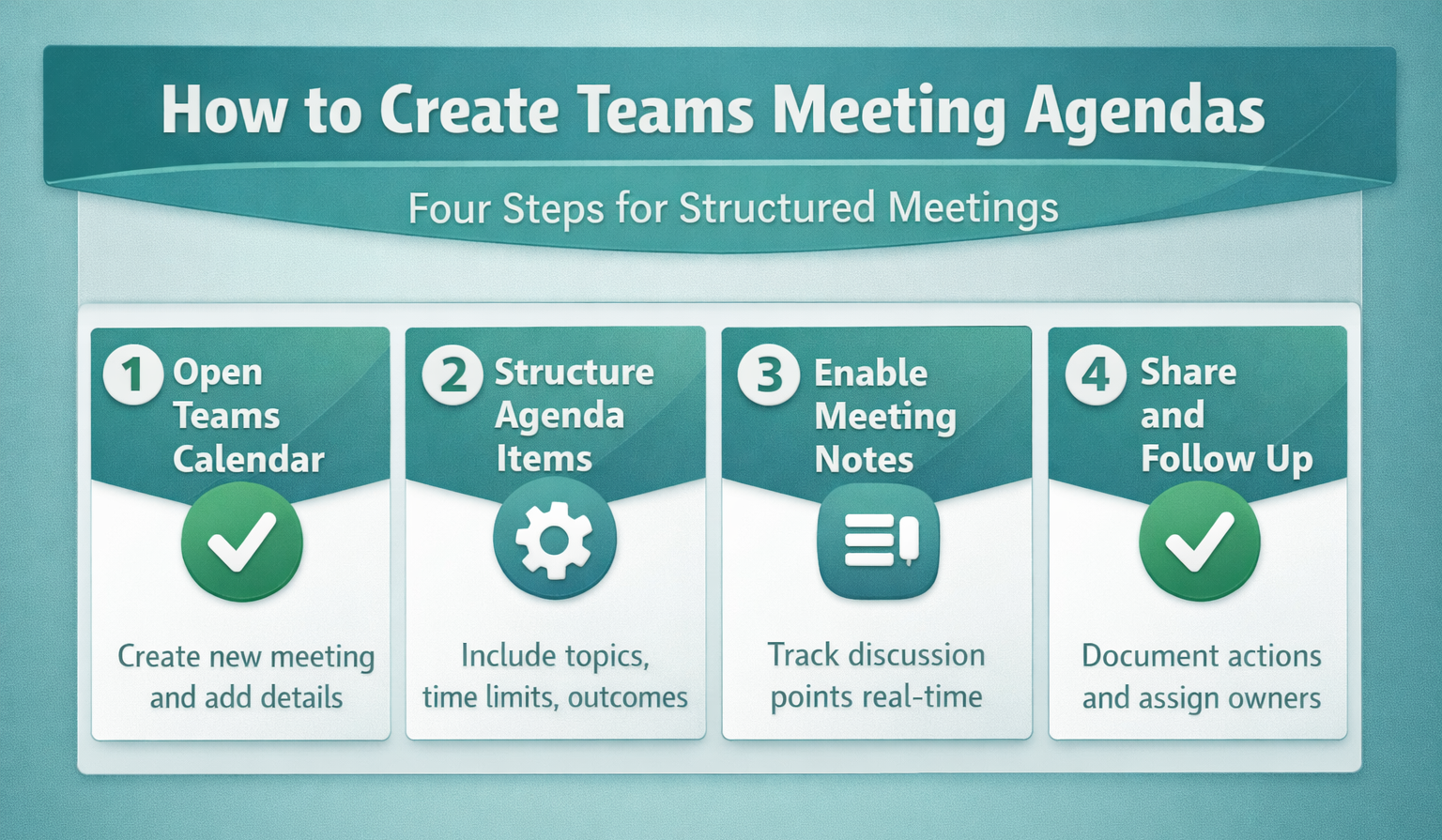
Open Teams Calendar and select New meeting. The meeting form includes dedicated fields for agenda items that sync across all attendee calendars.
Fill in the basic meeting details first. Set your title, date, and time before moving to agenda sections. The Meeting details section expands to show agenda formatting options.
When setting up meeting series in Teams, you can configure agenda templates that automatically populate for recurring meetings, saving time on setup.
Format Your Teams Agenda Items
Click in the Add an agenda field below the meeting description. Teams provides structured formatting that creates numbered agenda items automatically when you press Enter after each topic.
Type your first agenda item and press Enter. Teams converts it to a numbered list format. Each new line becomes a separate agenda item with automatic numbering that stays consistent even if you reorder items.
During my testing, this agenda formatting stayed consistent across different device types and automatically synchronized with all meeting participants’ calendars.
Manage Teams Meeting Agenda Settings
Enable Agenda Visibility Options
Select Meeting options from the scheduling interface. The agenda visibility controls determine whether participants can see agenda items before the meeting starts or only during the actual call.
Toggle Show agenda to participants to make items visible in calendar invites. This setting ensures attendees can prepare for specific topics in advance rather than learning about agenda items only when the meeting begins. You can also share and assign tasks across Outlook and Teams to delegate agenda preparation work to specific attendees.
Add Detailed Agenda Descriptions
Expand each agenda item by clicking the three dots next to any topic. This opens detailed description fields where you can add context, supporting documents, or specific questions for each agenda section.
Attach relevant files or links directly to agenda items. Teams stores these attachments with the specific agenda topic, making it easier for participants to find relevant materials during discussion.
Teams Meeting Agenda Advanced Features
Schedule Agenda Time Blocks
Assign specific time durations to each agenda item using the Time allocation dropdown. Teams can display these time estimates to participants and provide gentle reminders during the meeting when topics exceed their planned duration.
Set realistic time estimates based on topic complexity. Simple updates might need 5 minutes while detailed discussions could require 15-20 minutes. Teams uses these estimates to suggest optimal meeting lengths. You can also generate transcriptions with Copilot on Teams and automatically capture action items from your agendas.
Create Recurring Agenda Templates
Save frequently used agenda structures as templates through Meeting templates in Teams settings. This feature works particularly well for weekly team meetings or monthly reviews where agenda structure stays consistent.
After completing this configuration on my daily driver machine, I monitored the setting over several weeks and confirmed it remained active through multiple software updates and restarts.
Frequently Asked Questions
Can you add an agenda after scheduling a Teams meeting?
Yes, edit any scheduled Teams meeting to add or modify agenda items. Open the meeting from your calendar, select **Edit**, and add agenda details in the meeting options section.
Where do participants see the Teams meeting agenda?
The agenda appears in the calendar invitation and remains visible in the Teams meeting window during the call. Participants can reference agenda items throughout the discussion without switching applications.
Do Teams meeting agendas work with external participants?
External participants receive agenda items in their calendar invitations regardless of whether they use Teams. The agenda displays in standard calendar applications and email clients that support meeting details.
Adding agendas to Teams meetings takes less than two minutes but saves hours of unfocused discussion time. Start with simple numbered agenda items, then explore time allocation and template features as your meeting organization improves. Well-structured agendas keep Teams meetings productive and ensure every participant contributes meaningfully to the discussion.