
“How can I automatically generate comprehensive meeting summaries without spending hours reviewing recordings?”
Microsoft Copilot transforms how teams capture and share meeting insights by automatically generating intelligent recaps during Teams meetings. Instead of manually reviewing lengthy recordings or relying on incomplete handwritten notes, Copilot analyzes conversation content in real-time to produce structured summaries with key decisions, action items, and participant contributions. This AI-powered capability ensures no critical information gets lost while freeing up valuable time for more strategic work.
Generating Microsoft Copilot meeting recaps overview
Organizations waste countless hours each week recreating meeting discussions and tracking down decisions made during calls. Traditional note-taking approaches often miss important details, create inconsistent documentation, and require significant post-meeting effort to organize and distribute information effectively.
We will show how to configure and utilize Copilot’s intelligent recap capabilities within Microsoft Teams to automatically generate comprehensive meeting summaries. You will learn to enable recording features, access AI-generated summaries, customize recap formats, and distribute meeting insights to participants and stakeholders efficiently.
Note: Microsoft 365 Business Premium or Enterprise license with Copilot will need to be enabled, additionally you will need Teams admin permissions for recording settings, and active Teams meetings with participant consent for recording.
Taking meeting notes with Copilot setup and configuration
Before leveraging Copilot’s automatic meeting recap capabilities, you need to configure the appropriate settings within your Teams environment to enable recording and transcription features.
- Navigate to the Teams admin center by visiting admin.teams.microsoft.com and sign in with your administrator credentials to access meeting policy configurations.
- Select “Meetings” from the left navigation panel, then click “Meeting policies” to view available policy templates and create custom recording permissions for your organization.
- Choose the appropriate policy that applies to your users or create a new policy specifically for Copilot-enabled meeting recaps by clicking “Add” and naming your policy descriptively.
- Scroll down to the “Recording & transcription” section and toggle “Allow cloud recording” to “On” to enable the foundational recording capability required for Copilot analysis.
- Enable “Allow transcription” by setting the toggle to “On” which provides Copilot with the text content necessary to generate intelligent summaries and identify key discussion points.
- Set “Who can record” to “Organizers and co-organizers” or “Everyone” depending on your organizational security requirements and meeting management preferences for recording control.
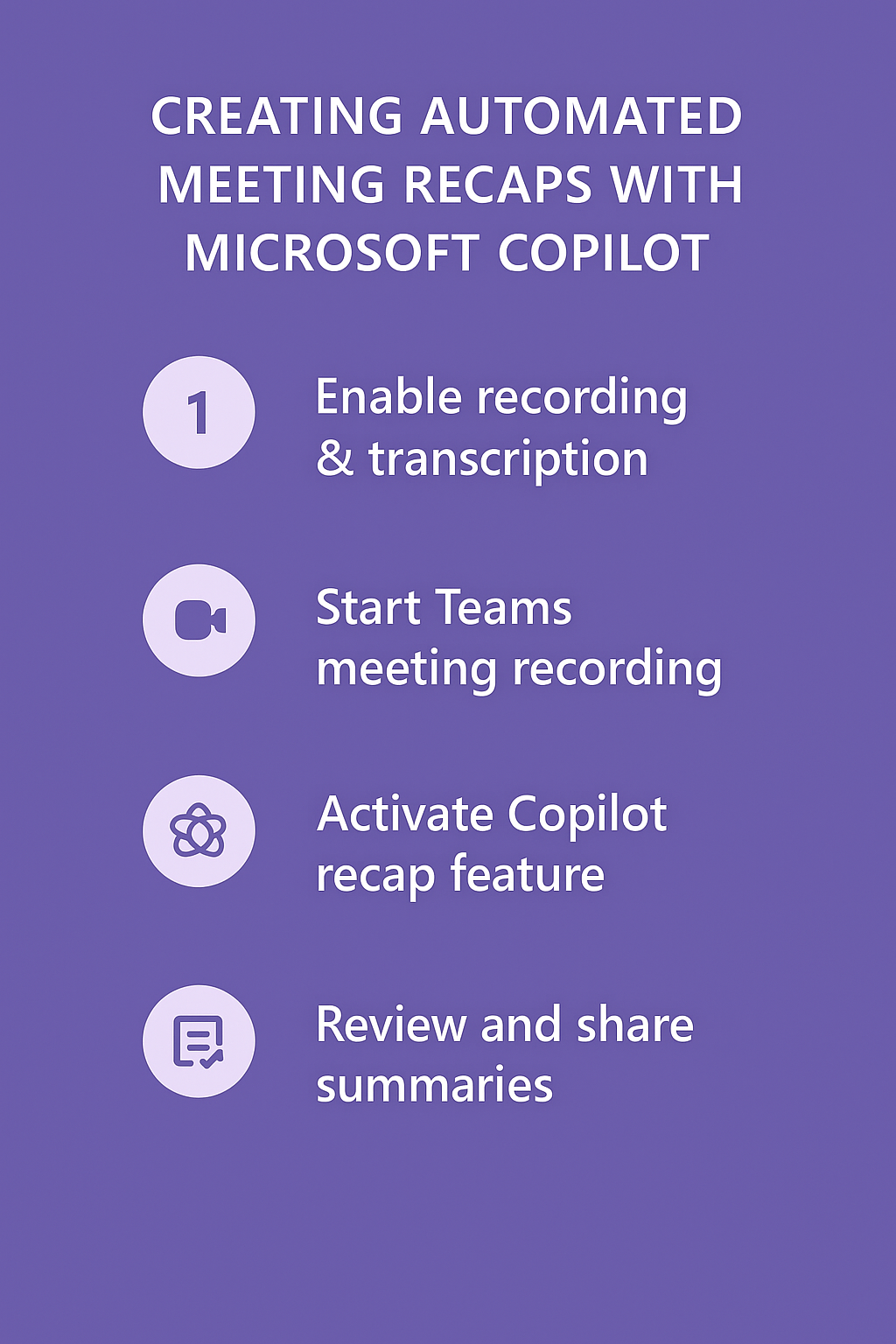
Copilot AI meeting summary activation
Once recording policies are established, you can activate Copilot’s intelligent recap features directly within Teams meetings to begin generating automated summaries.
- Join or schedule a Teams meeting and ensure you have organizer or co-organizer permissions to enable recording and Copilot features during the session.
- Click the three dots menu in the meeting toolbar and select Start recording to initiate the recording process that Copilot requires for generating comprehensive meeting analysis.
- Locate the Copilot icon in the meeting toolbar (typically appears as a sparkle or brain icon) and click it to open the Copilot panel on the right side of your meeting window.
- Select “Start intelligent recap” or similar option from the Copilot menu to activate real-time meeting analysis and summary generation throughout your meeting session.
- Continue your meeting normally while Copilot processes the conversation, identifying speakers, tracking decisions, and noting action items automatically without interrupting the natural flow of discussion.
- Monitor the Copilot panel periodically to see real-time updates and insights as they are generated, though the complete recap will be available after the meeting concludes.
Copilot automatic meeting recap generation
After your meeting ends, Copilot processes the complete recording and transcript to generate a comprehensive recap with structured sections covering all important discussion elements.
- Wait approximately 5-10 minutes after the meeting ends for Copilot to complete processing the full recording and generate the complete intelligent recap with all sections populated.
- Access the meeting recap through multiple channels including the Teams meeting chat, Outlook calendar invitation, or directly through the Teams app meeting history section. See Copilot meeting minutes for details.
- Review the automatically generated sections including meeting overview, key decisions made, action items with assigned owners, important topics discussed, and participant contributions throughout the session.
- Customize the recap format by using Copilot prompts such as “Summarize the budget discussion in more detail” or “Create a task list from the action items mentioned.”
- Edit or refine specific sections of the recap by clicking on individual sections and using natural language prompts to request modifications or additional detail for particular discussion points.
Copilot for meeting summary distribution and sharing
Once Copilot generates your intelligent recap, you need to effectively distribute the summary to relevant stakeholders and integrate the information into your project management workflows.
- Copy the complete recap from Copilot and paste it into a new email, Teams channel post, or SharePoint document to share with meeting participants and other relevant stakeholders.
- Use the “Share recap” feature within Copilot to automatically send the summary to all meeting participants via their preferred communication channels or email addresses.
- Create follow-up tasks in Microsoft Planner or Project by extracting action items from the Copilot recap and assigning them to specific team members with appropriate due dates.
- Archive meeting recaps in a dedicated SharePoint library or Teams channel for easy reference and searchability across multiple meetings and project phases.
- Set up automated workflows using Power Automate to distribute recaps to specific distribution lists or update project tracking systems based on meeting outcomes and decisions captured by Copilot.
Frequently Asked Questions
Can Copilot generate recaps for meetings that weren’t recorded from the start?
Copilot only processes content from the moment recording begins. If you start recording mid-meeting, the recap will only cover discussions that occurred after recording started. For complete recaps, always initiate recording before substantive discussion begins.
How long are meeting recaps retained and where are they stored?
Meeting recaps are stored with the recording in OneDrive or SharePoint depending on meeting type. They follow your organization’s retention policies for recordings, typically available for the configured retention period (often 30-120 days unless modified by administrators).
Can I use Microsoft 365 Copilot to compare insights across multiple meetings?
Currently, Copilot processes each meeting independently. However, you can copy multiple recaps into a single document and prompt Copilot in Word or Teams Chat to “identify common themes across these three meeting summaries” for cross-meeting analysis.
Does the Copilot work if external participants or guest users attend my meetings?
Yes, Copilot processes all meeting audio regardless of participant type. However, external guests must accept recording consent, and your organization’s data governance policies determine whether recaps containing external participant information can be shared outside your tenant.
Troubleshooting Copilot teams meeting recap issues
Several common challenges may prevent Copilot from generating effective meeting recaps or cause quality issues with the automated summaries produced during your Teams meetings.
- Recording not starting automatically: Ensure your Teams meeting policy allows cloud recording and transcription, then manually start recording before enabling Copilot features to provide necessary audio data for processing.
- Incomplete or inaccurate recap content: Check that all participants spoke clearly and were properly connected to the meeting audio, as poor audio quality significantly impacts Copilot’s ability to generate accurate summaries.
- Missing action items or decisions: Explicitly state decisions and action items during the meeting using phrases like “We decided that” or “Action item for John” to help Copilot identify and categorize important outcomes.
- Copilot not available in meeting: Verify your Microsoft 365 license includes Copilot features and that your IT administrator has enabled Copilot for your organization’s Teams environment through proper licensing and configuration settings.