Creating meeting minutes in Teams with Copilot
“I spend hours after every meeting trying to remember what was discussed and who committed to what. Our team meetings are productive, but I’m losing valuable time recreating action items and key decisions from memory. Is there a way Microsoft 365 Copilot can automatically capture meeting minutes and help me focus on the conversation instead of frantically taking notes during important discussions?”
Microsoft 365 Copilot meeting minutes solve documentation challenges
Meeting documentation represents a significant productivity drain for modern organizations. Teams often struggle with incomplete notes, missed action items, and inconsistent follow-up processes. Microsoft 365 Copilot transforms this challenge by automatically generating comprehensive meeting minutes during Teams meetings. This capability ensures nothing falls through the cracks while allowing participants to remain fully engaged in discussions rather than splitting attention between conversation and note-taking.
Take meeting minutes with Copilot using automated workflows
We will show how to configure and use Microsoft 365 Copilot for automatic meeting minute generation in Teams meetings. You’ll learn to enable meeting transcription, leverage Copilot prompts for meeting minutes, and customize output formats for different meeting types. Prerequisites include a Microsoft 365 Copilot license, Teams meeting organizer permissions, and basic familiarity with Teams meeting controls.
Copilot prompts for meeting minutes implementation
• Enable meeting transcription before starting your Teams meeting
Navigate to your Teams calendar and select your scheduled meeting. Click “Meeting options” and toggle “Record automatically” to “On”. Ensure “Allow transcription” is enabled in your meeting settings. This creates the foundation for Copilot to analyze meeting content and generate accurate minutes.
• Start your meeting and activate Copilot during the session
Join your Teams meeting as the organizer or co-organizer. Click the “More actions” button (three dots) in the meeting toolbar. Select “Copilot” from the dropdown menu. The Copilot panel opens on the right side of your meeting window, ready to process real-time conversation data.
• Use specific prompts to generate targeted meeting content
In the Copilot chat box, type “Create meeting minutes with action items and decisions”. Copilot analyzes the ongoing conversation and provides structured output including key discussion points, decisions made, and assigned tasks. Alternative prompts include “Summarize the main topics discussed” or “List all action items with owners and deadlines”.
• Customize meeting minute formats for different meeting types
For project meetings, use “Generate project status update with risks and blockers”. For client meetings, try “Create client meeting summary with next steps and deliverables”. For team retrospectives, prompt “Summarize feedback themes and improvement actions”. Each prompt generates contextually appropriate meeting documentation.
• Export and share meeting minutes automatically
After your meeting ends, access the meeting chat in Teams. Copilot’s generated minutes appear in the chat history with timestamps. Click the “Copy” button to transfer content to Word or Outlook. Use “Share” to send minutes directly to meeting participants or stakeholders who couldn’t attend.
• Refine meeting minutes with follow-up prompts
If initial output needs adjustment, use refinement prompts like “Add more detail about budget discussions” or “Reorganize action items by priority”. Copilot can expand specific sections, reformat content, or focus on particular topics based on your additional instructions.
Expert tip: Create meeting templates by saving successful Copilot prompts for recurring meeting types, ensuring consistent documentation standards across your organization. For a reusable starting set, keep prompts for stronger meeting summaries alongside each recurring meeting template.
• Integrate meeting minutes with Microsoft Planner or Project
Copy action items from Copilot-generated minutes directly into Planner tasks. Use prompts like “Convert action items to task format with due dates” to create structured task lists. This integration ensures meeting decisions translate into trackable work items with clear ownership and timelines.
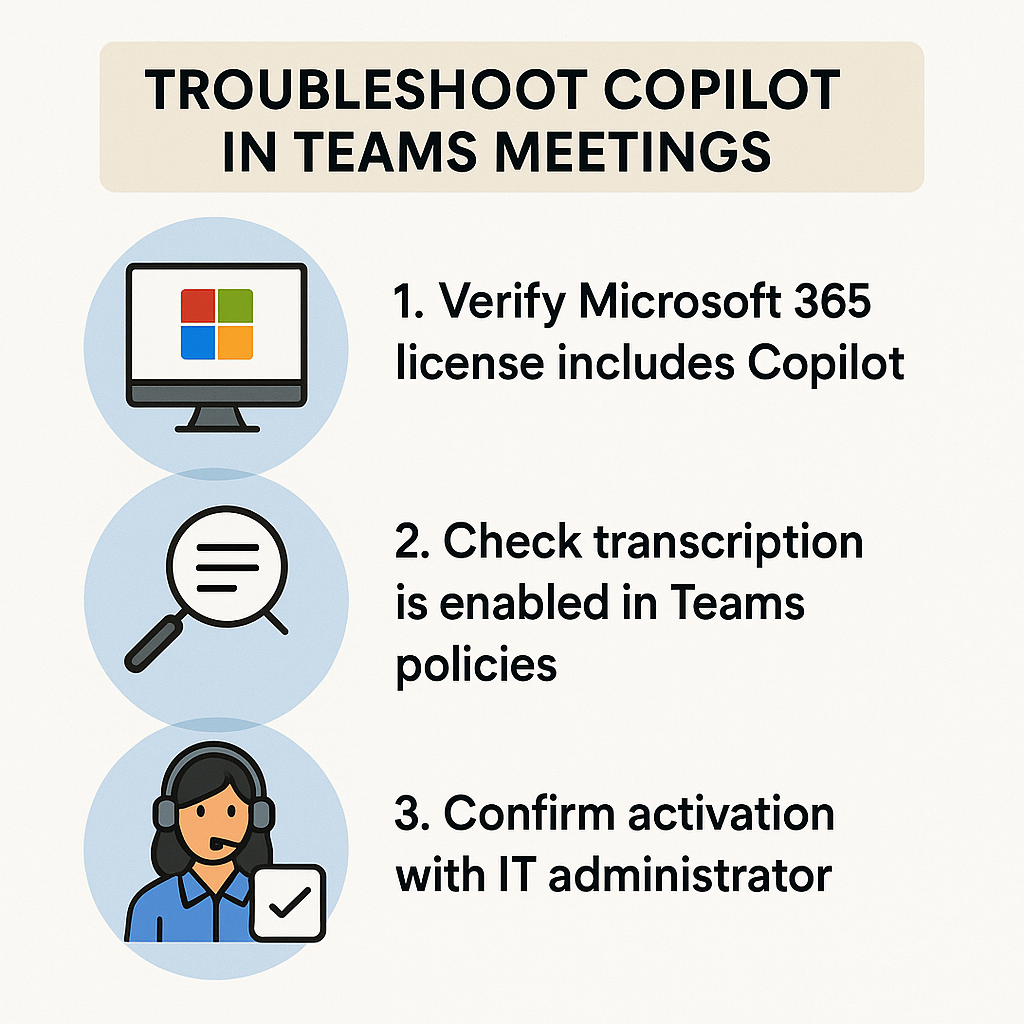
Microsoft Copilot to take minutes troubleshooting guide
• Copilot panel doesn’t appear in Teams meetings
Verify your Microsoft 365 license includes Copilot functionality through your admin portal. Check that meeting transcription is enabled in your Teams policies. Contact your IT administrator to confirm Copilot is activated for your organization and that you have appropriate permissions to use AI features in meetings.
• Meeting minutes lack detail or miss important discussions
Ensure speakers are clearly audible and minimize background noise during meetings. Use meeting room microphones or individual headsets for better audio quality. Copilot relies on transcription accuracy, so poor audio quality directly impacts minute generation quality and completeness.
• Generated minutes don’t include specific action items or decisions
Use explicit language during meetings like “Action item for John” or “We’ve decided to proceed with option A”. Copilot responds better to clear, structured conversation patterns. Train meeting participants to state decisions and assignments clearly rather than using implied or casual language.
• Cannot access meeting minutes after the session ends
Check that meeting recording and transcription completed successfully in Teams. Navigate to the meeting chat or calendar event to find Copilot-generated content. If content is missing, meeting organizers can regenerate minutes by reviewing the meeting transcript and using Copilot prompts in the post-meeting chat.
Turn the recap into an accountable meeting record
Copilot can accelerate meeting minutes, but the recap is only as reliable as the meeting evidence. For post-meeting questions and persistent Copilot history, Teams needs an available transcript. If Copilot was allowed only during the meeting without transcription, its conversation may not be available afterward.
Open the meeting chat or calendar event and select Recap. Compare the generated notes with the transcript before sharing them. Check names, numbers, deadlines, decisions, and the difference between a proposal and an approved action. Unclear audio, overlapping speakers, and participants who joined late can change the generated interpretation.
Use a structured prompt such as: “Create minutes with decisions, unresolved questions, action owner, due date, and the transcript evidence for each item. Label anything that was discussed but not approved.” A response formatted as a table can be opened in Excel, while longer Copilot responses may be opened in Word when the meeting policy permits exporting.
Preserve access and review boundaries
A recap can contain recordings, transcripts, files, notes, and follow-up tasks. Access depends on the invitation, meeting role, recording or transcript permissions, sensitivity labels, and organizational policy. Do not copy the recap into a broader channel or distribution list without checking that every recipient may receive the underlying information.
Before treating the minutes as final:
If the recap is missing, verify that the meeting was recorded or transcribed and that you were invited with appropriate access. A deleted transcript can also remove Copilot’s ability to answer post-meeting questions. For recurring meetings, confirm the occurrence date before editing minutes because each occurrence has its own evidence. The dependable workflow is generate, verify, obtain owner confirmation, and then publish the approved record.