How to use Copilot for meetings and boost productivity
“How can I automatically generate comprehensive meeting summaries without spending hours reviewing recordings and notes?” This question reflects a common challenge faced by professionals who attend multiple meetings daily and struggle to maintain accurate documentation while staying engaged in discussions.
Microsoft Copilot transforms meeting documentation from a time-consuming manual task into an automated, intelligent process that captures key insights, decisions, and action items seamlessly during your Teams meetings.
How to summarize a meeting using Copilot?
Modern workplace collaboration demands efficient meeting documentation, yet traditional note-taking methods often result in incomplete records and missed action items. Meeting participants frequently find themselves choosing between active participation and comprehensive documentation, leading to gaps in organizational knowledge and follow-up accountability.
This tutorial demonstrates how to leverage Microsoft Copilot within Teams meetings to automatically generate detailed meeting summaries, extract action items, and create shareable reports. You will learn to configure Copilot for optimal meeting capture, utilize advanced summarization features, and integrate meeting insights into your broader Microsoft 365 workflow.
Prerequisites: Active Microsoft 365 subscription with Copilot licensing, Teams desktop or web application, and meeting organizer or participant permissions.
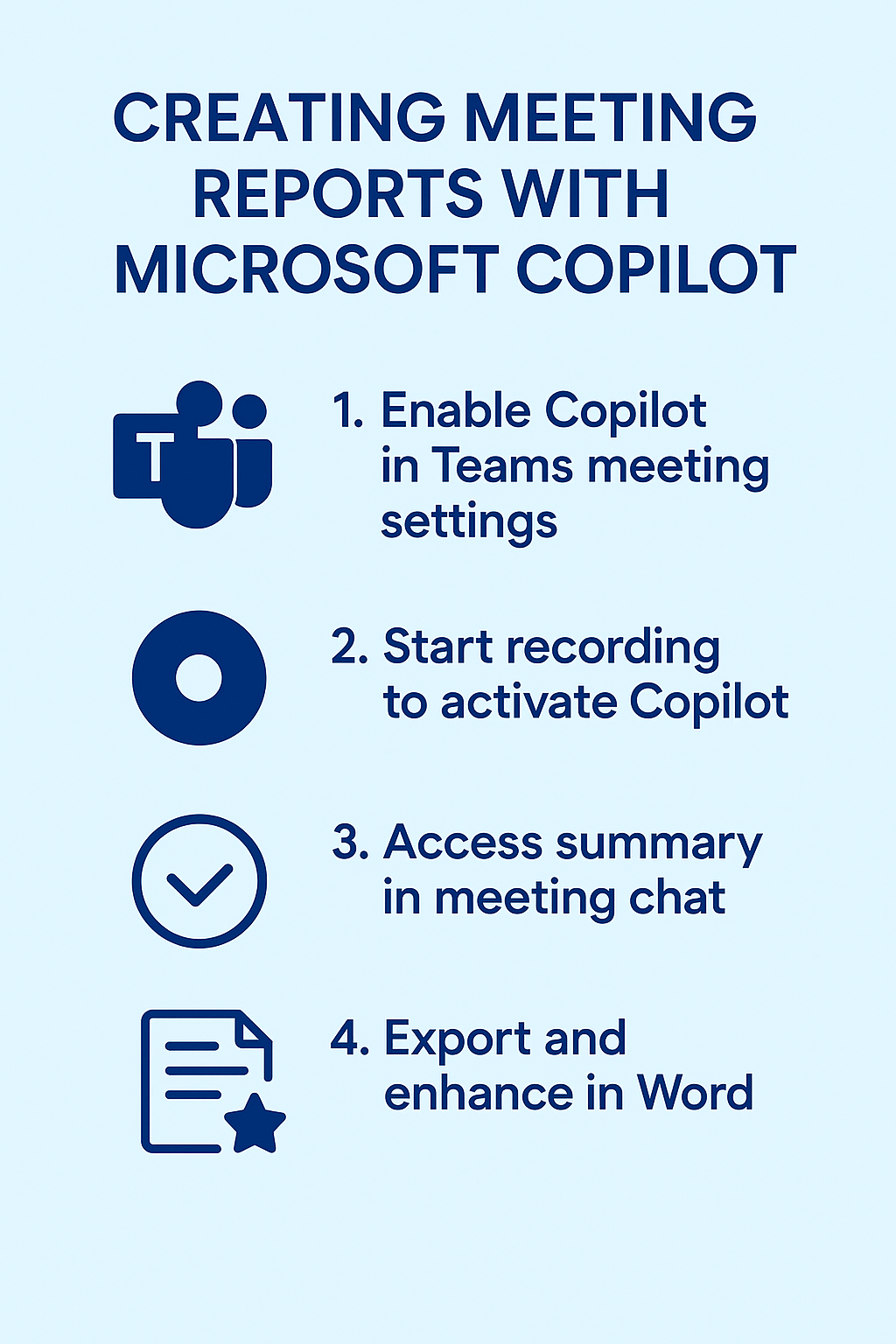
How to add Copilot to Teams meetings?
Setting up Copilot integration for Teams meetings
- Navigate to Microsoft Teams and select the Calendar tab from the left navigation panel to access your scheduled meetings and create new meeting invitations with Copilot integration enabled. This allows you to set up automatic meeting documentation before participants join.
- Click “New meeting” or select an existing meeting from your calendar, then locate the “Meeting options” section in the meeting details panel to configure Copilot settings before the meeting begins.
- Toggle the “Record automatically” option to enabled status, ensuring that Copilot can access meeting audio and video content necessary for generating comprehensive summaries and extracting key discussion points.
- Verify that “Allow meeting chat” is enabled in the meeting options, as Copilot utilizes chat interactions alongside audio content to provide more accurate and contextual meeting summaries.
- Send meeting invitations to participants with a note explaining that Copilot will be active during the session, ensuring transparency and compliance with organizational recording policies and participant consent requirements.
Activating Copilot during live meetings
- Join your Teams meeting using the desktop application or web browser, then locate the “More actions” menu (three dots) in the meeting toolbar to access Copilot features and recording controls.
- Click “Start recording” from the dropdown menu, which automatically activates Copilot’s meeting analysis capabilities and begins capturing audio, video, and chat content for post-meeting processing and summarization.
- Observe the red recording indicator in the meeting window, confirming that Copilot is actively monitoring the session and will generate meeting insights based on participant discussions, shared content, and collaborative activities.
Expert Tip: Enable Copilot recording at the beginning of meetings to capture complete context, including introductions and agenda setting that often contain crucial project background information.
- Access the meeting chat panel by clicking the “Show conversation” button, where you can interact with Copilot in real-time by typing questions like “What are the main discussion points so far?” or “List the decisions made in this meeting.”
- Utilize Copilot’s live assistance by asking specific questions about meeting content, such as “Who volunteered for the marketing task?” or “What was the agreed timeline for project completion?” to receive immediate responses based on captured meeting data.
How to summarize minutes in Copilot and generate reports?
- End your Teams meeting by clicking “Stop recording” in the meeting controls, which triggers Copilot to begin processing the captured content and generating initial meeting summaries within minutes of meeting conclusion. The AI will automatically analyze all discussion points and organize them into a structured format.
- Navigate to the meeting chat or meeting details page where Copilot automatically posts a preliminary meeting summary containing key discussion points, participant contributions, and identified action items extracted from the recorded session.
- Access the full meeting transcript by clicking on the meeting recording link in the chat, then scroll to locate the Copilot-generated summary section that provides structured insights organized by topics, decisions, and follow-up requirements.
- Review and refine the automated summary by clicking “Edit summary” or using chat commands like “Expand on the budget discussion” or “Provide more details about the timeline decisions” to enhance the meeting documentation quality.
- Export the meeting summary by copying the Copilot-generated content and pasting it into Word, OneNote, or SharePoint for further formatting, distribution, and integration with project documentation workflows and team collaboration spaces.
How to use Copilot in Teams and maximize meeting insights?
Leveraging advanced Copilot features for meeting analysis
- Access post-meeting analytics by returning to the completed meeting in your Teams calendar, then click on the meeting recording to view detailed Copilot insights including speaker time analysis, topic progression, and engagement metrics.
- Generate custom meeting reports by interacting with Copilot through specific prompts such as “Create an executive summary of this meeting” or “List all technical requirements discussed” to produce targeted documentation for different stakeholder audiences.
- Create action item tracking by asking Copilot to “Extract all tasks and assign them to mentioned team members” or “Generate a follow-up checklist with deadlines” to transform meeting discussions into actionable project management deliverables.
- Integrate meeting insights with Microsoft Planner by copying Copilot-generated action items and creating corresponding tasks, ensuring seamless transition from meeting discussions to project execution and progress tracking across your organization.
How to use Copilot in Word for enhanced meeting documentation
- Open Microsoft Word and create a new document, then navigate to the Copilot panel by clicking the Copilot icon in the ribbon or using the keyboard shortcut to access AI-powered writing assistance for meeting report creation.
- Import your Teams meeting summary by copying the Copilot-generated content from Teams and pasting it into Word, then use Copilot to enhance formatting, expand sections, and create professional meeting documentation suitable for executive distribution.
- Enhance meeting reports using Word Copilot prompts like “Format this meeting summary as a professional report with executive summary, key decisions, and action items sections” to transform raw meeting data into polished business documentation.
- Generate follow-up communications by asking Word Copilot to “Create email templates for action item assignments” or “Draft a project update based on this meeting summary” to streamline post-meeting communication and ensure consistent follow-through.
Troubleshooting common Copilot meeting challenges
- Copilot summary appears incomplete or missing key discussion points when meeting recording quality is poor or multiple participants speak simultaneously, requiring manual review and supplementation of automated summaries with participant notes.
- Meeting recording fails to activate Copilot features when organizational policies restrict automatic recording, necessitating manual recording initiation or administrator permission adjustments to enable full Copilot functionality in Teams meetings.
- Copilot generates inaccurate action item assignments when participant names are unclear or responsibilities are discussed ambiguously, requiring post-meeting clarification and manual editing of generated summaries for accuracy.
- Integration between Teams Copilot and Word fails when network connectivity issues interrupt data synchronization, resolved by refreshing applications, checking internet connection stability, and manually copying content between platforms when automatic integration fails.