How to Fix Invalid Connection Error in Power Automate is one of those tasks that looks bigger than it is. The flow can be correct, the trigger can be fine, and the action can still fail because the stored sign-in token behind a connector no longer works. Start with the connection owner and authentication state before you rebuild the flow.
Microsoft Learn documents several reasons a connection can break, including password changes, changed Microsoft Entra ID policies, deleted or disabled owner accounts, revoked consent, and connections that need reauthorization. The fastest fix is usually to repair the affected connection, then confirm every action in the flow is using the repaired connection reference.
Find the broken connection source
Check the failed action first
Open the failed run and expand the red action. Read the error text before changing anything, because “invalid connection” can appear beside a connector action even when the real problem is the connection reference inside the flow. If the run failed after several successful actions, the broken connector is likely the first red action, not every action after it.
Use run history to separate connection failures from trigger problems. A flow that never starts needs a different investigation than a flow that starts and fails on Outlook, SharePoint, Teams, Excel, or Dataverse. For a broader run-history path after the connection is repaired, use this diagnose failed runs guide.
Open the connections page directly
Go to Power Automate and open Data >> Connections, or use the connection panel from the flow designer if your tenant shows it there. Look for warning icons, disconnected status, or a connection owned by someone who no longer has access. My first check is always the owner column, because shared flows often fail after a teammate leaves.
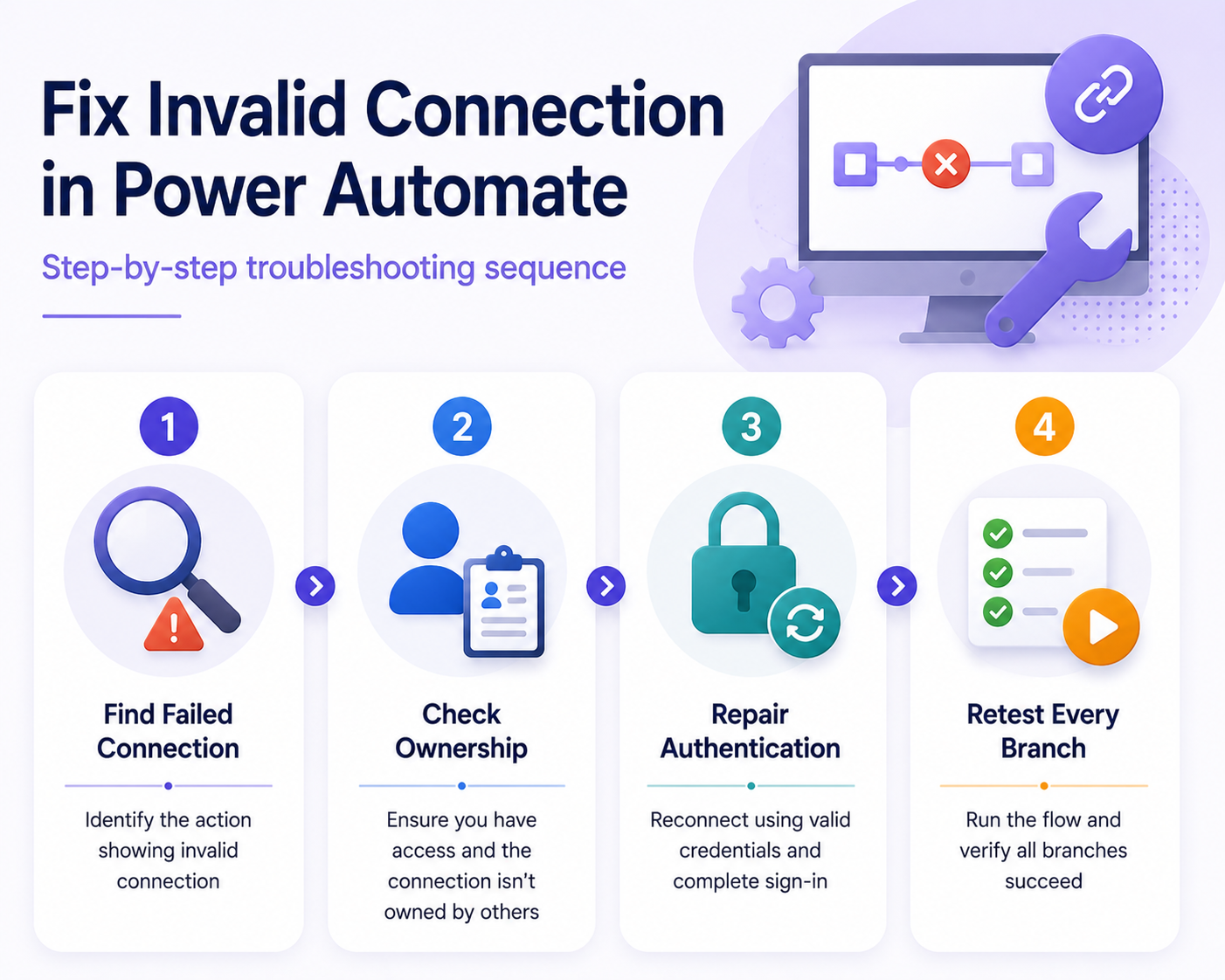
When you find the bad connection, select the menu for that connection and choose Fix connection or Edit. Sign in again with the correct account, complete any MFA prompts, and return to the flow. If the connection belongs to someone else, that owner must reauthenticate it or you must switch the action to a connection you own.
Confirm trigger versus action failure
An invalid connection can affect a trigger or a later action. If the flow is not triggering at all, inspect the trigger connection and related permissions before you chase action-level errors. This repair trigger behavior walkthrough is the better next step when there are no new runs.
If the run exists, stay inside the failed run and repair the action connection first. After reauthentication, open the flow in edit mode and check that the same connection appears on every action that uses that connector. Mixed old and new connections are a common reason the first test passes but the next branch still fails.
Repair Power Automate connection failures
Reauthenticate the existing connector connection
Use reauthentication when the same service account still owns the connection and still has access. Microsoft notes that password changes invalidate existing connections that use the old password, and Microsoft Entra ID policy changes can require reauthorization. Reauthenticating preserves the connection identity while refreshing the credential behind it.
After the sign-in completes, do not assume the flow is fixed. Open the flow, save it, and run a controlled test using data that hits the failed action. If the connector prompts again, sign in from the action card itself so the flow updates its connection reference.
Replace the connection owner safely
Create a new connection when the owner account was deleted, disabled, transferred, or no longer appropriate for the process. Microsoft Learn describes deleted or disabled owner accounts as a reason connections become invalid for everyone who shares them. A fresh service account or durable owner can prevent the same failure from returning next month.
Use this replacement pattern:
- Create the connection with the account that should own the automation long term.
- Open the flow in edit mode and switch affected actions to the new connection.
- Save the flow, then inspect every branch that uses the same connector.
- Test with a record that exercises the branch that failed originally.
Do not delete the old connection until you know no other flows still depend on it. The connection page can show references, but shared environments are messy, so confirm ownership before cleanup.
Recreate missing consent or permissions
Some invalid connection errors are not password problems. An admin might have changed consent, conditional access, MFA requirements, or app access. When the sign-in screen succeeds but the connector still fails, capture the exact message and ask the tenant admin what changed.
This is especially important for connectors that touch mailbox, SharePoint, Dataverse, or third-party systems. A user can sign in successfully and still lack the permission required for a specific operation. In my own shared flows, permissions drift caused more repeat failures than the original expired token.
Prevent repeat Power Automate connection errors
Use stable automation owner accounts
Personal accounts are convenient during testing but risky for important flows. When a flow depends on an employee account, password changes, role changes, license changes, and departures all become automation risks. Use the account pattern approved by your organization for business-critical flows, and document who owns each connection.
For shared flows, keep a short inventory of connector, owner, purpose, and last validation date. You do not need a heavy governance process for every small flow, but you do need enough context to know who can repair it during an outage.
Test after policy changes happen
Connection failures often appear after a password reset, MFA rollout, conditional access update, app consent change, or license change. When admins announce one of those changes, test the flows that rely on affected connectors. It is faster to reauthenticate ten known connections during a maintenance window than to discover a broken approval or reporting flow during payroll, billing, or month-end reporting.
Build this check into your change routine. Open important flows, confirm connection status, run one manual test, and verify that notifications or downstream updates still complete. The work is simple, but it prevents confusing failures later.
Avoid hidden branch connection failures
A repaired flow can still fail if only one branch uses the fixed connection. Conditions, scopes, and parallel branches may hold action cards that are easy to miss in the designer. Expand collapsed branches and check every action that uses the same connector.
If the flow has several branches, add temporary test data that reaches each branch. Remove any temporary test-only actions when you are done. The goal is to prove the connection works everywhere, not only on the happy path.
Power Automate connection questions answered
Why did my connection become invalid suddenly?
The most common reasons are password changes, expired or revoked tokens, MFA or conditional access changes, admin consent changes, or an owner account that was disabled. The flow design may not have changed at all. The stored authentication behind the connector simply no longer satisfies the service.
Can I fix a shared connection myself?
Only if you own the connection or have the right access to replace it in the flow. If another user owns the shared connection, that user may need to reauthenticate it. When that is not possible, create a new connection with an approved account and update the affected actions.
Should I delete the broken connection?
Do not delete it as the first fix. Repair or replace it in the flow, test all branches, and confirm no other flows still use the old connection. Deleting too early can create new failures in automations that were not part of your original incident.
Fix the credential layer before you redesign the automation. Most invalid connection errors disappear once the right owner signs in again, the action references the repaired connection, and every branch has been tested.