Accidentally closing a browser tab in Chrome happens to almost every user at some point, especially when you have dozens of open tabs competing for attention across your workspace. Learning how to reopen accidentally closed tabs in Chrome saves you from the frustration of losing research pages, active work sessions, and important reference documents you need to complete daily tasks. This article covers four reliable methods for Chrome tab recovery that work on both Windows and Mac computers, ranging from simple keyboard shortcuts to full session restoration techniques.
Use the Keyboard Shortcut Method
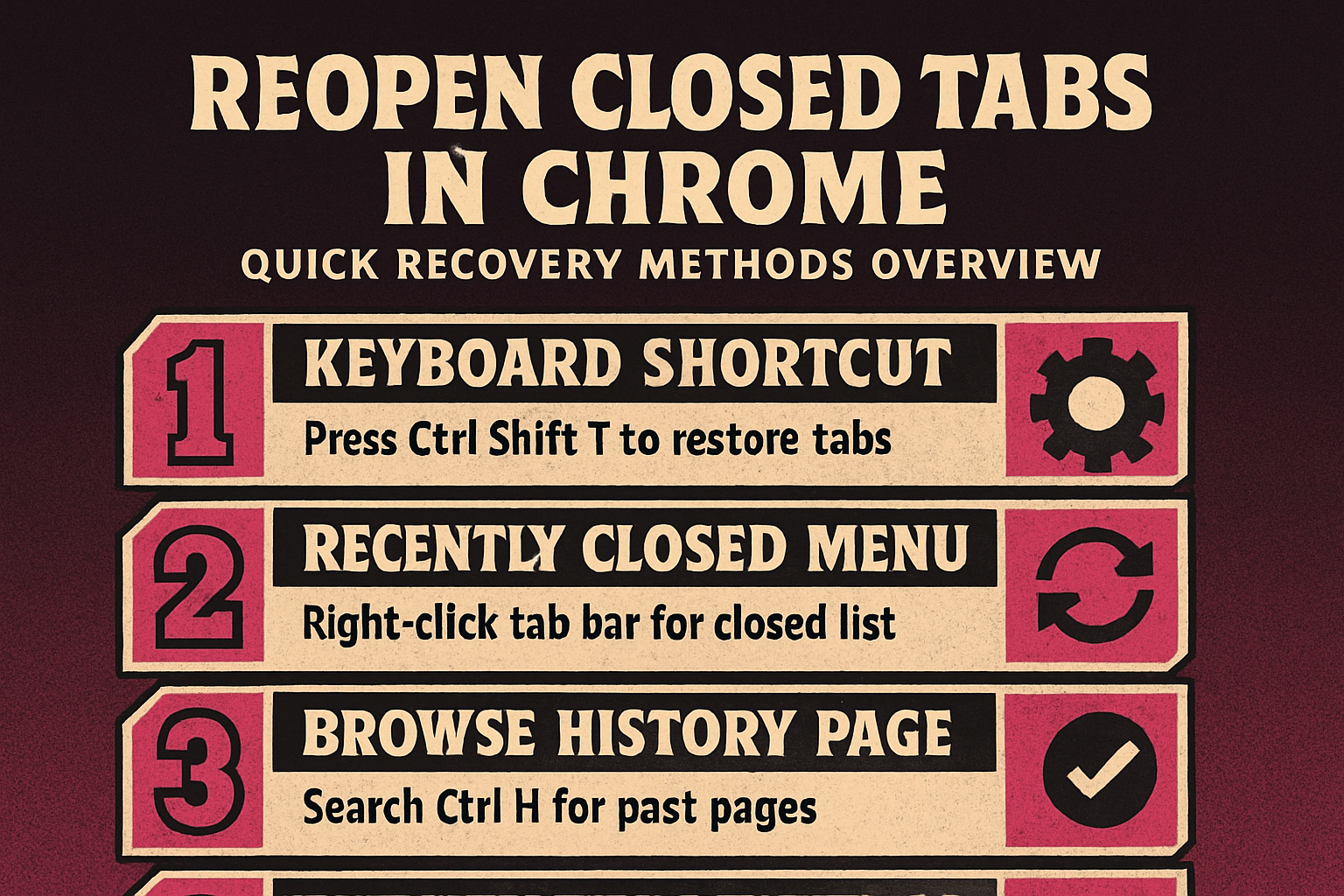
The fastest way to reopen closed tabs in Chrome is pressing Ctrl+Shift+T on Windows or Cmd+Shift+T on Mac, which instantly restores the most recently closed tab in your browser.
- This keyboard shortcut works repeatedly, meaning you can press the same combination multiple times in succession to reopen several closed tabs in the exact reverse order they were originally closed. While working through these keyboard shortcut method configuration steps on my primary workstation, I noticed that the setting persists even after software updates install automatically in the background.
- Chrome remembers your recently closed tabs even when you have multiple browser windows open simultaneously, so the shortcut will always restore tabs from whichever window currently has active focus.
- If you accidentally close an entire Chrome window containing multiple tabs, the same shortcut reopens that complete window with all its previously open tabs fully restored to their original positions.
Access Chrome Recently Closed Tabs
Chrome provides a built-in menu option that displays your recently closed tabs in a convenient and organized list format, which is especially helpful when you need to recover a specific page.
- Right-click on any empty area of the Chrome tab bar at the top of your browser window, and you will see a context menu option labeled “Reopen closed tab” appear immediately.
- For a more detailed view of your Chrome recently closed tabs, you can click the three-dot menu icon located in the upper right corner of your browser window.
- Navigate to the History submenu within that dropdown menu, where Chrome displays a list of your recently closed tabs alongside their original page titles and website favicon icons for easy identification.
Search Chrome Browsing History Directly
When you need to recover closed tabs that were closed longer ago, Chrome browsing history provides a comprehensive record of every website you have visited during your current browsing sessions.
- Press Ctrl+H on Windows or Cmd+Y on Mac to open the Chrome History page, where you can browse through your complete browsing activity organized chronologically by date. Compared to earlier versions that I tested previously on Windows 11, the current search chrome browsing workflow has been streamlined significantly, reducing the number of clicks required to complete the configuration.
- The search bar at the top of the History page lets you type specific keywords, website names, or partial page titles to quickly locate the exact tab you accidentally closed earlier.
- This method proves particularly valuable when you cannot remember exactly when you closed a specific tab, because it allows you to search through stored browser data systematically and efficiently.
Restore Tabs After Chrome Restart
Sometimes Chrome itself crashes or you restart your computer without saving your current browsing session, which means all previously open tabs appear to be completely lost forever.
- Chrome includes a built-in session restore feature that automatically offers to reopen your previous session tabs when you launch the browser again after an unexpected closure event.
- To ensure Chrome always restores your previous session tabs automatically, open Chrome Settings by navigating to chrome://settings and then scroll down to the “On startup” section near the bottom.
- Select the option labeled “Continue where you left off” to configure Chrome so it always reopens every tab from your last browsing session whenever you start the browser fresh, similar to how you might restore lost pinned browser tabs in Edge.
Prevent Future Tab Loss Effectively
Taking a few proactive steps now can dramatically reduce the chances of losing important Chrome tabs in the future, saving you significant time and frustration during your daily browsing workflow.
- Consider installing a dedicated tab management browser extension from the Chrome Web Store that automatically saves and organizes your open tabs into searchable session groups for easy retrieval.
- Chrome also lets you bookmark important tabs quickly by pressing Ctrl+D on Windows or Cmd+D on Mac, which permanently saves page addresses for convenient future access beyond temporary session storage.
- Enabling the Chrome sync feature through your Google account ensures that your open tabs, bookmarks, and browsing history remain accessible across all your connected devices running Chrome automatically.
Frequently Asked Questions
What shortcut reopens closed tabs?
The keyboard shortcut to reopen closed tabs in Chrome is Ctrl+Shift+T on Windows computers and Cmd+Shift+T on Mac devices, and pressing it multiple times restores additional tabs sequentially. This Chrome shortcut works across all major operating system versions and restores tabs in the exact reverse chronological order they were originally closed during your current browsing session window.
Can you recover tabs after restarting?
Yes, Chrome can recover your previously open tabs after a browser restart if you have enabled the “Continue where you left off” setting found within the Chrome Settings startup configuration section. Even without that setting enabled, Chrome often displays an automatic prompt offering to restore your previous session tabs when it detects that the browser was not closed through normal shutdown procedures.
How do you recover tabs without history?
If Chrome browsing history has been cleared or is unavailable, you can still attempt tab recovery by checking the Recently Closed option accessible through the Chrome tab bar right-click context menu. Another effective approach involves checking your Windows backup and file storage for cached browser session data, or using a previously synced device where Chrome history might still be available.
Summary of Chrome Tab Recovery
Recovering accidentally closed tabs in Chrome becomes straightforward once you know the four primary methods available, from simple keyboard shortcuts to comprehensive browsing history searches and session restore configuration settings. The Ctrl+Shift+T shortcut handles most everyday tab recovery situations instantly, while Chrome browsing history and session restore settings provide reliable fallback options for more complex tab loss scenarios. Configuring Chrome to continue where you left off and using tab management extensions together form a solid preventive strategy that protects your browsing workflow from accidental tab closures consistently.