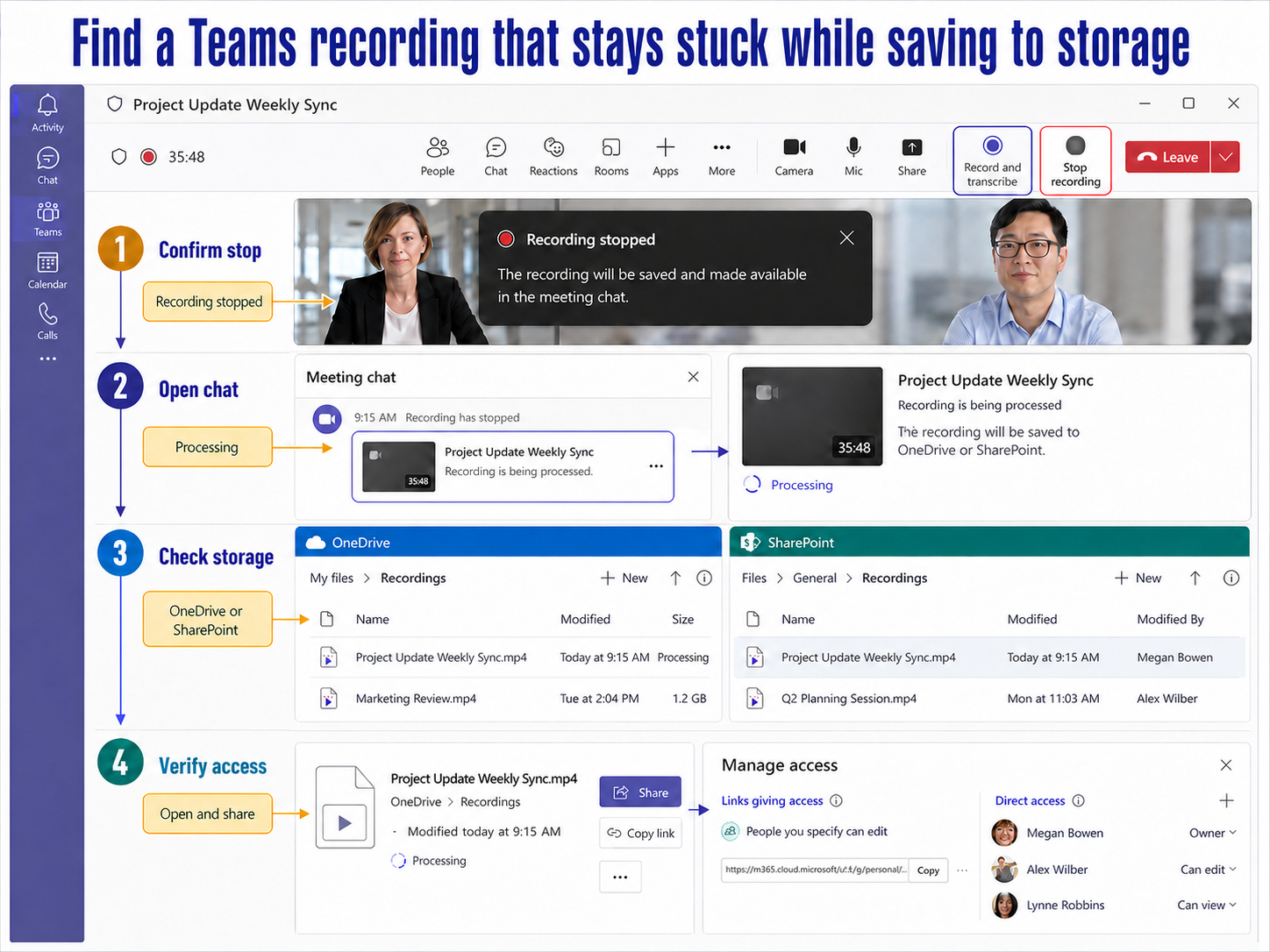
Teams does not save a meeting recording inside the local app. After recording stops, Microsoft processes the file and stores it in OneDrive for work or school or SharePoint. A “saving” message can therefore outlast the meeting while the file is being prepared or while the chat card catches up.
The right recovery path depends on meeting type. Non-channel recordings normally belong in the organizer’s OneDrive Recordings folder; channel meeting recordings are stored with the channel’s SharePoint files.
Track the recording from meeting to storage
Note the meeting type, organizer, recording stop time, and expected storage owner. Those details keep a delayed chat card from being confused with a missing file. Change only one variable before repeating the test, and keep the failing example unchanged until the comparison is complete.
For recordings, inspect the organizer’s OneDrive Recordings folder for ordinary meetings and the channel SharePoint files for channel meetings. Record whether the file exists, is still processing, plays for its owner, and is shared with attendees. That sequence distinguishes processing delay, missing storage, and permission trouble without relying on the chat card alone.
When results differ between desktop and web, do not keep changing both clients. A working web result usually proves that the cloud object and account still exist, leaving desktop installation, operating-system permission, or cached session as the narrower scope. Failure in both places makes the item, account, policy, connector, or service configuration more likely.
For a managed account, provide the affected identity, client, time, one reproducible example, the second-client result, and any visible error. Keep screenshots focused on the relevant pane and remove private names. Avoid sending passwords, private documents, recordings, or full card payloads unless the support owner requests them through an approved channel.
Before closing this Teams issue, repeat the successful path with a second ordinary example. If the second example works, preserve the original failure for object-specific review. If it fails in the same place, the shared client, account, permission, policy, or connector layer remains the stronger lead.
Go to storage before restarting everything
Non-channel meetings
Open the meeting chat and past meeting details first. Then use the storage-location map to inspect the organizer’s OneDrive Recordings folder for an ordinary meeting. Search by meeting time and file owner, not only by the chat card text.
Channel meetings
For a channel meeting, open the channel conversation and its files in SharePoint. The person waiting for the recording may not be the file owner. A missing card for one attendee can be a sharing problem even when the recording exists.
A recovery timeline that preserves evidence
- Note when recording stopped, who organized the meeting, who started the recording, and whether it was a channel meeting.
- Wait a reasonable processing interval without starting duplicate recordings or deleting the meeting chat. Longer recordings can take longer to process.
- Check the meeting chat or channel conversation and open past meeting details.
- Have the organizer inspect OneDrive > My files > Recordings for non-channel meetings, or the channel’s SharePoint files for channel meetings.
- If the file exists, open it from storage and verify playback. Then share it with the intended attendees using normal file permissions.
If the file never appears
Review whether cloud recording was enabled and whether the person who recorded met the licensing and policy requirements. The recording setup check helps confirm the expected meeting control before a future test. Do not assume a local cache contains a recoverable recording.
Check the relevant OneDrive or SharePoint recycle bin if the file appeared and then vanished. Recording expiration can also move a file to the recycle bin. Recovery is time-sensitive, so involve the organizer and storage owner promptly.
Practical verification notes
Repeat the successful path with a second ordinary example before calling the issue resolved. The second test should use the same account and client but a different item, meeting, file, or run. If only the original example fails, investigate that object’s settings and history. If both fail, continue at the client, policy, connector, or service layer.
Keep rollback simple. Save existing settings before changing them, avoid deleting shared data during diagnosis, and prefer reversible tests such as a new appointment, copied flow, private meeting, or sample file. This protects production work while giving support a clean comparison.
Recording recovery questions
How long should a Teams recording take to save?
Microsoft does not promise one universal processing time in the support guidance. Duration and service conditions matter. Record the stop time, check storage directly, and escalate a repeatable delay with the meeting and run details rather than refreshing continuously.
Why can the organizer play it but attendees cannot?
The file exists, but its OneDrive or SharePoint permissions do not include those viewers. Guests and external attendees may need explicit sharing. Ask the organizer to share the stored file instead of forwarding a stale chat link.
Is the recording in Stream?
Current Teams cloud recordings are stored in OneDrive or SharePoint, not the old Stream storage model. Use the meeting type to choose the location. The player may still look like a Microsoft 365 video experience, but storage ownership remains important.
Can I recover a deleted or expired recording?
Check the recycle bin in the OneDrive or SharePoint site where the file was stored. Microsoft notes that expired recordings move there. Once removed from the recycle bin, recovery may no longer be possible.
Verify the actual file
Do not call the issue fixed when only the chat card changes. Open the recording from OneDrive or SharePoint, play several points, and confirm the intended viewers can access it. If no file exists after a reasonable interval, send support the organizer, meeting ID, recording time, meeting type, and the locations already checked.