A greyed-out recording control in Microsoft Teams is usually a permissions decision, not a damaged button. Teams evaluates the meeting type, the organizer’s policy, your meeting role, licensing, and the recording settings selected for that meeting. The fastest repair is therefore to identify which layer is blocking the command before reinstalling anything.
Do not begin by clearing caches or switching browsers. Those actions cannot grant a user permission that the organizer or Teams meeting policy has withheld. Instead, hover over the locked control if Teams shows a lock icon, record the tooltip, and compare another eligible meeting before escalating.
Read the symptom before changing the client
Open More actions > Record and transcribe during the meeting. A missing command and a visible but disabled command are different clues. A missing command commonly points to meeting type, policy, or role; a disabled command can reflect the organizer’s recording and transcription choices.
Confirm your role in this specific meeting
Microsoft’s current recording guidance distinguishes organizers, co-organizers, presenters, and attendees. The organizer can limit Who can record and transcribe to organizers and co-organizers, or prevent recording entirely when the related Copilot setting allows that choice. An attendee cannot fix that boundary from their own client.
Ask the organizer to open Meeting options > Recording & transcription and review the setting. If the option is changed while the meeting is underway, follow the organizer’s on-screen guidance; some access changes require ending and restarting the meeting before they apply.
Separate a call from a scheduled meeting
Teams applies different policy families to meetings, webinars, town halls, and calls. Reproduce the issue in a normal scheduled meeting organized by a licensed internal user. If the button works there but not in an ad-hoc call or event, the client installation is probably healthy.
If the team wants recordings to start consistently for eligible meetings, the organizer-side automation setup explains where that choice belongs. Automatic recording still follows tenant policy and does not override an ineligible role.
Use a two-column diagnosis
| What you observe | Best next check |
|---|---|
| Only one attendee is blocked | That person’s meeting role and the organizer’s access choice |
| Everyone is blocked | Organizer policy, license, meeting type, or tenant configuration |
| Scheduled meetings work but calls fail | The calling policy rather than the meeting policy |
| Button is locked with a tooltip | Follow the exact reason in the tooltip |
| Recording starts but someone cannot view it | OneDrive or SharePoint file permission, not the recording command |
This comparison prevents a common mistake: treating a recording-file access problem as a meeting-control problem. The button controls whether recording can start. The file stored afterward has its own ownership, sharing, and expiration behavior.
Checks an organizer can complete now
- Open the meeting from the Teams calendar and select Meeting options.
- Under Recording & transcription, review Who can record and transcribe.
- Confirm that the affected person is an organizer, co-organizer, or presenter when the selected option requires that role.
- Verify that recording has not been turned off for the meeting and that automatic recording is not creating a conflicting expectation.
- Test in a newly scheduled standard meeting with the same organizer and one presenter.
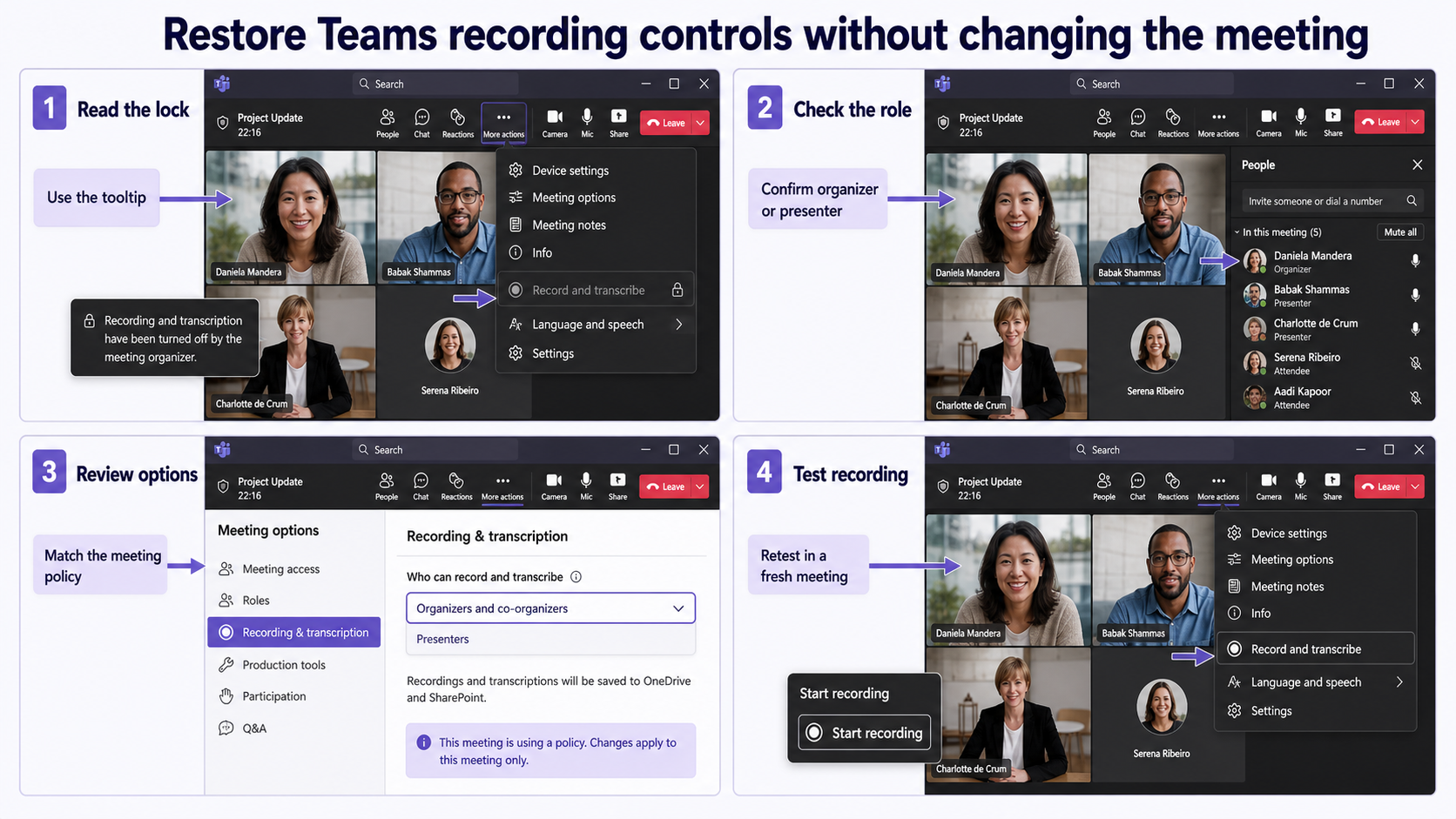
The clean test meeting matters because recurring meetings can retain older settings. It also makes the scope visible: if the same user can record in the new meeting, the original meeting configuration deserves attention before the tenant policy.
What an administrator should verify
Microsoft documents AllowCloudRecording in the Teams meeting policy as the tenant control for convenience recording in meetings. An administrator can use the Teams Meeting Recording Test or the Meeting Recording Support Diagnostic in the Microsoft 365 admin center to validate the account, license, assigned policy, and tenant prerequisites.
Check effective policy, not only the global default
A user can receive a custom policy directly or through group policy assignment. Reviewing only the global policy can therefore give a false answer. The admin should inspect the effective policy for both the organizer and the person expected to record, then allow time for any policy change to propagate.
Avoid treating storage as an enablement switch
Teams recordings are stored in OneDrive or SharePoint according to the meeting context. Storage quota, ownership, or sharing can affect the resulting file, but those are not substitutes for the license and meeting-policy checks that enable the recording control.
After recording succeeds, the owner can manage retention separately. The practical choices in that recording-lifecycle walkthrough help prevent an access issue from being mistaken for a disabled recording button later.
Questions about disabled recording controls
Can a presenter always start a Teams recording?
No. Presenter status can make a person eligible, but the organizer can restrict recording and transcription to organizers and co-organizers. Tenant meeting policy and licensing still apply, so role is only one part of the decision.
Why is the button available in one meeting but greyed out in another?
The meetings may have different organizers, meeting types, roles, or recording options. Compare their Recording & transcription settings and your assigned role before changing the app. A meeting-specific difference is strong evidence that the installation is not the root cause.
Will reinstalling Teams restore the recording button?
Only if the control is being rendered incorrectly, which is less common than a policy or role restriction. Test Teams on the web first; if the same account is blocked in the same meeting there, reinstalling the desktop app is unlikely to help.
What should I send to the help desk?
Provide the meeting type, organizer, your role, exact tooltip text, timestamp, and whether a new test meeting behaves differently. Include the result of the Microsoft 365 recording diagnostic if an admin can run it. That evidence lets support distinguish policy, meeting configuration, and client presentation without repeating broad resets.
The shortest reliable path
Treat the greyed-out command as a permissions signal. Compare one controlled test meeting, confirm the organizer’s recording options and your role, and have an administrator inspect effective policy only if the issue follows the account across meetings. This sequence preserves the meeting configuration, avoids needless reinstalls, and gives the owner or admin one clear layer to repair.