When Teams says access is denied in a meeting recap, the Recap tab is often working correctly. The failure usually comes from the recording or transcript permission behind it. Teams stores recap components with meeting artifacts in OneDrive or SharePoint, and the organizer can also restrict who may access the recording, transcript, and AI recap.
The useful question is not “Why is Recap broken?” but “Which artifact is denied, and who owns it?” That distinction determines whether the organizer can fix sharing, an administrator must review policy, or the attendee simply was not included in the permitted audience.
Locate the denied artifact
Open the past meeting from the Teams calendar or meeting chat and select Recap. Test the recording, transcript, and AI notes separately when those items exist. If the tab opens but one item denies access, keep the investigation on that artifact rather than resetting Teams.
Recording opens, transcript does not
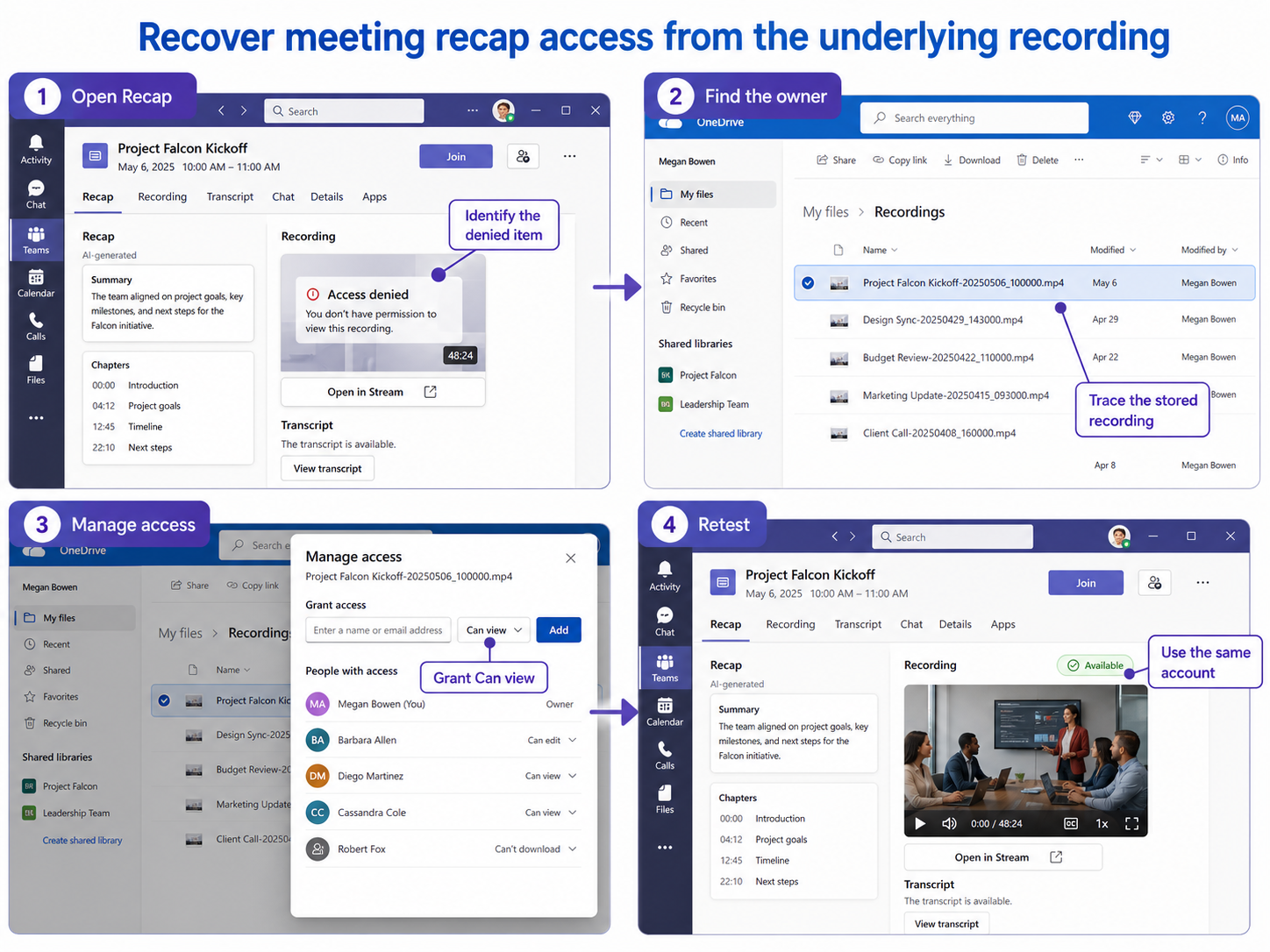
Recording and transcript permissions can diverge after someone changes access in OneDrive, SharePoint, or Stream. The organizer should inspect OneDrive > My files > Recordings, find the meeting recording, and open More actions > Manage access. Microsoft notes that transcript permissions can be granted as view, edit, or cannot-download access depending on policy.
Nothing in Recap opens
Return to the meeting’s Meeting options > Recording & transcription. For eligible meetings, Who has access to the recording and transcript can be set to everyone, organizers and co-organizers, or specific people. That selection also governs AI recap and transcript-based Copilot access unless later file-level changes supersede it.
The meeting option is not available for every meeting type. Microsoft excludes channel meetings and ad-hoc meetings from this customization, so inspect the actual storage location and file permissions for those cases.
A recovery route for the organizer
Use this sequence without generating a new share link until the owner is known:
- Confirm whether the meeting was a standard, channel, or ad-hoc meeting.
- Identify the organizer and the OneDrive or SharePoint account that owns the recording.
- Open the artifact from Recap, then choose Open in Stream when available.
- Select Share > Share, review Link settings, and grant the intended person view access.
- Return to Teams with the affected user and open the original Recap entry again.
If the recording is missing rather than denied, the recording-discovery checks help distinguish a storage or indexing issue from a permission failure. Do not grant broader access merely to make the search result appear.
Why copying the link may not work
A direct link points to the same protected file. Sending that link to another person does not add them to the file’s access list. The owner must choose a link scope that includes the recipient or grant access directly.
Original meeting access can be overridden
Microsoft states that changes made through SharePoint, sensitivity labels, or other permission methods can override the meeting’s original recording-and-transcript access choice. That is why reopening Meeting options may show “Everyone” even though one person still receives Access denied. Inspect the file-level Manage access panel in that case.
Sensitivity labels and tenant sharing policies can prevent an owner from selecting a broader link scope. Do not work around that control by downloading and re-uploading a corporate recording to a personal location. Ask the meeting owner or information-protection administrator to apply the intended access within policy.
Choose the least broad permission
For an internal participant who needs to review the meeting, Can view is normally sufficient. Use Can’t download when the organizer needs viewing without downloading and the tenant permits that option. Reserve edit access for people who genuinely manage the recording or transcript.
If the owner needs to make content changes after access is restored, the editing and trimming workflow belongs after permission recovery. Editing tools cannot repair an access-denied result for someone who cannot open the artifact.
For external attendees, verify that the selected link scope supports their identity and that guest or external sharing is allowed on the storage site. Anonymous sharing may be disabled by design. A recipient who opened the link with the wrong Microsoft account can also appear unauthorized even when their other identity was granted access.
Evidence that narrows the handoff
Capture the meeting URL, organizer, meeting type, denied artifact, and exact account used by the recipient. Note whether the owner can open the file directly in OneDrive or SharePoint and whether Manage access lists the affected user. If a request-access button appears, submit it and tell the owner which request to expect.
An administrator should become involved when the owner cannot change sharing, the allowed link scopes are unexpectedly limited, a sensitivity label controls the file, or the recording owner is no longer available. The goal is to restore the smallest correct permission, not to remove governance.
Recap access questions
Does attending the meeting guarantee access to its recap?
No. The organizer can limit recording, transcript, and AI recap access, and file-level permissions can change later. Attendance proves participation, but it does not override the selected audience or storage policy.
Why can I read the chat but not open the recording?
Meeting chat and the recording file are separate resources. Chat membership can remain valid while the OneDrive or SharePoint file excludes your account. Ask the owner to inspect the recording’s Manage access entry rather than adding you to the chat again.
Can the organizer approve my access request from Teams?
The request is tied to the stored artifact and is commonly handled through OneDrive, SharePoint, or the sharing experience opened from Stream. The organizer should follow the notification or open Manage access directly. A Teams restart does not approve a pending request.
Why is Copilot unavailable when only the transcript is restricted?
Microsoft states that attendees excluded from recording or transcript access also lose transcript-based Copilot access, even when Copilot was otherwise allowed in the meeting. Restore the intended artifact permission first, then reopen Recap and Copilot with the same account.
Restore access without widening the audience
Start with the exact item that fails, trace it to its owner and storage permission, and grant only the required level. If Meeting options and file-level access disagree, trust the current OneDrive or SharePoint permission and review labels or policies that may have overridden the original setting. This approach fixes the denied recap while preserving the organization’s sharing boundary.