When Copilot is not finding Teams recordings, the recording is often stored somewhere Copilot cannot access from your current prompt. Teams recordings can appear in recap, OneDrive, or SharePoint depending on the meeting type and organizer. Copilot can only reason over content it can reach and that your account is permitted to open.
Make sure that you do not start by uploading random copies of the video. First identify the official recording file, confirm who owns it, and check whether the transcript or recap is already available. That keeps the meeting record clean and avoids creating duplicate files with different permissions.
Start from the meeting recap
Open the past meeting in Teams and choose Recap. If a recording was created, the recap should usually point you to the recording or transcript. Use that path rather than searching your whole OneDrive, because the recording may belong to the organizer or to the channel site.
If the recap is missing, confirm the meeting was recorded. A meeting chat can contain comments about recording without the recording actually being available to you. Ask the organizer whether recording started and whether it finished processing.
Location clues
- Private meeting recordings are commonly tied to the organizer’s OneDrive.
- Channel meeting recordings may live in the connected SharePoint site.
- A transcript can exist even when you cannot download the video.
- External attendees may have limited recording access.
- The organizer may need to share the file before Copilot can use it.
Open the recording file directly
Once you find the recording, open it from its storage location. If OneDrive or SharePoint says you need permission, Copilot will usually have the same problem. Ask the file owner to grant access to the right account and avoid forwarding links to personal accounts.
Check whether the file opens in Stream or the browser. If you can play it but Copilot cannot reference it, try asking Copilot with the file attached or linked from the supported work content experience your tenant uses.
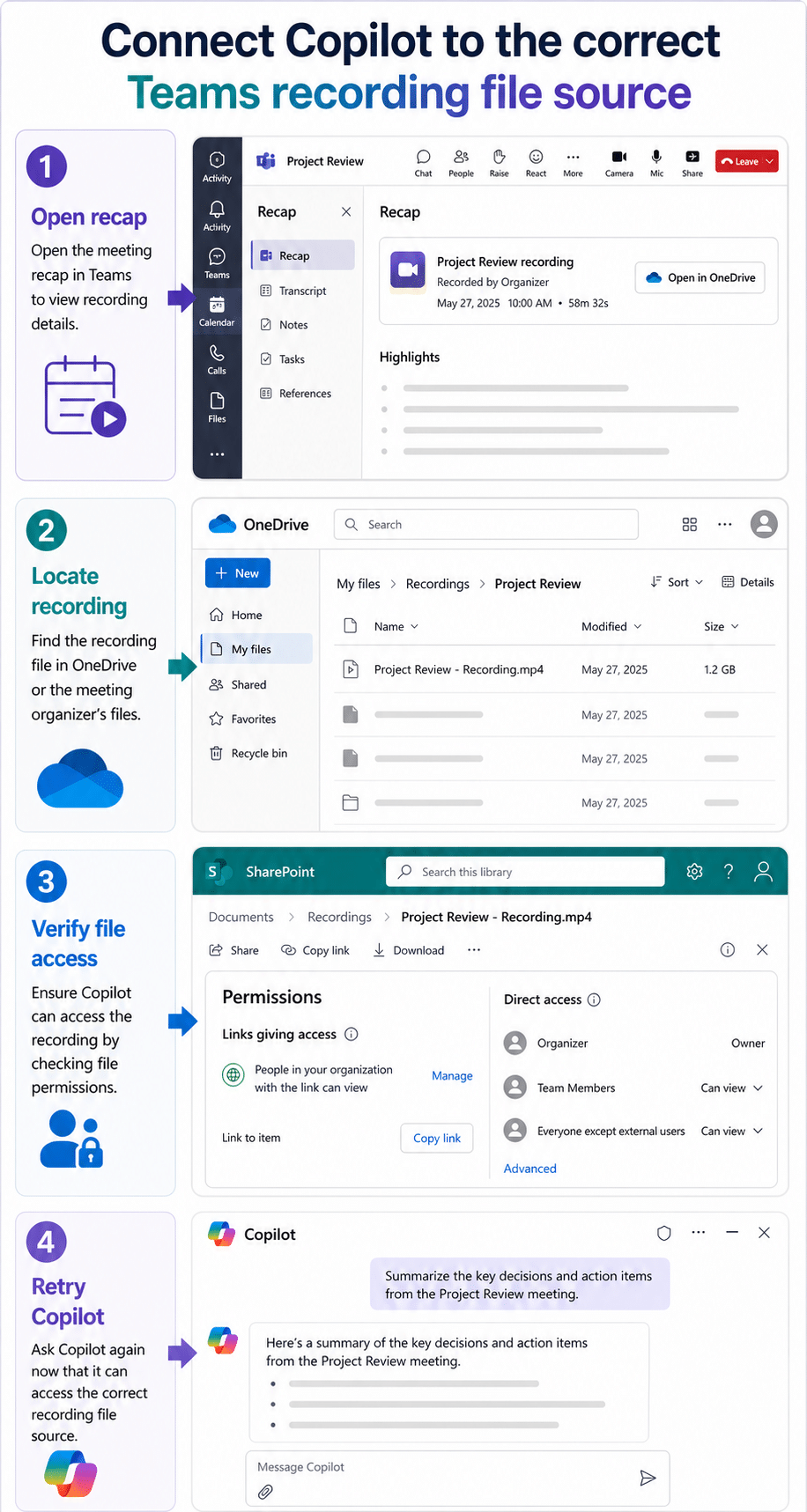
Use the transcript when video access is limited
For meeting minutes, the transcript is often more useful than the video file. If the video is blocked but the transcript is available, ask Copilot to summarize the transcript or use the recap content. This is faster and avoids large file limitations.
If the transcript is not ready, wait for processing. Large meetings can take time, and asking Copilot too early may produce a response that sounds like it searched but found no meeting content.
Check whether the recording is still processing
A recording can appear in the meeting chat before every related artifact is ready. If the preview opens but the transcript, chapters, or download options are missing, wait and reopen the recap. Processing delays are common after long calls, meetings with many speakers, or recordings that were stopped and restarted. Note the meeting end time before reporting the delay to support.
Clean up the prompt path
First off – If Teams itself is unstable, fix the client first with the related guide to solve Microsoft Teams startup issues. When the recording and transcript are available, use a focused prompt such as the workflow in Copilot prompt for Teams meeting minutes so Copilot knows which meeting file to inspect.
Avoid vague prompts like “summarize yesterday’s meeting” when your calendar has multiple calls. Include the meeting title, date, and the attached or referenced recording file. Specific prompts reduce the chance that Copilot searches the wrong meeting or wrong recap in your busy work calendar view later.
Separate meeting search from file analysis
Ask one question to confirm that Copilot can identify the meeting, then a second question that references the exact recording or transcript file. If the first question fails, the meeting context is missing. If only the second fails, the file access or format is the likely blocker.
When to involve the organizer or admin?
If the recording exists but no attendee can access it, the organizer should check the recording’s sharing permissions. If many recordings are missing or stored in unexpected places, the Teams admin should review recording policy, storage behavior, retention, and channel meeting settings.
Give the admin a precise example with meeting date, organizer, recording link, affected account, and whether the transcript is visible. That is enough to distinguish a permission problem from a recording policy or retention issue.
Do not chase old copies first
If someone downloaded the recording and reuploaded it, Copilot may find the copy but lose the original meeting context. Use that copy only as a fallback. The better source is the official meeting recording or transcript because it preserves organizer ownership, retention rules, and recap context. It also prevents the team from discussing different versions of the same meeting or attaching the wrong video to a follow-up task.
Questions you might have
Why can I see the meeting but Copilot cannot find the recording?
Meeting visibility and file access are separate. You may be invited to the meeting but lack permission to open the recording file in OneDrive or SharePoint.
Should I upload the recording to Copilot manually?
Use the official storage location first. Manual uploads can work in some Copilot experiences, but they create another copy and may not preserve the meeting transcript or permissions context.
Can Copilot use the transcript instead of the recording?
Yes, for many meeting-summary tasks the transcript is the better source. If video access is blocked, check whether the transcript or recap is available and ask Copilot to work from that content.