Chrome bookmarks can appear to vanish after switching profiles, signing into a different Google account, reinstalling the browser, or deleting a folder by mistake. The safest response is to preserve any copy that still exists before you change sync settings or replace local files.
This recovery playbook starts with the least invasive checks. It then moves to an HTML export and Chrome’s local bookmark backup. The order matters: if another device still shows the missing links, protect that copy before Chrome sync can replace it with the incomplete collection.
First, identify where the bookmarks went
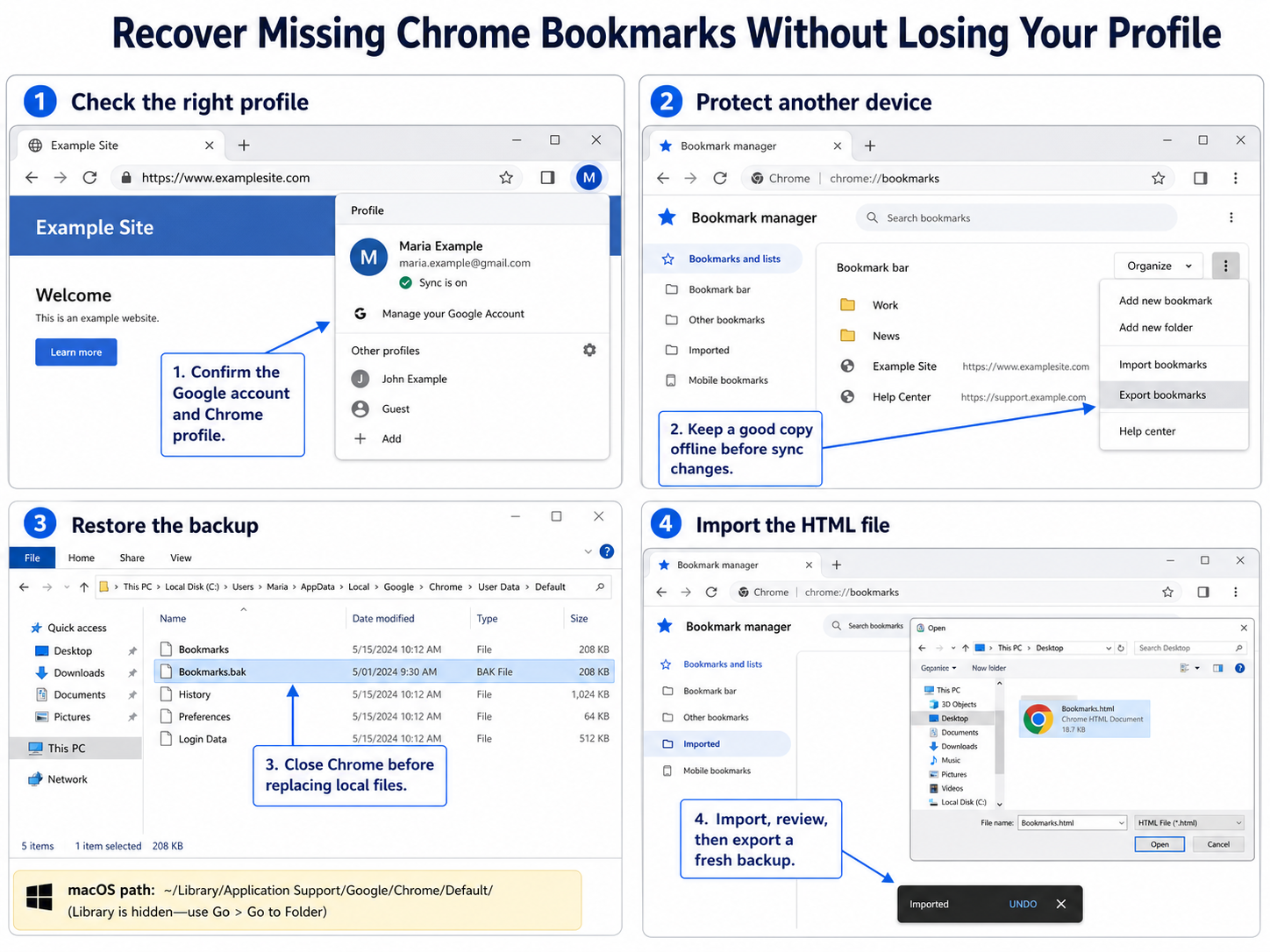
Open Chrome and select the profile picture at the upper-right corner. Confirm that the displayed Google account and Chrome profile are the ones that held the missing bookmarks. A work profile, personal profile, and Guest window each have separate local data.
Next, open chrome://bookmarks in the address bar. Expand Bookmarks bar, Other bookmarks, Mobile bookmarks, and any Imported folder. Use the search box for a distinctive page title. If the links are present but the bar is hidden, press Ctrl+Shift+B on Windows or Command+Shift+B on macOS.
If another device still has the complete list
Do not start editing bookmarks on that device. Disconnect it from the internet first, open Bookmark Manager, choose the three-dot menu, and select Export bookmarks. Save the HTML file somewhere outside the Chrome profile, such as a USB drive or a cloud folder that is not controlled by Chrome sync.
Google explains that signing into Chrome can save bookmarks in your Google Account and make them available across devices. That convenience also means a deletion may synchronize. An offline HTML export gives you a separate recovery copy before you troubleshoot the account.
For a routine backup after recovery, this simple offline copy workflow is useful because it does not depend on the current sync state.
Choose the recovery path that matches your evidence
Use the following order instead of trying every fix at once:
- Correct profile found: switch to it and export the bookmarks immediately.
- Good copy on another device: keep that device offline, export to HTML, then import the file on the affected computer.
- Existing HTML export: import it through Bookmark Manager.
- No export available: inspect Chrome’s local profile for a usable
Bookmarks.bakfile. - No backup file: use browsing history to rebuild only the most important links.
Avoid resetting Chrome, deleting the profile, reinstalling the browser, or turning sync off and on until you have copied the profile folder. Those actions are not recovery methods and may remove the evidence you still have.
Recover the local Chrome bookmark backup
Chromium’s bookmark-storage code creates a .bak copy of the bookmark file before a later save. This is a short-lived safety copy, not a versioned backup system. If Chrome has already saved the unwanted state, the backup may contain the same incomplete list.
Find the active profile path
Open chrome://version and look for Profile Path. Use that exact folder because the active profile may be named Profile 1, Profile 2, or something other than Default.
Typical locations are:
- Windows:
%LOCALAPPDATA%\Google\Chrome\User Data\Default - macOS:
~/Library/Application Support/Google/Chrome/Default
Copy the entire profile folder to a safe location before changing anything. Compare the modified times and sizes of Bookmarks and Bookmarks.bak; a backup created before the loss is the better candidate.
Replace the file without overwriting your only copy
- Close every Chrome window. On Windows, confirm that no
chrome.exeprocess remains in Task Manager. - In the active profile folder, rename
BookmarkstoBookmarks.current. - Copy
Bookmarks.bakand name the copyBookmarks. Keep the original.bakfile unchanged. - Start Chrome, open
chrome://bookmarks, and check the folders. - If the desired bookmarks return, export them to HTML immediately.
- If they do not return, close Chrome and restore
Bookmarks.currentasBookmarks.
Import a bookmark HTML file into Chrome
On a computer, open Chrome and select More > Bookmarks and lists > Import bookmarks and settings. Choose the HTML file, select Open, and finish the import. You can also open chrome://bookmarks, use the three-dot menu, and choose Import bookmarks.
Google notes that imported links appear on the bookmarks bar when the profile has no existing bookmarks. Otherwise, Chrome places them in an Imported folder or under Other bookmarks. Review that folder before assuming the import failed.
After confirming the recovered links, reorganize them and export a new HTML backup. If you are moving the whole browser setup rather than recovering a few links, follow the broader profile-migration checks so you do not confuse local and account-based data.
When no backup copy survives
Open Chrome history with Ctrl+H on Windows or Command+Y on macOS. Search for memorable words from a missing page title or domain, open the result, and add it again with the star in the address bar. History will not restore folder structure, but it can recover frequently visited URLs.
For managed work or school browsers, an administrator may disable bookmark importing. In that case, keep the HTML file and ask the administrator whether the import policy can be enabled temporarily. Do not install an untrusted bookmark-recovery extension or upload your profile files to an unknown website; bookmark files can reveal confidential research, internal systems, and client links.
Validate recovered bookmarks in a temporary Chrome profile
Importing an uncertain backup directly into a synced profile can create duplicates or spread an incomplete set to other devices. Inspect the recovered collection in a separate Chrome profile with sync off before merging it into your main profile.
-
Export the current main profile first
In the profile you normally use, open More, choose Bookmarks and lists, and open Bookmark Manager. From its More menu, select Export bookmarks and save the HTML file outside the Chrome profile folders. This gives you a reversible copy of the current collection.
-
Create an isolated test profile
Select the profile icon in Chrome and add a new profile. Continue without signing in so Chrome Sync stays off. Give the profile a clear name such as Bookmark recovery test and do not browse with it beyond checking saved links.
-
Import the recovered HTML
In the test profile, open Bookmark Manager, use its More menu, and select Import bookmarks. Choose the recovered HTML file. Chrome normally places imported items in an Imported folder when bookmarks already exist, making the new set easier to inspect.
-
Check folders and representative links
Expand each major folder, look for obvious duplicates, and open a sample of important bookmarks. Remove broken or unwanted entries only in the test profile. Do not enable sync during this cleanup, because the purpose is to keep the experiment away from the account’s current bookmark state.
-
Export the cleaned set and merge deliberately
Export the verified test collection to a new HTML file with the date in its name. Return to the main profile, confirm the first backup still exists, and import the cleaned file. Review the Imported folder before moving items into permanent folders. Enable or resume sync only after the final structure is correct on the main device, then confirm a second device receives the expected set.
Questions about Chrome bookmark recovery
Does Chrome sync provide a recycle bin for deleted bookmarks?
No standard Chrome bookmark recycle bin is exposed to users. Sync can return bookmarks saved to the correct Google Account, but it can also carry a deletion to other devices. Preserve any device with a complete list offline and export it before reconnecting.
Why is there no Bookmarks.bak file in my profile?
The active profile may not be the Default folder, the backup may not have been created yet, or the installation may store the profile elsewhere. Check Profile Path at chrome://version. If the file is absent, do not create a fake one; use an HTML export, another device, or history instead.
Will importing an HTML file erase my current bookmarks?
Chrome normally adds imported bookmarks rather than replacing the current collection. Existing profiles typically receive an Imported folder, which lets you review and merge items manually. Export the current collection first if you want an easy rollback.
Can I restore bookmarks on Android or iPhone from a local backup file?
Chrome mobile does not offer the same local-file replacement workflow as desktop Chrome. Recover or import the bookmarks on a trusted desktop profile, verify the correct Google Account, and then allow the recovered collection to synchronize to mobile.
Keep the recovered collection recoverable
Once the bookmark list is correct, export a fresh HTML file and store it outside the Chrome profile. Give the file a dated name and keep at least one copy on another drive or trusted cloud location. Sync is useful for convenience, while an independent export is what gives you a controlled restore point when profiles or account states become confusing.