Outlook Copilot is strongest when your prompt refers to the email thread in front of you. A vague request such as “write a reply” often produces a pleasant but incomplete answer. A better prompt tells Copilot what part of the thread matters, what outcome you want, and what information must not change.
The examples below are written for everyday work email: customer replies, internal follow-ups, manager updates, scheduling responses, and thread cleanup. Use them as templates and replace the bracketed sections with your real details.
Use the selected thread as the source
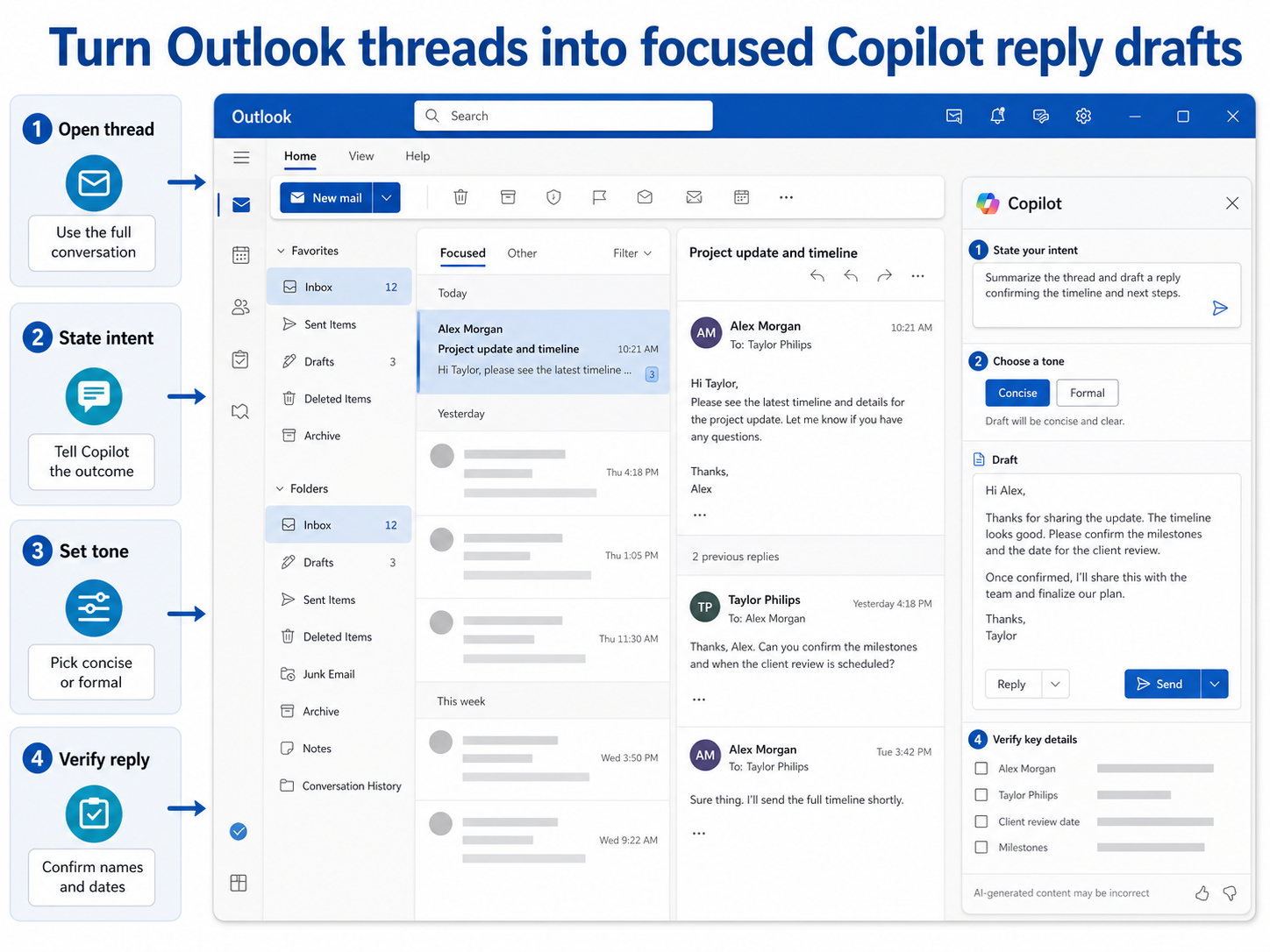
Before drafting, ask Copilot to separate what is confirmed from what still needs a response. This prevents the common mistake of replying to the first message while ignoring later replies.
- Summarize this thread in three sections: confirmed decisions, open questions, and next actions.
- Identify the latest request from the sender and draft a reply that addresses only that request.
- Show me any dates, names, or files mentioned in this thread that I should verify before replying.
After you get the summary, use it to build the reply prompt. You can ask Copilot to use the latest sender’s concern, but you should still read the final thread yourself before sending.
Prompt patterns for replies
Reply when you need more information
Use: “Draft a reply that thanks the sender, confirms I can help, and asks for [missing detail]. Keep it under 120 words and do not promise a delivery date yet.” This prompt is useful when the thread is moving quickly but you cannot commit until one fact is clear.
Reply with a decision and next step
Use: “Draft a concise reply confirming that we will proceed with [option]. Include the reason in one sentence, list the next step, and ask the recipient to confirm by [date].” It gives Copilot a structure that is easy for the reader to act on.
Reply to a frustrated sender
Use: “Rewrite my reply so it acknowledges the concern, avoids blame, explains the current status, and gives one realistic next step. Keep the tone calm and accountable.” This prompt helps remove defensive language while preserving the facts.
Prompts for Outlook follow-ups
Follow-up emails should be short and specific. Avoid asking Copilot to “follow up on this” because it may repeat the entire thread. Instead, tell it the decision, deadline, or missing action.
- Draft a follow-up asking for confirmation on [decision]. Mention that the deadline is [date] and explain the impact in one sentence.
- Create a short nudge for a teammate who owes [deliverable]. Keep it friendly and include the original due date.
- Draft a client follow-up that summarizes our last agreement and asks whether they approve the next step.
For the broader feature workflow, review how to use the source-context checks for the first check.
If the same symptom points to account access rather than the current screen, the related setup guide gives you a useful comparison point before you change more settings.
Make the draft safer before sending
A good Outlook prompt should include a review instruction. Add: “After the draft, list the facts I should verify before sending.” For customer or HR-related messages, also ask Copilot to flag wording that could sound like a promise, admission, or policy decision.
If you are summarizing a long thread, check whether Copilot missed attachments, calendar dates, or replies that arrived after the selected message. Those are the details that most often cause an otherwise polished email to be wrong.
Use constraints that match the mailbox situation
A reply to a manager can be shorter and more direct than a reply to a customer. A response in a compliance-heavy thread may need cautious wording, while a team follow-up can use bullets. Add constraints such as “do not apologize more than once,” “do not mention internal blockers,” or “include one question at the end.” These instructions keep Copilot from filling the draft with generic courtesy text.
When the thread includes several people, tell Copilot whether the reply should go to one person or the full group. That small instruction can prevent a draft that exposes internal context to the wrong audience.
For recurring mailbox work, keep separate prompts for customer replies, internal escalations, meeting follow-ups, and scheduling changes. Each prompt should include the audience and one review rule. That makes the prompt easier to trust under time pressure, especially when several replies are waiting.
Quick answers
Can Copilot answer an email using the whole Outlook conversation?
When you use Copilot from the selected Outlook thread, it can use that thread as context. You should still check that it picked up the latest reply and did not ignore a newer message lower in the conversation.
How do I stop Outlook Copilot from writing too much?
Give it a word limit and a structure. For example, ask for three short paragraphs, no bullet list, and a single closing question. If the result is still long, ask Copilot to cut repeated background rather than remove the action item.
Are Outlook Copilot prompts private?
Use your organization’s guidance for Microsoft 365 Copilot data handling. Do not include unnecessary sensitive information in prompts, and avoid adding private content that is not needed to write the reply.
Before you move on
The best Outlook Copilot prompts are practical because they begin with the selected thread and finish with a verification pass. Ask for the reply, then ask what could be wrong. That final step catches most of the errors that a clean draft can hide.