A Teams meeting created by Power Automate can land an hour or several hours away from the intended time even though the subject, attendees, and join link are correct. The error usually begins before the meeting is created: a timestamp has no zone, the flow converts it twice, or Create event (V4) receives a local clock value paired with the wrong time-zone field.
The shared mailbox adds another identity and calendar layer, but it does not change the basic rule. Normalize the source, perform one deliberate conversion, and inspect the event saved in the target calendar.
Write down the time contract
Pick one failed example and record four values: the source text, the zone the source represents, the intended local time, and the time stored in Outlook. Include the date because daylight-saving rules depend on it.
For example, “09:00” is not a complete timestamp. It could mean 09:00 in Jerusalem, London, or UTC. Decide which system owns that interpretation before changing expressions.
Identify whether the source already includes an offset
An ISO value ending in Z represents UTC. A value with +02:00 or another offset already carries zone information. A plain local value such as 2026-10-20T09:00:00 has no offset and must be paired with a declared source zone.
Do not append Z merely to make an expression parse. That changes the meaning to UTC and can shift the resulting meeting.
Configure Create event (V4) consistently
The Office 365 Outlook connector documents Start time and End time as date-time values without a time-zone suffix, plus a required Time zone field. Supply local clock values that belong to the selected connector time zone, or convert a UTC/source timestamp once before mapping it.
Use the current V4 action rather than a deprecated V2 action. Select the shared calendar through the supported connection and calendar ID. The connection account must have the required mailbox/calendar permission.
The multi-service connection pattern helps when different Outlook and Teams actions use different connection owners. Record which identity creates the calendar event and which identity supplies the online-meeting behavior.
Convert once, close to the source
Use Power Automate’s Convert time zone action or the documented conversion expression when the source and target zones differ. Choose Windows time-zone names from the connector interface rather than inventing abbreviations such as IST, which can be ambiguous.
Keep the normalized timestamp in a Compose action with a descriptive name. Map that output to both start and end calculations, and preserve the selected target zone in one place. Avoid a second conversion inside the Create event fields.
Handle duration after conversion
Calculate the end from the normalized start or convert start and end from the same source zone. Mixing a converted start with an unconverted end can create a meeting with the right beginning and wrong duration.
Test daylight-saving boundaries
Create three test events in a temporary shared calendar: one on a normal date, one near the source zone’s daylight-saving transition, and one near the target zone’s transition. Use fixed subjects that state the expected local time.
Open each saved event in the shared mailbox calendar, not only in the flow output. Then open the Teams join details and confirm that invitees in another zone see the equivalent instant. The meeting-link behavior provides context for checking the Outlook event and Teams join information together.
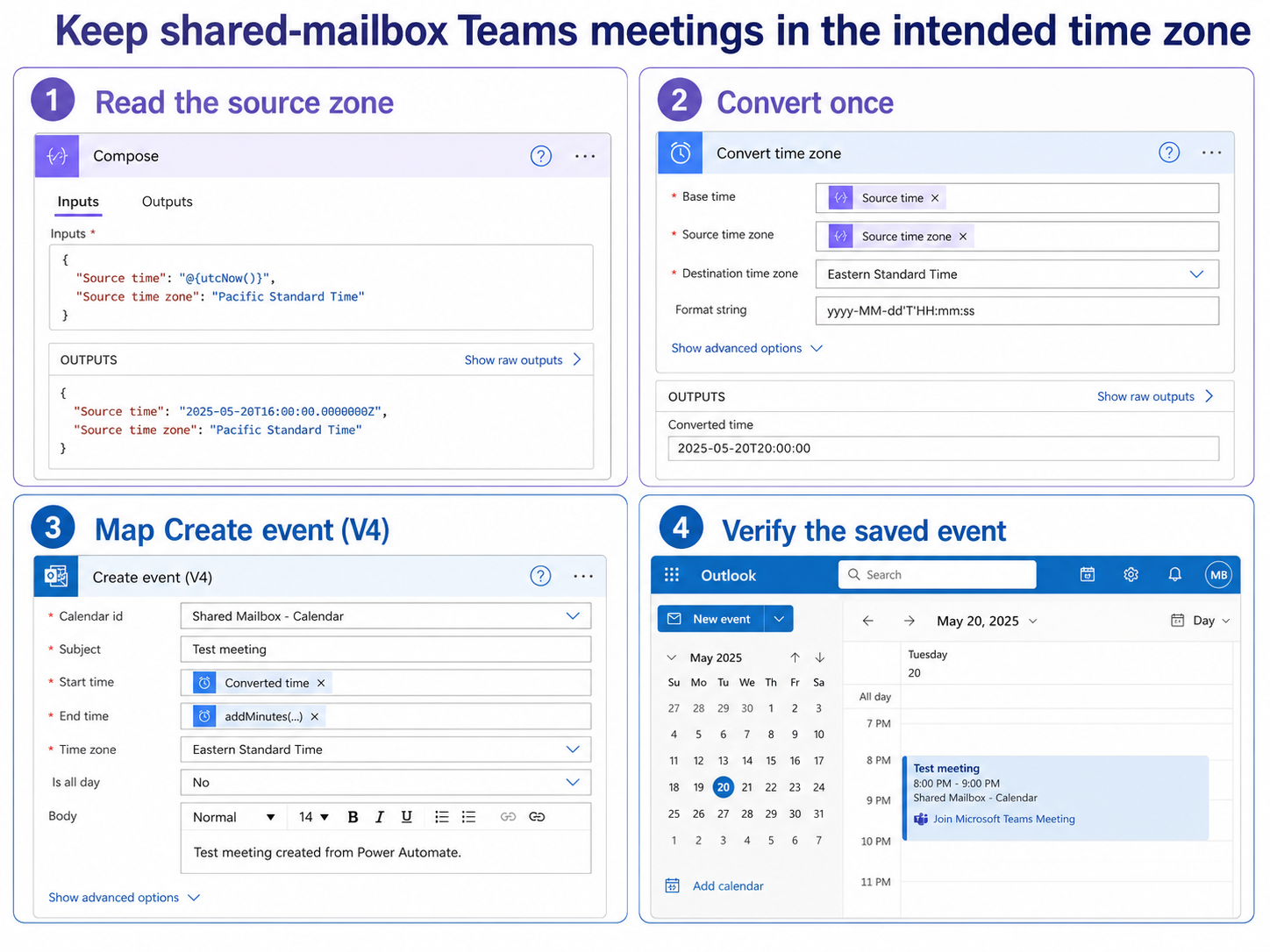
Separate display zone from stored instant
Outlook displays events in the viewer’s calendar zone. Two users can see different clock times for the same correct meeting. Compare the stored instant and each user’s configured display zone before declaring the flow wrong.
If only the organizer’s copy is shifted, inspect the shared mailbox/calendar settings and the connection owner. If every attendee sees the same wrong instant, inspect source interpretation and the V4 action mapping.
Shared-mailbox time questions
Should the flow convert everything to UTC?
UTC is a useful internal standard when the source includes or can be assigned a reliable zone. However, Create event (V4) expects start/end clock values plus a time-zone field. Be consistent and avoid labeling a local value as UTC.
Why is the meeting off by exactly one hour?
A daylight-saving rule or double conversion is likely. Test a winter and summer date using named time zones. Fixed offsets do not adapt when a region changes clocks.
Does the shared mailbox have its own time zone?
The calendar and viewers can have display settings, while the flow connection and action also provide context. Verify the saved event through the shared calendar and compare it with the connection owner’s view. Do not infer storage from one user’s display alone.
Can I use a three-letter abbreviation in the flow?
Avoid it. Abbreviations can represent multiple regions and may not map to connector time-zone identifiers. Select the documented Windows time-zone name from the action or conversion control.
Keep a diagnostic timestamp
For production, log the original source value, source zone, normalized start, selected target zone, created event ID, and run ID. Do not log sensitive meeting bodies. Those fields make the next time shift explainable and prove whether the fault occurred in input parsing, conversion, calendar creation, or user display settings.
Validate the connection owner separately
Open the connection references or connections used by the flow and record the account behind each Outlook and Teams action. The displayed shared-mailbox address is not necessarily the identity that authenticated the connector. A flow copied between environments can retain a connection that has different calendar access or regional assumptions.
Create a harmless manual test using the same connection and target calendar. If that event saves at the right time, compare its static input with the dynamic production value. If both are shifted, focus on the action mapping and selected time zone. If only the dynamic event is shifted, focus on source parsing and conversion.
After correcting the flow, reschedule or cancel erroneous test meetings so attendees do not keep duplicate invitations. Preserve their run IDs in the operational log instead of leaving clutter in the shared calendar.