A Bluetooth mouse that never appears in Windows 11 is different from one that pairs and then disconnects. The missing entry usually means the mouse is not advertising itself, Windows is filtering the scan, or the PC’s Bluetooth radio is unavailable. Work through the checks below in order so you do not reinstall drivers for a mouse that simply needs pairing mode.
Separate a discovery problem from a connection problem
Open Settings > Bluetooth & devices and confirm that the Bluetooth switch is on. Then select Devices > Add device > Bluetooth and leave the scan open for about 30 seconds. If the mouse appears but will not connect, remove any old entry for it and pair it again. If it never appears, continue with the discovery checks below.
Confirm the mouse is really in pairing mode
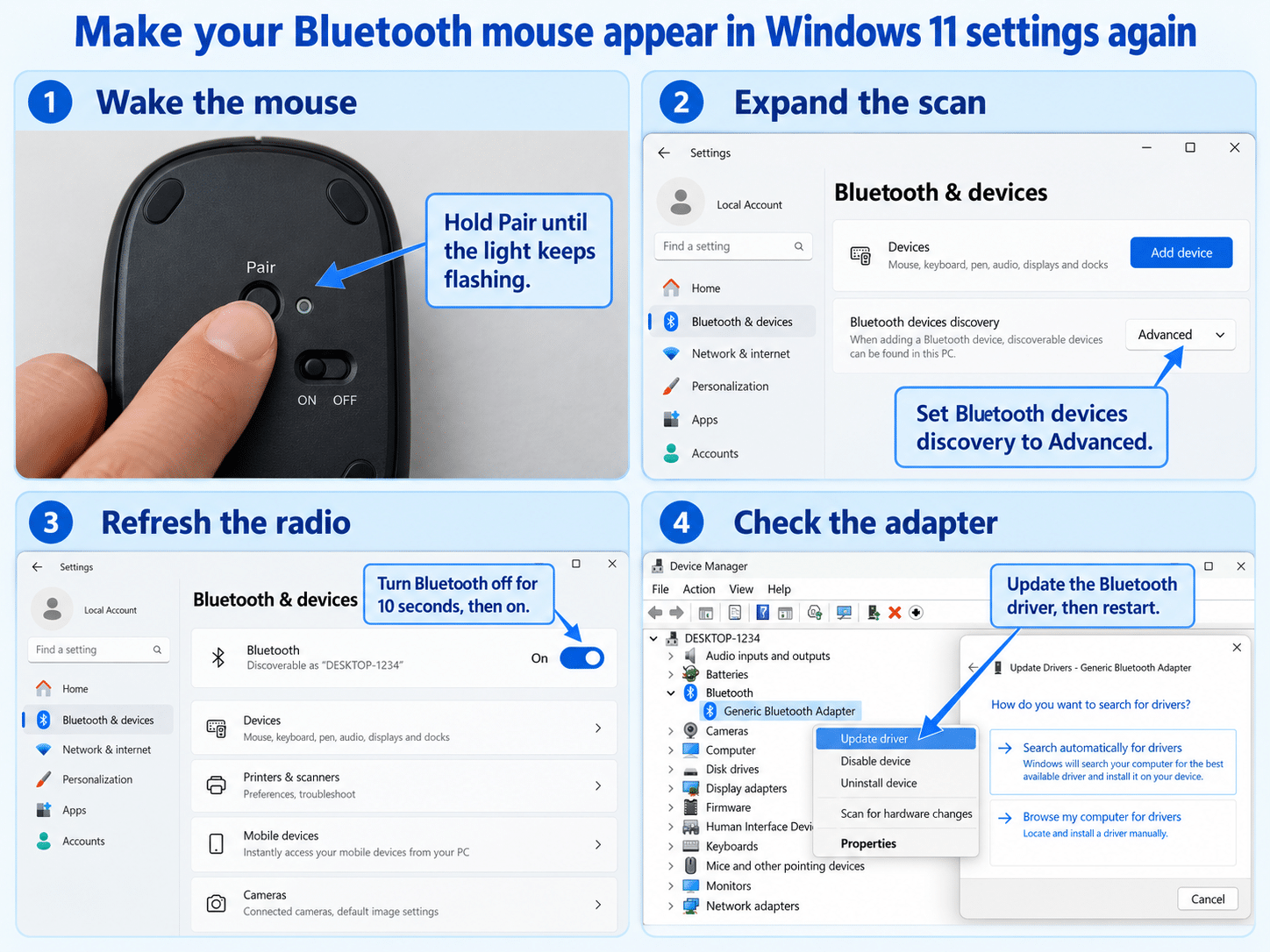
Turn the mouse off, wait a few seconds, and turn it on again. Press and hold its pairing button until the indicator flashes in the pattern described by the manufacturer. On many Microsoft mice, that takes roughly five to seven seconds, but the exact timing and light behavior vary by model.
Charge the mouse or install a fresh battery before testing. A mouse can illuminate briefly without having enough power to remain discoverable. If it supports several saved device channels, select an unused channel or clear the old pairing according to its manual.
Disconnect it from nearby computers and tablets
Some Bluetooth mice automatically reconnect to the last device they used. Temporarily turn off Bluetooth on nearby laptops, tablets, and phones, then put the mouse back into pairing mode. A pairing light that stops flashing almost immediately can indicate that the mouse has reconnected elsewhere.
If you are setting up the mouse for the first time, the normal sequence is covered in this short pairing walkthrough. Return here if the mouse still does not appear in the Windows scan.
Make Windows show every nearby device
Windows 11 can use a conservative discovery filter. In Settings > Bluetooth & devices > Devices, find Bluetooth devices discovery under Device settings and change it from Default to Advanced. Open Add device > Bluetooth again and watch for the mouse’s model name.
Advanced discovery does not repair the Bluetooth radio. It simply allows Windows to display more device types. If other Bluetooth accessories appear but the mouse does not, test the mouse with another computer. That comparison quickly separates a mouse-side fault from a Windows-side fault.
Remove interference during the scan
Place the mouse close to the PC while pairing. Microsoft notes that unshielded USB devices connected to USB 3.0 ports can interfere with nearby Bluetooth signals. Temporarily unplug unnecessary USB devices, hubs, and receivers, especially those close to the Bluetooth antenna, and repeat the scan.
Desktop PCs with external antennas need those antennas attached even when Wi-Fi seems usable. If you use a USB Bluetooth adapter, try a different port or a short extension cable that moves it away from crowded USB ports.
Refresh the Windows Bluetooth path
Turn Bluetooth off in Settings > Bluetooth & devices, wait ten seconds, and turn it on again. Also confirm that Airplane mode is off. Restart Windows rather than choosing Shut down if Fast Startup is enabled, because Restart performs a fuller reload of drivers and services.
Windows 11 users can also open the Get Help app and run the automated Bluetooth troubleshooter. Microsoft now points Windows 11 users to this diagnostic first because it can identify common configuration, radio, and driver problems without manual service changes.
If Bluetooth itself is missing from Settings, this is no longer a mouse-only problem. The broader adapter recovery guide explains what to check when Windows cannot see the PC’s Bluetooth hardware at all.
Inspect the adapter before reinstalling it
Open Device Manager from the Start menu and expand Bluetooth. A normal adapter should appear without a warning symbol. If the entire Bluetooth section is absent, choose View > Show hidden devices, then select Action > Scan for hardware changes.
Update from the PC maker first
Right-click the Bluetooth adapter and choose Update driver > Search automatically for drivers. Also check Settings > Windows Update > Advanced options > Optional updates for a Bluetooth driver offered for the PC.
When Windows finds nothing newer, use the laptop, motherboard, or adapter manufacturer’s support page. A model-specific Bluetooth package is safer than a driver from an unrelated download site. Install it, restart the PC, and scan again with the mouse in pairing mode.
Reinstall only when the radio is present but stuck
If the adapter appears in Device Manager but every Bluetooth scan fails, right-click the adapter and select Uninstall device. Do not select an option to remove the driver package unless the PC maker has provided a replacement you can install. Restart Windows; it should detect the adapter and load a compatible driver.
If Windows does not restore it, return to Device Manager and select Action > Scan for hardware changes. Persistent warning icons, an adapter that repeatedly disappears, or no Bluetooth hardware after a manufacturer driver installation may point to a firmware or hardware issue.
Questions about missing Bluetooth mice
Why does my mouse work with its USB receiver but not Bluetooth?
The receiver and Bluetooth are separate connection methods. A successful 2.4 GHz receiver connection proves that the mouse sensor and buttons work, but it does not prove that the Bluetooth radio, saved channel, or pairing mode works. Switch the mouse to its Bluetooth channel before scanning in Windows.
Why does the mouse appear on my phone but not my Windows 11 PC?
That result suggests the mouse is broadcasting correctly. Set Windows discovery to Advanced, disconnect the mouse from the phone, and inspect the PC’s Bluetooth adapter in Device Manager. Testing another Bluetooth accessory on the PC can confirm whether Windows is failing to discover all devices or only this mouse.
Should I reset network settings to fix Bluetooth discovery?
Usually not. Windows network reset mainly rebuilds network adapters and removes saved Wi-Fi and VPN configuration, so it is too disruptive for an initial mouse check. Use the Bluetooth troubleshooter, adapter driver checks, and a clean pairing attempt first.
When is the mouse probably faulty?
Suspect the mouse when it will not enter pairing mode with a fresh battery, never appears on a second computer, or its pairing light behaves abnormally. Before replacing it, check the manufacturer’s reset procedure because multi-device models can remain locked to a saved channel.
Choose the next action from what you found
If other Bluetooth devices appear, focus on the mouse’s power, pairing channel, and connection to nearby devices. If nothing appears but Bluetooth is present, use Advanced discovery, the Get Help troubleshooter, and the adapter driver checks. If Bluetooth is missing from both Settings and Device Manager, move to PC-maker drivers or hardware support. That symptom-based path keeps the repair narrow and avoids deleting working device configuration unnecessarily.