A blank Windows 11 desktop does not always mean that your files or shortcuts were deleted. Windows has one switch that hides every desktop item, plus a separate dialog that controls built-in icons such as This PC, Recycle Bin, Network, and User’s Files. Turn on the visibility switch first, then add any system icons you want to keep on the desktop.
This guide covers both controls, explains how to add normal app and folder shortcuts, and shows where to look when the files still exist but Windows is displaying a different Desktop folder.
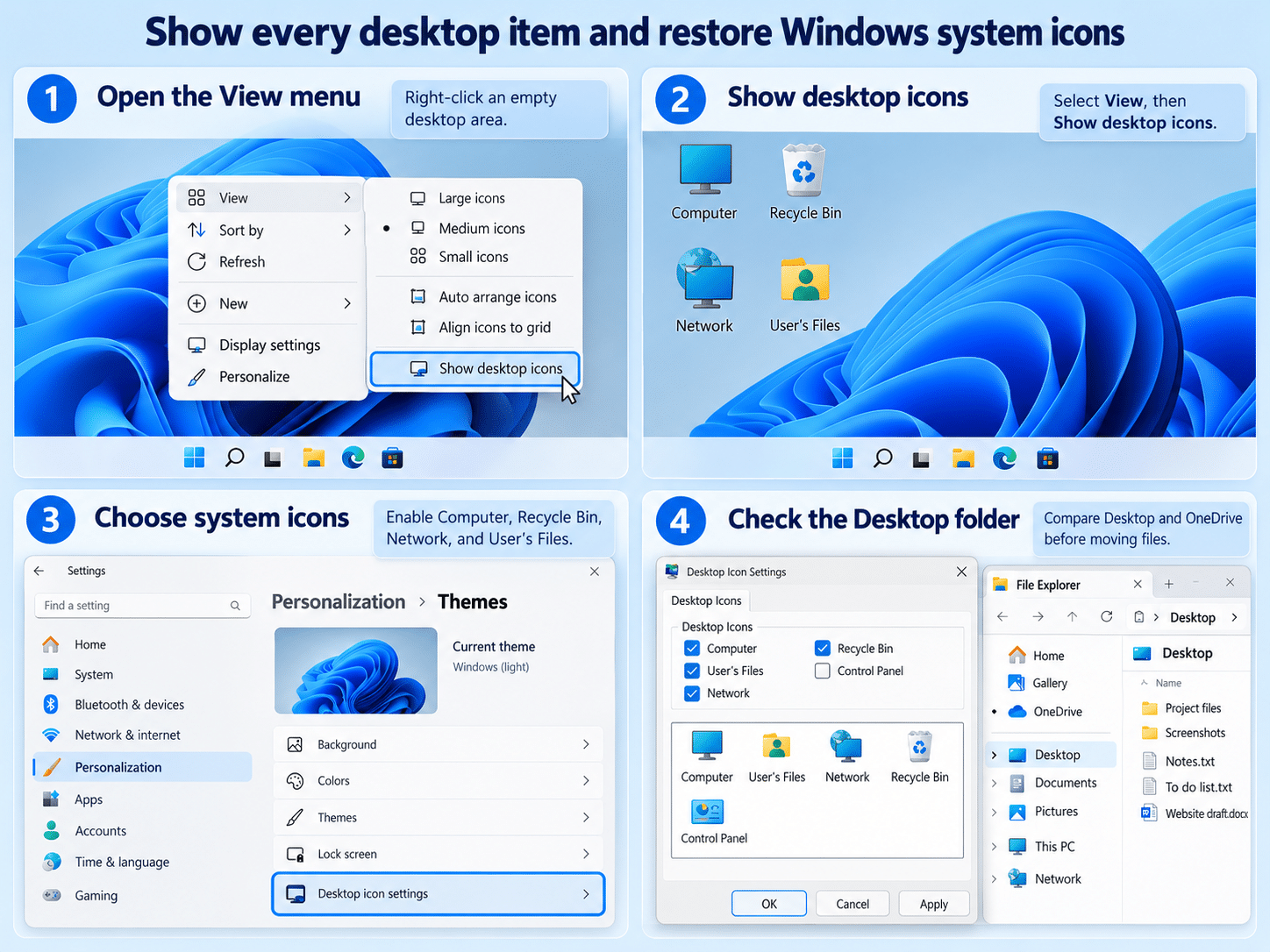
Start with the desktop visibility switch
If every icon disappeared at once, check the desktop’s View menu before changing any other setting.
- Minimize or close open windows so you can see the desktop.
- Right-click an empty area of the desktop.
- Point to View.
- Select Show desktop icons so a check mark appears beside it.
Windows should redraw the desktop immediately. This option affects regular files, folders, shortcuts, and built-in system icons together. It does not delete or move anything; it only changes whether desktop items are drawn.
If the command was already checked, click it once to hide the icons, wait a moment, and click it again to show them. That quick toggle can refresh a desktop that did not repaint correctly after a display or theme change.
Confirm that you are clicking the real desktop
The View menu described above appears when you right-click the Windows desktop itself. If you right-click inside File Explorer, a browser, or a wallpaper utility, you will see a different menu. Press Windows+D to reveal the desktop, then try again on an empty area.
If the icons reappear but are difficult to read, the same View menu offers Large icons, Medium icons, and Small icons. You can also hold Ctrl and turn the mouse wheel. Our guide to making the desktop easier to scan explains the sizing options in more detail.
Add This PC, Recycle Bin, Network, and User’s Files
The Show desktop icons switch can reveal only items that are already assigned to the desktop. Windows manages its built-in system icons in a separate dialog.
- Right-click an empty area of the desktop and select Personalize.
- In Settings, select Themes.
- Under Related settings, select Desktop icon settings.
- Select the boxes for Computer, User’s Files, Network, Recycle Bin, and Control Panel as needed.
- Select Apply, then OK.
In this dialog, Computer is the setting that places the This PC icon on the desktop. You do not need to select every box. Showing all of them is convenient on a support or lab PC, while a personal computer may need only This PC and Recycle Bin.
Decide whether themes may replace your icons
The same dialog includes Allow themes to change desktop icons. Leave it selected if you want a Windows theme to supply matching system icons. Clear it if you have chosen custom icon artwork and do not want a later theme change to replace it.
Changing this option does not hide the shortcuts. It controls only whether theme packages may alter the icon images used for the built-in desktop items.
Put apps, files, and folders on the desktop
Desktop Icon Settings does not contain a master list of installed apps. It controls only the built-in Windows shortcuts. Add your own shortcuts based on the type of item.
Create a shortcut to a file, folder, or website
Right-click an empty area of the desktop, choose New > Shortcut, and enter the location of the file, folder, program, or web address. Give the shortcut a recognizable name, then select Finish.
For an existing file or folder, open File Explorer, right-click the item, and choose Show more options > Send to > Desktop (create shortcut). Some Windows installations show Send to directly, so Show more options may not appear.
Add an installed app
Open Start > All, find the app, and drag it to the desktop when Windows allows it. If dragging is unavailable for that app, locate its executable or app shortcut and use Send to > Desktop (create shortcut) instead.
These methods create pointers. Deleting a shortcut normally does not uninstall the app or erase the original file, although deleting an actual file stored on the desktop does move that file to the Recycle Bin.
When the desktop is still empty
An empty desktop after both settings are enabled usually points to a folder-location, policy, or icon-rendering problem rather than the basic visibility switch.
Check the Desktop folder in File Explorer
Open File Explorer and select Desktop in the navigation pane. If your files appear there, Windows still has access to them even if the desktop surface is not displaying them. Press F5 on the desktop or restart Windows Explorer from Task Manager to refresh the shell before doing anything more invasive.
If you use OneDrive backup, also inspect the Desktop folder under your personal or work OneDrive account. A backup change, account switch, or folder move can leave your shortcuts in one Desktop folder while Windows is presenting another. Avoid copying everything blindly; first identify which folder contains the current files and which account should own the backup.
Separate missing items from blank icon pictures
If shortcut names and clickable positions exist but their pictures are blank or incorrect, visibility is already working. That symptom points to the icon image cache, not the Show desktop icons setting. Follow the focused steps to repair the visual cache instead of repeatedly adding shortcuts.
On a managed work computer, an administrator can also apply a policy that hides desktop items. If the option turns itself off after sign-in or the Desktop icon settings control is unavailable, ask IT whether a desktop restriction applies to your account.
Questions about Windows 11 desktop icons
Why does Show desktop icons hide everything at once?
It is a display switch for the entire desktop surface, not a per-icon setting. Clearing it temporarily hides files, folders, shortcuts, and system icons together. Rechecking it should return the same items without moving or restoring files.
Why is This PC called Computer in Desktop Icon Settings?
The dialog uses the older category name Computer, while the icon shown on the Windows 11 desktop is labeled This PC. Selecting Computer is therefore the correct way to add This PC; you do not need to create a manual shortcut.
Can I show every installed app on the desktop automatically?
Windows 11 does not offer a supported one-click setting that creates desktop shortcuts for every installed app. The phrase “show all desktop icons” means reveal the desktop items that already exist. Add frequently used apps individually so the desktop remains manageable.
Why did my desktop files move after enabling OneDrive backup?
OneDrive can redirect the Desktop folder into the signed-in OneDrive account. The files may be in the OneDrive Desktop folder rather than the older local profile folder. Confirm the active account and folder location before moving files, especially on a PC that has both personal and work accounts.
With the View switch enabled and the desired boxes selected in Desktop Icon Settings, Windows 11 should show both ordinary desktop items and the system shortcuts you chose. If files appear in File Explorer but not on the desktop, concentrate on the active Desktop folder, Explorer refresh, or workplace policy rather than recreating every shortcut.