When Copilot suggested replies disappear in Outlook, the cause is often the message context rather than the whole account. Suggested replies can be unavailable for a particular conversation, hidden in a shared mailbox, delayed by feature rollout, or stale in one Outlook client while the web app already works.
Start with one simple message in the primary mailbox. If ordinary Outlook reminders or mailbox signals are also unreliable, compare that behavior with the Outlook notification checks before assuming the Copilot feature itself is gone.
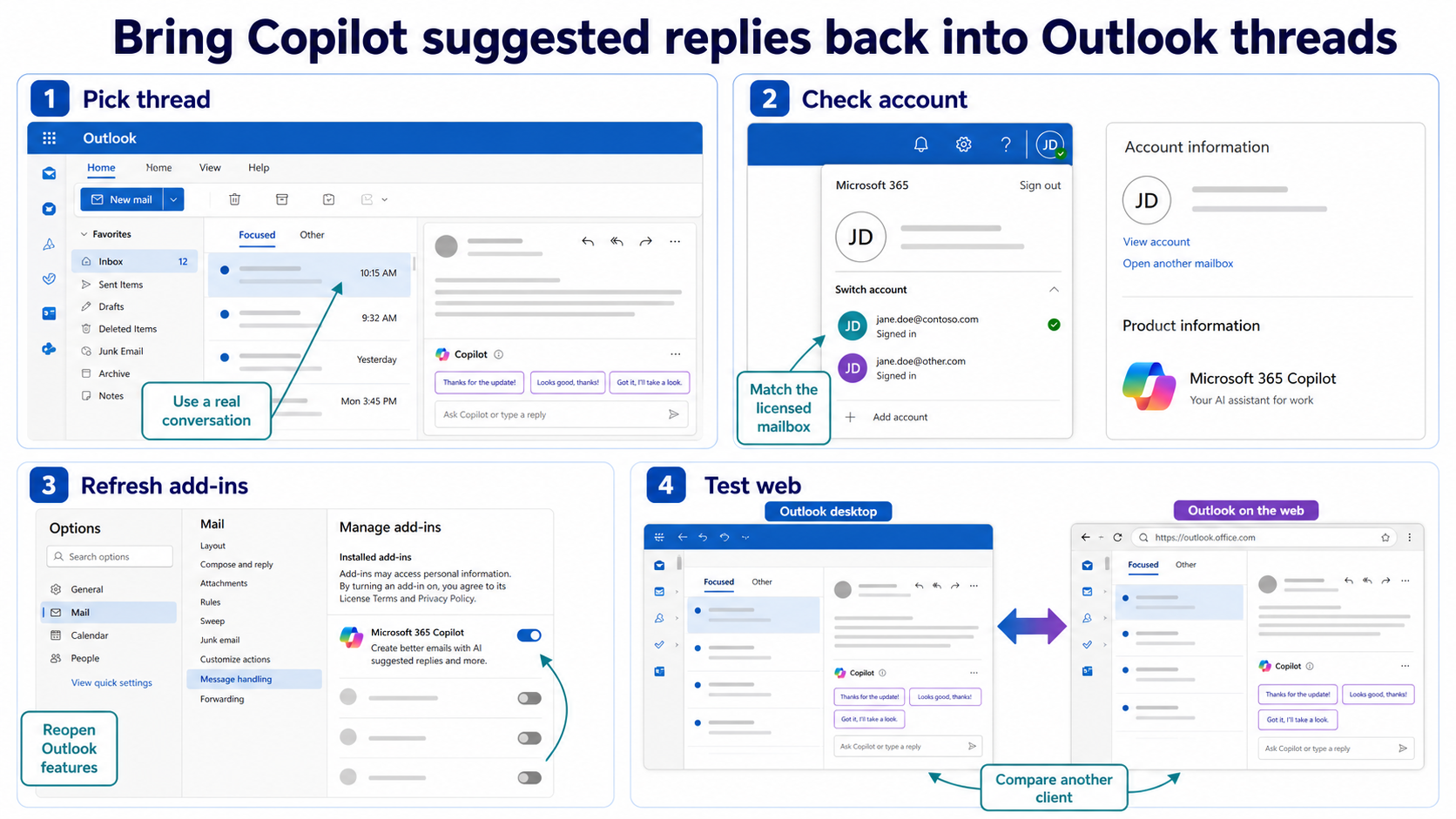
Check whether the message can produce suggestions
Suggested replies are most useful on short, recent conversations with a clear request. They may not appear for newsletters, automated alerts, encrypted messages, delegated mailbox items, or threads where Outlook cannot identify a useful response.
- Open a recent message from the user’s primary mailbox.
- Choose a plain conversation that asks for a clear reply.
- Compare it with the message where suggestions are missing.
- Check whether the missing case is from a shared mailbox or delegated folder.
If suggestions appear on one message and not another, do not reset Outlook. The feature is present, but the original message is not eligible or is being opened from a mailbox context Copilot cannot use.
Separate feature rollout from client cache
Open Outlook on the web with the same work account and test the same message. When suggested replies appear in the browser, the account is likely eligible and the desktop app needs a refresh. When they are missing everywhere, check license assignment, Copilot availability, and tenant policy.
For desktop Outlook, close the app completely, reopen it, and make sure the message is selected in the mailbox that owns it. In classic Outlook, also review add-ins that modify the reading pane or compose window. In new Outlook, sign out only after the browser comparison proves the local session is the issue.
Watch for mailbox and account mix-ups
Outlook makes it easy to read a message from one mailbox while another Microsoft 365 account is active in the app. Suggested replies can disappear when the message belongs to a mailbox that does not have the same Copilot access as the account shown in the profile menu.
- Confirm the account in the Outlook profile menu.
- Confirm the mailbox that owns the selected message.
- Test from the primary mailbox before testing shared mailboxes.
- Ask the mailbox owner to confirm reply permissions if the item is delegated.
If other Copilot surfaces are missing at the same time, compare the user’s Microsoft 365 feature state with the missing Copilot icon checks. The same account or rollout issue can show up in more than one Office app.
Questions before you reset Outlook
Why do suggested replies show for some emails but not others?
The feature depends on the message type and context. Automated mail, protected content, delegated mailbox items, and unclear threads may not provide enough context for Outlook to offer a useful suggested reply.
Why are suggestions visible in Outlook on the web but missing on desktop?
That usually means the account and service are fine. Focus on the local Outlook session, reading pane, add-ins, or cached account state rather than changing tenant settings.
Can shared mailboxes use Copilot suggested replies?
They can be more limited. The user needs the right mailbox permissions, and the active account must be eligible for the feature. Test the primary mailbox first so you have a clean comparison.
The practical fix is to test a simple eligible message, compare Outlook on the web, and then decide whether you have a message problem, a local client problem, or an account rollout problem.