Outlook conflicts usually show up at the worst moment: a meeting invite lands on top of another event, a room accepts an overlapping booking, or attendees see a different free/busy result than you do. The fix depends on where the conflict starts, because a local calendar view problem is not handled the same way as a room mailbox policy.
Use this guide to separate user-side scheduling issues from Exchange room and shared-calendar settings. Start with the invite itself, then check synchronization and permissions, and only escalate to an administrator when the conflict is controlled by resource mailbox rules.
Pin down the conflict before changing the invite
Do not delete the meeting immediately. First decide whether Outlook is showing a real overlap, stale calendar data, or a policy decision from Exchange. That choice prevents duplicate updates and keeps attendees from receiving several corrections.
Time overlap, stale view, or room policy
A real time overlap means two calendar items occupy the same time range and at least one of them is marked Busy, Tentative, Away, or Working elsewhere. Outlook and Exchange can compare those blocks when you use Scheduling Assistant or Room Finder.
A stale view looks similar, but the conflict disappears when you check Outlook on the web, refresh the calendar, or open the mailbox from another device. If that happens, treat it as a sync or cache issue before editing the meeting.
Room-policy conflicts are different. A conference room can accept, decline, or hold overlapping meetings based on its Calendar Processing settings. If a room accepts two meetings at the same time, the organizer may not be able to fix the root cause from Outlook alone.
Compare the organizer, attendee, and room views
Open the meeting from the organizer’s calendar and confirm the start time, end time, time zone, recurrence, and location. Then check the same time block from Outlook on the web. If the web calendar is correct but desktop Outlook is wrong, use the browser result as the current source of truth while you repair the local view.
Shared calendars add another layer. A delegate may have edit rights to a calendar but not the same ability to change every meeting or room booking. If the conflict appears only when a delegate opens the calendar, review the mailbox or shared-calendar rights before sending another update; the permission cleanup walkthrough is a useful related check when ownership is unclear.
Clear user-side meeting conflicts first
For ordinary meeting overlaps, fix the invite rather than creating a new copy. A clean update preserves the attendee list, responses, Teams meeting link, room request, and conversation history.
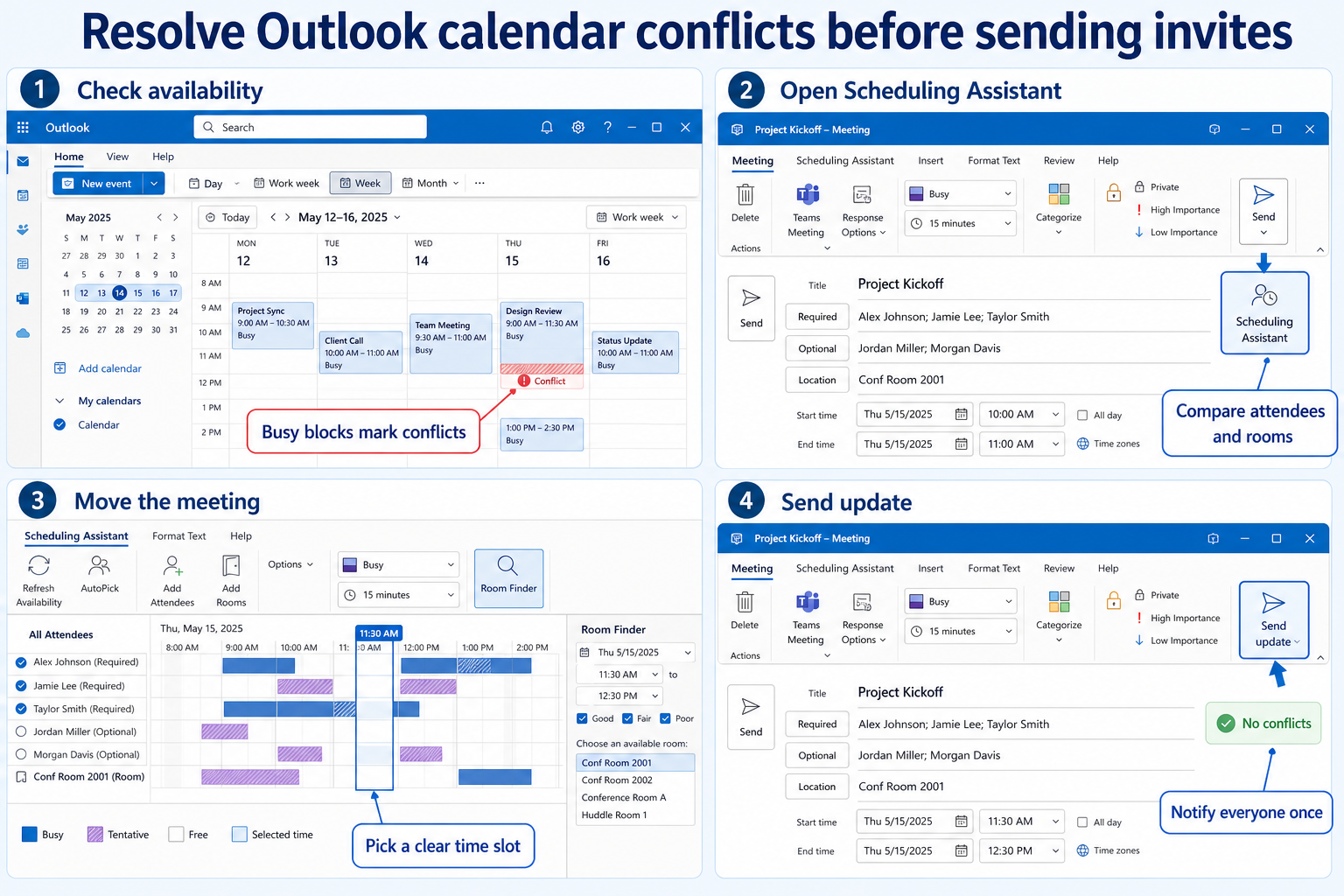
- Open the original meeting from the organizer’s calendar.
- Confirm whether the meeting is a single event or one occurrence in a recurring series.
- Select Scheduling Assistant and add every required attendee and room.
- Look for a time slot where attendees and rooms are free.
- Move the meeting to that slot and review the time zone before sending.
- Select Send update so attendees receive one corrected version.
Use Scheduling Assistant before guessing a time
Scheduling Assistant is the safest place to resolve an attendee conflict because it shows busy, tentative, and unavailable blocks in one grid. If the room is managed in Exchange, Room Finder can also show available rooms that match the selected building or capacity.
If you only drag the event on your calendar, you may miss an attendee conflict or keep the old room request attached. Always reopen the meeting form after moving it and confirm that the attendee list, room, online meeting link, and recurrence settings still match the intended meeting.
Send one clean update
Avoid sending a series of small corrections. Make every change in the meeting form first, then send the update once. This matters when attendees use mobile Outlook, cached desktop Outlook, or delegated calendars, because repeated updates can briefly leave different devices on different copies of the invite.
If Outlook still shows the wrong busy block after the update, do not assume the meeting failed. Refresh the calendar, compare Outlook on the web, and use the calendar refresh checks to rule out a local loading problem before you send another correction.
When Outlook keeps showing the conflict
If the meeting was updated but the conflict remains visible, switch from editing to diagnosis. Most persistent conflicts come from one of four places: cached calendar data, a duplicate meeting copy, a delegate editing a calendar they do not own, or a resource mailbox policy.
Try these checks in order:
- Open the calendar in Outlook on the web and compare the same date.
- Search the calendar for duplicate copies of the meeting subject.
- Check whether the meeting belongs to a recurring series and whether only one occurrence was changed.
- Confirm the Show as value is not set to Busy for a placeholder or personal hold.
- Ask a delegate to stop editing the invite while the organizer sends the correction.
If the web calendar, desktop calendar, and mobile calendar disagree, wait a few minutes before sending another update. Exchange Online normally becomes the source of truth, while clients can lag behind during sync or cache repair.
Room or shared mailbox conflicts need admin checks
When a room accepts conflicting bookings, the problem is often outside the meeting form. Exchange room mailboxes use Calendar Processing settings to decide whether conflicts are allowed, declined, or sent to delegates for approval.
An Exchange administrator should check settings such as AllowConflicts, ConflictPercentageAllowed, MaximumConflictInstances, and request-in-policy behavior. Microsoft documents that room mailboxes can allow or decline conflicting meeting requests depending on those settings, so the organizer should not keep resending invites if the room policy is wrong.
For a shared mailbox or delegated calendar, confirm who owns the original meeting. Delegates can often edit calendar items, but they may not be able to repair every Teams link, room booking, or external attendee response tied to the original organizer.
Questions before you send the invite
Can Outlook automatically decline conflicting invites?
New Outlook and Outlook on the web can support calendar instructions and settings that decline invites when they conflict with existing events. Use that carefully. If both a built-in conflict setting and a Copilot calendar instruction are enabled, one may act before the other, so keep the rule simple and review recent actions.
Why does a room accept two meetings at the same time?
The room mailbox may be configured to allow conflicts, accept requests outside policy, or delegate decisions instead of automatically declining overlaps. In that case, the meeting organizer cannot fully fix the room behavior from Outlook. Ask the Exchange administrator to review the room’s Calendar Processing settings.
Should I delete one copy or send an update?
Send an update from the original meeting whenever possible. Deleting one copy is reasonable only when you have confirmed it is a duplicate or canceled occurrence. If you delete the active organizer copy by mistake, attendees may keep stale invitations and the room request may not be released cleanly.
Does this fix mobile Outlook conflicts too?
Yes, if the conflict is in the meeting data itself. Move the meeting, send the update, and let mobile Outlook sync. If only the phone still shows the overlap, compare Outlook on the web before changing the meeting again.
Before you move on
Fix the conflict from the calendar that owns the meeting, not from a copied invite or a stale client view. Use Scheduling Assistant for attendee availability, check Room Finder for resource conflicts, and send one complete update after the corrected time is chosen. If a room keeps accepting overlaps or delegates see different results, stop editing the invite and move the issue to Exchange or mailbox-permission review.