If Teams meeting chat is disabled for attendees, identify who is blocked and when the block applies before changing settings. An organizer option can limit one meeting, while an administrator policy can restrict every meeting organized by a user. Forwarded invitations, anonymous attendance, and very large meetings add separate access rules.
Start inside the affected meeting. If everyone sees The Administrator has disabled the Chat, the organizer cannot fix that policy alone. If only anonymous or forwarded attendees are affected, changing the meeting’s chat option may not restore access after the meeting ends.
Match the symptom to the controlling layer
The same gray chat box can have different owners. Use this quick map:
| What attendees see | Likely control | Who can change it |
|---|---|---|
| Chat disabled for nearly everyone | Assigned meeting policy | Teams administrator |
| Chat available only during the meeting | Organizer’s Meeting chat choice | Organizer or co-organizer |
| Anonymous users cannot read or post | Policy or organizer restriction | Administrator and organizer |
| Forwarded-link attendee loses chat later | Not on original invitation | Organizer |
| Chat unavailable above 1,000 attendees | Meeting-size limit | Change the event design |
This layer check is more useful than reinstalling Teams. Client repair can help a missing or stale panel, but it cannot override a meeting policy or add someone to the original invitation.
Confirm whether the meeting is still active
Ask one affected attendee to leave and rejoin. Microsoft recommends this as the first check for a transient chat problem. Then test both posting and chat-history access, because an attendee may post during the call yet lose access afterward.
If the chat appears after rejoining, no policy change is needed. If the same restriction returns, continue with the organizer controls.
Let the organizer review Meeting options
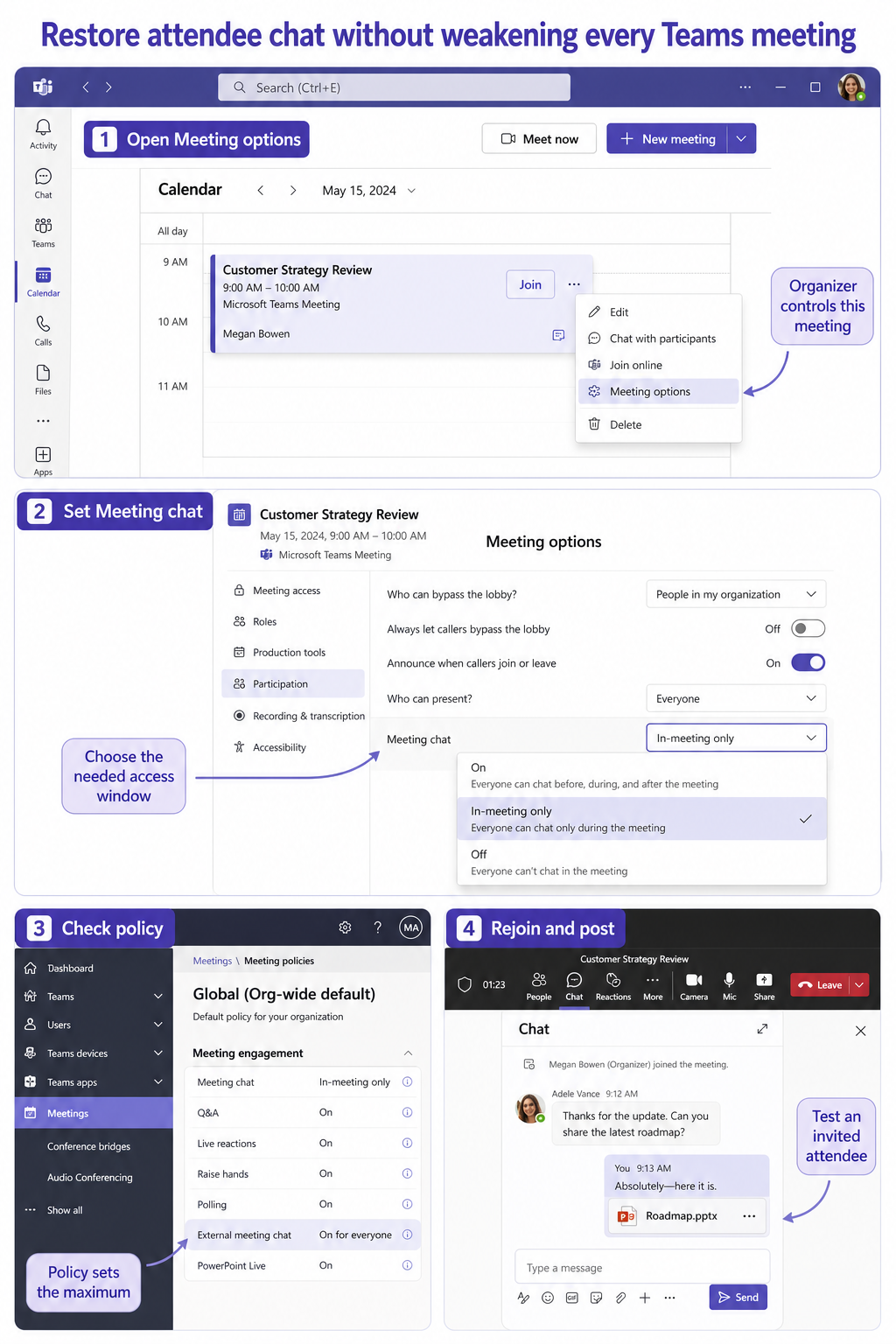
Open the meeting in Teams Calendar and select Meeting options. Locate Meeting chat. The available choices depend on policy, but organizers may see settings such as On, Off, or In-meeting only.
- Choose On when invited participants need conversation before, during, and after the meeting.
- Choose In-meeting only when chat should open when the meeting starts and close when it ends.
- Choose Off for a presentation where participant chat is intentionally unavailable.
Save the options, then have an affected invited attendee reopen the meeting chat. This organizer-side settings walkthrough helps locate the chat control, but remember that a locked-down admin policy can remove or constrain the organizer’s choice.
Do not confuse chat with presenter permissions
The attendee or presenter role controls actions such as sharing and meeting management. It does not independently grant chat when the meeting policy turns chat off. Changing Who can present is therefore not a reliable chat repair.
Likewise, muting an attendee affects audio, not chat. Keep the test focused on the chat option and policy instead of changing unrelated meeting controls.
Check the invitation route for the affected person
Compare the participant list in the original invitation with the people who joined. Microsoft documents a special case for someone who received a forwarded meeting link but was never added to the original invitation. That person may access chat, files, and notes during the meeting, then lose them afterward.
The organizer should edit the series or meeting, add the attendee directly, and send the update. For a recurring meeting, add the person to the series rather than forwarding a single occurrence link. This makes their meeting identity part of the invitation instead of depending on a borrowed join URL.
If chat exists during the call but disappears afterward, the post-meeting access checks can help separate invitation membership from a synchronization problem. Do not promise historical access to anonymous participants; tenant and meeting settings may intentionally limit it.
Escalate a policy block with specific evidence
When attendees see the administrator-disabled message, send the administrator the organizer’s name, meeting link, affected user, whether the user is anonymous or external, and the exact error. The administrator should inspect the meeting policy assigned to the organizer and affected user in Teams admin center > Meetings > Meeting policies.
Under Meeting engagement, Microsoft documents these relevant settings:
- Meeting chat can allow everyone, allow everyone except anonymous users, or turn chat off.
- External meeting chat affects chat when users attend meetings hosted by another organization.
- The organizer’s meeting option works only within the range allowed by policy.
After a policy update, allow time for the change to apply and test with a newly created meeting. An old recurring series can retain confusing state, so use a fresh meeting to prove the policy before modifying the production series.
Account for the 1,000-attendee boundary
Microsoft lists more than 1,000 attendees as a cause of unavailable meeting chat. If the event regularly exceeds that size, the repair is not a client toggle. Use the appropriate Teams event format and its supported attendee interaction model.
Do not remove participants merely to make a test pass. Create a small organizer-owned test meeting with the same policy and a few attendees, then compare its behavior with the large event.
Prove access from two attendee types
Run a short test meeting after the change. Invite one person from the organizer’s tenant and, if external collaboration is required, one known external participant. Have each post a short message during the meeting and reopen the chat after leaving.
Record whether each person was on the original invitation, joined anonymously, or authenticated through another organization. This small matrix tells you whether the remaining restriction follows the meeting, the policy, or the attendee identity.
Questions attendees and organizers ask
Why can I chat during the meeting but not afterward?
The organizer may have selected In-meeting only, or you may have joined through a forwarded link without being added to the original invitation. Ask the organizer to check Meeting options and confirm your address appears on the actual invitation. Recurring meetings should be updated at the series level when ongoing access is required.
Why is the Meeting chat option missing for the organizer?
An assigned Teams meeting policy can turn chat off or restrict the choices an organizer sees. The organizer cannot override a stricter policy. A Teams administrator must review the policy under Meeting engagement and verify it is assigned to the correct account.
Can anonymous attendees use meeting chat?
Only when policy and meeting settings allow it. Teams can be configured to allow chat for everyone except anonymous users, and anonymous access can be more limited after the meeting. Test with an authenticated external account if continued chat history is a business requirement.
Does changing the chat option restore old messages?
It restores permission going forward but does not guarantee that every previously restricted attendee will receive old chat history. Invitation membership, meeting type, retention rules, and identity still matter. Validate access in a new test meeting before relying on the change for an important series.
Choose the smallest control that solves the block
Use Meeting options when one organizer intentionally restricted one meeting. Add forwarded attendees to the original invitation when their access vanishes after the call. Escalate only the administrator-disabled message or a policy-wide pattern to the Teams admin. A two-attendee test then confirms that internal and external access behave as intended without loosening chat across the entire organization.