When your Claude chat history disappeared, do not assume every conversation was deleted. Claude separates personal accounts, organizations, projects, regular chats, and incognito chats. A switch between those scopes can make the history list look empty even though the conversations still exist elsewhere.
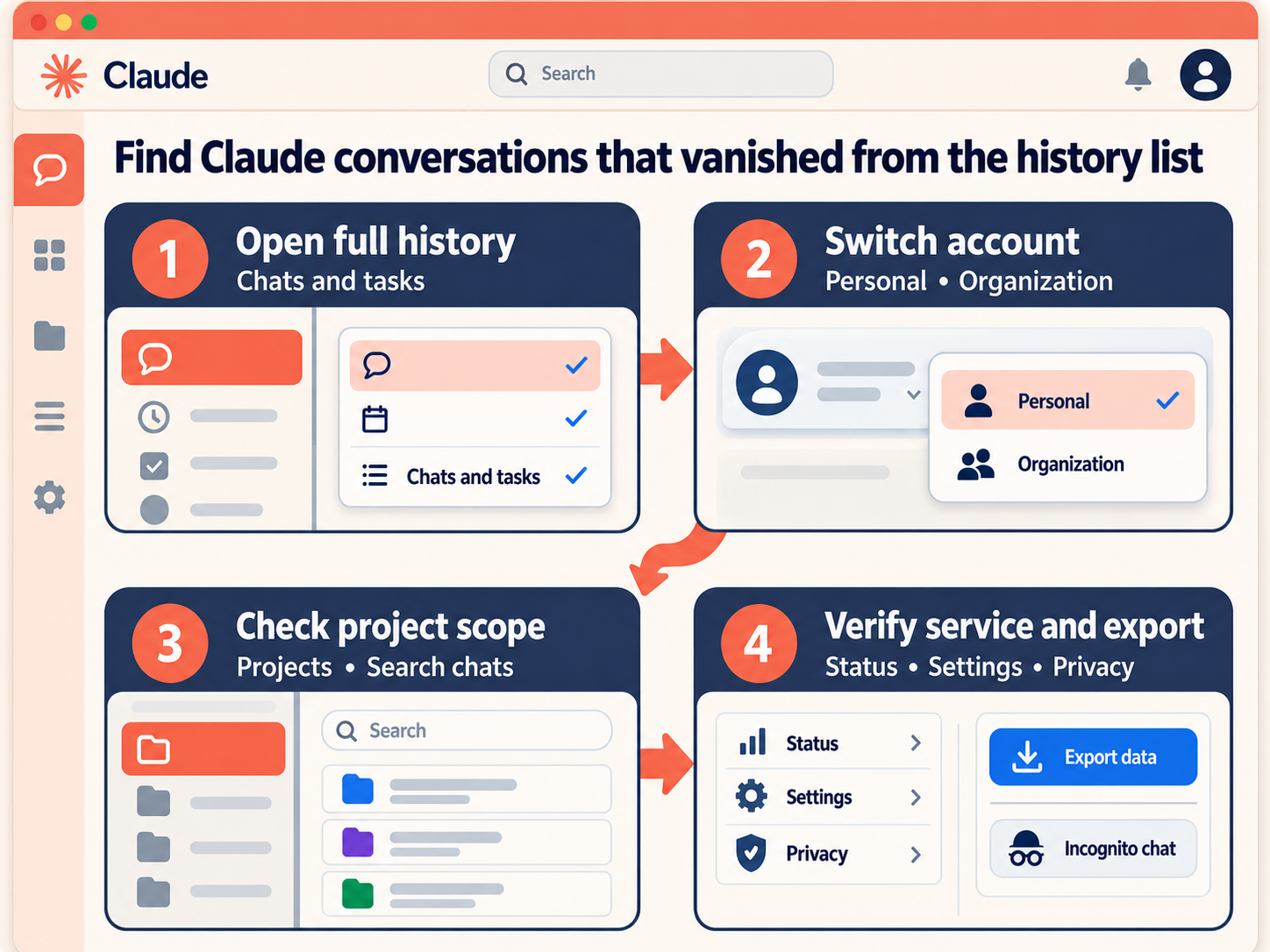
Start with the full Chats and tasks view, then verify the active account and organization before clearing browser data or reinstalling the desktop app. Those first checks preserve the best chance of finding the original conversation in place.
First decide whether the history is gone or merely out of scope
The pattern of the disappearance is useful evidence. Compare what you see with the signals below before changing settings.
| What you see | Most likely area to check |
|---|---|
| The sidebar shows only a few recent chats | Open the full Chats and tasks list and search there |
| Every older personal chat is missing | Switch from the organization to the personal account |
| Only one project’s chats seem absent | Open that project before searching |
| A chat existed only in an incognito window | It was never added to chat history |
| History vanished on both web and Desktop at once | Check Claude’s service status and the active sign-in |
| A teammate’s shared chat no longer opens | Membership, sharing, or organization access may have changed |
This distinction matters because an empty view is often an access or navigation problem. A deliberately deleted chat is different: Claude removes it from history immediately, and the interface does not provide a restore button.
Recover the correct account and organization view
Claude can keep a personal account and one or more Team or Enterprise organizations under the same email address. Their conversations and projects are separate. The active name in the account menu tells you which space you are currently viewing.
Switch between personal and organization accounts
Select your initials in the lower-left corner, then choose the personal account or the expected organization. On supported interfaces, a check mark identifies the active space. Return to Chats and tasks after switching; the history list should refresh for that account.
If you were removed from a Team or Enterprise organization, its chats may no longer be accessible. An organization administrator can confirm membership. Anthropic says that re-adding the same email address to the same organization can restore access to previous chats and projects, subject to the organization’s retention settings.
Check the project that contained the chat
Projects create another boundary. Open Projects, choose the project you used, and inspect its activity rather than relying only on the general sidebar. A search performed inside one project may be limited to that project, so repeat the search from the broader chats view when necessary.
Use distinctive words from your own prompt, an uploaded filename, or the result—not only the conversation title. Claude may have generated a title that differs from the phrase you remember.
Open Chats and tasks and use search deliberately
Select Chats and tasks to open the complete history available in the current account. Scroll past the recent items shown in the sidebar. If your plan includes chat search, search for a specific phrase and then try a second term from another part of the conversation.
Anthropic documents two different search scopes. Searching from outside a project can cover chats outside projects, while a search started within an individual project is limited to that project. If the first query finds nothing, change the scope before deciding that the chat is gone.
Rule out incognito and surface-specific history
An incognito chat is intentionally excluded from chat history. After you close it, Claude cannot reopen it or convert it to a regular conversation. If you remember seeing an incognito label, a missing history entry is expected behavior rather than a synchronization failure.
Also confirm where the conversation was created. A link opened from an email, browser profile, or desktop shortcut may use a different signed-in Claude account. Compare the email address and organization name on each surface. If web history is complete but the desktop list is blank, investigate desktop rendering problems with this Claude Desktop troubleshooting guide after confirming the account.
Check service status, then refresh without destroying evidence
Open Claude’s official status page and look for a current incident affecting conversations, login, or the web application. During an incident, wait for recovery and refresh the history view instead of repeatedly deleting local data. Temporary display failures do not necessarily mean the stored chats were erased.
When status is normal, update Claude Desktop, close and reopen it, or sign out and sign back into the verified account. In a browser, test a private window with extensions disabled. Broader temporary service and request failures are covered in these Claude timeout checks.
Leave cache and cookie deletion until after you have confirmed the account, organization, and project. Clearing local browser state can remove useful session clues and force another login without solving a server-side scope problem.
Export what the account still holds
For an individual Free, Pro, or Max account, open Claude on the web or Desktop, select Settings, choose Privacy, and request Export data. Anthropic emails a download link that expires after 24 hours. The export includes conversation history that remains associated with the account, but it is a reference archive rather than a file you can import into another personal account.
For Team and Enterprise organizations, only the Primary Owner can request an organization export. That package can include organization conversation data. Items deleted before the export begins are not included, so an export cannot be treated as an undelete operation.
If the missing chat appears in an export but not in the interface, preserve the archive and contact Claude support from Get help. Provide the account email, organization name, approximate date, project, and whether the issue affects web, Desktop, or both. Do not send sensitive conversation content unless support specifically requests it through an approved channel.
Quick answers about missing Claude history
Why did all my Claude chats disappear at once?
The most common checks are the active personal or organization account, the full Chats and tasks view, service status, and the signed-in email address. A simultaneous disappearance across devices can be a service or access issue, while a single-device blank list points more strongly to the local app or browser.
Can Claude search find conversations inside projects?
Yes, but the starting location changes the scope. Search inside the relevant project for its conversations, and repeat the query from the broader chats view for conversations outside projects.
Will an incognito Claude chat return after I sign in again?
No. Anthropic states that incognito chats are not saved to history and cannot be reopened after they are closed. Save needed material before leaving an incognito session.
Does a data export restore missing chats to the sidebar?
No. An export helps you inspect and preserve data that still exists in the account, but it does not import conversations back into Claude or recreate deleted entries in the history list.
Protect the history after it returns
Once you locate the conversations, export important account data and save critical work in a separate document or approved knowledge system. Name projects clearly and note whether a chat belongs to a personal or organization account. Avoid incognito mode for work that must remain searchable. These habits turn the next apparent disappearance into a short scope check instead of an emergency recovery attempt.