Power BI can import tables from a PDF, but it does not include a native visual that places a complete, scrollable PDF document on a report page. That distinction matters. If your goal is to read a policy, invoice, or product sheet inside the report, you need a trusted custom visual or a visible preview that opens the source file. If your goal is to analyze tables from the file, use the PDF connector instead.
This guide separates those workflows and shows how to avoid the most common failure: building a report that works on the author’s computer but shows a blank frame for everyone else.
Decide what “embed” should mean
Before adding anything to the canvas, decide what the report audience needs to do with the PDF.
Display the document or analyze its data
A PDF viewer is appropriate when readers must scroll through pages, zoom, or open the original file. A page-preview image is better when the report only needs to show a cover page, diagram, or signed status page. The Power Query PDF connector serves a different purpose: it extracts detected tables for transformation and analysis, but it does not display the document.
These methods can coexist. For example, a report can analyze invoice rows imported through Power Query while a separate button or viewer opens the original invoice for reference.
Check your organization’s visual policy
Displaying a PDF inside the canvas normally requires a custom Power BI visual. Microsoft makes visuals available through AppSource, but a tenant administrator can restrict which visuals are allowed. Custom visuals can also process report data or contact external services, so use only an approved visual from a publisher your organization trusts.
If custom visuals are blocked, do not try to work around the policy with an unapproved .pbiviz file. Use a linked preview or ask the Power BI administrator to review the requirement.
Add a trusted PDF viewer visual
The exact field names depend on the visual you select, but the safe setup pattern is consistent:
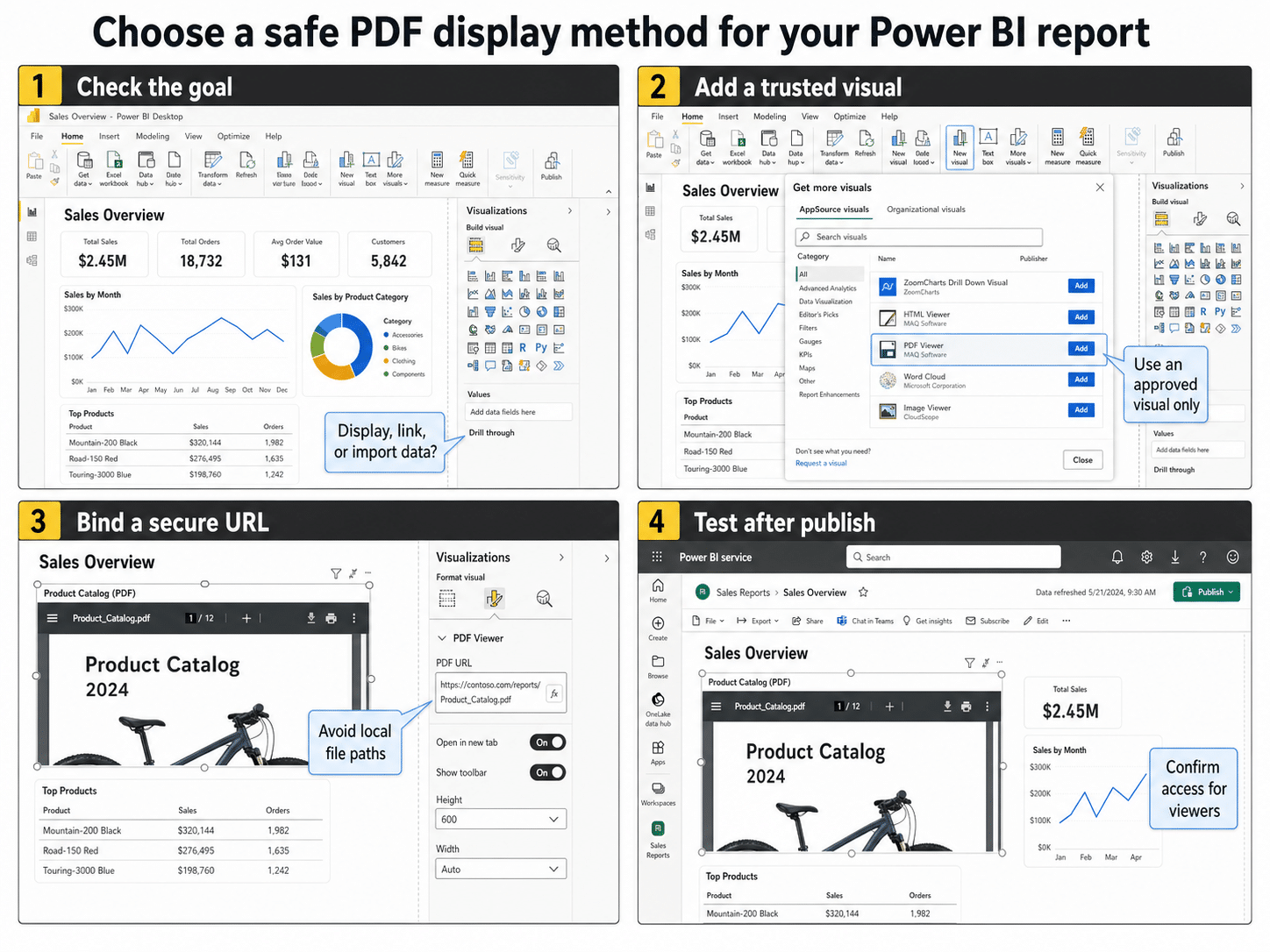
- Open the report in Power BI Desktop and select the ellipsis in the Visualizations pane.
- Choose Get more visuals, open AppSource visuals, and search for a PDF viewer.
- Review the publisher, certification or validation information, privacy terms, licensing, and recent support history.
- Select Add, then place the new visual on the report canvas.
- Supply the PDF through the field or formatting control required by that visual, usually a secure HTTPS URL.
- Resize the visual and test scrolling, zooming, page navigation, and opening the source file.
Do not bind a local path such as C:\Reports\Policy.pdf. That address exists only on your computer and will not resolve for readers in the Power BI service. Store the file in a managed location that the intended audience can reach.
Use a page preview when a viewer is unnecessary
A static preview is often the simpler and safer choice. Export the required PDF page to PNG, add it to the report with the Image visual, and place a button or text link nearby that opens the controlled source file. Readers see the important page immediately, while the PDF remains in its document system.
This approach is useful for a policy cover, product specification, approval page, or diagram. It is not suitable when readers must search the document or browse many pages. It also creates a maintenance obligation: if the PDF changes, refresh the preview image so it does not show outdated information.
When the PDF is part of a larger process, an automated report workflow can help update the file location or notify owners when source material changes. Keep the automation separate from the display choice so a broken flow does not silently replace the wrong document.
Publish without breaking access
The author’s access does not prove that viewers can open the PDF. Publish the report to the intended workspace, then test it with an account that has the same permissions as a normal reader.
Use a durable web address
Prefer an HTTPS address managed by SharePoint, OneDrive for Business, Azure storage, or another approved repository. Avoid temporary download URLs, personal sync paths, and links containing short-lived tokens. If the visual requires anonymous access, stop and confirm that the document is actually approved for public access; do not weaken permissions merely to make the viewer work.
Large PDFs and heavy custom visuals can slow page rendering. Compress oversized scans, remove unnecessary pages, and consider keeping the report model lean so the document viewer is not competing with an already overloaded report page.
Test these conditions after publishing:
- A reader can open the PDF without requesting unexpected access.
- The visual loads in the Power BI service, not only in Desktop.
- Mobile and narrow browser layouts remain usable.
- Exported or subscribed report output behaves acceptably when the interactive viewer is unavailable.
- The source file owner and replacement process are documented outside the report body.
Questions about PDFs in Power BI
Can Power BI natively embed a PDF file?
Power BI does not provide a built-in, general-purpose PDF document visual. You can import tables through the PDF connector, add an approved custom visual, or show a page-preview image linked to the original file. Choose based on whether readers need data, visible pages, or full document navigation.
Why is the PDF blank after I publish the report?
The most common causes are a local file path, a URL that requires credentials the visual cannot pass, blocked external content, or a tenant policy that restricts the custom visual. Test the URL in a private browser session with a normal reader account. Then check the visual’s documented authentication requirements.
Will the embedded PDF appear in a Power BI PDF export?
Interactive custom visuals may render differently or show only their current state in exported output. If the document page must always appear in an exported report, use a static page-preview image for that page and provide a separate link to the full PDF.
Can I use the PDF connector instead of a viewer?
Use the connector when you want to extract tables into Power Query. It will not reproduce the PDF’s page layout or give readers a scrollable document. Scanned files may also need OCR before their tables can be detected reliably.
The practical choice
Start with the least complex method that meets the reader’s need. Use Power Query for data, a static preview plus link for one or two visible pages, and an approved custom visual only when in-report navigation is essential. Whatever you choose, validate the storage URL and permissions from a reader account after publishing. That final test is what separates a working report from an author-only demo.