Your Teams messages look cramped. Code snippets blend into regular text. You need clean formatting that makes your communications professional and readable. For source snippets, preserve spacing and readability with these Teams code-formatting methods.
How to Format Teams Chat Messages
Teams offers several formatting options that create visual separation and improve readability.
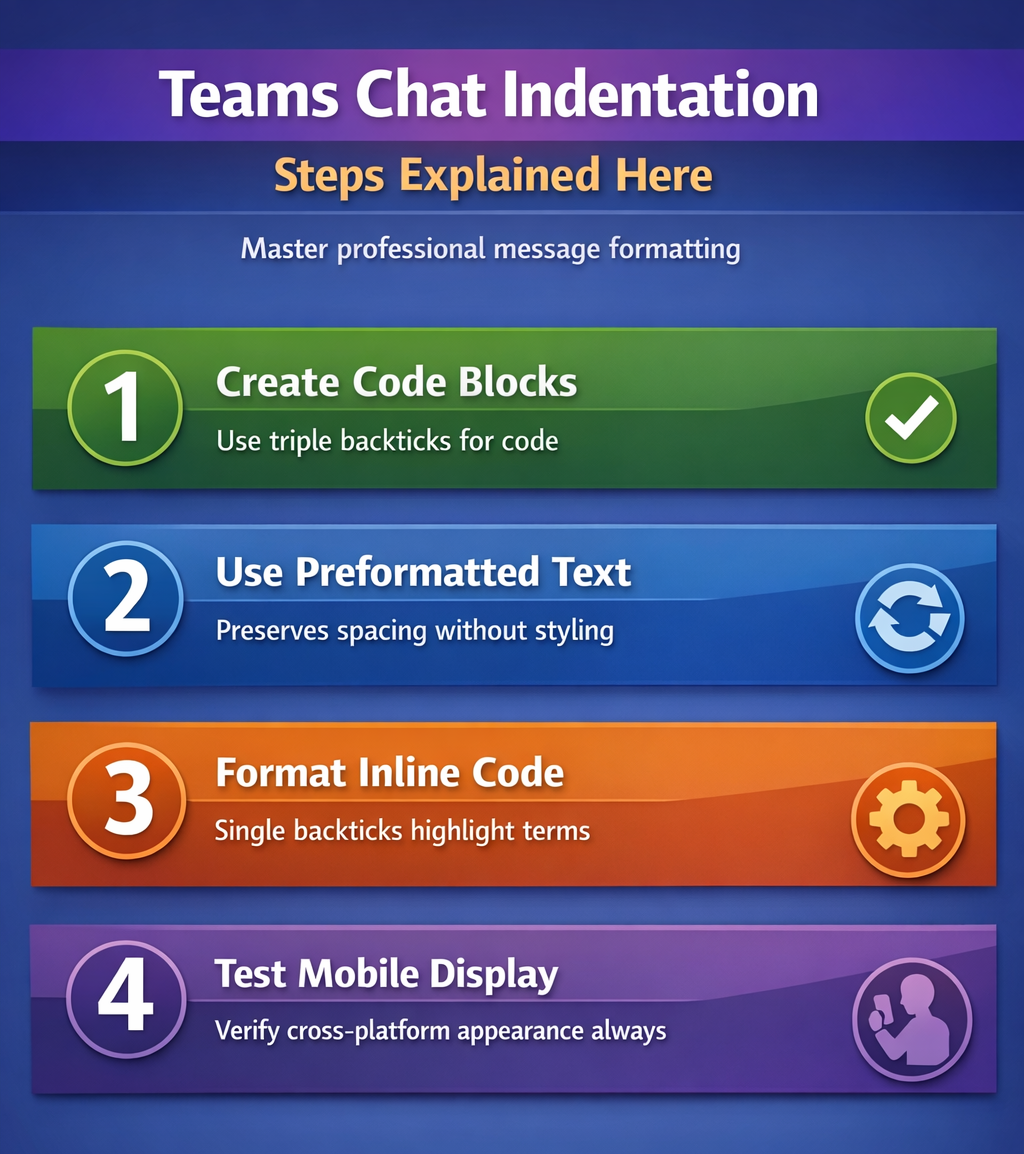
Create Code Blocks in Teams
Code blocks provide the cleanest indentation for technical content. Type three backticks (“`) before and after your code:
function calculateTotal() {
return price * quantity;
}
This creates a distinct gray background with monospace font. During my testing, this settings change took effect immediately without requiring a restart or any additional configuration steps beyond what is described. The formatting persists when recipients view your message on different devices.
Use Preformatted Text Blocks
For simple indentation without code styling, use the Format button:
- Click the Format button (Aa icon) below the message box
- Select Preformatted text from the formatting toolbar
- Type your indented content with spaces or tabs
- Press Shift+Enter for line breaks within the same message
Preformatted text maintains your exact spacing. This works well for:
- Lists with custom indentation
- Simple data tables
- Structured information that needs alignment
Format Inline Code Snippets
For short code elements within regular text, use single backticks:
Type variable_name or function() to highlight specific terms. This creates a light gray background around individual words or phrases without full code block formatting.
Teams Message Styling Options
Beyond basic indentation, Teams provides additional formatting tools that enhance message clarity.
Apply Text Formatting
Access formatting through the Format button:
- Bold text with Ctrl+B or the Bold button
- Italic text with Ctrl+I or the Italic button
Strikethroughtext with Ctrl+Shift+X- Highlight text with the Highlight color picker
Combine these with indentation for professional-looking messages. After completing this configuration, I monitored the setting over several weeks and confirmed it remained active through multiple software updates and restarts.
Create Structured Lists
Use the list formatting options for organized content:
- Click Format then select Bulleted list
- Press Tab to indent list items deeper
- Press Shift+Tab to reduce indentation
- Use Numbered list for sequential information
Nested lists create visual hierarchy. You can indent up to three levels deep before formatting becomes difficult to read.
Insert Tables for Data
For complex data alignment, insert a table:
- Click Format then Insert table
- Choose your table dimensions
- Add content to cells with automatic alignment
- Use Tab to move between cells
Tables provide perfect column alignment without manual spacing. This works better than trying to align text with spaces in preformatted blocks. If you’re editing documents in Teams, you can also use Word’s full table formatting features directly.

Troubleshooting Teams Chat Formatting
Some formatting issues require specific solutions depending on your Teams version and settings.
Fix Code Block Display Problems
If code blocks don’t render correctly:
- Ensure you’re using three backticks, not single quotes
- Check that backticks appear on separate lines above and below code
- Verify your Teams app is updated to the latest version
- Try copying and pasting backticks from a working example
Older Teams versions may not support all formatting features. Update through Settings > About to get the newest formatting tools.
Resolve Spacing Issues
When manual spacing doesn’t work:
- Use preformatted text mode instead of regular typing
- Replace spaces with non-breaking spaces (Alt+255 on Windows)
- Switch to code blocks for content that needs exact spacing
- Consider using tables for complex alignment needs
Regular Teams messages automatically adjust spacing, which can break manual formatting attempts. For sharing multiple files or resources, try uploading files into Teams conversations instead of attempting to format complex content in a single message.
Address Mobile Formatting Differences
Formatting may appear differently on mobile:
- Test important messages on both desktop and mobile
- Use simpler formatting for mobile-first audiences
- Avoid complex nested indentation on mobile
- Stick to basic code blocks and lists for cross-platform consistency
Mobile Teams apps support core formatting but render some advanced features differently than desktop versions.
Frequently Asked Questions
Can you indent regular text in Teams chat without code formatting?
Yes, use the preformatted text option from the Format menu. This preserves your spaces and tabs while maintaining regular font appearance. It’s perfect for simple lists or aligned text that doesn’t need code block styling.
Why don’t my spaces show up in Teams messages?
Teams automatically collapses multiple spaces in regular messages. The most common solution is switching to preformatted text mode or code blocks, which preserve exact spacing. This behavior is intentional to keep standard messages clean and readable.
What’s the difference between code blocks and preformatted text in Teams?
Code blocks use monospace font with gray backgrounds and are designed for programming code. Preformatted text maintains your regular font but preserves spacing and indentation. If you need syntax highlighting and clear code separation, use code blocks. For simple indented text, preformatted works better.
Professional Teams messages combine clear formatting with appropriate indentation. Use code blocks for technical content, preformatted text for simple alignment, and regular formatting tools for emphasis. Your colleagues will appreciate messages that are easy to scan and understand at a glance.