Teams content summarization with Copilot
Have you ever returned from vacation to find hundreds of unread messages in your Teams channels? Or joined a project mid-stream and needed to quickly understand weeks of chat history? Many professionals struggle with information overload in Microsoft Teams, spending valuable time scrolling through lengthy conversation threads to extract key decisions and action items.
Understanding the Microsoft Teams chat summarizer challenge
Teams conversations can quickly become overwhelming, especially in active workspaces with multiple ongoing projects. Without proper summarization tools, important information gets buried in chat threads. This creates inefficiencies and potential miscommunication across teams. Microsoft has recognized this challenge and integrated AI-powered summarization capabilities directly into Teams through Copilot and other conversation summarizer tools. ‘
Today, we will focus on using Copilot to generate quick conversation summaries and extract actionable insights from chat threads. You’ll need a Microsoft 365 subscription with Copilot licensing and appropriate permissions to access AI features in your organization.
Implementation of Copilot AI chat summarization
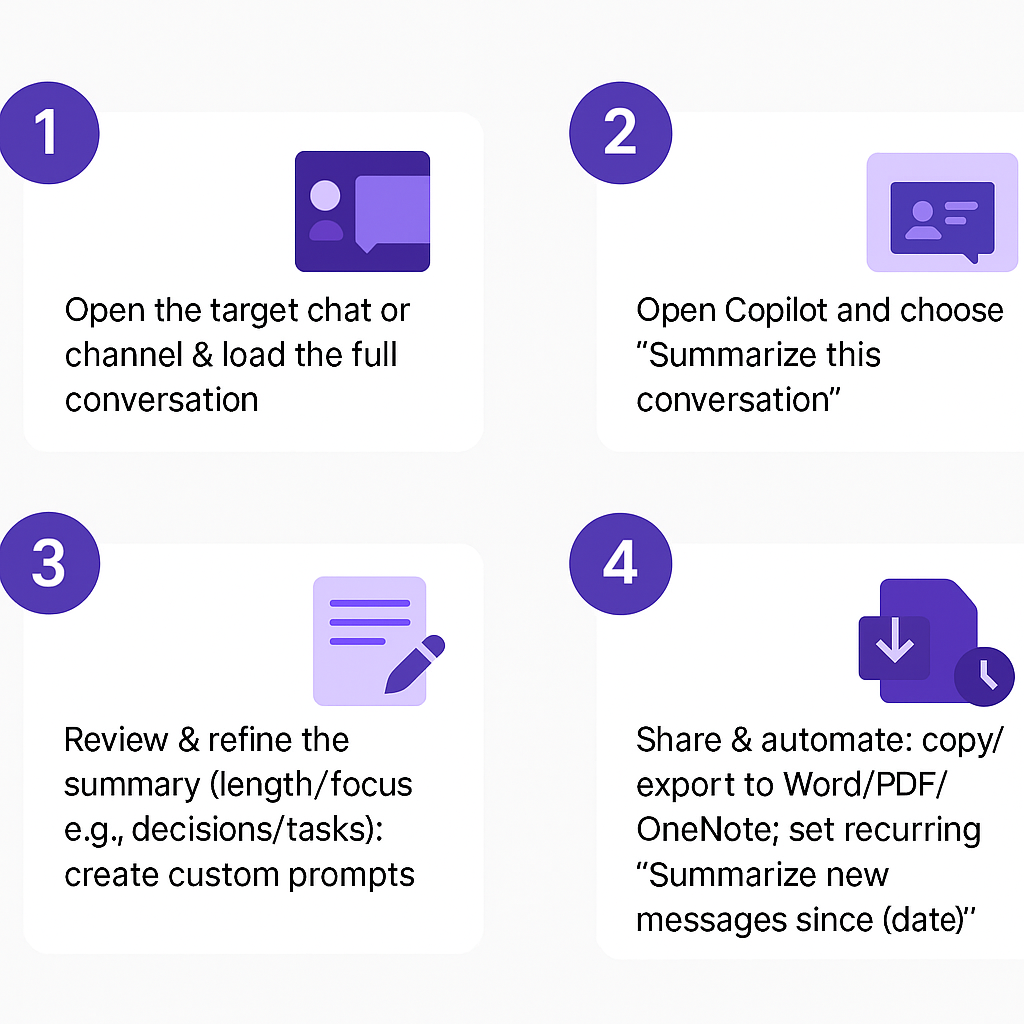
- Navigate to the Teams chat or channel conversation you want to summarize and ensure you have scrolled to include all relevant messages in your view.
- Look for the Copilot icon in the chat interface, typically located in the top toolbar or compose area of your conversation window.
- Click on the Copilot button and select “Summarize this conversation” from the dropdown menu options that appear.
- Copilot will analyze the chat history and generate a comprehensive summary highlighting key topics, decisions, and action items discussed in the thread.
- Review the generated summary and use the “Refine” option to adjust the summary length or focus on specific aspects like decisions or tasks.
- Copy the summary text and paste it into a new message, OneNote page, or SharePoint document for future reference and team sharing.
- For ongoing conversations, set up recurring summarization by asking Copilot to “Summarize new messages since [date]” to stay current with developments. You can also integrate your Teams tasks with Outlook to better manage action items identified in summaries.
- Use the “Export summary” feature to save summaries as Word documents or PDF files for formal documentation and project records.
- Create custom prompts like “Summarize action items only” or “Focus on technical decisions” to generate targeted summaries for different stakeholder needs.
- Schedule regular summary reviews by setting calendar reminders to run Copilot summarization on critical project channels weekly or monthly.
Important tip: Train your team to use consistent formatting for action items and decisions to improve Copilot’s summarization accuracy.
Troubleshooting common teams chat summary issues
- Copilot summarization feature appears grayed out or unavailable in your Teams interface: Check your Microsoft 365 licensing to ensure Copilot is included in your subscription plan and verify with your IT administrator that AI features are enabled for your tenant.
- Generated summaries miss important context or provide inaccurate information about discussed topics: Ensure you’re including sufficient chat history in your selection and try breaking down very long conversations into smaller segments for more focused and accurate summarization results.
- Summary quality varies significantly between different types of conversations and chat formats: Optimize your team’s communication by encouraging structured discussions with clear topic headers and consistent formatting for decisions, which helps AI tools better identify and categorize important information.
FAQ: Teams Chat Summarization
Q: Can Copilot summarize private chat messages between individuals?
A: Yes, Copilot can summarize one-on-one and group chat conversations, but all participants must have appropriate Copilot licensing and permissions within your organization’s tenant settings.
Q: How far back can Copilot access chat history for summarization?
A: Copilot can typically access several months of chat history, but performance is optimal with conversations from the past 30 days. Older conversations may require manual scrolling to load content before summarization.
Q: Are chat summaries stored or logged by Microsoft?
A: Summaries follow your organization’s data retention policies. Generated content isn’t permanently stored by Copilot itself, but may be subject to Microsoft 365 compliance and audit logging depending on your tenant configuration.
Ask Copilot for a summary with a defined scope
Open Copilot from the specific one-to-one chat, group chat, or channel conversation you want to review. State the time period and output you need, such as decisions, unresolved questions, action items with named owners, or messages requiring a reply. Copilot uses the conversation context available to it; Microsoft documents a 30-day default history unless you request another supported range.
Verify every action item in the thread
Ask Copilot to cite or point back to the supporting messages when possible. Open the relevant part of the conversation and confirm the owner, deadline, and decision wording before forwarding the summary. Chat images, Loop components, and shared files are not automatically equivalent to ordinary message text, so inspect those items separately. A file summary also depends on file type, permission, and protection settings.
For a channel thread, use Summarize thread when it is available. The thread needs enough text to qualify, and replies outside that thread are a different context. Do not assume a summary covers the entire channel.
Share the result without losing nuance
Use a compact format with Decisions, Actions, Open questions, and References. Label uncertain items instead of allowing Copilot to turn discussion into a commitment. If the chat contains sensitive information, share the summary only with people who already have a legitimate need and verify the destination before pasting it.
If Copilot is missing, confirm the signed-in organization, license, Teams policy, and client version. Compare Teams for web and desktop. For troubleshooting, record the chat type, requested date range, approximate message volume, and whether the issue affects one conversation or every chat. Never paste confidential content into a different, unapproved AI service to work around an organizational restriction.
Treat the summary as a review aid, not the official record. Preserve important approvals in the organization’s normal project or decision system, and link back to the source conversation when policy allows.