Can Copilot summarize PDF documents for business insights?
“I receive dozens of lengthy PDF reports each week from different departments, and I’m struggling to extract the key information quickly. Can Microsoft Copilot help me summarize these PDF documents so I can focus on the most important details without spending hours reading through everything?”
This scenario reflects a common challenge faced by managers, analysts, and knowledge workers who need to process large volumes of PDF content efficiently. Microsoft Copilot offers powerful document summarization capabilities that can transform how you handle PDF files across your organization.
Microsoft 365 Copilot PDF summary capabilities
Today we will explain how to use Microsoft Copilot’s PDF summarization capabilities across Microsoft 365 applications, including Teams, SharePoint, and Copilot Chat.
You will learn how to upload PDF files, generate detailed summaries, extract key insights, and transform complex documents into actionable reports to enhance productivity and streamline document analysis. To follow the outlined process, ensure you have an active Microsoft 365 subscription with Copilot licensing, access to Microsoft Teams and SharePoint, and PDF files ready for analysis, using tools such as Microsoft Copilot, Teams, SharePoint, and the Copilot Chat interface.
SUmmarizing PDFs with AI – common techniques
Does Copilot work with PDFs through direct upload methods
The most straightforward approach involves uploading your PDF directly to Microsoft Copilot Chat, where you can immediately begin the summarization process without additional configuration steps.
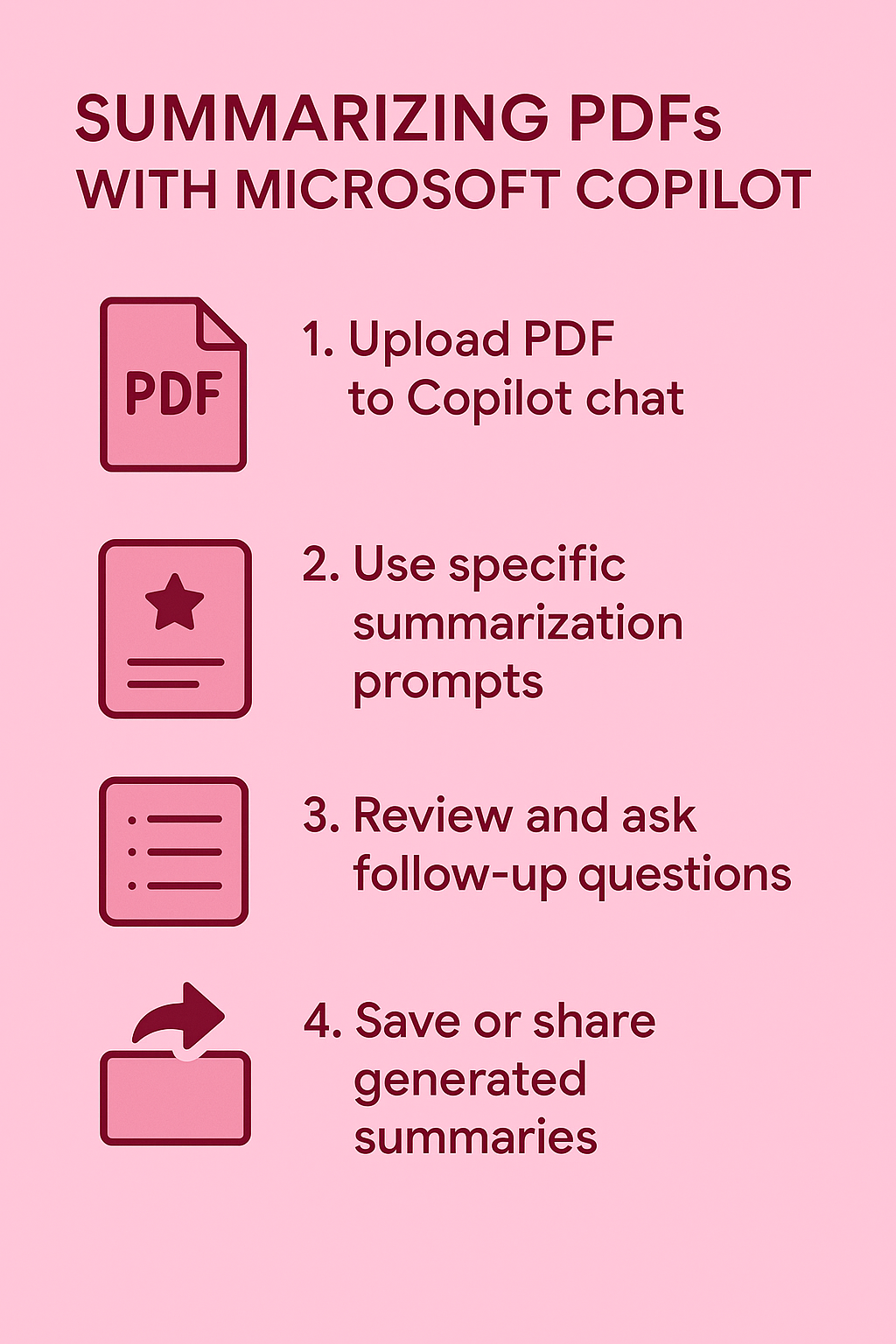
- Navigate to the Microsoft Copilot interface through your web browser or Microsoft 365 portal and locate the attachment icon in the chat input area.
- Click the paperclip or attachment button and select your PDF file from your local computer, OneDrive, or SharePoint location for processing.
- Wait for the upload confirmation message to appear, indicating that Copilot has successfully received and processed your PDF document for analysis.
- Type your summarization request using specific prompts such as “Summarize this PDF document” or “Extract the key points from this report” to initiate the analysis.
- Review the generated summary and ask follow-up questions like “What are the main recommendations?” or “Highlight any financial data mentioned” for deeper insights.
Expert Tip: Upload multiple related PDFs simultaneously to create comparative summaries and identify common themes across different documents.
Can Copilot summarize PDF files stored in SharePoint libraries
SharePoint integration enables seamless PDF summarization without manual file transfers, allowing you to work directly with documents stored in your organizational repositories.
- Access your SharePoint site and navigate to the document library containing the PDF files you want to summarize for your analysis needs.
- Open Microsoft Copilot Chat and reference the SharePoint document using the format “@filename.pdf” or by sharing the direct SharePoint link to the document.
- Alternatively, use the “Reference a file” option in Copilot Chat to browse and select PDF documents directly from your connected SharePoint libraries.
- Provide specific instructions such as “Create a 3-paragraph summary of the quarterly report” or “List the action items mentioned in this meeting document” for targeted results.
- Save the generated summaries back to SharePoint as separate documents or copy the content into existing project documentation for team collaboration.
Summarize PDF using Copilot advanced prompting
Microsoft Copilot PDF summary optimization through structured prompts
Effective PDF summarization requires strategic prompting that guides Copilot to focus on the most relevant information for your specific business needs and objectives. You can apply similar techniques to those used when summarizing large Word documents with Copilot, adapting your prompts to extract exactly what you need from PDF content.
- Begin with context-setting prompts that specify your role and purpose, such as “As a project manager, summarize this technical specification document focusing on timeline and resource requirements.”
- Request structured outputs by asking for bullet points, numbered lists, or specific sections like “Create a summary with separate sections for findings, recommendations, and next steps.”
- Use comparative analysis prompts when working with multiple PDFs, such as “Compare the key findings between these two research reports and highlight the differences.”
- Apply filtering techniques by requesting summaries focused on specific topics, such as “Summarize only the financial information and budget allocations mentioned in this proposal.”
- Leverage follow-up questions to drill down into specific areas of interest, asking “Expand on the risk assessment section” or “Provide more details about the implementation timeline.”
Important Tip: Save your most effective prompts as templates to maintain consistency when summarizing similar types of PDF documents across different projects.
Can Copilot summarize a PDF with custom formatting and output preferences
Tailoring the summary format ensures that the generated content aligns with your reporting standards and organizational communication preferences for maximum usability.
- Specify output length requirements using prompts like “Provide a 200-word executive summary” or “Create a detailed 5-page analysis with subsections” to match your needs.
- Request specific formatting styles such as “Format the summary as a professional memo” or “Create a presentation-ready summary with key takeaways” for different audiences.
- Ask for targeted audience adaptations using prompts like “Summarize this technical document for non-technical stakeholders” or “Create a summary suitable for executive leadership review.”
- Include action-oriented requests such as “Identify all deadlines and create a task list” or “Extract all contact information and create a reference table” for operational use.
- Combine multiple output formats by requesting “Provide both a brief overview and a detailed analysis section” to serve different stakeholder information needs effectively.
Verify a PDF summary against the source
Ask for a structured result that includes the main finding, supporting points, unresolved questions, and page references when the Copilot experience can provide them. Then open each cited page and compare names, dates, figures, exceptions, and obligations. A summary is a navigation aid, not a substitute for reviewing the controlling passage in a contract, policy, financial statement, or technical specification.
Choose the Copilot route that matches the file
Microsoft 365 Copilot supports PDF work in several contexts, including file upload and supported files stored in OneDrive. The available controls, file limits, and data protections can differ between personal Copilot and a work or school Microsoft 365 experience. Confirm which account and product surface you are using before uploading business content. Do not assume that a consumer chat session follows the same organizational controls as your tenant.
Improve results from scanned or complex PDFs
If text cannot be selected in the PDF, it may be an image scan and need optical character recognition before reliable summarization. Tables, footnotes, multi-column layouts, and appendices can also be missed or merged. Ask Copilot to summarize a limited page range, extract one table, or list uncertainties rather than requesting one broad answer for a long document. Compare the output with the visible page layout.
Protect confidential material
Use only an approved Microsoft 365 account and storage location for confidential PDFs. Check sharing permissions before summarizing a file from OneDrive or SharePoint, and remove access that is no longer needed. Do not paste secrets, personal data, or privileged content into an unapproved assistant. When accuracy or compliance matters, keep the reviewed source pages and human-approved summary together so later readers can trace each important statement.
For a multi-file comparison, label each PDF with a short source name in the prompt and ask Copilot to separate facts by document. This makes contradictions visible and reduces the risk of blending requirements from different versions.
Copilot summary of PDF troubleshooting common challenges and solutions
Processing PDF documents through Microsoft Copilot occasionally encounters technical limitations or formatting issues that require specific workarounds to achieve optimal summarization results.
- File size limitations preventing upload: Large PDF files may exceed Copilot’s processing limits, requiring you to split documents into smaller sections or compress files before uploading for analysis.
- Scanned PDF recognition errors: Image-based PDFs without text layers may produce incomplete summaries, necessitating OCR conversion through tools like Adobe Acrobat before Copilot processing.
- Complex formatting disrupting analysis: PDFs with intricate layouts, tables, or graphics may confuse Copilot’s text extraction, requiring manual reformatting or conversion to simpler document formats.
- Incomplete summary generation: When Copilot provides partial summaries, try breaking your request into smaller, more specific prompts or ask for section-by-section analysis instead of full document processing.