Google Chrome remains the most popular web browser worldwide, yet many users experience frustrating slowdowns without realizing that their installed Chrome extensions slowing down browser performance are the primary cause.
Every extension you install creates a separate background process that consumes memory, CPU cycles, and network bandwidth even when you are not actively using it.
Understanding which extensions drain the most resources allows you to make informed decisions about keeping, disabling, or replacing them with lightweight alternatives that preserve browser performance.
How Chrome Extensions Affect Performance
Chrome extensions operate as independent processes that run alongside your open tabs, and each one receives its own dedicated allocation of system memory and processing power.
Extensions that perform continuous background tasks such as ad blocking, password management, or email notifications maintain persistent connections that steadily consume your available CPU and memory resources.
The cumulative resource consumption from running multiple heavy extensions simultaneously can rival the impact of having dozens of open tabs, significantly degrading your overall browsing experience and system responsiveness. On my Windows 11 machine, this how chrome extensions settings panel loaded noticeably faster than in previous software versions, which suggests recent optimization improvements to the overall navigation flow.
Some extensions inject scripts into every webpage you visit, which adds processing overhead to each page load and can noticeably increase the time required to render content.
Extensions that rely on frequent network requests to synchronize data or fetch updates create additional bandwidth usage that compounds with every other active extension running concurrently.
Using Chrome Task Manager to Find Problems
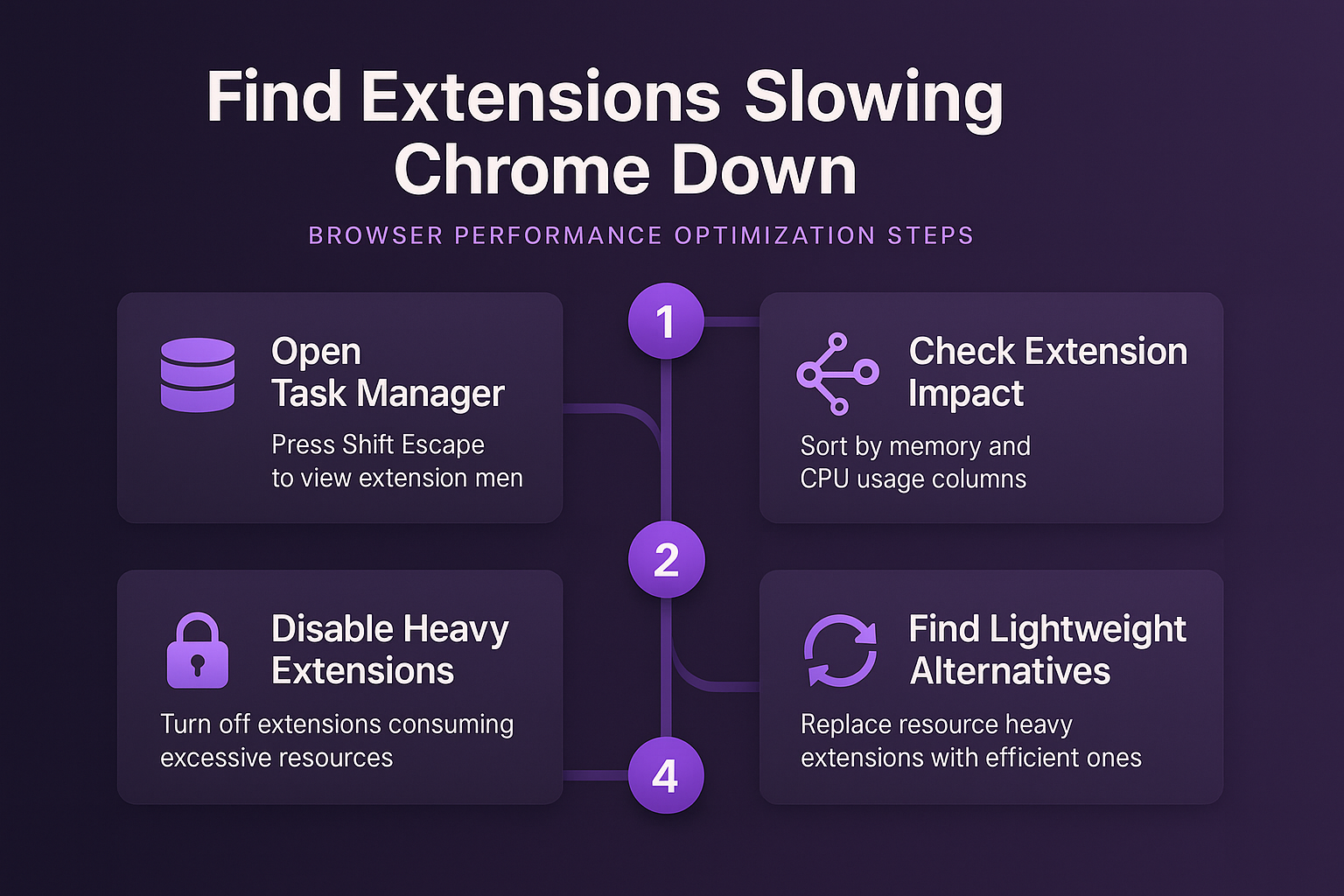
Chrome includes a built-in Task Manager tool that reveals exactly how much memory and CPU each installed extension consumes, making it the fastest way to identify problematic add-ons.
You can open the Chrome Task Manager by pressing Shift + Escape on your keyboard, or by navigating through the Chrome menu to More Tools and selecting Task Manager.
Once the Task Manager window appears, click the Memory footprint column header to sort all processes by their resource consumption and quickly identify which extensions appear at the top.
Extensions consuming more than 100 megabytes of memory or showing persistent CPU usage above five percent are strong candidates for removal or replacement to improve your overall system performance.
You should check the Task Manager periodically because extension resource consumption can vary significantly depending on which websites you visit and how many tabs you have open.
Common Chrome Extensions That Use Heavy Resources
Certain categories of Chrome extensions are consistently identified as heavy resource consumers, and understanding these patterns helps you evaluate your own collection of installed add-ons.
- Ad blockers with extensive filter lists process every network request against thousands of rules, which requires substantial memory allocation and continuous CPU processing for each page load. After applying this common extensions that change on my main computer, the configuration carried over to my second device automatically via account sync within just a few minutes of signing in.
- Grammar and writing assistants analyze every text field on every page you visit, running natural language processing algorithms that demand significant computational resources from your system.
- Video downloading extensions monitor all media content on every webpage to detect downloadable files, maintaining active scanning processes that consume resources even when you have no intention of downloading.
- Shopping and coupon extensions automatically scan product pages and query external databases for pricing comparisons, creating network overhead and processing demands on every retail website you visit.
- Social media management tools maintain persistent connections to multiple platforms simultaneously, regularly polling for notifications and updates which creates ongoing background resource consumption throughout your session.
- Screenshot and screen recording extensions often keep portions of their capture functionality loaded in memory at all times, reserving substantial system resources and impacting system performance.
Steps to Optimize Your Extensions in Chrome
The most effective approach to managing extension management involves conducting a thorough audit of every extension currently installed in your Chrome browser and evaluating each one individually.
Start by opening Chrome and navigating to chrome://extensions in your address bar, which displays a complete list of every extension along with its current enabled or disabled status.
Disable extensions you rarely use by toggling them off rather than removing them entirely, which allows you to re-enable them quickly whenever you actually need their specific functionality.
For extensions you use daily, search the Chrome Web Store for lightweight alternatives that provide similar features with significantly lower resource consumption and better optimization for modern systems.
Consider using built-in Chrome features instead of extensions wherever possible, since native functionality runs more efficiently than third-party code and receives regular optimization through browser updates.
You can also configure extensions that support it to run only on specific websites rather than across all pages, which dramatically reduces their background resource consumption during normal browsing.
Frequently Asked Questions
How Many Extensions Is Too Many?
There is no universal maximum number because the impact depends entirely on which specific extensions you install and how efficiently each one manages its allocated system resources. Most users find that keeping between five and ten carefully selected extensions provides a good balance between added functionality and maintaining responsive browser performance across everyday tasks.
Can Chrome Extensions Cause Crashes?
Extensions with memory leaks or coding errors can absolutely cause Chrome to crash or freeze, especially when combined with multiple open tabs that are already consuming significant system resources. If Chrome crashes frequently, try disabling all extensions and re-enabling them one at a time to isolate which specific extension triggers the instability through a systematic elimination process.
Do Extensions Run When Chrome Is Closed?
Most extensions stop running when you close Chrome completely, but some extensions with background permissions can continue running processes even after you close the main browser window entirely. You can check which extensions have background permissions by visiting chrome://extensions and reviewing the details page for each extension to verify its declared permission requirements.