A Microsoft Forms response can trigger Power Automate, retrieve the complete answers, populate Word content controls, and save a new .docx file. The key is preparing a supported Word template: ordinary blank spaces and typed brackets do not become dynamic fields.
This walkthrough creates a maintainable template, maps form answers, and stores the generated document in SharePoint or OneDrive for Business. It also covers a few important connector limits, including unique content-control names and the need to create the template in desktop Word.
Build a template the connector can read
Open desktop Word and enable the Developer tab. Create the document’s fixed text, tables, headers, and styles first. Then place a Plain Text Content Control wherever a Forms value should appear.
Select each control, open Properties, and assign a unique short title such as RequesterName, Department, or Summary. The title is what Power Automate exposes as a field. Duplicate titles cause the same value to populate more than one control, so name every control deliberately.
Use supported controls only
The Word Online (Business) connector supports a defined set that includes plain text, combo box, drop-down list, image, and repeating section content controls. It does not support rich text, date picker, check box, building block gallery, or legacy form controls. Use plain text for dates and yes/no answers when you want predictable mapping.
Format the content control in Word before saving; the generated document preserves the surrounding template formatting. If a long answer should contain multiple paragraphs, enable Allow carriage returns (multiple paragraphs) in that content control’s properties.
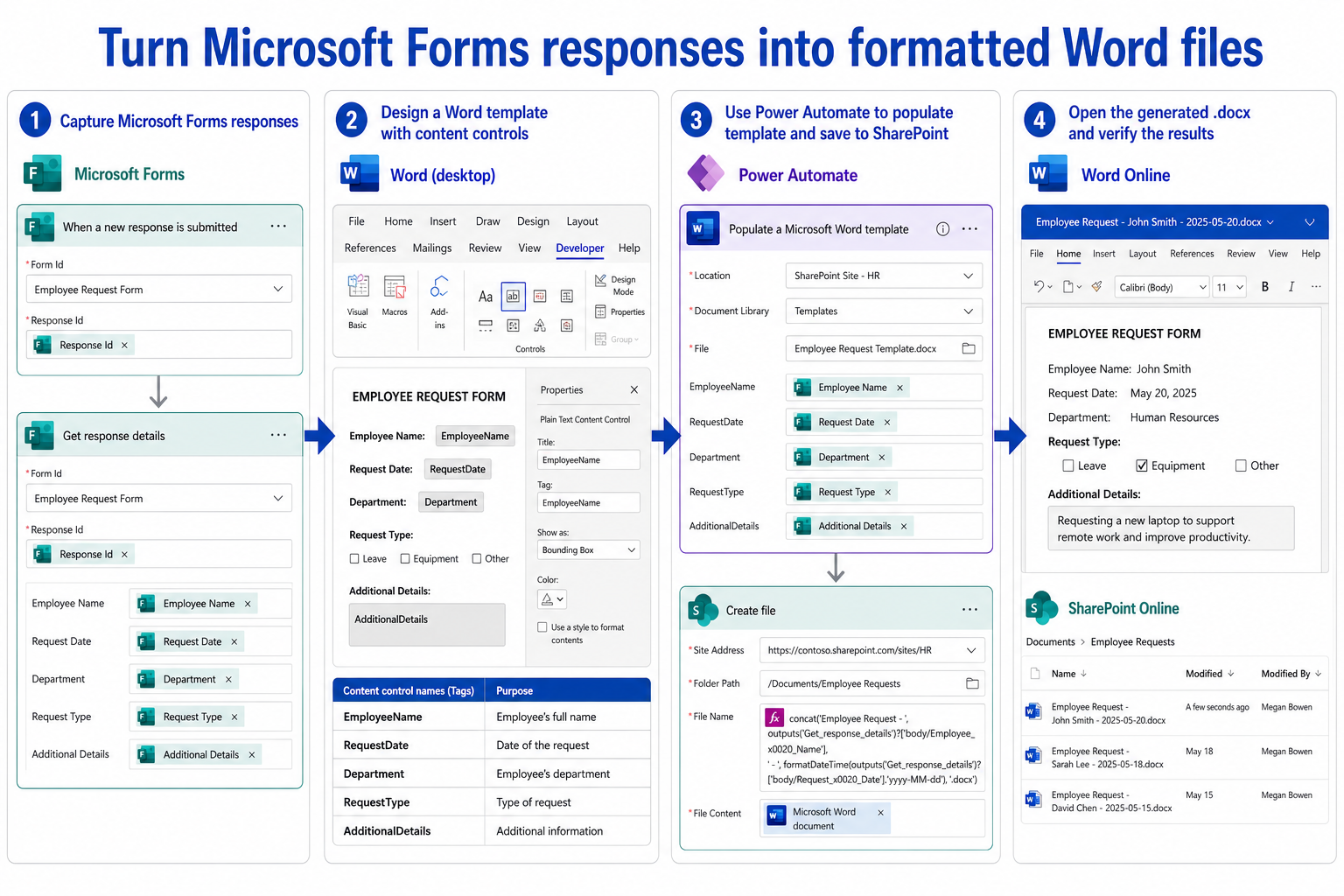
Save the template as a .docx file in OneDrive for Business or a SharePoint document library. The connector’s template input is limited to 10 MB, so remove unused high-resolution images. Template creation is not supported in Word for the web, and Microsoft documents that template creation in Word for Mac is not supported for this connector scenario.
If the Developer tab is hidden, the ribbon setup instructions explain how to expose it before adding the controls.
Create the response-driven flow
In Power Automate, create an Automated cloud flow with the Microsoft Forms trigger When a new response is submitted. Select the correct form.
Add the Microsoft Forms action Get response details. Choose the same form and place the trigger’s Response Id token in the action’s Response Id field. The trigger identifies the submission, while Get response details supplies the individual answers needed later.
Populate the controls
Add Word Online (Business) > Populate a Microsoft Word template. Select the location, document library, and template file. Once Power Automate reads the template, the uniquely titled controls appear as fields.
Map each field to the corresponding Forms answer from Get response details. Pay attention to similarly named questions and optional responses. Use a Compose expression or condition when an empty answer should become a default phrase rather than a blank space.
The action returns the populated document as binary content. It does not automatically create a visible file in your library.
Save the generated document
Add Create file from SharePoint or OneDrive for Business. Choose the destination folder, construct a safe file name, and use the output of Populate a Microsoft Word template as File Content.
Avoid using an unfiltered Forms answer as the entire filename. Remove characters that the storage service rejects, add a stable identifier such as the response ID, and include .docx. A pattern like Request-1234-Ada-L.docx is easier to audit than a long subject line.
If a following action immediately reads or converts the file, Microsoft recommends allowing a short delay so the newly created document is available. Use a controlled delay or retry policy rather than creating duplicate files after a transient not-found response.
When the flow later sends the file by email, the attachment construction example helps distinguish document content from an ordinary sharing link.
Test the complete chain
Submit a test response that includes long text, a blank optional answer, punctuation, and any choice fields. Open the flow run history and check the trigger, response-detail output, populated-template action, and create-file action in order.
Open the resulting .docx in desktop Word. Verify that every value appears once, paragraphs wrap correctly, dates have the intended presentation, and fixed template text remains unchanged. Also check the document’s accessibility and sensitivity-label requirements before using the process for real business records.
A control does not appear in Power Automate
Confirm it is a supported content control with a unique title and that the template was saved after the control was added. Reselect the template to refresh the action schema. If the fields stay stale, remove and add the populate action again, then remap the answers.
The created document is corrupt
The Create file action must receive the binary document output, not an object converted to text and not a link. Recreate the mapping directly from the populated-template action. Also confirm the filename ends in .docx.
A choice or date looks wrong
Forms returns values in its own response shape. Use an expression or Compose action to join multiple selections or format a date before mapping it into the Word field. Keep that transformation visible in the flow instead of embedding unexplained logic in a filename.
Questions people ask before launch
Is the Word connector a premium connector?
Licensing and connector availability depend on your Power Automate plan and tenant. Check the connector designation in your environment and confirm that every intended flow owner has the required license before moving the solution into production.
Can I add a repeating table?
Yes, the connector supports repeating section content controls with nested supported controls. The flow must pass an array whose object keys match the unique titles of the nested controls, so start with a simple one-row template and test the schema carefully.
Can the template include an image field?
Yes. Use an image content control and pass supported JPG or PNG file content in the connector’s expected format. Size the placeholder in Word because inserted images follow that control’s dimensions rather than automatically preserving the source aspect ratio.
Why are generated controls locked in Word?
The connector-created document can leave content controls locked or greyed in desktop Word. If recipients need free editing, test the user experience and consider a controlled post-processing step or a different document-generation design rather than promising ordinary editable placeholders.
Put ownership around the flow
Store the form, flow, template, and output library in governed business locations, then record who can edit each component. A changed question title does not necessarily break the form connector, but removing actions or replacing the template can invalidate mappings. Keep one test response and expected document for regression checks. With uniquely named supported controls and explicit file creation, the workflow remains understandable long after its original author moves on.