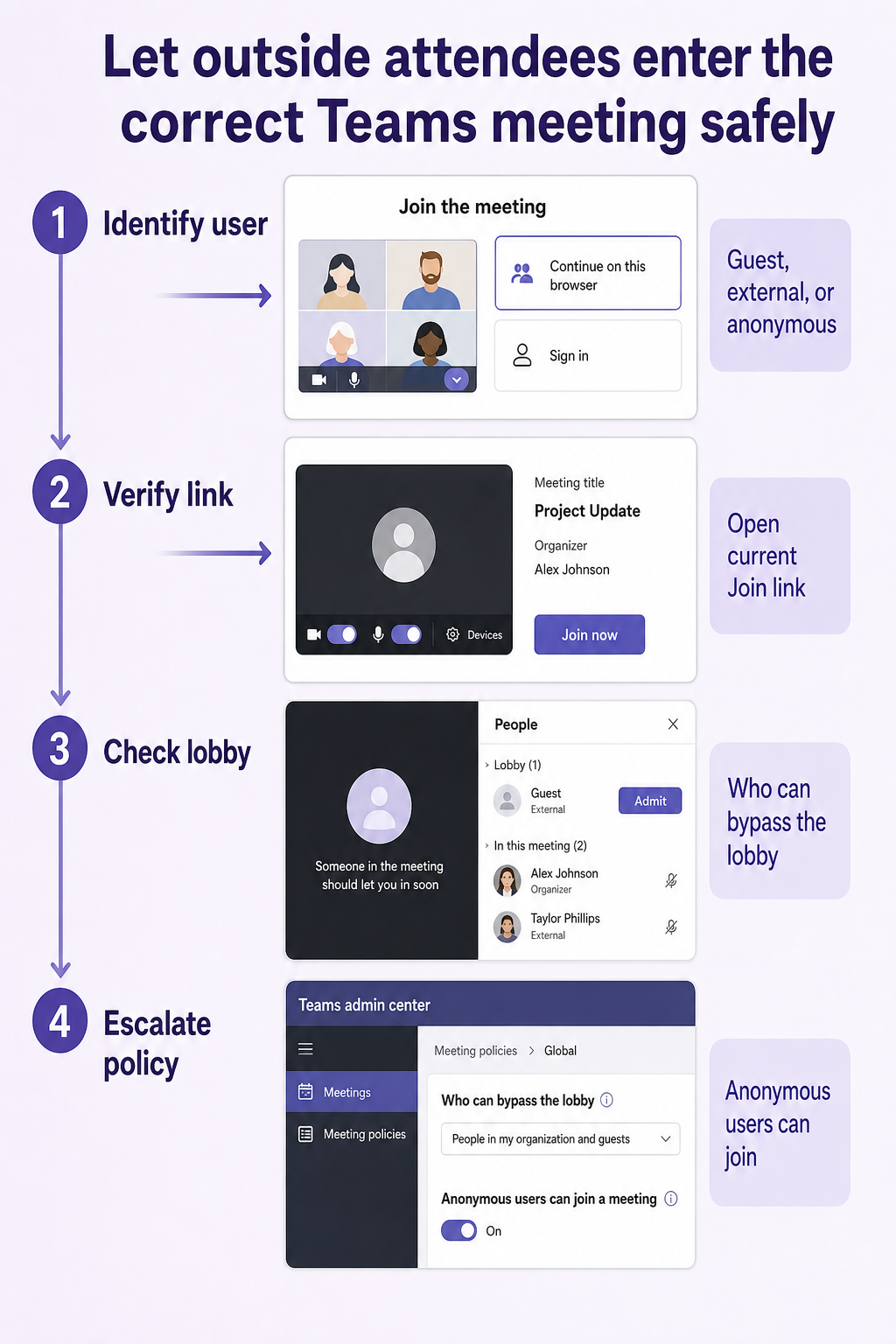
“External user” can mean three different identities in Teams: a guest account in the host tenant, a signed-in user from another organization, or an anonymous participant using the meeting link. Each route is governed differently, so the first task is to name the join type.
A participant waiting in the lobby is not the same as a participant blocked before the lobby. Capture the exact screen and message. The difference determines whether the organizer can solve it during the meeting or an administrator must change policy.
Classify the failure at the door
Before the lobby
Send the current invitation, not a copied fragment from an old chat. The invitation-link check helps confirm that the Join link belongs to the intended occurrence. Ask the attendee to try a private browser window and choose the intended identity deliberately.
Inside the lobby
If the attendee reaches the lobby, the link and anonymous join path are basically working. An organizer, co-organizer, or authorized presenter may need to admit them, depending on Who can bypass the lobby. Use the meeting-options walkthrough to review participant controls without recreating the meeting.
Use a decision path, not repeated retries
- Ask whether the user is signed in, signed in as a guest, or joining anonymously. Record the email domain and client without collecting passwords.
- Confirm date, time, and current meeting link. Test the link in a private browser window.
- If the user reaches the lobby, have the organizer open People and admit them. Review Who can bypass the lobby for future occurrences.
- If the user is blocked before the lobby, try joining anonymously while signed out, if company rules allow it. A successful anonymous test isolates the external-account route.
- Escalate with the organizer account, affected domain, join type, exact error, and test result. Teams policy can restrict anonymous join or which external meetings users may join.
Respect both organizations’ controls
Microsoft explains that external participants inherit the organizer’s meeting policy, while the attendee’s organization can also restrict joining meetings hosted elsewhere. External access relationships may need to be allowed by both organizations. The organizer cannot override every admin rule from Meeting options.
Avoid setting the lobby to Everyone merely to fix one attendee unless the organizer accepts the security tradeoff. Grant only the access needed, verify the participant’s identity after admission, and restore stricter settings when appropriate.
Capture the attendee’s join route
Ask the attendee to describe the identity used and the last screen reached. A lobby screen, policy banner, and expired link require different owners and fixes. Change only one variable before repeating the test, and keep the failing example unchanged until the comparison is complete.
For outside attendees, record the identity route without collecting credentials: guest account, signed-in external account, or anonymous browser join. Note whether the participant reaches pre-join, lobby, or a policy error. The organizer can often handle lobby admission, while a block before the lobby usually needs policy review in one or both organizations.
When results differ between desktop and web, do not keep changing both clients. A working web result usually proves that the cloud object and account still exist, leaving desktop installation, operating-system permission, or cached session as the narrower scope. Failure in both places makes the item, account, policy, connector, or service configuration more likely.
For a managed account, provide the affected identity, client, time, one reproducible example, the second-client result, and any visible error. Keep screenshots focused on the relevant pane and remove private names. Avoid sending passwords, private documents, recordings, or full card payloads unless the support owner requests them through an approved channel.
Before closing this Teams issue, repeat the successful path with a second ordinary example. If the second example works, preserve the original failure for object-specific review. If it fails in the same place, the shared client, account, permission, policy, or connector layer remains the stronger lead.
Practical verification notes
Repeat the successful path with a second ordinary example before calling the issue resolved. The second test should use the same account and client but a different item, meeting, file, or run. If only the original example fails, investigate that object’s settings and history. If both fail, continue at the client, policy, connector, or service layer.
Keep rollback simple. Save existing settings before changing them, avoid deleting shared data during diagnosis, and prefer reversible tests such as a new appointment, copied flow, private meeting, or sample file. This protects production work while giving support a clean comparison.
External attendee FAQ
Why can the user open the link but never enter?
They may be waiting for admission, using an identity the host does not trust, or encountering an anonymous-join restriction. Ask for the exact screen. “Waiting in lobby” points to meeting options; a policy error before the lobby points to tenant configuration.
Does guest access have to be enabled for every meeting visitor?
No. Anonymous join and external access are different from a guest account in the host tenant. Choose the least complex identity that meets the collaboration need and your organization’s policy.
Can the organizer change the setting during the meeting?
Many meeting options can be changed by the organizer or co-organizer and can affect the running meeting quickly. Tenant-wide restrictions still win. If the relevant option is unavailable, involve the Teams administrator.
What if only one external company is affected?
Compare a user from another domain and an anonymous signed-out test. A domain-specific pattern suggests external access or trusted-organization configuration. Share both results with administrators from the host and attendee organizations.
Admit the person, preserve the boundary
The clean resolution identifies both the join type and the control that blocked it. Confirm the attendee can enter the correct meeting and has only the intended role. For recurring meetings, verify whether the option applies to future occurrences, then document the policy owner so the next external invite does not become a last-minute emergency.